Downtime Text Templates
Templates for creating downtimes can be added in the Downtime Text Templates section. A downtime text template can be selected in the Shift Book in the Additional notes section in the Add downtime dialog, see Adding Downtime Dialog in the Shift Book user guide. A template can be defined for all (global) or specific lines.
Prerequisites
-
Administration: UserorAdministration: Adminrole -
The Configuration tab is open. Configuration tab
Procedure
Select the Downtime Text Templates section from the section drop-down list  .
.
The Downtime Text Templates section opens.
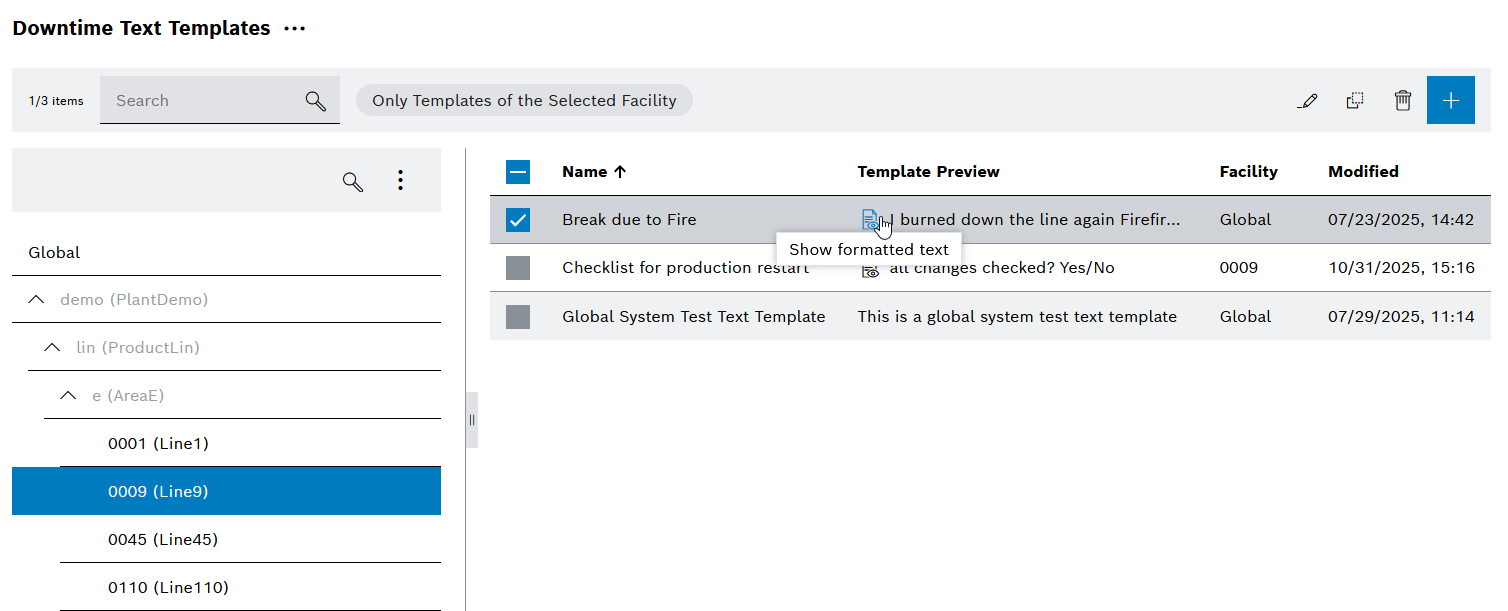
Description of the interaction elements for downtime text templates
The following interaction elements are available for managing downtime text templates:
| Element | Description |
|---|---|
|
Search for downtime text templates |
Only templates of the selected facility |
Displays only the downtime text templates of the selected facility |
|
|
|
|
|
|
|
|
|
Expands the next child element of the facility |
|
Collapses all child elements of the facility |
|
Deselect/select downtime text template |



Add downtime text template
Prerequisites
-
Administration: Adminrole -
The Downtime Text Templates section is open. Downtime Text Templates section
Procedure
-
Click
 .
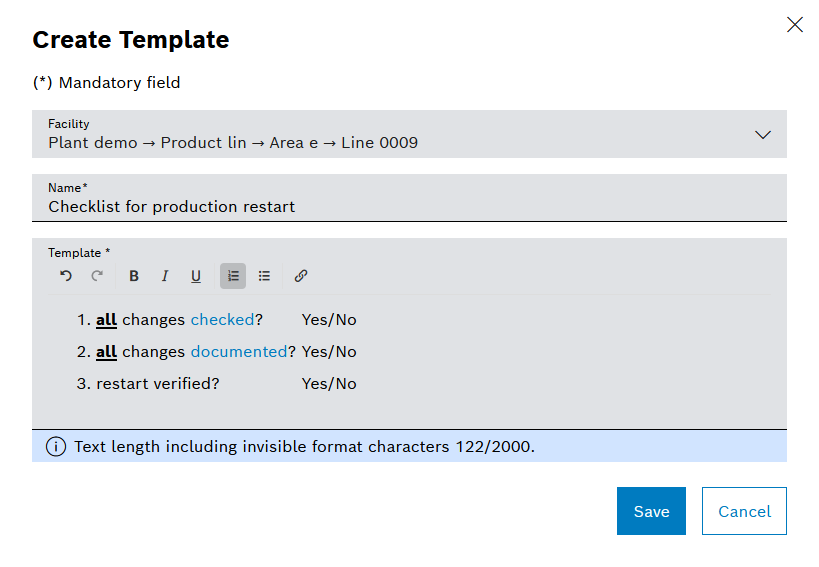
.The Create Template dialog opens.
-
Enter information.
-
Facility
Select facility (use Global or select a specific line).
-
Name
Enter the name for the downtime text template.
The name must be unique for the selected facility (including inheritance).
The name is not language-dependent.
-
Template text
Enter text for the downtime text template.
Markdown formatting (bold, italic, underlined, lists and links) is supported.
The template text is not language-dependent.
-
-
Click Save.
The downtime text template has been added and is displayed under the downtime text templates.
Editing a downtime text template
Prerequisites
-
Administration: UserorAdministration: Adminrole -
The Downtime Text Templates section is open. Downtime Text Templates section
Procedure
-
Search for a downtime text template.
-
Select the downtime text template by activating the checkbox at the beginning of the row.
-
Click
 Edit.
Edit.The Edit Template dialog opens.
-
Make changes.
-
Click Save.
The changes to the downtime template are saved.
Duplicating a downtime text template
Prerequisites
-
Administration: UserorAdministration: Adminrole -
The Downtime Text Templates section is open. Downtime Text Templates section
Procedure
-
Search for a downtime text template.
-
Select the downtime text template by activating the checkbox at the beginning of the row.
-
Click
 Duplicate.
The Create Template dialog opens.
-
Make changes.
-
Click Save.
The downtime template is duplicated.
|
The name must be unique for the selected facility (including inheritance). Therefore, when duplicating, you must select either a different facility or a different name. |
Delete downtime text templates
Prerequisites
-
Administration: Userrole -
The Downtime Text Templates section is open. Downtime Text Templates section
Procedure
-
Search for downtime text templates.
-
Select at least one downtime text template by activating the checkbox at the beginning of the row.
The Delete Downtime Text Templates_ dialog is open.
-
Click Delete.
The downtime text templates are deleted.