Nexeed
    • Introduction
    • User manual
      • Type groups and types
        • Description of the interaction elements for type groups
        • Search for type group
        • Create type group
        • Edit type group
        • Deleting a type group
        • Display types of a type group
        • CSV import type group and types
        • CSV export type group and types
      • Target cycle times
        • Description of the interaction elements for target cycle times
        • Search for type group
        • Select equipment
        • Select time stamp
        • Filter type groups with target cycle time
        • Display target cycle time history
        • Edit target cycle times
        • Delete target cycle time history
        • CSV import target cycle times
        • CSV export target cycle times
        • Configure columns
      • Target values
        • Description of the interaction elements for setpoints
        • Search for type group or KPI
        • Select equipment
        • Select display mode
        • Select KPI element or type group
        • Select time stamp
        • Filter type groups or KPI elements with target values
        • Display target value history
        • Edit target values
        • Delete target value history
      • Downtime Causes
        • Description of the interaction elements for downtime causes
        • Search for downtime causes
        • Filter downtime causes
        • Removing duplicates
        • Create downtime cause
        • Edit downtime cause
        • Delete downtime cause
        • Edit translations
        • Merge downtime causes
        • CSV Import downtime causes
        • CSV export downtime causes
        • Configure columns
      • Configuration
        • System configuration section
        • Auto-insert station error
        • Station error blocklist
        • Downtime Text Templates
        • Facility management
        • Facility configuration
    • Operations manual
    • API documentation
    • Glossary
Shopfloor Management Administration
  • Industrial Application System
  • Core Services
    • Block Management
    • Deviation Processor
    • ID Builder
    • Multitenant Access Control
    • Notification Service
    • Ticket Management
    • Web Portal
  • Shopfloor Management
    • Andon Live
    • Global Production Overview
    • KPI Reporting
    • Operational Routines
    • Shift Book
    • Shopfloor Management Administration
  • Product & Quality
    • Product Setup Management
    • Part Traceability
    • Process Quality
    • Setup Specs
  • Execution
    • Line Control
    • Material Management
    • Order Management
    • Packaging Control
    • Rework Control
  • Intralogistics
    • Stock Management
    • Transport Management
  • Machine & Equipment
    • Condition Monitoring
    • Device Portal
    • Maintenance Management
    • Tool Management
  • Enterprise & Shopfloor Integration
    • Archiving Bridge
    • Data Publisher
    • Engineering UI
    • ERP Connectivity
    • Gateway
    • Information Router
    • Master Data Management
    • Orchestrator

Nexeed Learning Portal

  • Shopfloor Management Administration
  • User manual
  • Downtime Causes
  • Configure columns

Configure columns

Prerequisites

  • Administration: User or Administration: Admin role

  • The Downtime Causes tab opens. Downtime Causes tab

Procedure

  1. Click table Columns.

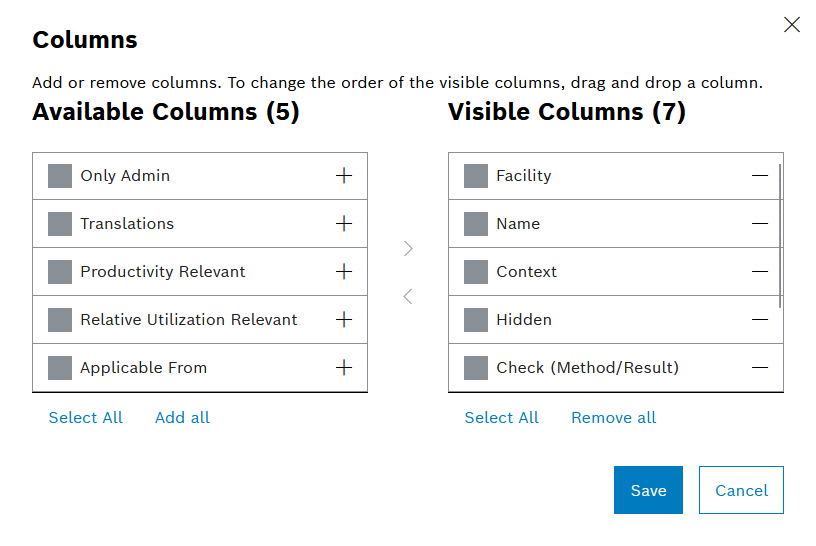
    The Columns dialog opens.

    kpi_dialog_columns_2024_02
  2. The individual column titles can be moved between the Available Columns and Visible Columns panes using drag-and-drop.

    Or:

  3. Activate the checkboxes of the column titles to be moved.

    • forward-right : Move selected column titles to the Visible Columns pane.

    • back-left : Move selected column titles to the Available Columns pane.

      Or:

  4. Move individual column titles:

    • add_black : Activate the corresponding column title in the Available Columns list

    • less-minimize : Deactivate the corresponding column title in the Visible Columns list

      Or:

    • Add all : Move all column titles to the Visible Columns pane.

    • Remove all : Move all column titles to the Available Columns pane.

    • Select all : Activate the checkboxes of all column titles in the Visible Columns pane or in the Available Columns pane.

    • Deselect all : Deactivate the checkboxes of all column titles in the Visible Columns pane or in the Available Columns pane.

      The horizontal arrangement of the columns in the Visible Columns pane can be sorted using drag-and-drop. The column title at the top appears in the table on the left.

  5. Click Save.

The table containing the downtime causes is displayed with the desired columns.

Contents

© Robert Bosch Manufacturing Solutions GmbH 2023-2025, all rights reserved

Changelog Corporate information Legal notice Data protection notice Third party licenses