Nexeed
    • Introduction
    • User manual
      • General descriptions
        • Result lists
        • Scope Concept
      • Basic setup
        • Connection management
        • Scope Management
          • Configuration Scopes
          • Reporting Scopes
      • Traceability
        • Types of evaluations
        • Search Forms for creating an evaluation
        • Part Protocol
          • Quick Search
          • Extended Search
          • Part View
          • Process View
          • Component View
          • Part Information
          • Process Information
        • Forward Search
          • Quick Search
          • Extended Search
        • Backward Search
        • Tool Usage
        • Packaging Information
          • Quick Search
          • Extended Search
      • Archiving
        • Enable archiving
        • Monitoring
      • Quality Gate
        • Types of Quality Gate Checks
        • Working with Test Specifications
        • Testing of Test Specifications
          • Basic test client
          • Expert test client
          • JSON based test client
      • Terms and definitions
        • Archiving states
        • Connection states
        • Packaging data
        • Part blocks
        • Process data
        • SPC session data
        • Test Specifications
    • Operations manual
      • Overview
      • System architecture and interfaces
        • Data Collector Service
        • Data Browser Service
        • Archiving Bridge Adapter Service
        • Configuration Service
        • Quality Gate Service
        • Reporting Service
        • Quality Database (QDB)
        • Archiving Bridge Adapter Service database
      • System requirements
      • Migration from previous versions
        • Migration from MES QualityData
        • Part Traceability upgrades
      • Setup and configuration
        • Base configuration
        • Quick start configuration
        • Application and service account roles
        • Scope-based configurations
        • Data Collector Service
        • Data Browser Service
        • Archiving Bridge Adapter Service
        • Reporting Service
        • Quality Database (QDB)
        • Module database
        • Archiving Bridge Adapter Service database (QDAB)
        • Resources in Part Traceability
        • Dos and don’ts in databases
      • Start and shutdown
      • Regular operations
      • Failure handling
      • Backup and restore
      • Logging and monitoring
      • Known limitations
    • Developer documentation
      • Deep Dives
        • Forwarding via Data Publisher
        • Resolving of Scopes
      • Quality Gate Checks
        • Structuring of Test Specifications
        • Input and output parameters
          • Check Block List
          • Check Complete (location based)
          • Check Complete (process based)
          • Check Component
          • Bypass Check Complete
          • Check Trace Mapping
          • Check Characteristics
      • Troubleshooting
    • API documentation
      • Data Browser Service
      • Data Collector Service
        • Structure and content of telegrams
          • basicInfo
          • partDetails
          • componentTrace
          • additionalInfo
          • packaging
      • Quality Gate Service
      • Archiving Bridge Adapter Service
    • Glossary
Part Traceability
  • Industrial Application System
  • Core Services
    • Block Management
    • Deviation Processor
    • ID Builder
    • Multitenant Access Control
    • Notification Service
    • Ticket Management
    • Web Portal
  • Shopfloor Management
    • Andon Live
    • Global Production Overview
    • KPI Reporting
    • Operational Routines
    • Shift Book
    • Shopfloor Management Administration
  • Product & Quality
    • Product Setup Management
    • Part Traceability
    • Process Quality
    • Setup Specs
  • Execution
    • Line Control
    • Material Management
    • Order Management
    • Packaging Control
    • Rework Control
  • Intralogistics
    • AGV Control Center
    • Stock Management
    • Transport Management
  • Machine & Equipment
    • Condition Monitoring
    • Device Portal
    • Maintenance Management
    • Tool Management
  • Enterprise & Shopfloor Integration
    • Archiving Bridge
    • Data Publisher
    • Engineering UI
    • ERP Connectivity
    • Gateway
    • Information Router
    • Master Data Management
    • Orchestrator

Nexeed Learning Portal

  • Part Traceability
  • User manual
  • Traceability
  • Search Forms for creating an evaluation

Search Forms for creating an evaluation

Depending on the evaluation, one or two search forms (Quick Search and Extended Search) with different search parameters are available for each evaluation. The search parameters should be selected in a way that they are as precise and restrictive as possible so that the result list does not become too large. Search forms are available for the following use cases:

  • Part Protocol

  • Forward Search

  • Backward Search

  • Tool Usage

  • Packaging Information

Too large search scopes slow down the data query, make the data display unclear and lead to evaluations becoming impracticable as a whole.

Mandatory input fields are not limited to single input fields but can also be a combination of several input fields. The mandatory input fields are marked with an asterisk (*). They differ from use case to use case.
Find more information about mandatory fields by hovering the tooltip info_i_circle of the according search form.

Chipping of search terms

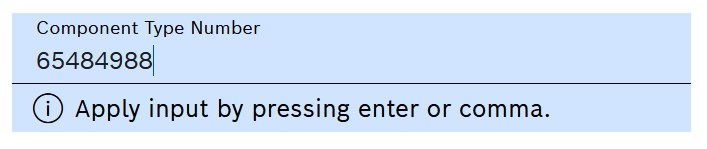
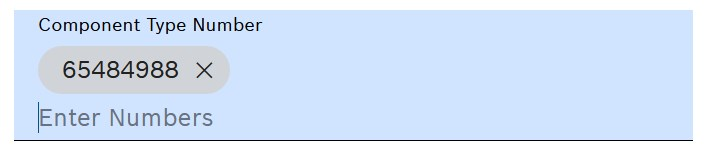
When entering Search Terms in Input Fields, entries get chipped by pressing ENTER. Only then the search term is saved in the input field and the next entry can be made or search can be started.

Chipping

  1. Click the Input Field.

  2. Enter the search term.

    Chipping

  3. Press ENTER.

    The search term is saved in the input field and a new empty line is opened for the next entry.
    Chipping

Multi-line editing

Instead of entering a search term directly in the search field, the multi-line editor allows for entering multiple search terms in a single input field. This is useful for entering long text strings or multiple values in a single field, e.g. when copy-pasting content from an external system.

Multi Line Editor

Element / Icon Description

Part ID

Example Input Field. Click to enter text.

List View

Click to open multi-line editor.

  1. Click on the list view

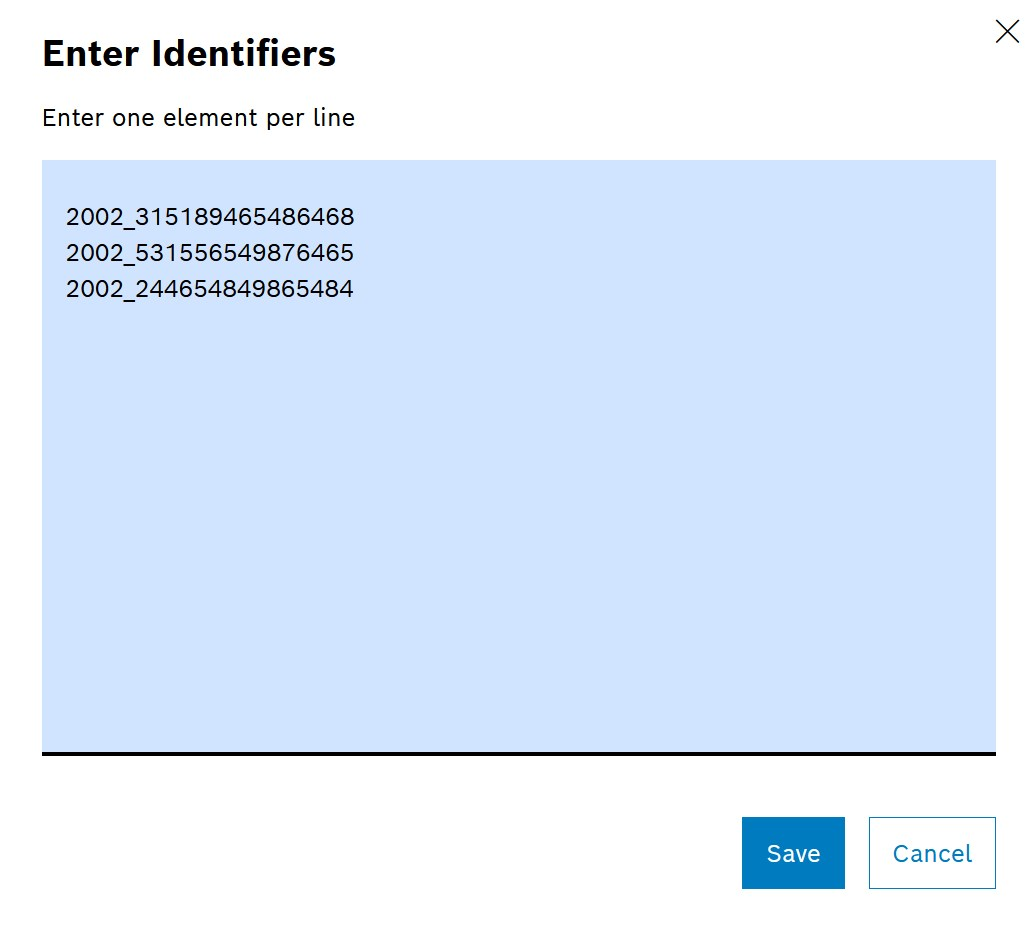
    The Multi-Line Editor opens.

    Multi Line Editor

  2. Enter the search terms in the Multi-Line Editor one per line.

  3. Click Save

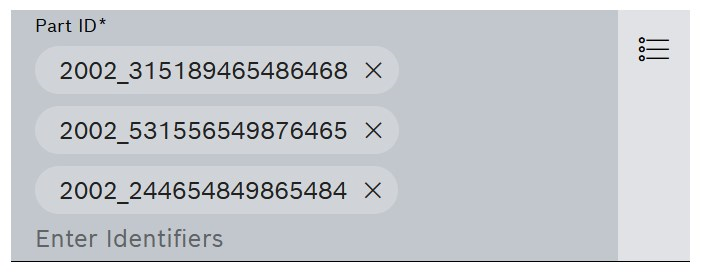
    The search terms are saved in the input field. This is indicated by Chipping of Search Terms
    Multi Line Editor

Wildcard search

Wildcard characters can be used in search terms to find matches based on patterns rather than exact values. This is useful when searching for partial information or when the exact search term is unknown.

Two wildcard characters are available:

Wildcard Description

%

Replaces several characters at once. Use this wildcard when you want to match any sequence of characters.

_

Replaces only one character. Use this wildcard when you want to match exactly one character in a specific position.

Examples:

  • ABC% - finds all entries starting with ABC (e.g., ABC123, ABCDEF, ABC-XYZ)

  • %ABC - finds all entries ending with ABC (e.g., 123ABC, XYZABC)

  • %ABC% - finds all entries containing ABC anywhere in the text

  • A_C - finds all three-character entries with A as first character and C as third character (e.g., ABC, A1C, AxC)

  • AB_ - finds all three-character entries starting with AB (e.g., ABC, AB1, ABx)

Wildcard characters can be combined within a single search term to create more complex search patterns.

Contents

© Robert Bosch Manufacturing Solutions GmbH 2023-2025, all rights reserved

Changelog Corporate information Legal notice Data protection notice Third party licenses