Nexeed
    • Introduction
    • User manual
      • General descriptions
        • Result lists
        • Scope Concept
      • Basic setup
        • Connection management
        • Scope Management
          • Configuration Scopes
          • Reporting Scopes
      • Traceability
        • Types of evaluations
        • Search Forms for creating an evaluation
        • Part Protocol
          • Quick Search
          • Extended Search
          • Part View
          • Process View
          • Component View
          • Part Information
          • Process Information
        • Forward Search
          • Quick Search
          • Extended Search
        • Backward Search
        • Tool Usage
        • Packaging Information
          • Quick Search
          • Extended Search
      • Archiving
        • Enable archiving
        • Monitoring
      • Quality Gate
        • Types of Quality Gate Checks
        • Working with Test Specifications
        • Testing of Test Specifications
          • Basic test client
          • Expert test client
          • JSON based test client
      • Terms and definitions
        • Archiving states
        • Connection states
        • Packaging data
        • Part blocks
        • Process data
        • SPC session data
        • Test Specifications
    • Operations manual
      • Overview
      • System architecture and interfaces
        • Data Collector Service
        • Data Browser Service
        • Archiving Bridge Adapter Service
        • Configuration Service
        • Quality Gate Service
        • Reporting Service
        • Quality Database (QDB)
        • Archiving Bridge Adapter Service database
      • System requirements
      • Migration from previous versions
        • Migration from MES QualityData
        • Part Traceability upgrades
      • Setup and configuration
        • Base configuration
        • Quick start configuration
        • Application and service account roles
        • Scope-based configurations
        • Data Collector Service
        • Data Browser Service
        • Archiving Bridge Adapter Service
        • Reporting Service
        • Quality Database (QDB)
        • Module database
        • Archiving Bridge Adapter Service database (QDAB)
        • Resources in Part Traceability
        • Dos and don’ts in databases
      • Start and shutdown
      • Regular operations
      • Failure handling
      • Backup and restore
      • Logging and monitoring
      • Known limitations
    • Developer documentation
      • Deep Dives
        • Forwarding via Data Publisher
        • Resolving of Scopes
      • Quality Gate Checks
        • Structuring of Test Specifications
        • Input and output parameters
          • Check Block List
          • Check Complete (location based)
          • Check Complete (process based)
          • Check Component
          • Bypass Check Complete
          • Check Trace Mapping
          • Check Characteristics
      • Troubleshooting
    • API documentation
      • Data Browser Service
      • Data Collector Service
        • Structure and content of telegrams
          • basicInfo
          • partDetails
          • componentTrace
          • additionalInfo
          • packaging
      • Quality Gate Service
      • Archiving Bridge Adapter Service
    • Glossary
Part Traceability
  • Industrial Application System
  • Core Services
    • Block Management
    • Deviation Processor
    • ID Builder
    • Multitenant Access Control
    • Notification Service
    • Ticket Management
    • Web Portal
  • Shopfloor Management
    • Andon Live
    • Global Production Overview
    • KPI Reporting
    • Operational Routines
    • Shift Book
    • Shopfloor Management Administration
  • Product & Quality
    • Product Setup Management
    • Part Traceability
    • Process Quality
    • Setup Specs
  • Execution
    • Line Control
    • Material Management
    • Order Management
    • Packaging Control
    • Rework Control
  • Intralogistics
    • AGV Control Center
    • Stock Management
    • Transport Management
  • Machine & Equipment
    • Condition Monitoring
    • Device Portal
    • Maintenance Management
    • Tool Management
  • Enterprise & Shopfloor Integration
    • Archiving Bridge
    • Data Publisher
    • Engineering UI
    • ERP Connectivity
    • Gateway
    • Information Router
    • Master Data Management
    • Orchestrator

Nexeed Learning Portal

  • Part Traceability
  • User manual
  • Basic setup
  • Scope Management
  • Reporting Scopes

Report Scope Management

A Report Scope is used for a flexible configuration of data sources (Database Connection) that are used for creating evaluations.

Report Scopes are connected to databases of type OLAP. In the following image you can see that Report Scope A is connected to three OLAP databases, whereas Report Scope B is connected to only two OLAP databases.
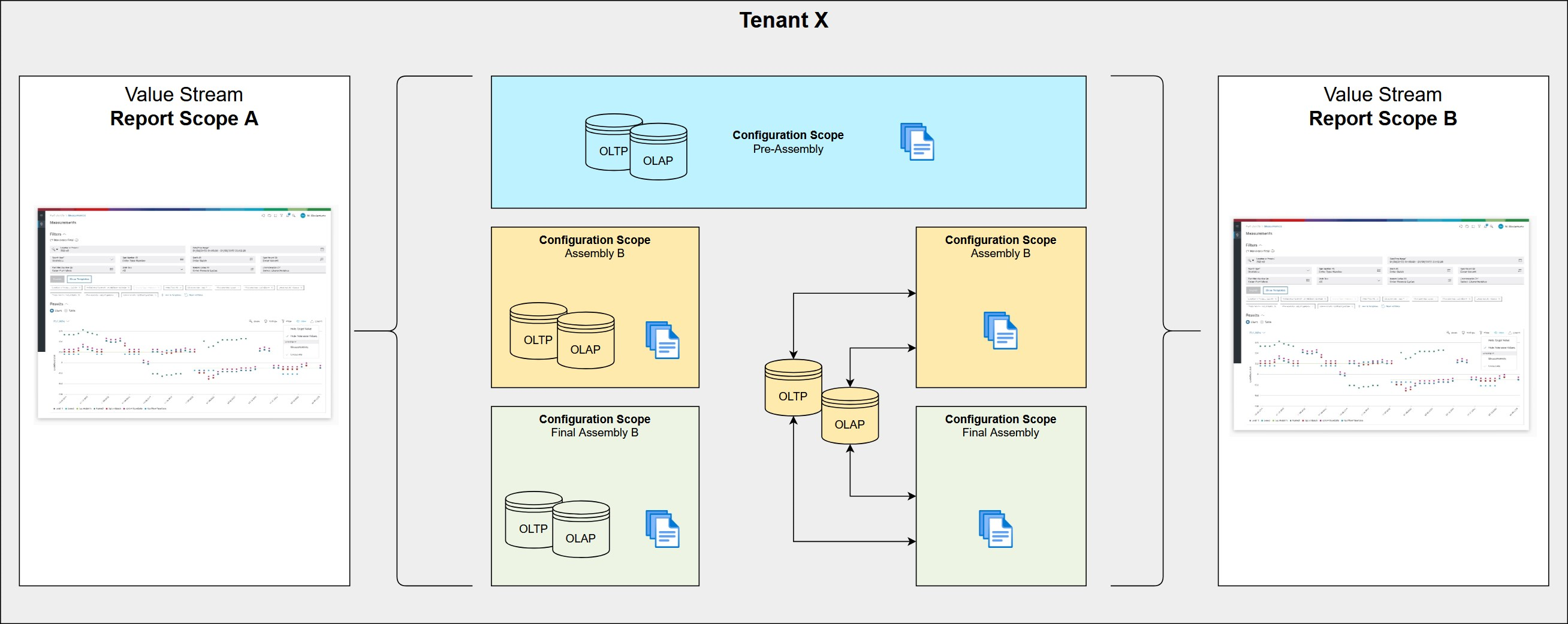
Two Report Scopes connected to different OLAP databases

If no Scope is configured, then the Default Scope default_report is used.
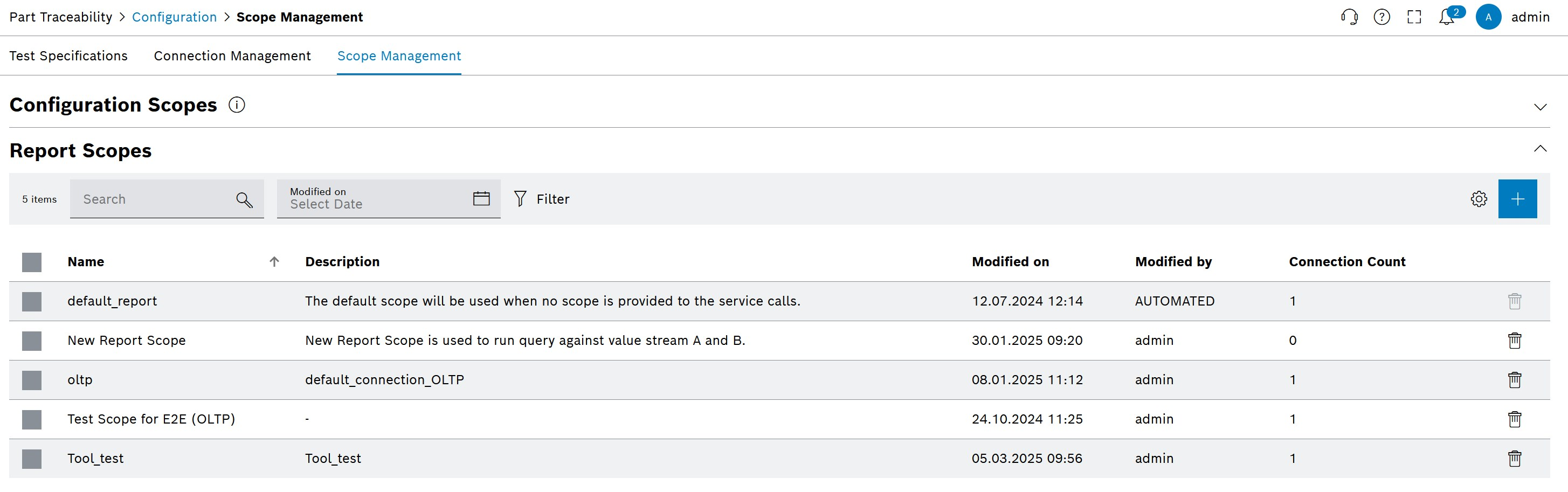
Report Scopes
Element / Icon Description

<n> entries

Number of entries in the list.

Search search

Enter the search term to filter the entries.

Modified on

Define Date with calendar.

filter

Use a filter

settings

Add, remove and reorder columns.

filter

Add Report Scope

Delete

Delete Report Scope

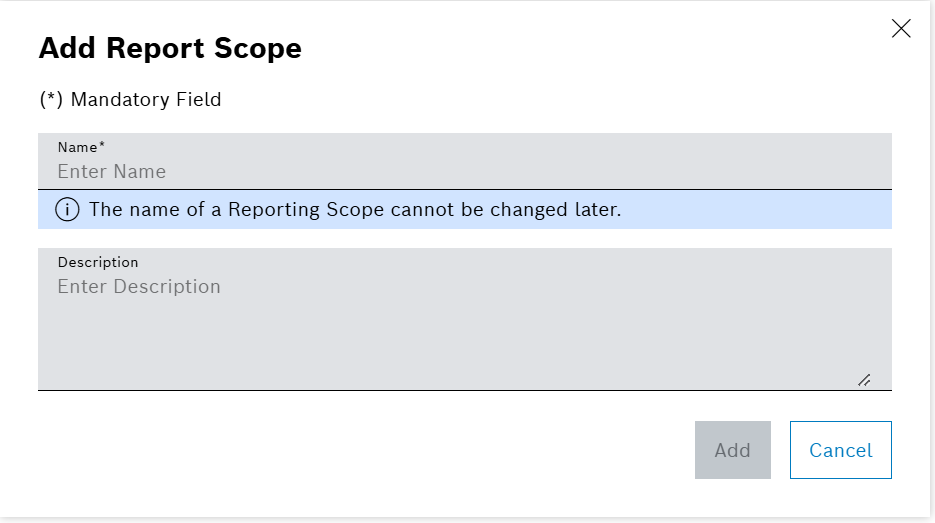
Add Report Scope

  1. Open Part Traceability > Configuration menu entry.

  2. Click on the Scope Management tab.

  3. Click on add border in the header.

    The dialog window opens.

    Add Report Scope
  4. Enter the data in the Add Report Scope window.

  5. Click on Add.

    The dialog window is closed and the new scope is shown in the list.

    The Report Scope is not yet usable in Part Traceability. All necessary configurations, such as database connections and settings, need to be properly defined and saved before usage.

    Spaces before or after the actual Scope name are not taken into account or saved. Therefore, using the same Scope name with or without spaces is not possible.

Assign connections

Defines the database connections to be used for the Report Scope, thus defining where the data used for creating evaluations is coming from.

It is recommended to configure one OLAP Database Connection for a Report Scope.

  • If no OLAP Database Connection is assigned to the Report Scope, the assigned OLTP Database Connection will be used for evaluations. This may impact production cycle times.

  • It is not valid to configure an OLAP Database Connection and an OLTP Database Connection at the same time.

Prerequisites

  • Add Database Connection

  • Add Report Scope

Procedure

  1. Open Part Traceability > Configuration menu entry.

  2. Click on the Scope Management tab.

  3. Click on the Report Scope to be edited.

    A side panel opens. The General tab is shown.

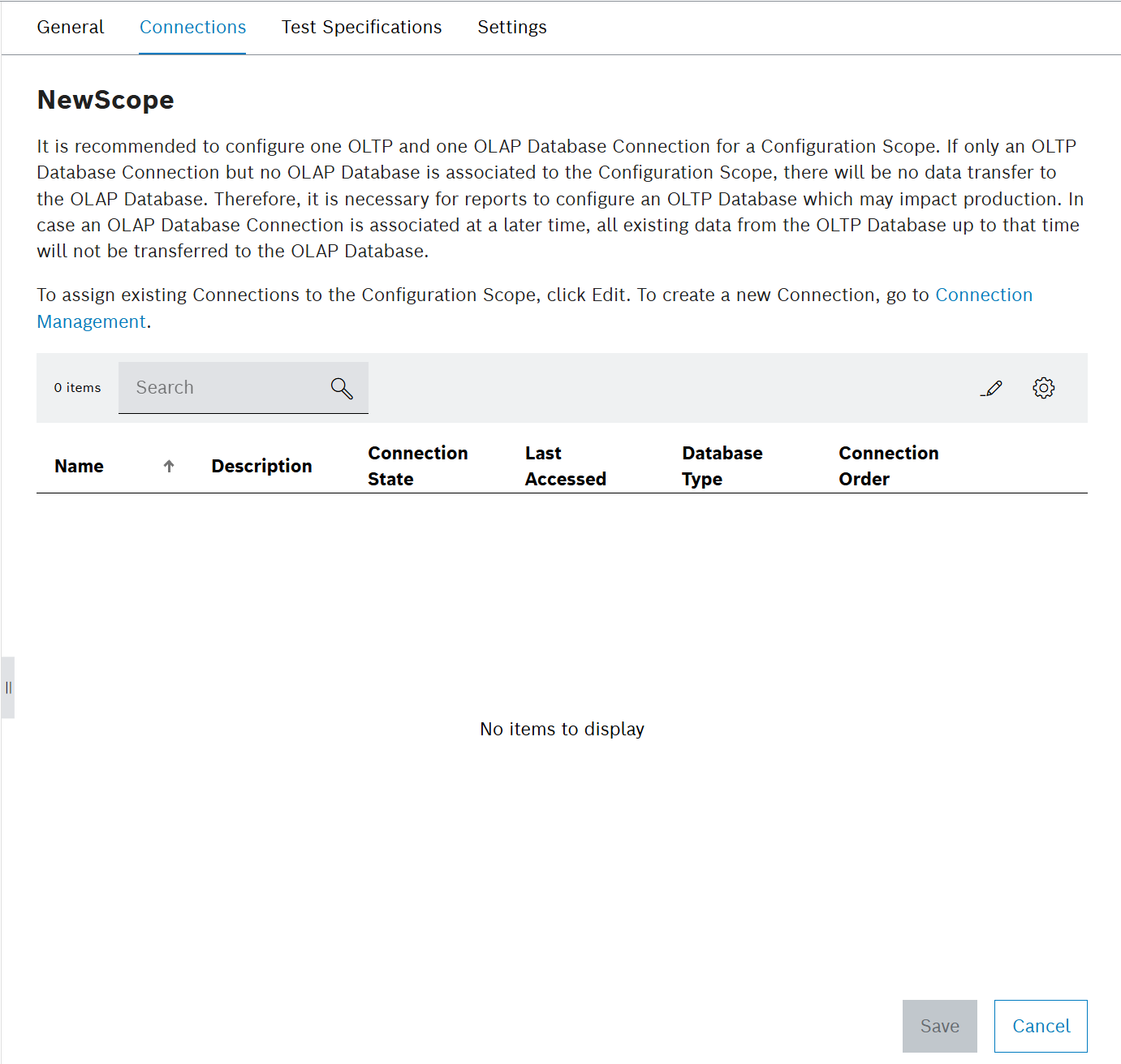
  4. Click on the Connections tab.

    add_connection_to_scope
  5. Click on edit.

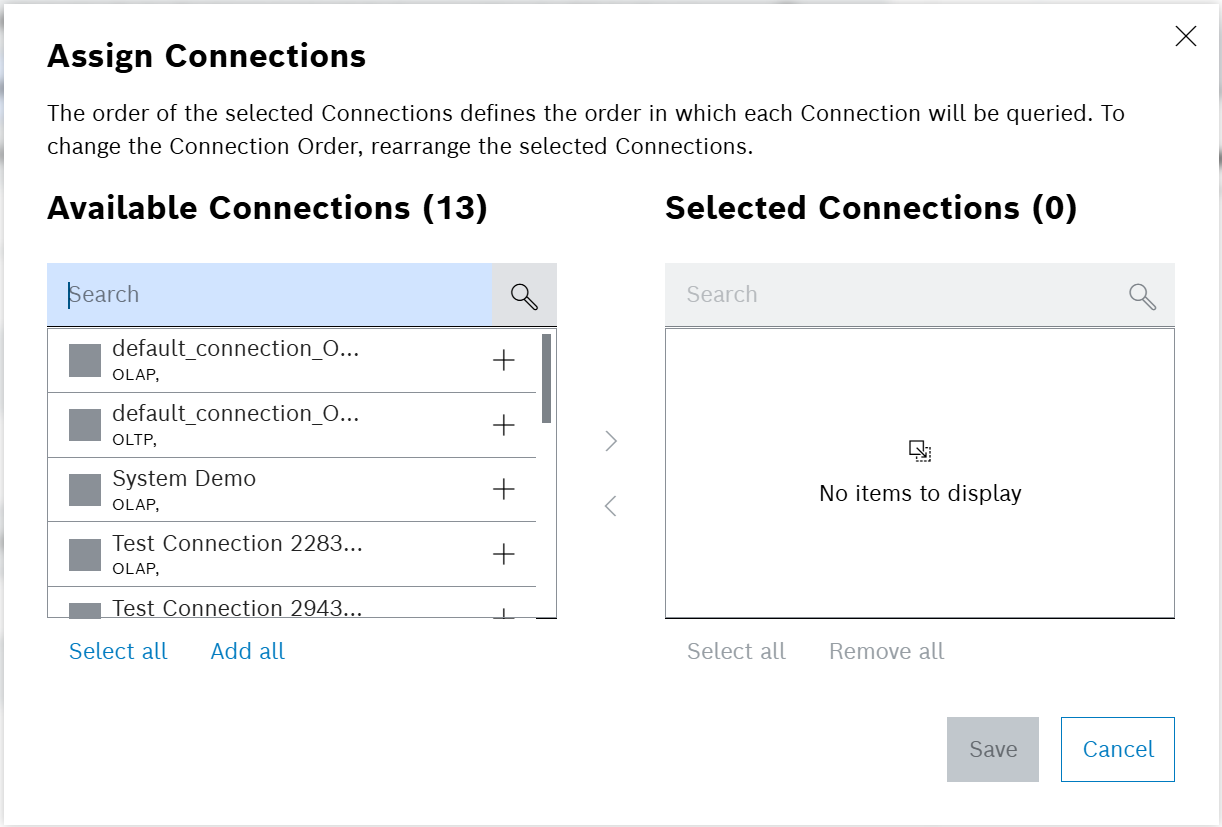
    The dialog window opens.

    Open Assigning Connections
  6. In the Assign Connections window, select the connections to be assigned to the Scope.

  7. To change the order of the selected connections in the list, move the entries using drag and drop.
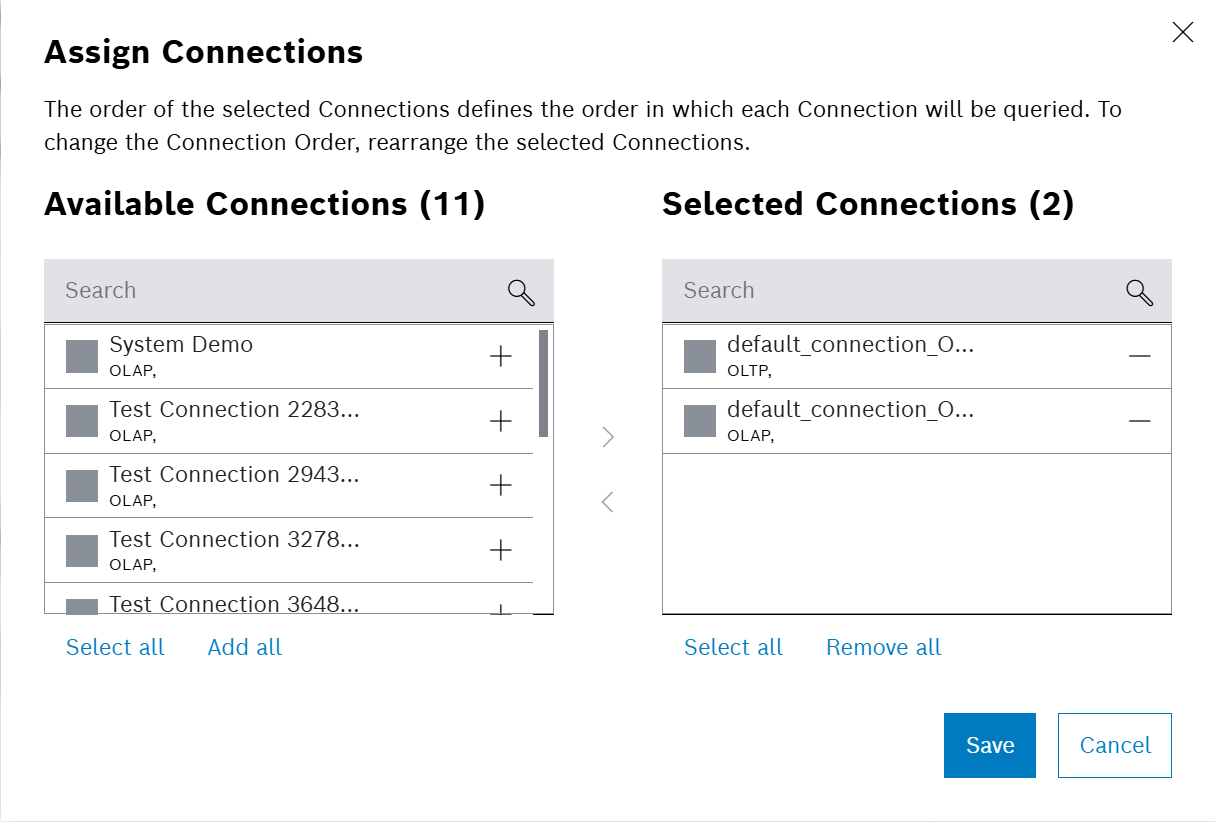
    Assigning Connections
  8. Click on Save.

    A confirmation prompt is shown.

  9. Confirm with Confirm.

    The changes are saved and the connections are linked to the Report Scope.
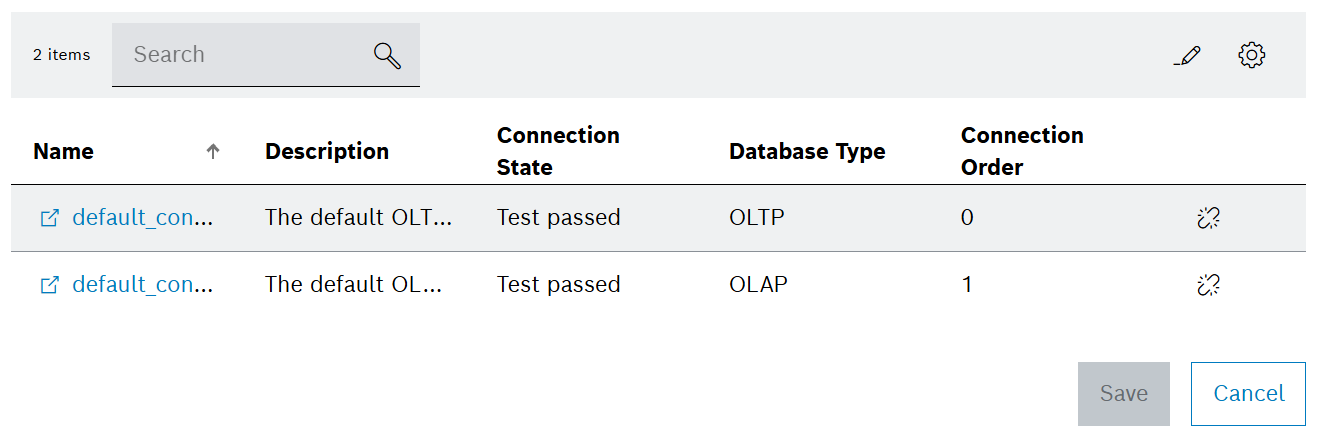
    Assigned Connections

Unlink connections

Unlinking a connection from a Report Scope will remove the connection from the Report Scope. The connection will still be available in the system and can be linked to another Report Scope.

Prerequisites

  • Add Database Connection

  • Add Report Scope

Procedure

  1. Open Part Traceability > Configuration menu entry.

  2. Click on the Scope Management tab.

  3. Click on the Report Scope to be edited.

    A side panel opens. The General tab is shown.

  4. Click on the Connections tab.

    Assigned Connections
  5. Click on link broken

    A confirmation prompt is shown.

  6. Confirm with Unlink.

The connection is unlinked from the Report Scope.

Delete Report Scope

Deleting a Report Scope will also delete all linked Test Specifications.

Deleting a Report Scope will not delete the linked Database Connections. The connection will still be available in the system and can be linked to another Report Scope.

Prerequisites

Add Report Scope

Procedure

  1. Open Part Traceability > Configuration menu entry.

  2. Click on the Scope Management tab.

  3. Click on delete.

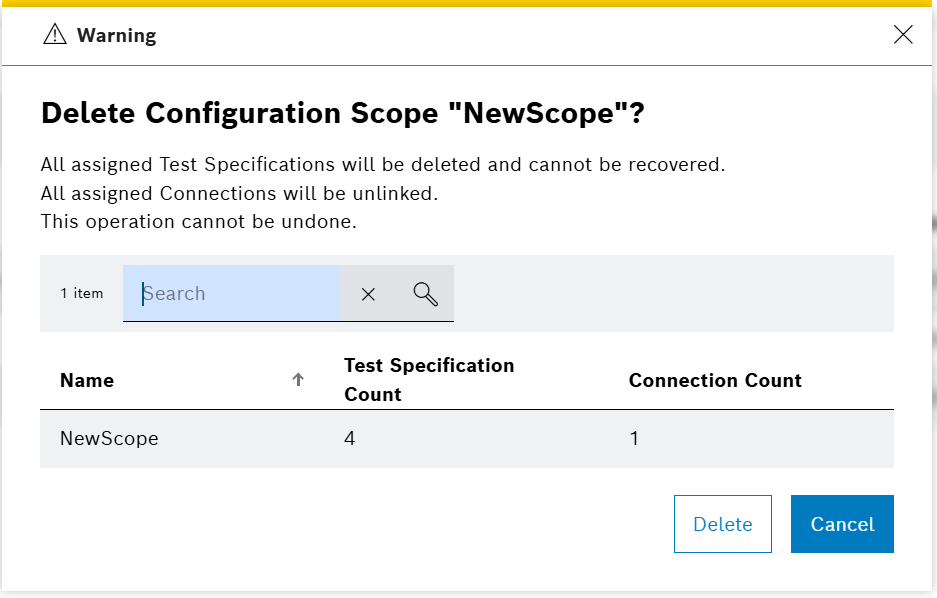
    A configuration prompt is shown.

    Delete Report Scope
  4. Confirm with Delete.

    A configuration prompt is shown.

  5. Confirm with Confirm.

The Report Scope is deleted and a success message is shown at the bottom of the screen.

Contents

© Robert Bosch Manufacturing Solutions GmbH 2023-2025, all rights reserved

Changelog Corporate information Legal notice Data protection notice Third party licenses