Create a Packaging Process
This page guides you through the multi-step wizard to create and configure a new packaging process.
Procedure
-
Open the Packaging Control > Packaging Process menu entry.
-
Click on
 .
.The Packaging Process Configuration dialog opens.
The wizard guides you through the following distinct steps:
Step 1: Compose Process
-
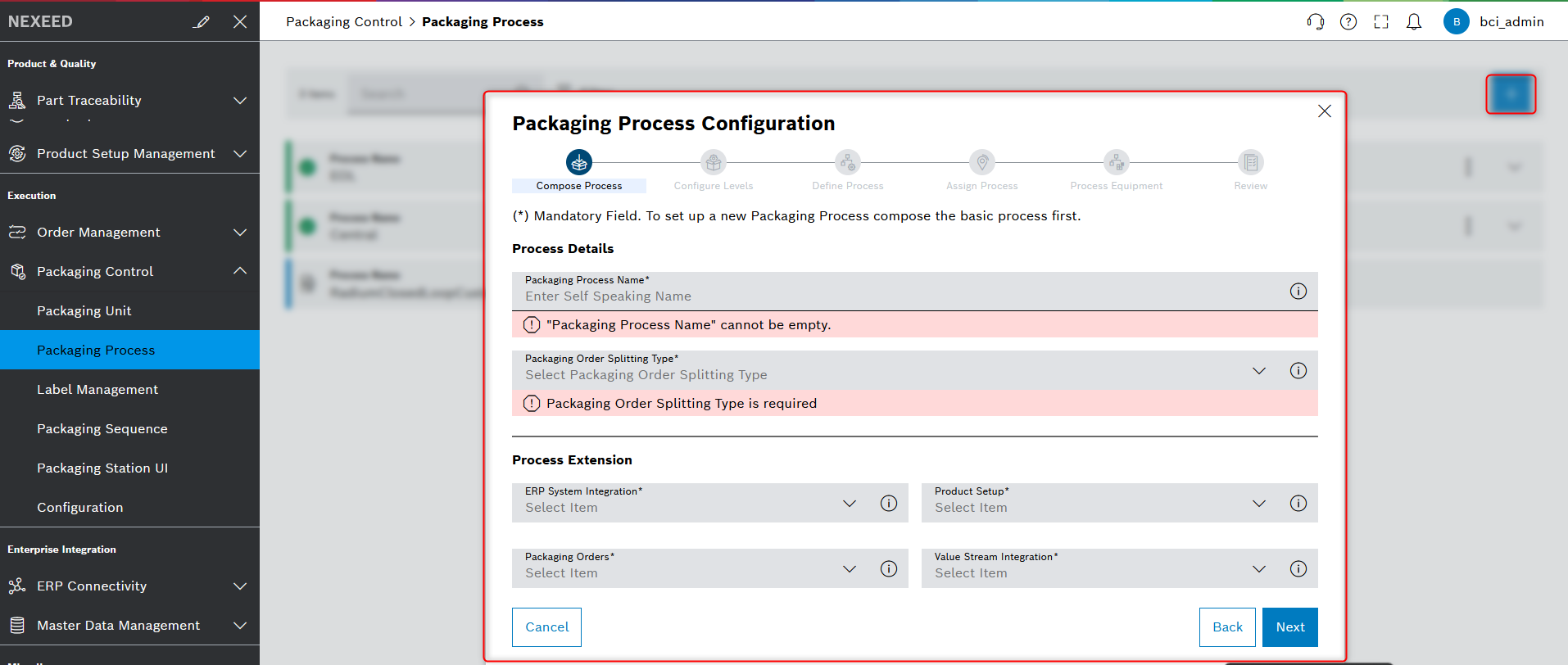
On the Compose Process page, enter the basic information for the process.
-
Click on Next.
Step 2: Configure Levels
-
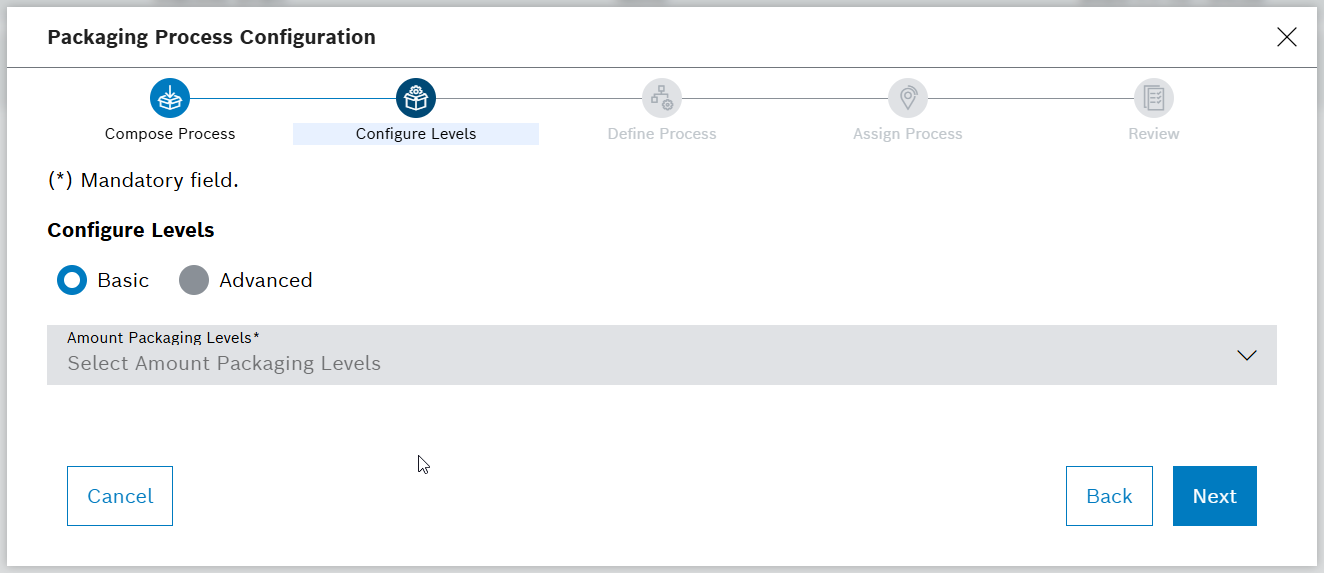
On the Configure Levels page, define the packaging levels involved in this process.
-
Click on Next.
Step 3: Define Process
-
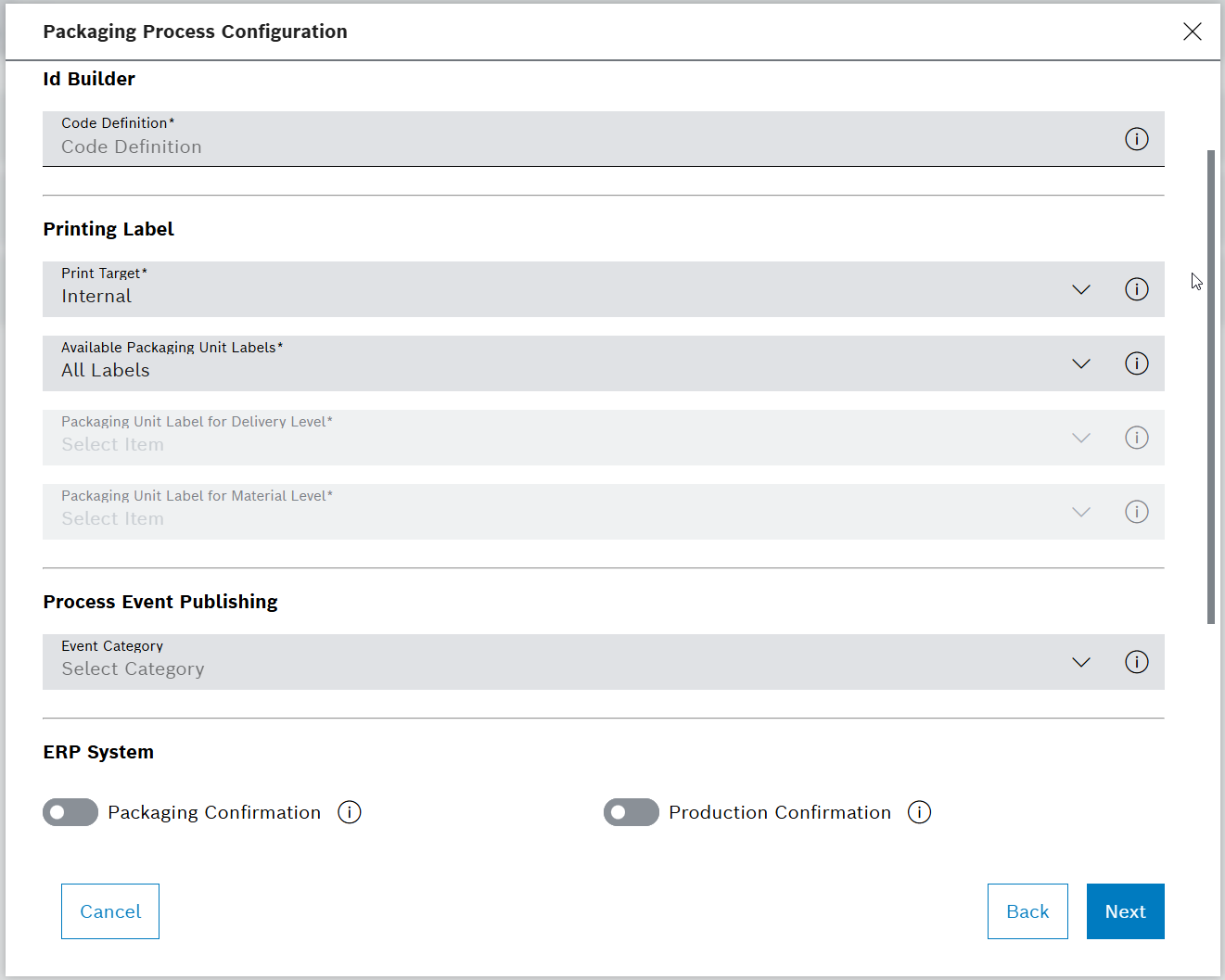
On the Define Process page, configure the specific packaging operations for each level.
-
Click on Next.
Step 4: Assign Process
-
On the Assign Process page, assign the process to specific production lines or facilities.
-
Click on Add Assignment.
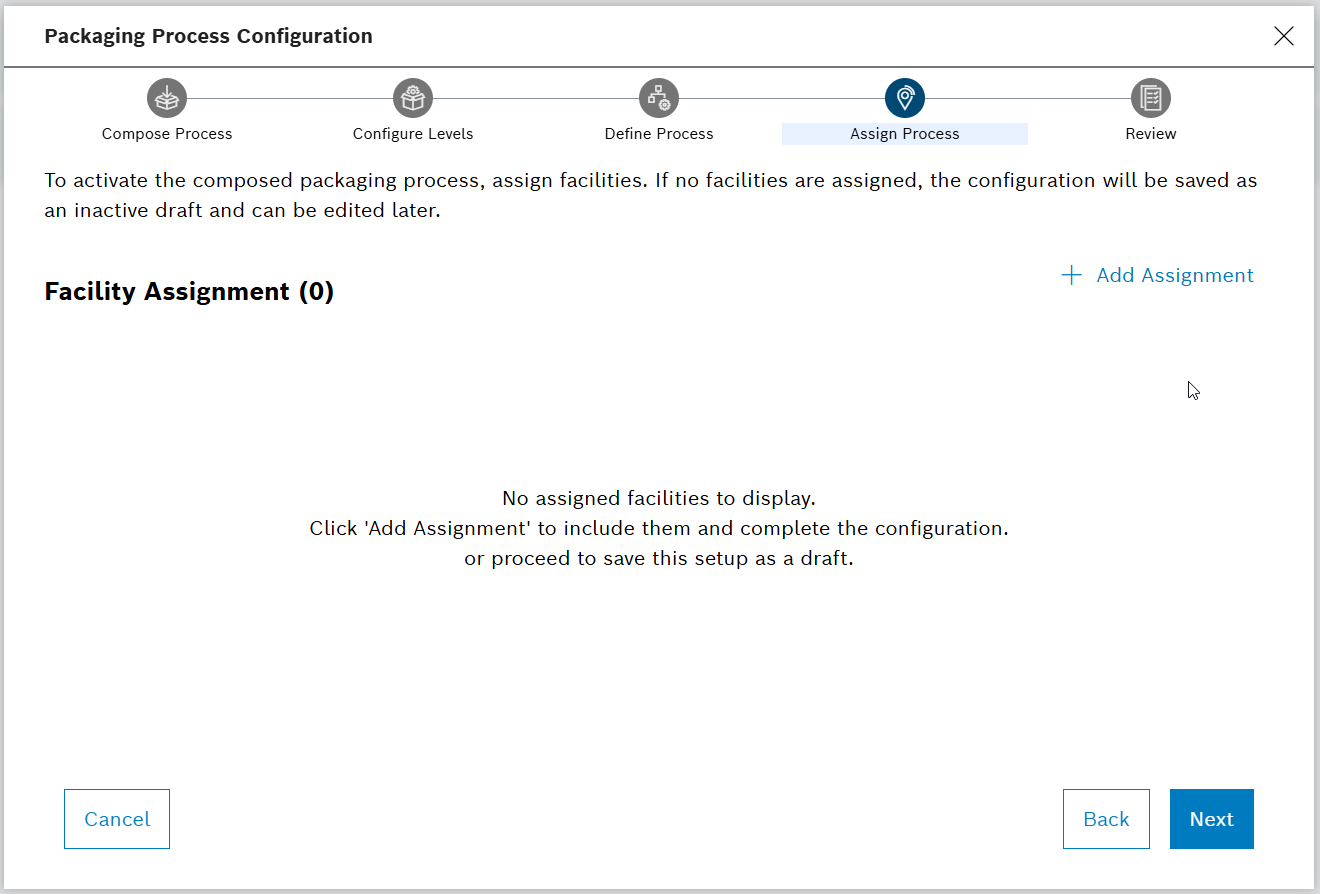
The dialog window opens.
-
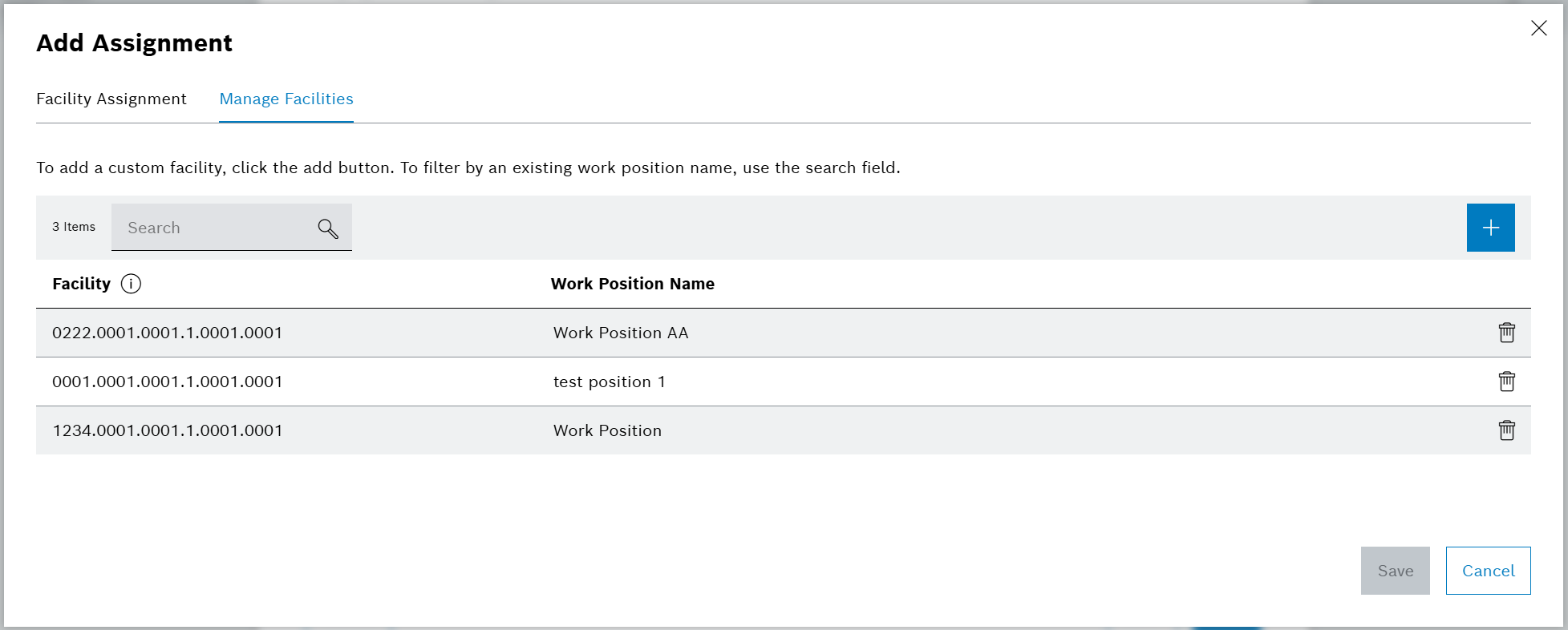
Open the Manage Facilities tab to create a custom facility.
-
Click on
.
-
Enter the basic information for Work Station and Work Position.
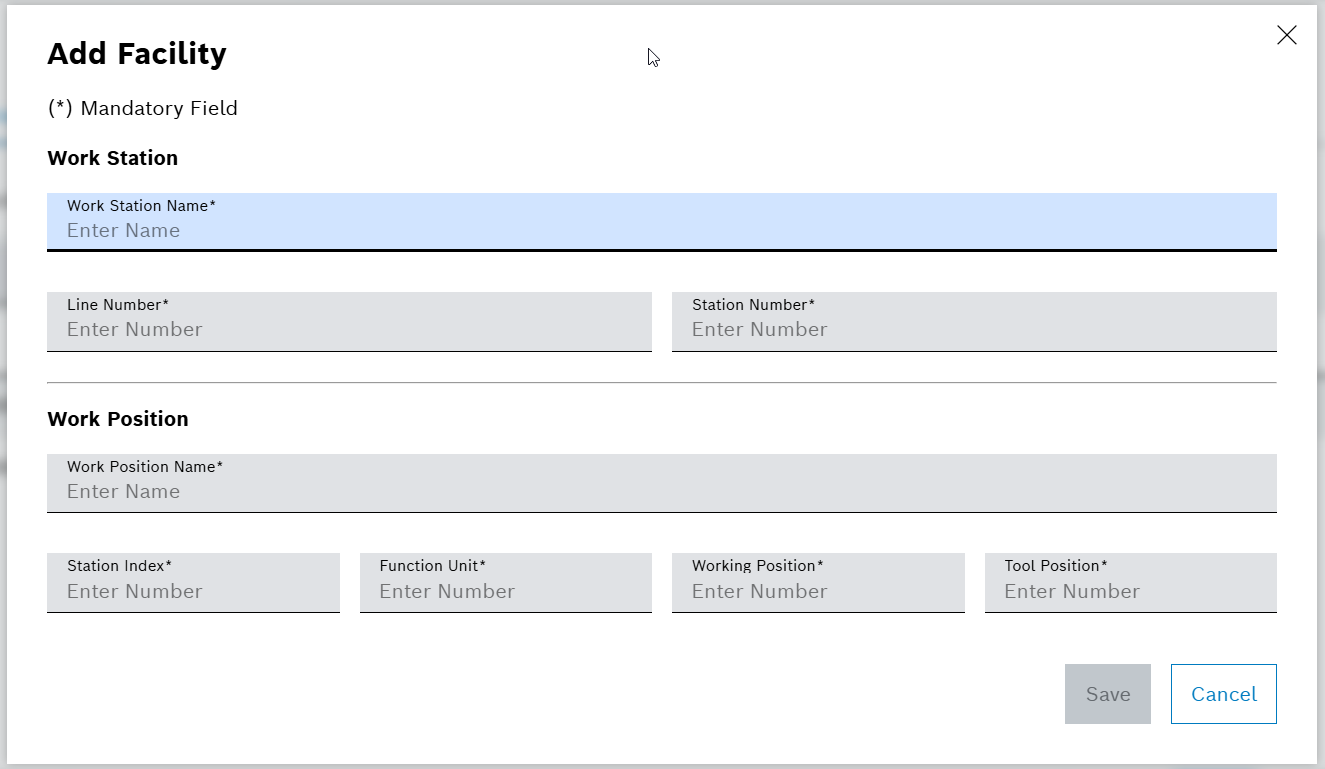
-
Click on Save.
-
Use the Work Position Name field to filter existing facilities.
-
To delete a facility, click on
 .
.
-
-
Open the Facility Assignment tab.
-
Select a line number from the drop-down to associate the process with facilities.
-
Click on
 to expand the Work Positions section to display all fields.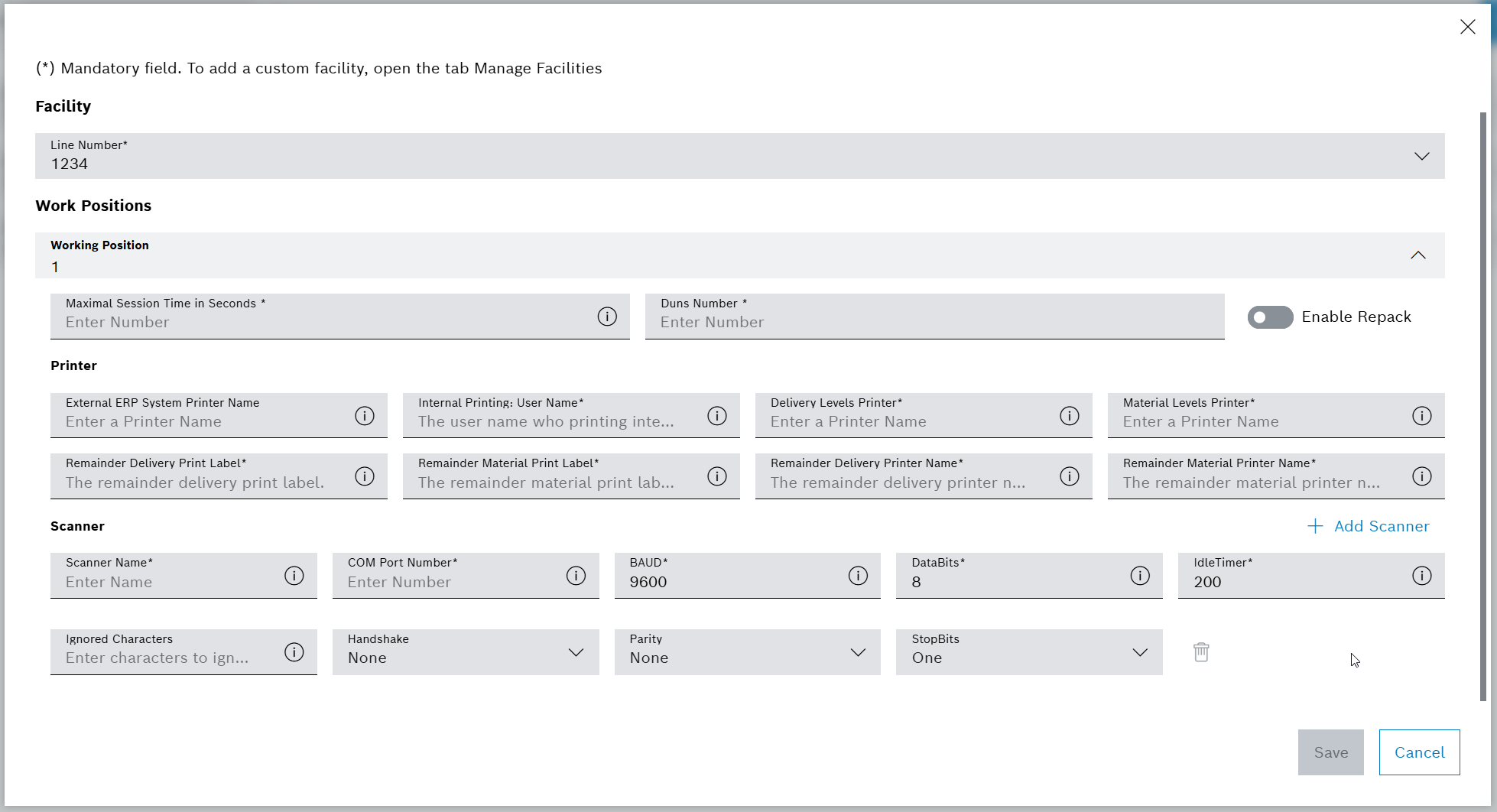
-
Click on Add Scanner to add a scanner (up to five scanners can be added).
-
Click on Save.
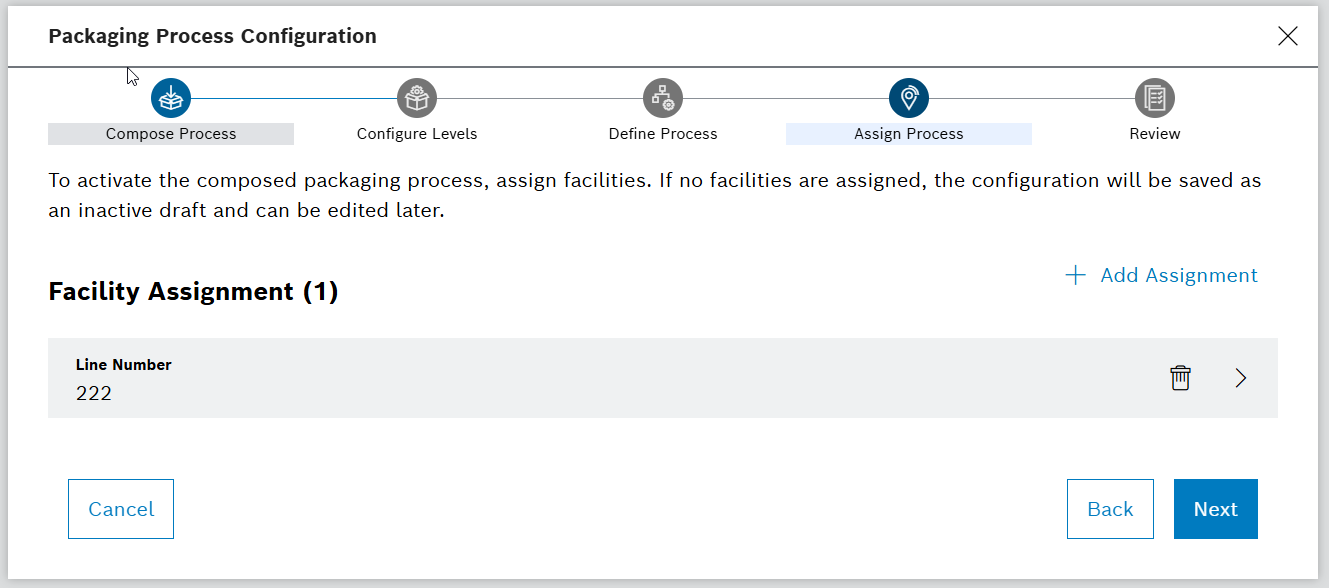
The dialog window is closed and the facility assignment page is shown.
-
To edit facility information, click on
 next to the assigned line.
 -
To remove an assignment, click on
next to the assigned line. -
To associate multiple lines, click on Add Assignment and repeat the previous steps.
-
-
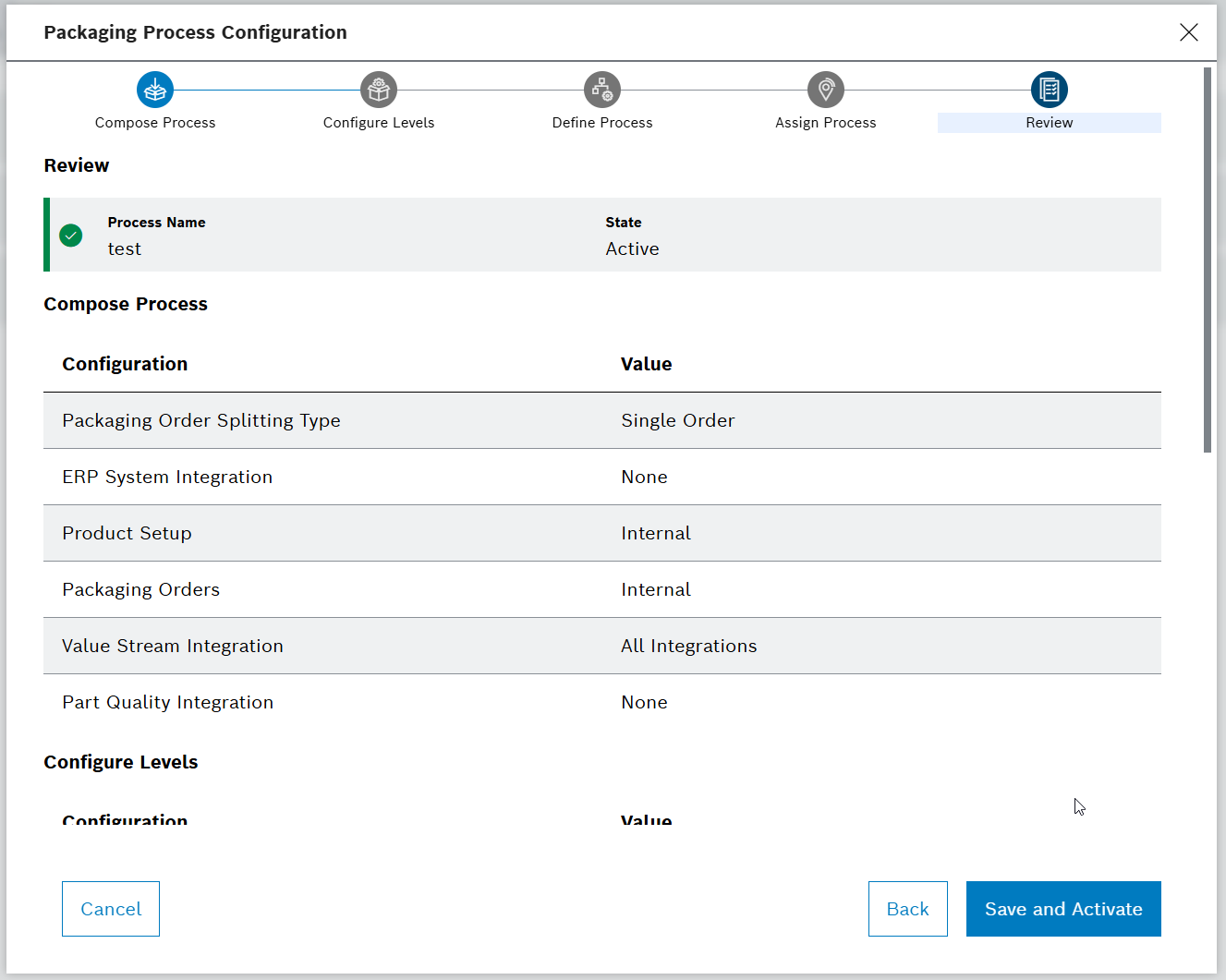
Click on Next.