Repack
The repack process allows you to adapt products to different distribution needs and customer requirements. This chapter explains how to transfer products from one packaging unit to another.
When to Repack?
Repacking is performed for operational reasons, quality control, or strategic supply chain adjustments. Typical scenarios include:
-
Separation of production and logistics lines:
Products may be initially packaged for production efficiency, which can differ from the optimal packaging for storage, transport, or delivery. Repacking adapts the packaging to meet logistical or customer requirements.
-
Overproduction:
Products produced in bulk may need to be repacked into smaller units for inventory, retail, or customer orders. This prevents waste and improves inventory management.
-
Quality department products (those previously identified as NOK – Not OK/Non-Conforming):
Products that were at one point non-conforming and have since been rectified or re-inspected may require repacking into appropriate packaging, replacing damaged or incorrect packaging.
-
Material Number Rules for Repacking
Always verify the material numbers of both source and target packaging units. The material numbers must either be identical, or the 10-digit source material number must be included within the 13-digit target material number. Repacking from a 13-digit to a 10-digit material number is not allowed.
Prerequisites
Before starting, ensure the following requirements are met:
-
Packaging Control:
-
The source packaging unit status is Delivered.
-
-
Order Management:
-
The order status is Released.
-
The material numbers of source and target packaging units are compatible.
-
Client Packaging Control Station UI:
The client is configured.
-
Role as
Packaging OperatororPackaging Enhanced Operator.
Procedure
At the end of line station, use the Packaging Control Station UI (configured):
-
Review the packaging order details on the dashboard.
-
Click
 to view the packaging setup.
 -
Click on Start.
The packaging screen appears.
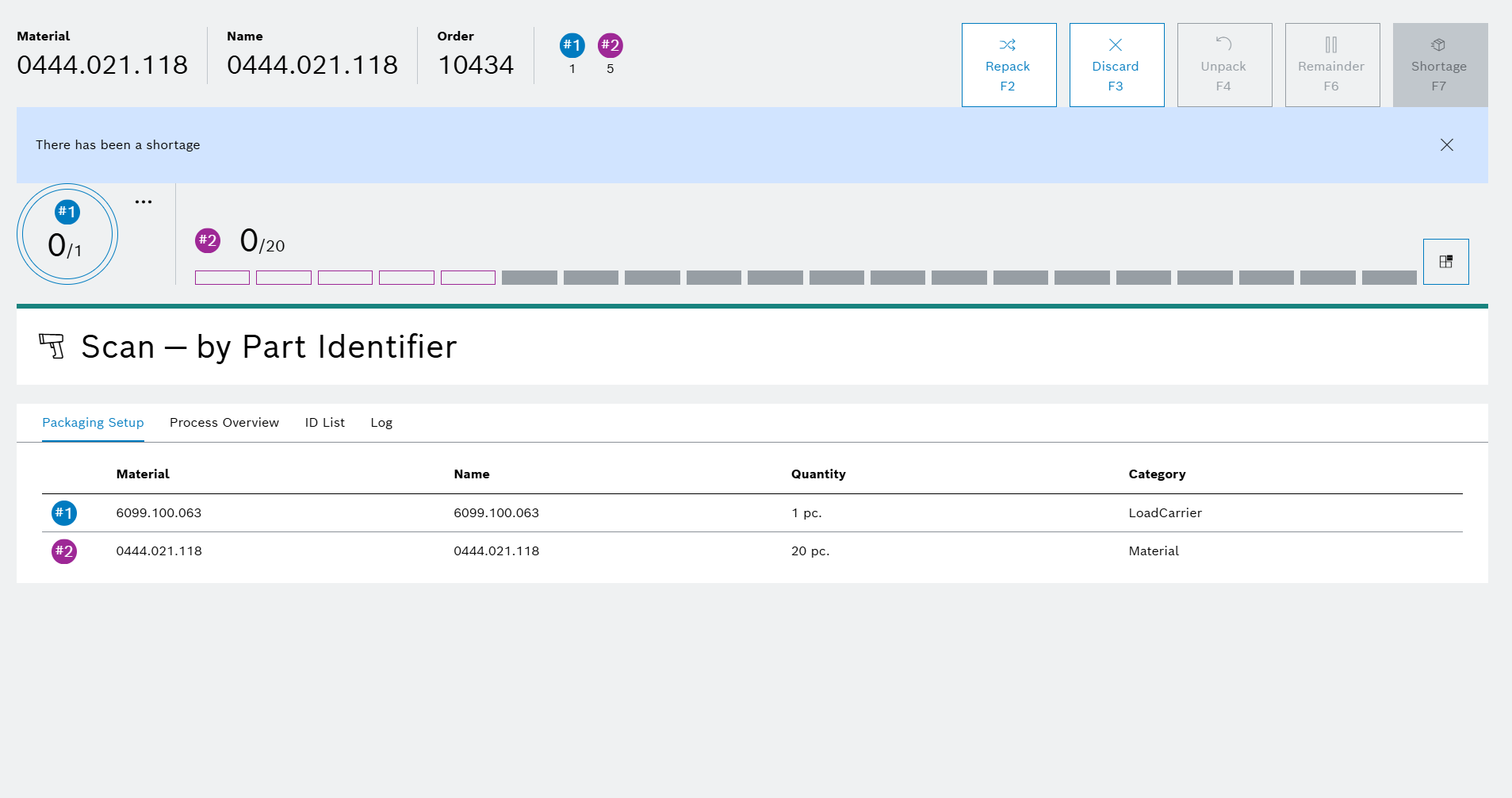
-
Click on Repack.
The Repack Options dialog appears.
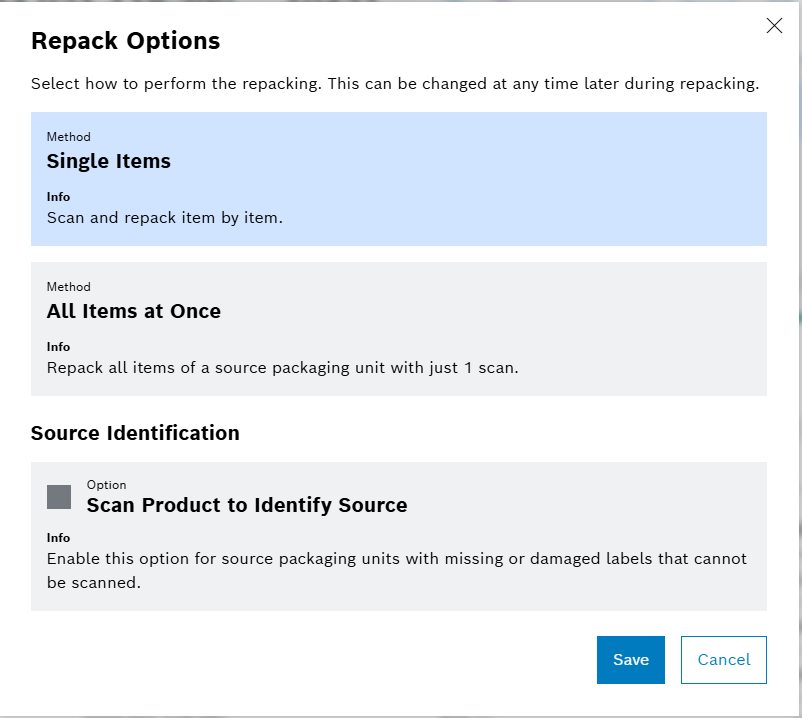
-
Click on Save.
The packaging screen appears.
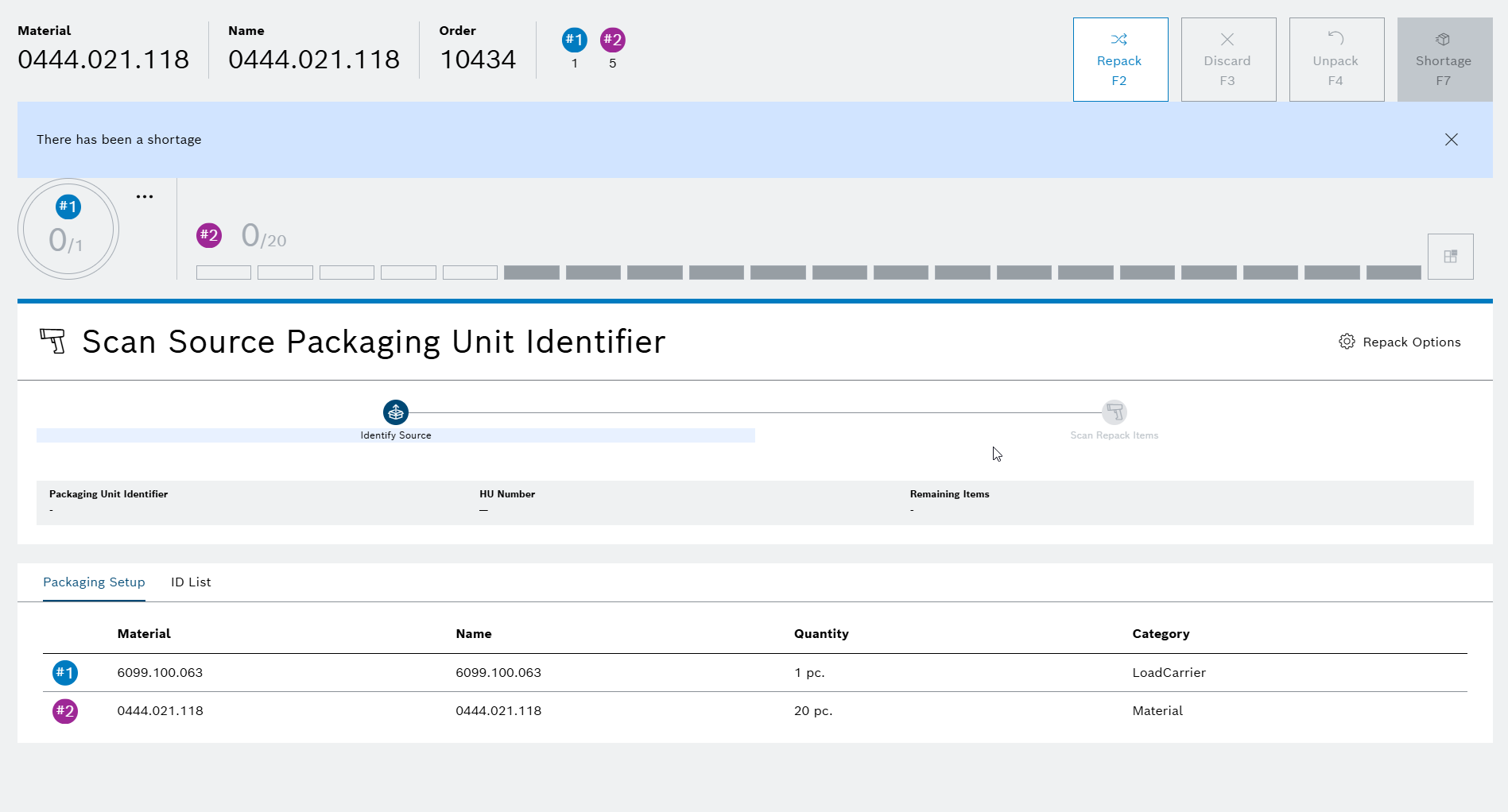
-
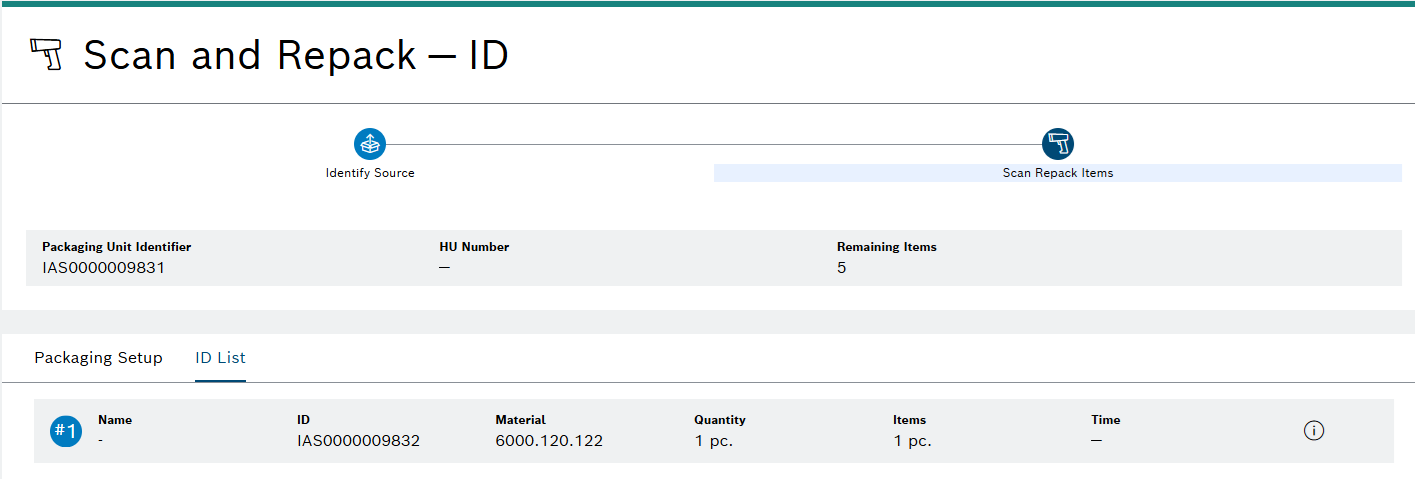
Scan the identifier of the source packaging unit.
-
Scan the identifier or serial number of each product from the source packaging unit.
The scanned product is repacked and appears in the ID List.

-
Repeat until all products from the source packaging unit are repacked.
All products are repacked and shown in the ID List. The Complete with Shortage dialog appears.
This example is a scenario with shortage.
-
Enter the quantity for each auxiliary item, or remove any items not needed.
-
Click on Start.
The repacking process is completed with a shortage. The user is redirected to the Dashboard.