Nexeed
    • Introduction
    • Station UI
      • Introduction
      • Getting started
      • Configuration
      • Dashboard
      • Utility Bar
        • Scanner
        • Notification Center
      • Operations
        • Packing
        • Discard
        • Complete
        • Shortage
        • Alternative Components
        • Unpacking
        • Repack
        • Underproduction Remainder
        • Overproduction Remainder
        • Quality Gate
        • Quantity packing
    • Web UI
      • Label management
        • Create a label
        • Design a label
      • Packaging process
        • Create a packaging process
      • Packaging sequence main page
      • Packaging sequence
      • Packaging station main page
      • Packaging station UI
      • Packaging unit main page
      • Packaging unit
    • Legacy
      • Introduction to the Packaging Control web application
      • Starting the application
      • Login
      • Set up Packaging Control
      • Packing
        • Packaging form
        • Cancellation wizard
      • Process-specific dialogs
        • Ending the process (reject)
        • Starting the repacking process
        • Weight validation
      • Configuration menu
      • Filter options
    • Operations manual
      • Overview
      • System architecture and interfaces
        • Deployment view
        • Architecture
      • System requirements
        • Paco/helm-chart
        • Paco/paco-service
        • Paco/paco-database
        • PackagingControl_<version>_client.mespkg
        • Paco/core-service
        • Paco/core-web-service
        • Paco/printing-service
      • Migration from previous versions
        • Migration from MES to IAS
        • Migration of database
        • Resources mapping from MES to IAS
        • Migration changes from MES to IAS
        • Migration guides from MES to IAS
        • IAS version upgrades
        • Database update with database job
        • Migration job
      • Setup and configuration
        • Helm configuration
        • Database install from scratch
        • Configuration of Packaging Control
        • Configuration of logging
        • Configuration of related service endpoints
        • Configuration of legacy API redirect
        • Configuration of the home tenant ID
        • Configuration of observability
        • Type data
        • Manager and provider modules
        • Timeout configuration
        • Printing
        • Function modules
        • Sub-function modules
        • Client configuration
        • Global functionality
        • Packing unit details
        • Multi-installation deployment
        • Click-once client installation
        • Core-service
        • Core-web-service
        • Printing-service
        • Permissions and roles
      • Start and shutdown
        • Startup dependencies
        • Shutdown
      • Regular operations
      • Failure handling
        • Error codes
        • Warning codes
      • Backup and Restore
      • Logging and monitoring
      • Known limitations
        • Multitenancy capability
        • On premise
        • Database support
        • Client non-web login mechanism
    • API documentation
      • Core-service
        • Internal HTTP API
        • Restricted public HTTP API
        • Restricted public event API
      • Printing-service
        • Internal HTTP API
    • Glossary
Packaging Control
  • Industrial Application System
  • Core Services
    • Block Management
    • Deviation Processor
    • ID Builder
    • Multitenant Access Control
    • Notification Service
    • Ticket Management
    • Web Portal
  • Shopfloor Management
    • Andon Live
    • Global Production Overview
    • KPI Reporting
    • Operational Routines
    • Shift Book
    • Shopfloor Management Administration
  • Product & Quality
    • Product Setup Management
    • Part Traceability
    • Process Quality
    • Setup Specs
  • Execution
    • Line Control
    • Material Management
    • Order Management
    • Packaging Control
    • Rework Control
  • Intralogistics
    • Stock Management
    • Transport Management
  • Machine & Equipment
    • Condition Monitoring
    • Device Portal
    • Maintenance Management
    • Tool Management
  • Enterprise & Shopfloor Integration
    • Archiving Bridge
    • Data Publisher
    • Engineering UI
    • ERP Connectivity
    • Gateway
    • Information Router
    • Master Data Management
    • Orchestrator

Nexeed Learning Portal

  • Packaging Control
  • Web UI
  • Packaging process
  • Create a packaging process

Create a Packaging Process

This page guides you through the multi-step wizard to create and configure a new packaging process.

Procedure

  1. Open the Packaging Control > Packaging Process menu entry.

  2. Click on add border.

    The Packaging Process Configuration dialog opens.
    The wizard guides you through the following distinct steps:

Step 1: Compose Process

  1. On the Compose Process page, enter the basic information for the process.
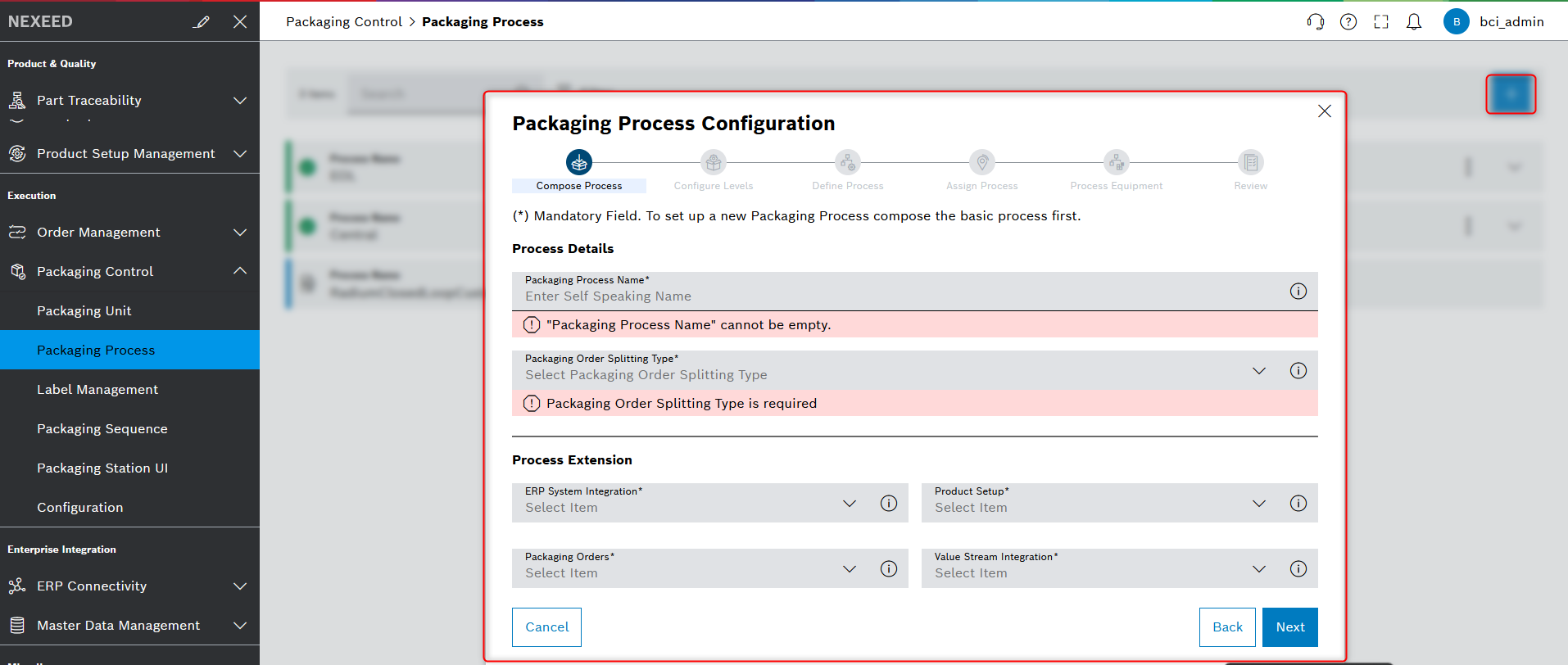
    Packaging Process Configuration Wizard
  2. Click on Next.

Step 2: Configure Levels

  1. On the Configure Levels page, define the packaging levels involved in this process.
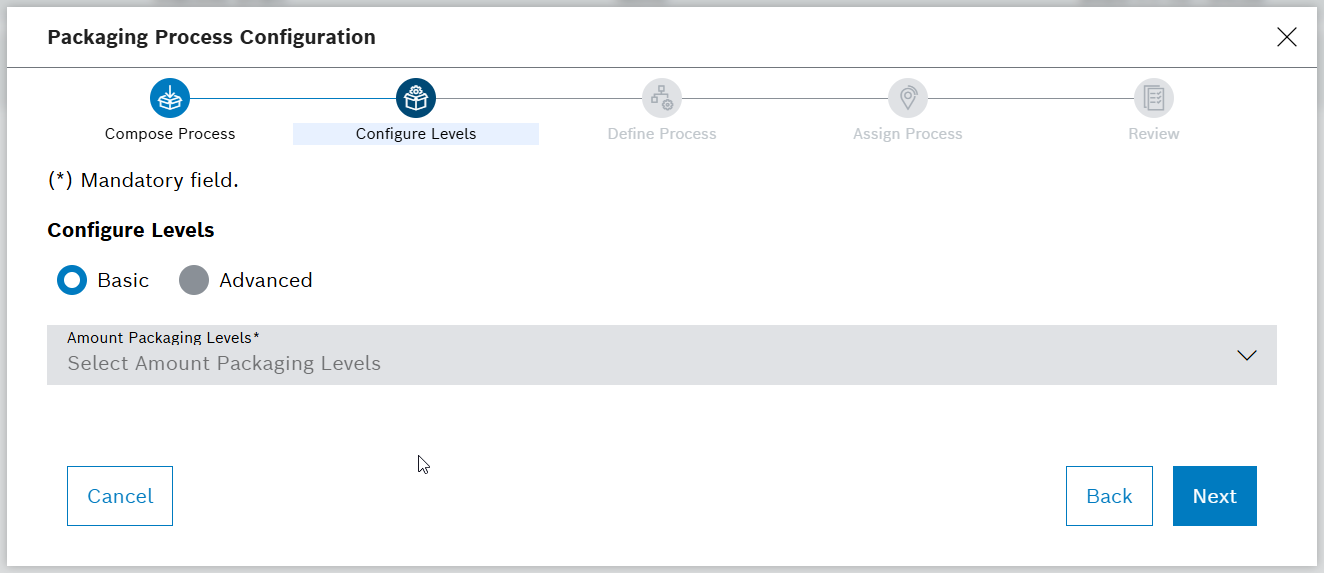
    PackProcess Configure Levels
  2. Click on Next.

Step 3: Define Process

  1. On the Define Process page, configure the specific packaging operations for each level.
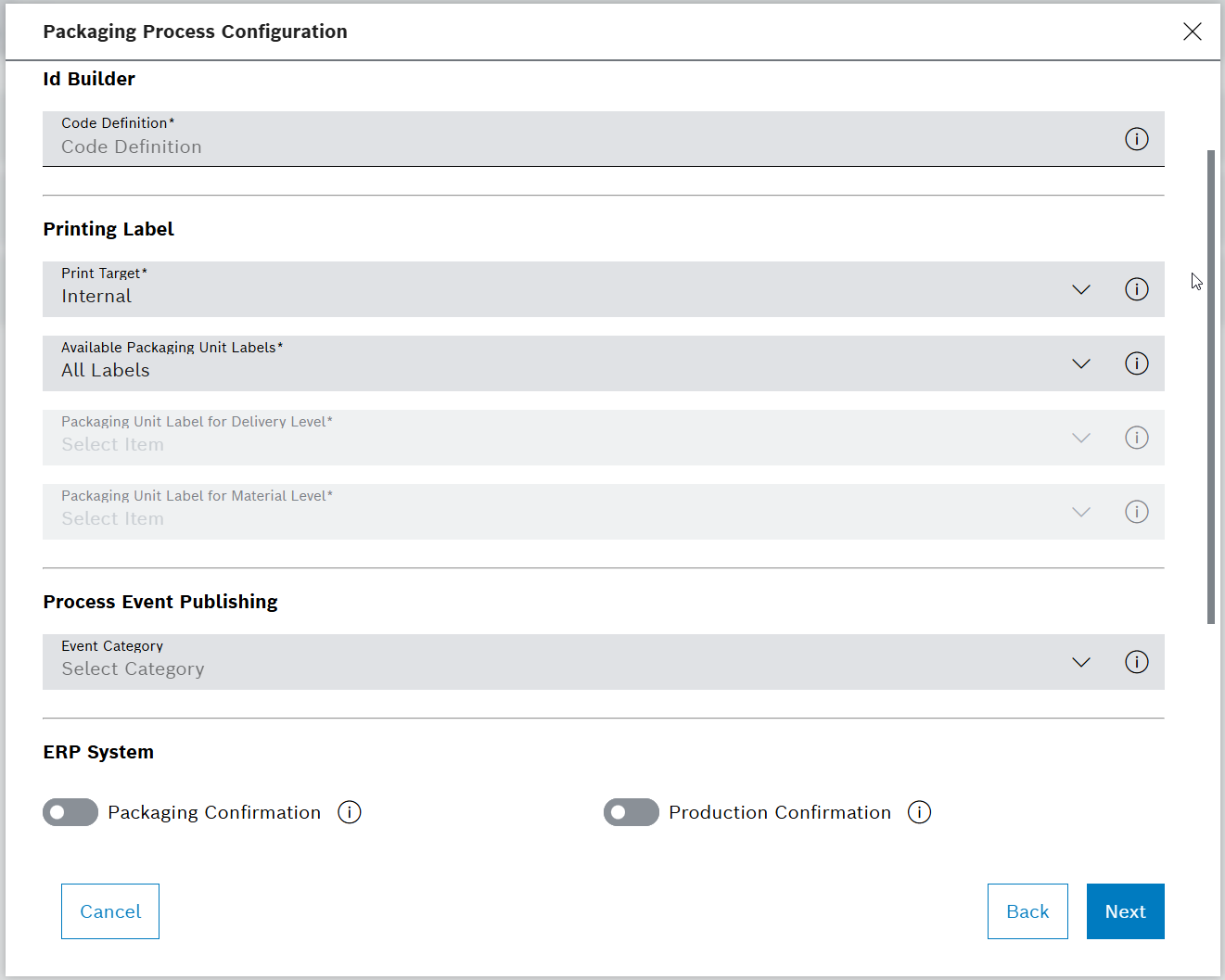
    ERP display
  2. Click on Next.

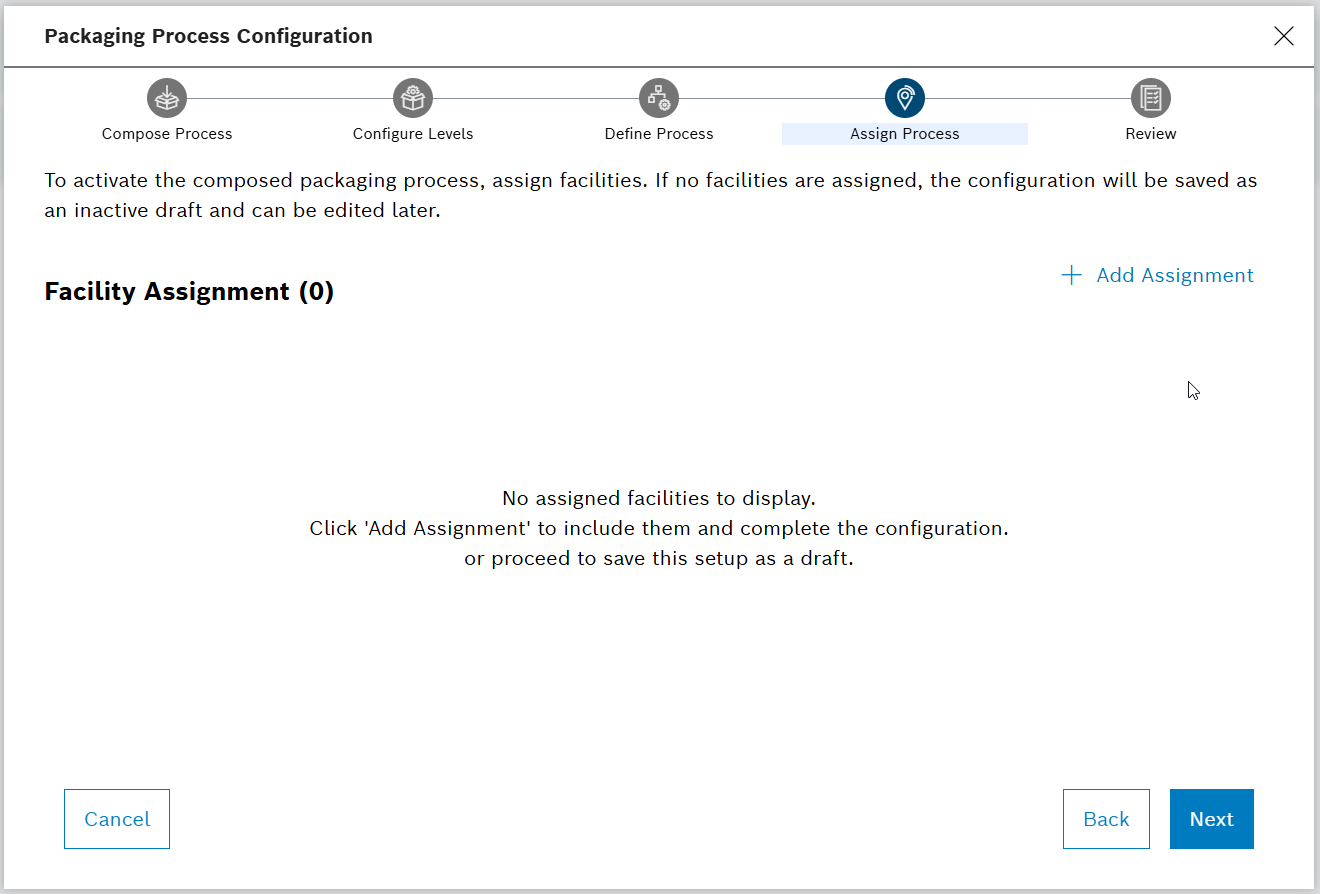
Step 4: Assign Process

  1. On the Assign Process page, assign the process to specific production lines or facilities.

  2. Click on Add Assignment.

    Assign Process Page

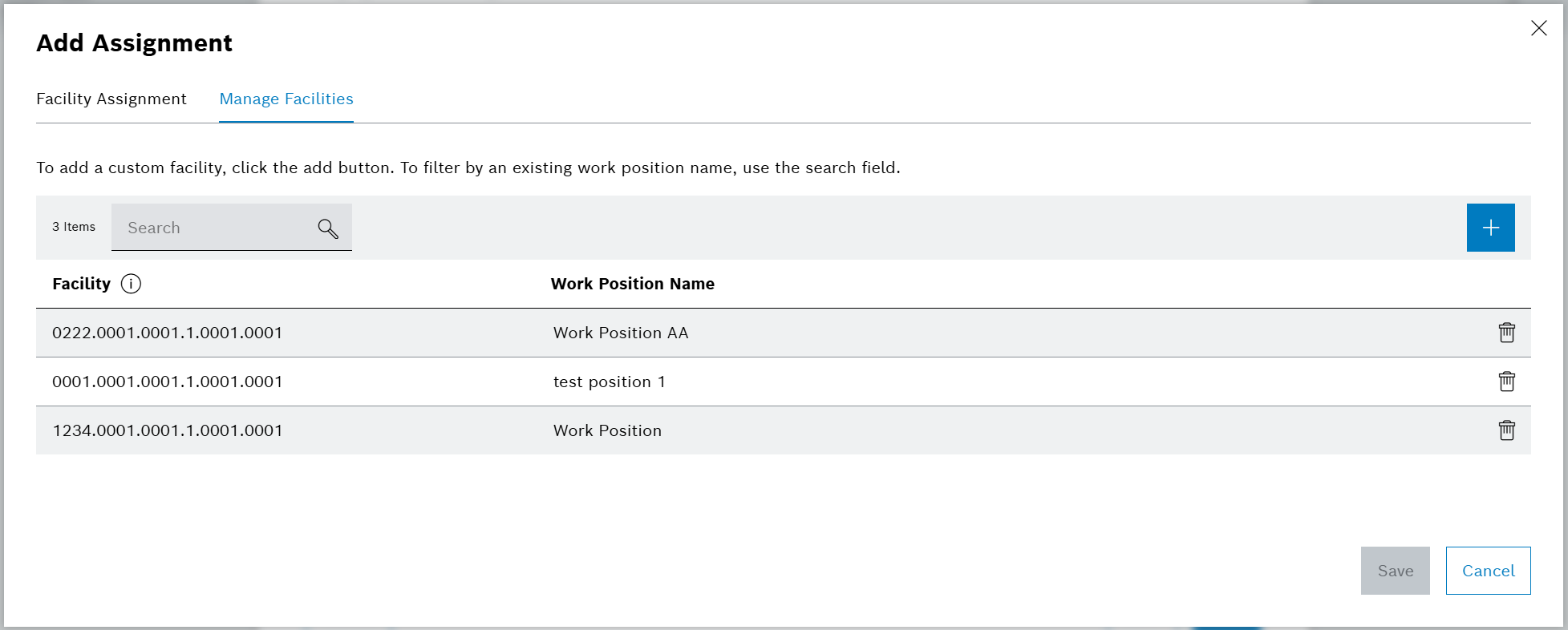
    The dialog window opens.

  3. Open the Manage Facilities tab to create a custom facility.

    1. Click on add border.

      Manage Facilities
    2. Enter the basic information for Work Station and Work Position.
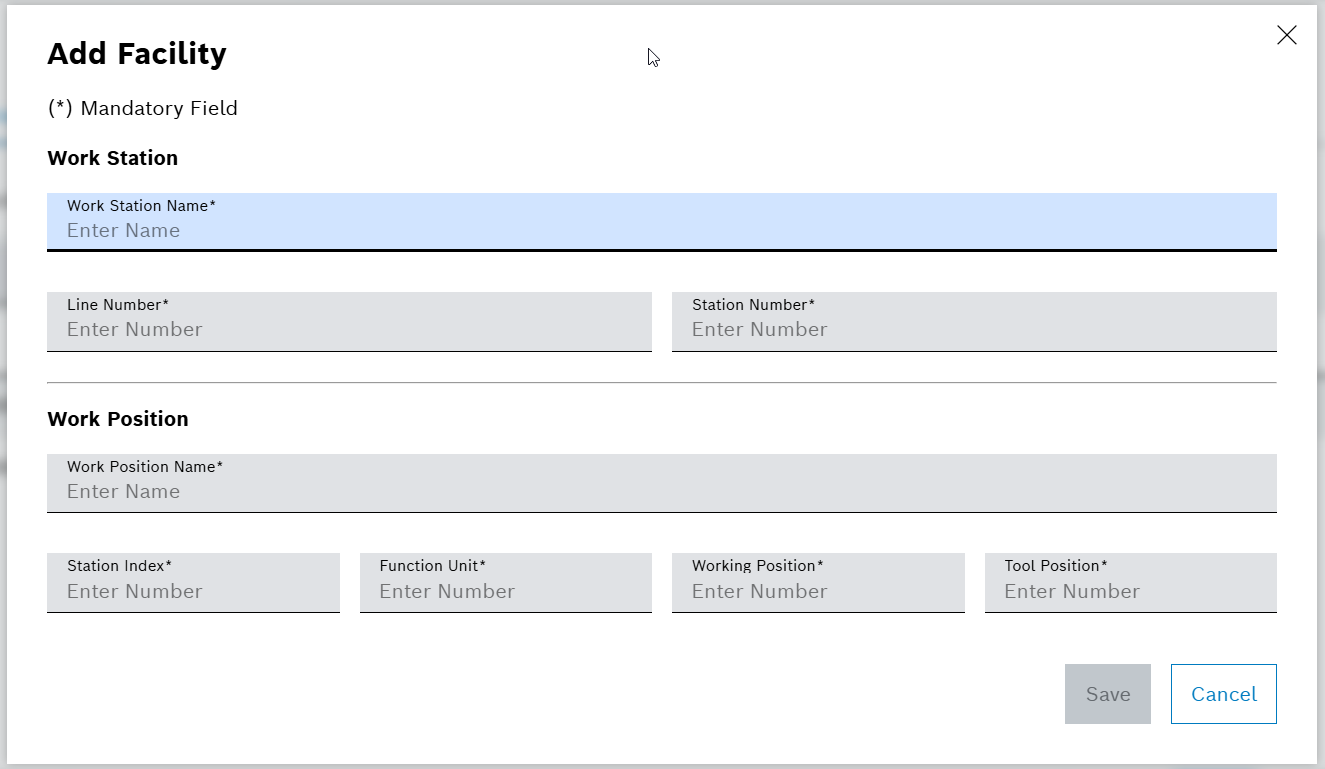
      Add Facility Page
    3. Click on Save.

    4. Use the Work Position Name field to filter existing facilities.

      Manage Facilities
    5. To delete a facility, click on delete.

  4. Open the Facility Assignment tab.

    1. Select a line number from the drop-down to associate the process with facilities.

    2. Click on Expand Position to expand the Work Positions section to display all fields.
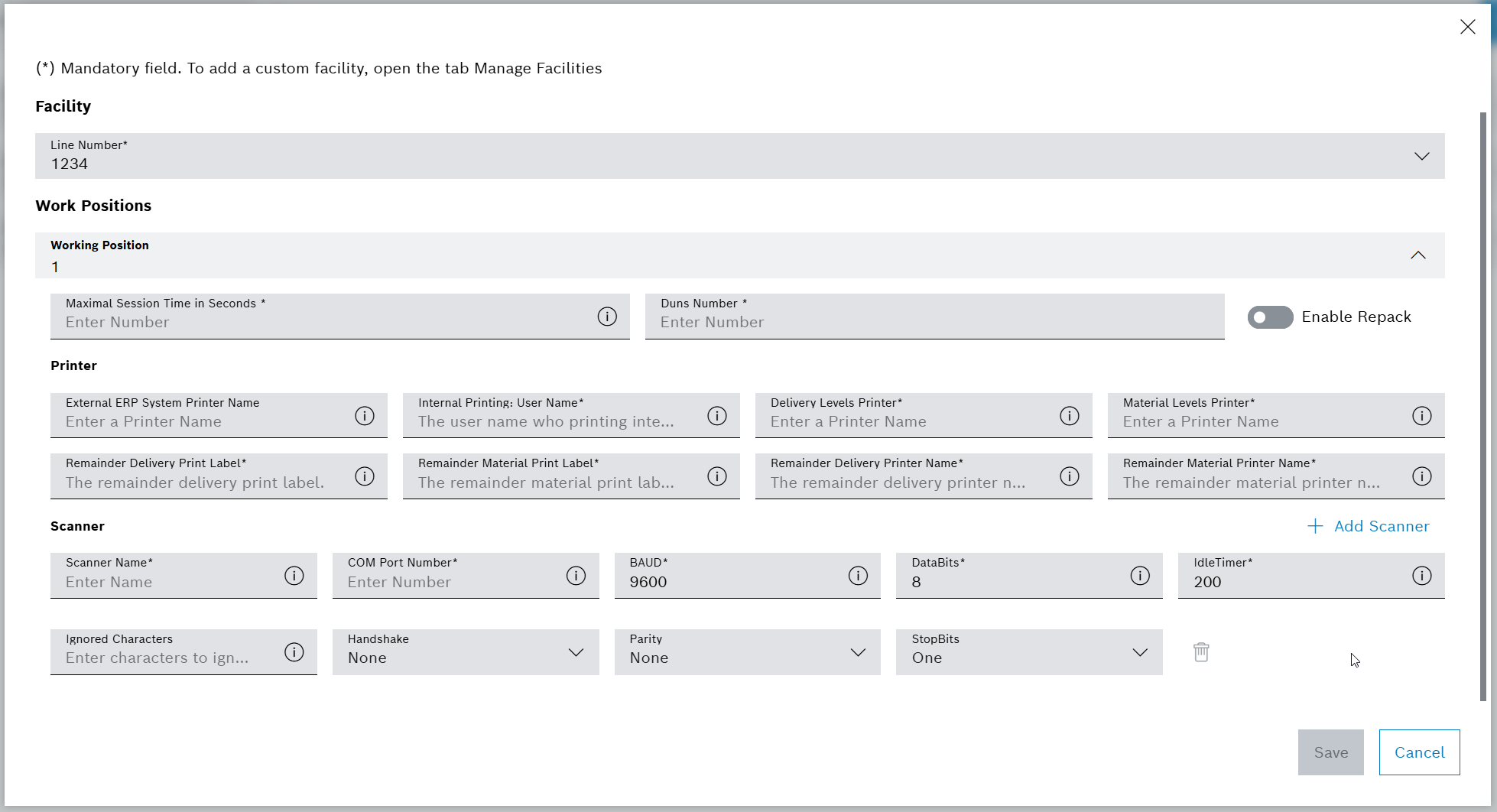
      Facility Assignment Detail
    3. Click on Add Scanner to add a scanner (up to five scanners can be added).

    4. Click on Save.

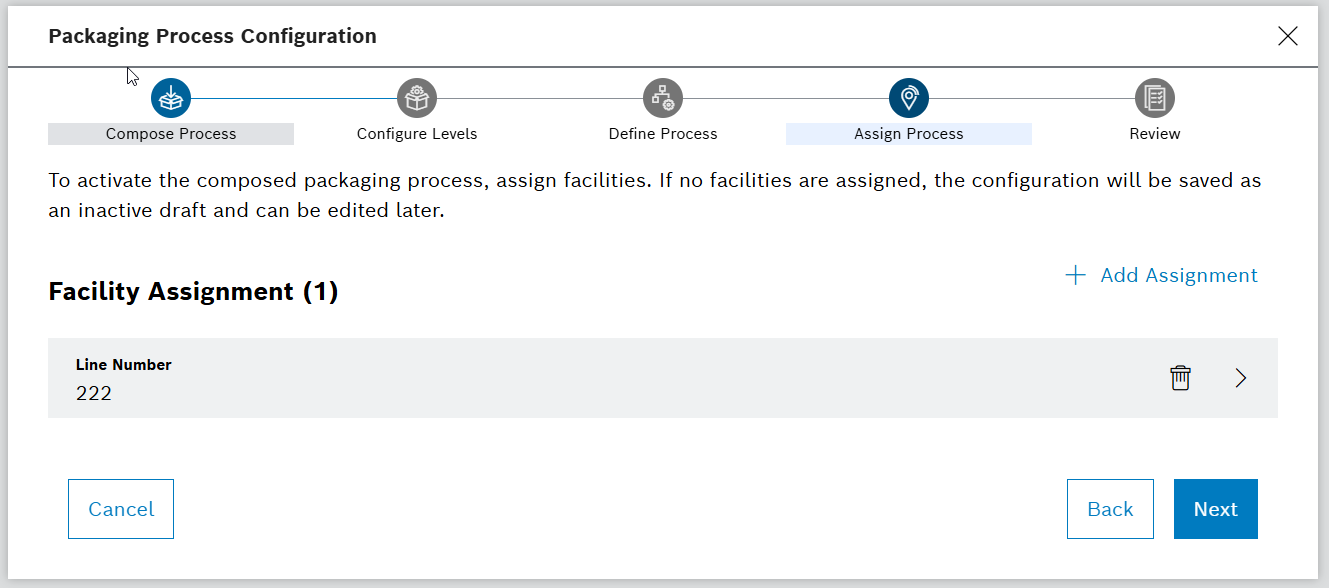
      Facility Assignment list

      The dialog window is closed and the facility assignment page is shown.

    5. To edit facility information, click on Edit Facility next to the assigned line.

    6. To remove an assignment, click on delete next to the assigned line.

    7. To associate multiple lines, click on Add Assignment and repeat the previous steps.

  5. Click on Next.

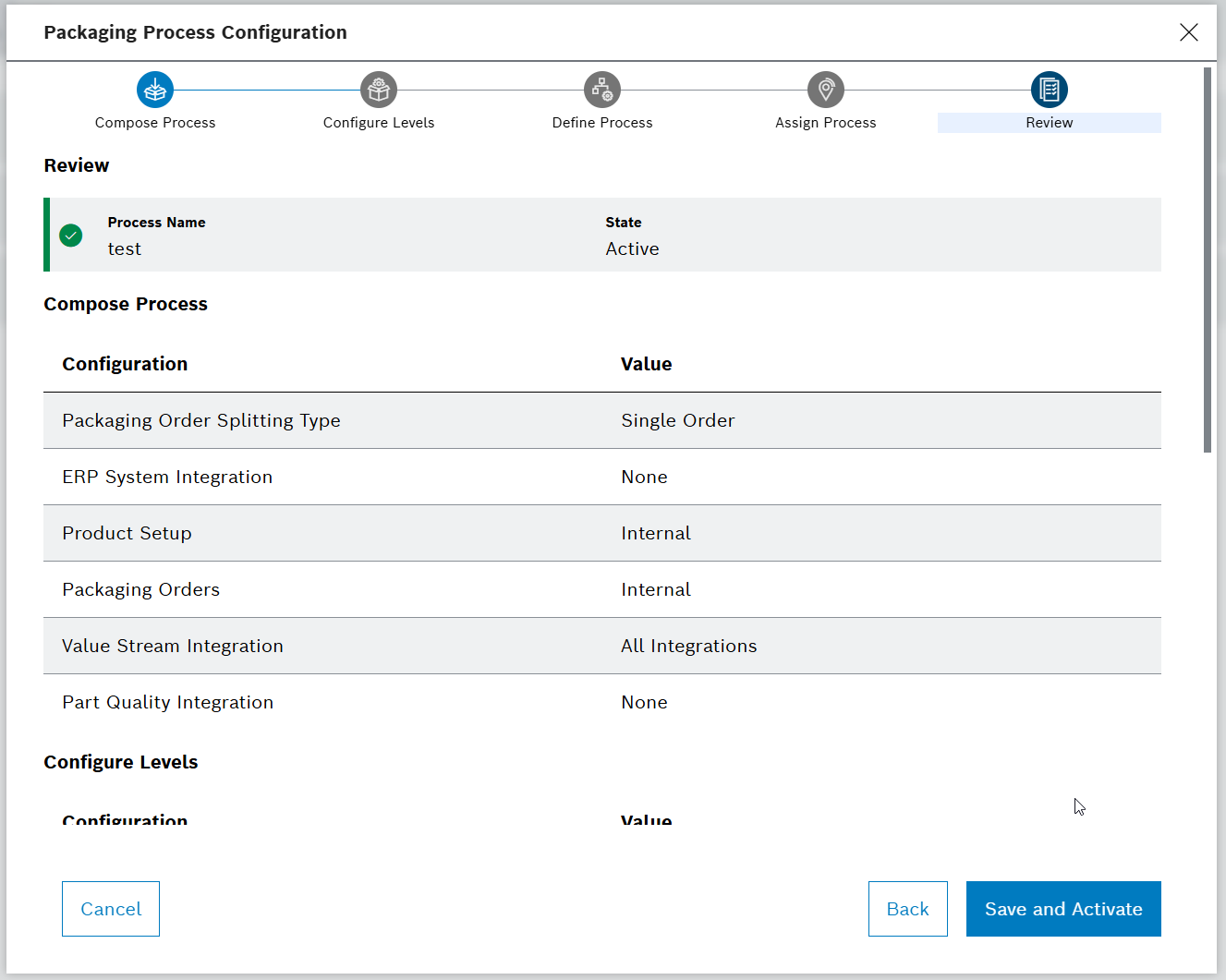
Step 5: Review

  1. On the Review page, check all the configurations.

  2. Click on Save and Activate.

    Save and Activate

    The dialog window is closed and the Processes list page is shown.

    Active

The packaging process is created and displayed in the list.

Contents

© Robert Bosch Manufacturing Solutions GmbH 2023-2025, all rights reserved

Changelog Corporate information Legal notice Data protection notice Third party licenses