Nexeed
    • Introduction
    • Station UI
      • Introduction
      • Getting started
      • Configuration
      • Dashboard
      • Utility Bar
        • Scanner
        • Notification Center
      • Operations
        • Packing
        • Discard
        • Complete
        • Shortage
        • Alternative Components
        • Unpacking
        • Repack
        • Remainder
        • Quality Gate
        • Quantity packing
    • Web UI
      • Label management
        • Create a label
        • Design a label
      • Packaging process
        • Create a packaging process
      • Packaging sequence main page
      • Packaging sequence
      • Packaging station main page
      • Packaging station UI
      • Packaging unit main page
      • Packaging unit
    • Legacy
      • Introduction to the Packaging Control web application
      • Starting the application
      • Login
      • Set up Packaging Control
      • Packing
        • Packaging form
        • Cancellation wizard
      • Process-specific dialogs
        • Ending the process (reject)
        • Starting the repacking process
        • Weight validation
      • Configuration menu
      • Filter options
    • Operations manual
      • Overview
      • System architecture and interfaces
        • Deployment view
        • Architecture
      • System requirements
        • Paco/helm-chart
        • Paco/paco-service
        • Paco/paco-database
        • PackagingControl_<version>_client.mespkg
        • Paco/core-service
        • Paco/core-web-service
        • Paco/printing-service
      • Migration from previous versions
        • Migration from MES to IAS
        • Migration of database
        • Resources mapping from MES to IAS
        • Migration changes from MES to IAS
        • Migration guides from MES to IAS
        • IAS version upgrades
        • Database update with database job
        • Migration job
      • Setup and configuration
        • Helm configuration
        • Database install from scratch
        • Configuration of Packaging Control
        • Configuration of logging
        • Configuration of related service endpoints
        • Configuration of legacy API redirect
        • Configuration of the home tenant ID
        • Configuration of observability
        • Type data
        • Manager and provider modules
        • Timeout configuration
        • Printing
        • Function modules
        • Sub-function modules
        • Client configuration
        • Global functionality
        • Packing unit details
        • Multi-installation deployment
        • Click-once client installation
        • Core-service
        • Core-web-service
        • Printing-service
        • Permissions and roles
      • Start and shutdown
        • Startup dependencies
        • Shutdown
      • Regular operations
      • Failure handling
        • Error codes
        • Warning codes
      • Backup and Restore
      • Logging and monitoring
      • Known limitations
        • Multitenancy capability
        • On premise
        • Database support
        • Client non-web login mechanism
    • API documentation
      • Core-service
        • Core-service internal HTTP API
        • Core-service restricted public HTTP API
      • Legacy service
        • Paco service internal HTTP API
        • Paco service restricted public HTTP API
      • Printing-service
        • Printing-service internal HTTP API
    • Glossary
Packaging Control
  • Industrial Application System
  • Core Services
    • Block Management
    • Deviation Processor
    • ID Builder
    • Multitenant Access Control
    • Notification Service
    • Ticket Management
    • Web Portal
  • Shopfloor Management
    • Andon Live
    • Global Production Overview
    • KPI Reporting
    • Operational Routines
    • Shift Book
    • Shopfloor Management Administration
  • Product & Quality
    • Product Setup Management
    • Part Traceability
    • Process Quality
    • Setup Specs
  • Execution
    • Line Control
    • Material Management
    • Order Management
    • Packaging Control
    • Rework Control
  • Intralogistics
    • Stock Management
    • Transport Management
  • Machine & Equipment
    • Condition Monitoring
    • Device Portal
    • Maintenance Management
    • Tool Management
  • Enterprise & Shopfloor Integration
    • Archiving Bridge
    • Data Publisher
    • Engineering UI
    • ERP Connectivity
    • Gateway
    • Information Router
    • Master Data Management
    • Orchestrator

Nexeed Learning Portal

  • Packaging Control
  • Station UI
  • Operations
  • Alternative Components

Alternative components

This chapter explains how to manually select alternative components during the packing process. In these scenarios, a production or packing confirmation is required before completing a packaging unit.

When does production or packing confirmation occur?

  • If the product setup allows, alternative components can be selected by the packaging operator, including specifying exact quantities.

  • The current packing unit is fully packed.

  • This feature is available only during the packing process. It can also be used to complete a packaging unit with shortages or during repacking.

Prerequisites

  • The application is configured.

  • An active packing process is in progress.

  • The current packing unit is fully packed.

  • The packing unit has not been completed or finalized automatically.

  • The Confirm button is visible.

  • Role as Packaging Operator or Packaging Enhanced Operator.

Procedure

  1. Click on Confirm.

    Confirm_Button

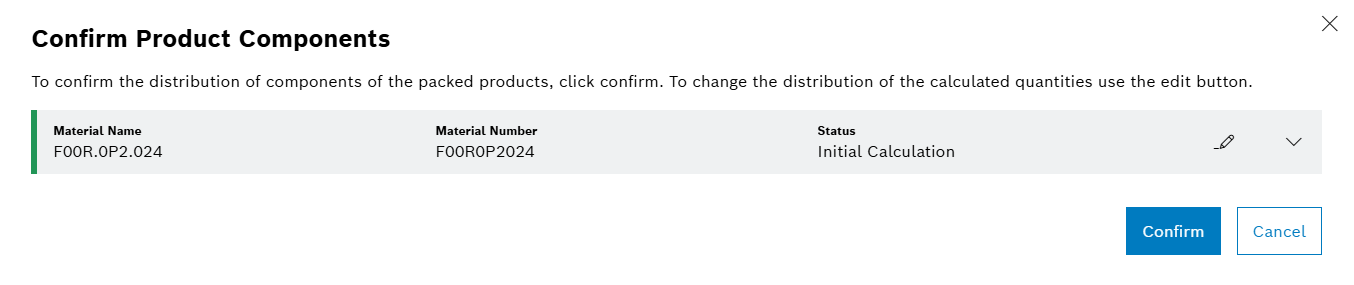
    The Confirm Product Components dialog appears.
    Confirm_Product_Components_Popup

    The status of the parent component is Initial Calculation.

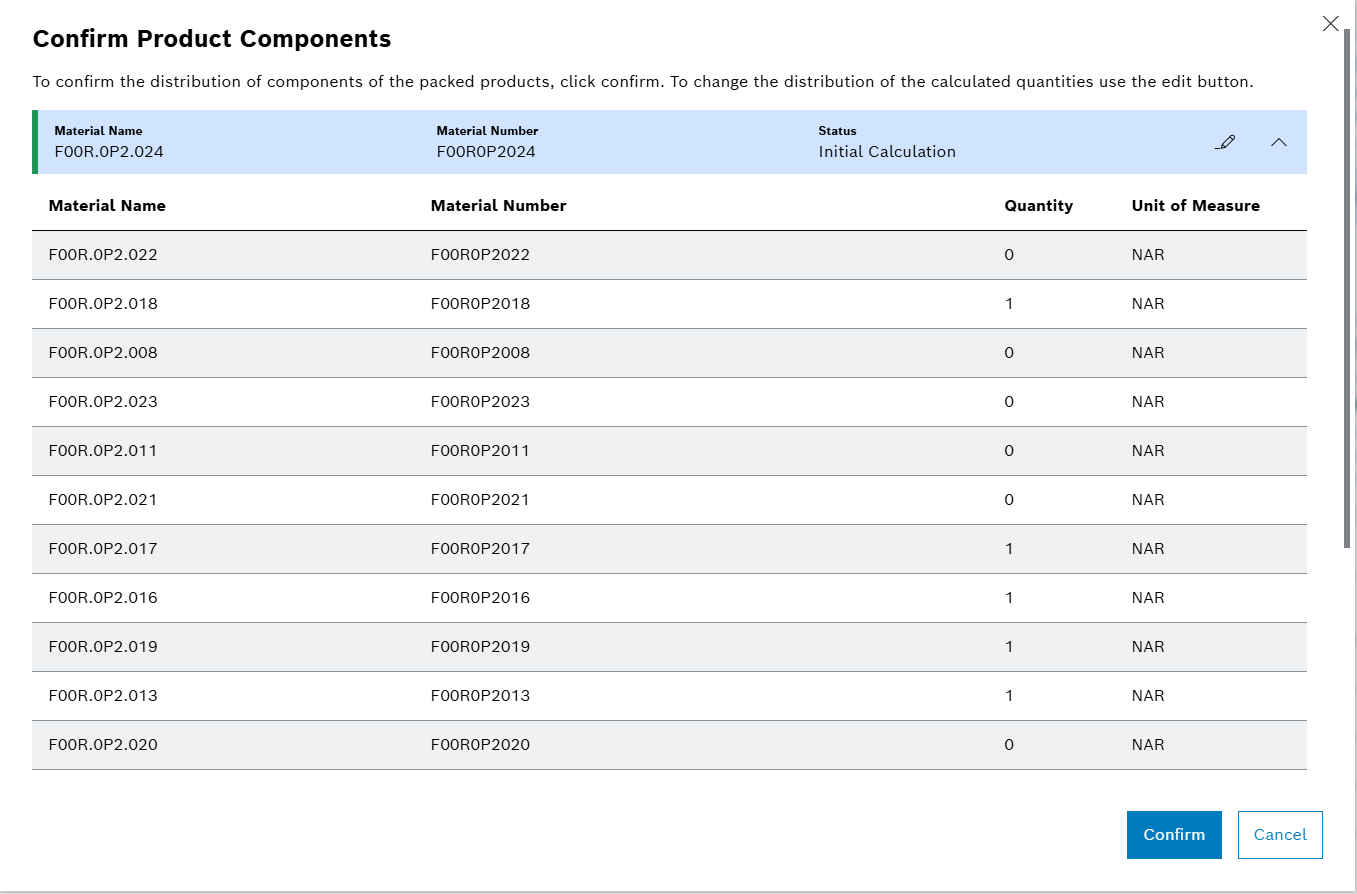
  2. Click on Expand_Icon to view the packed components.

    The packed component row expands, showing all possible and alternative components.
    Confirm_Product_Components_Popup_with_List_of_Packed_Components
  3. Proceed to step 7 to accept the suggested default quantity for alternative components.

  4. Click on Edit_Icon.

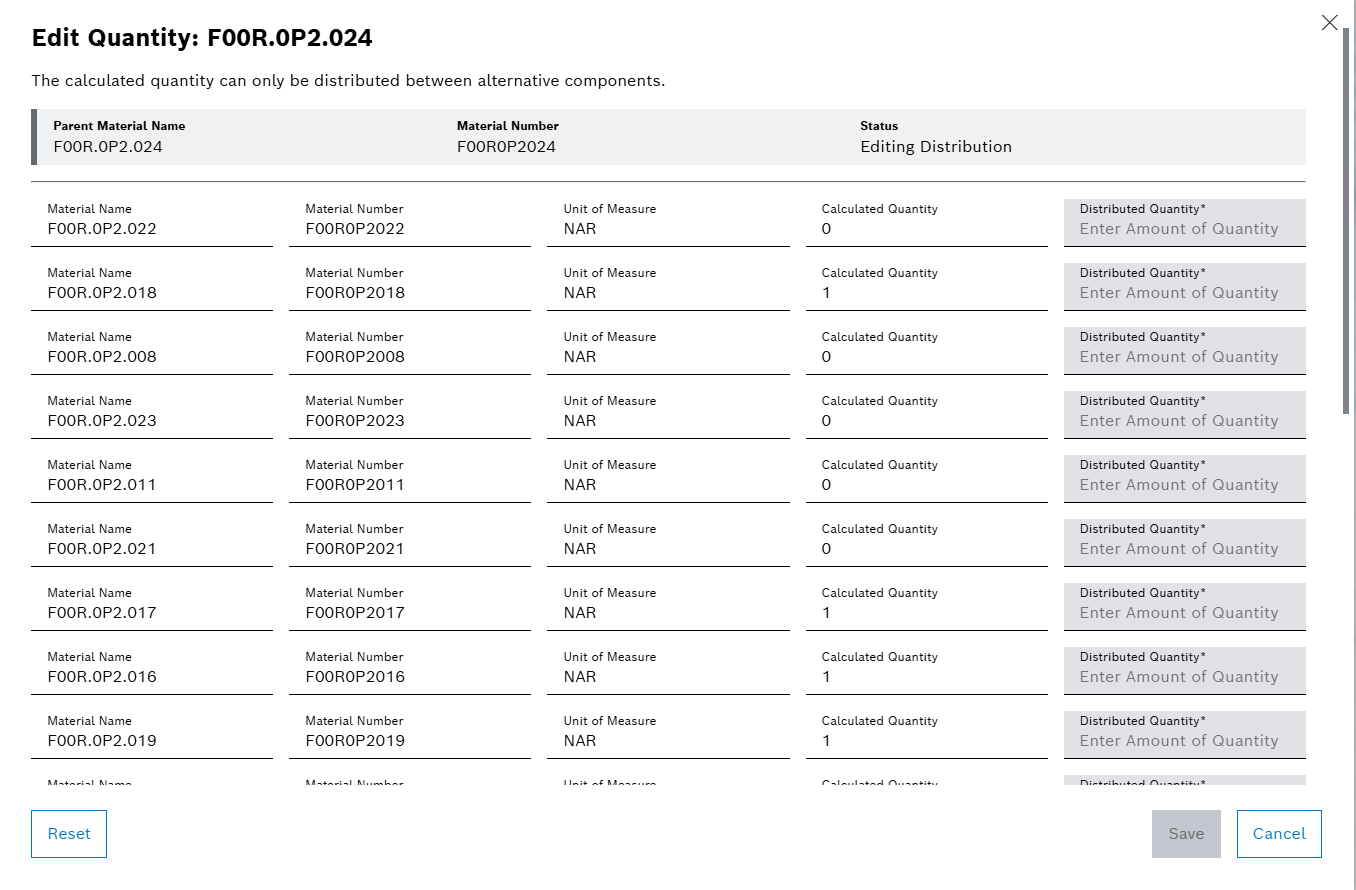
    The Edit Quantity view for the packed component opens.

    The status of the parent component changes to Editing Distribution.
    Confirm_Product_Components_Popup_Edit_Quantity_View
  5. Enter the Distributed Quantity for each component.

    The total distributed quantity must match the required quantity.

  6. Click on Save.

    The status of the parent component changes to Edited Distribution.

  7. Click on Confirm.

The packaging unit with alternative components is completed. The user is redirected to the Dashboard.

Edit distribution

A default distribution of components and alternative components is calculated and suggested to the Packaging Operator.

  • The suggested distribution can be accepted,

  • or manually adjusted for each component.

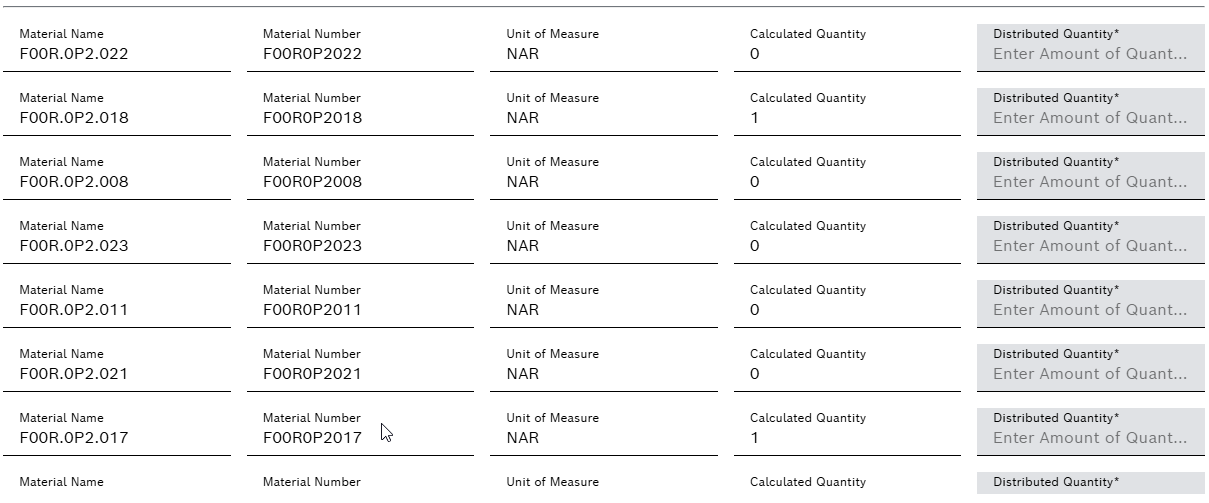
In the Edit Quantity view, specify the target quantity for each possible or alternative component.
Edit_Distribution_Table
Element/icon Description

Material Name

Displays the name of each component or alternative component for identification and selection.

Material Number

Shows the unique identifier (material number) for each component or alternative component.

Calculated Quantity

Displays the automatically calculated quantity for each component, based on the packed products, parts, or materials in the packaging unit.

Distributed Quantity

Enter the target quantity for each component to be distributed.
This field is required.

Checking calculation

The system automatically verifies that the Total Distributed Quantity matches the Quantity to be Distributed.
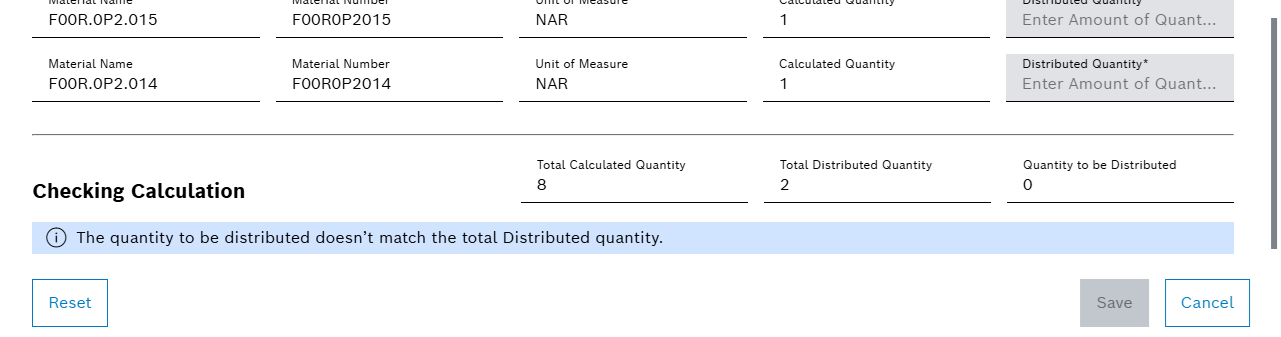
Checking_Calculation
Element/icon Description

Total Calculated Quantity

Shows the combined total of all Calculated Quantity values for possible and alternative components.

Total Distributed Quantity

Displays the sum of the target quantities for all components. This is automatically calculated based on the packed products, parts, or materials in the packaging unit.

Quantity to be Distributed

Shows the required quantity to be distributed, calculated from the input values in the Distributed Quantity fields.

The unit pieces is always rounded up. For all other units, no rounding is performed. The actual value is used exactly as entered. The Total Distributed Quantity and Quantity to be Distributed must match. Otherwise, the Save button remains disabled.

Contents

© Robert Bosch Manufacturing Solutions GmbH 2023-2025, all rights reserved

Changelog Corporate information Legal notice Data protection notice Third party licenses