Nexeed
    • Introduction
    • User manual
      • Getting started
        • Device registration overview
          • Registering a device
          • Self-registration of devices
        • Device claiming
          • Adding a ctrlX Core device
          • Adding a Rexroth connectivity unit device
      • Device overview
        • Setting the filter for the search
        • Device details
        • Edit device properties
        • Roll out artifacts on one or more devices
        • Rolling out a distribution
      • Device groups
        • Creating a device group
      • Machine overview
        • Create, edit and delete machines
        • Adding machines and devices via CSV file import
        • Structure of the CSV import file
      • Activity overview
      • Distribution overview
        • Managing distributions
        • Managing commands in a distribution
    • Operations manual
      • Overview
      • System architecture and interfaces
        • Element descriptions
        • Network connections overview
      • System requirements
        • General system requirements
        • Ingress controller
        • idm/idm-device-administration-app
        • idm/idm-software-management-app
        • idm/idm-device-monitoring-app
        • idm/idm-device-master-data-mgmt-app
        • idm/idm-device-app
        • idm/idm-solution-app
        • idm/idm-webapp-backend
        • idm/idm-device-tunnel-app
        • idm/idm-artifact-repository
        • bci-app/opensearch
        • bci-app/opensearch-dashboards
        • bci-app/valkey
        • bci-app/nginx
        • bci-kube/nexeed-ansible-operator
      • Migration from previous versions
      • Setup and configuration
        • Installation guide
          • How to initialize OpenSearch
          • How to create MACMA tenants with basic authentication
          • How to configure tenants for artifact-related use cases
        • Configuration
          • Detailed configuration parameters
          • Recommendations for service meshes
      • Start and shutdown
      • Regular operations
        • Whitelist new certificate
      • Failure handling
        • Device Portal data is out of sync
        • How to synchronize devices and machines to OpenSearch
        • Synchronize communication id mapping to key-value store (Redis/Valkey)
      • Backup and Restore
      • Logging and monitoring
      • Known limitations
    • Developer guide
      • Communication ID
      • Adding diagnostic functionality to devices
      • Add command processing to devices
      • Add the backup/restore functionality to devices
      • Reducing data consumption of device communication
      • Access through a custom application
    • Artifact Repository guide
      • Introduction
      • Providing artifacts for roll-out
        • Establishing a connection to the Device Portal
        • Uploading and managing artifacts in the repository
      • Downloading artifacts
      • Sending commands
    • API documentation
    • Glossary
Device Portal
  • Industrial Application System
  • Core Services
    • Block Management
    • Deviation Processor
    • ID Builder
    • Multitenant Access Control
    • Notification Service
    • Ticket Management
    • Web Portal
  • Shopfloor Management
    • Andon Live
    • Global Production Overview
    • KPI Reporting
    • Operational Routines
    • Shift Book
    • Shopfloor Management Administration
  • Product & Quality
    • Product Setup Management
    • Part Traceability
    • Process Quality
    • Setup Specs
  • Execution
    • Line Control
    • Material Management
    • Order Management
    • Packaging Control
    • Rework Control
  • Intralogistics
    • AGV Control Center
    • Stock Management
    • Transport Management
  • Machine & Equipment
    • Condition Monitoring
    • Device Portal
    • Maintenance Management
    • Tool Management
  • Enterprise & Shopfloor Integration
    • Archiving Bridge
    • Data Publisher
    • Direct Data Link
    • Engineering UI
    • ERP Connectivity
    • Gateway
    • Information Router
    • Master Data Management
    • Orchestrator

Nexeed Learning Portal

  • Device Portal
  • User manual
  • Distribution overview
  • Managing commands in a distribution

Managing commands in a distribution

Distributions are used to bundle several commands and to execute them in a defined sequence during a roll-out. These commands can be divided into software artifacts and custom commands, depending on the device type selected for the distribution.

This page covers how to add, edit, and remove commands from a distribution.

Adding artifacts to a distribution

One of the important elements is the feature to add software artifacts to a distribution. This allows you to install or update software on the target device as part of the distribution rollout.

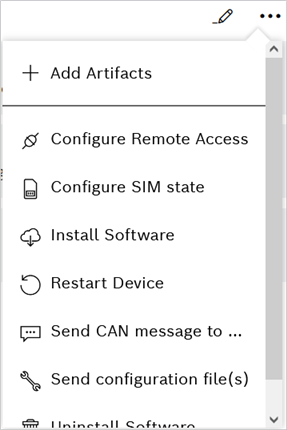
  1. Click the action button to open the selection field in which new commands can be assigned to the distribution.
    228020
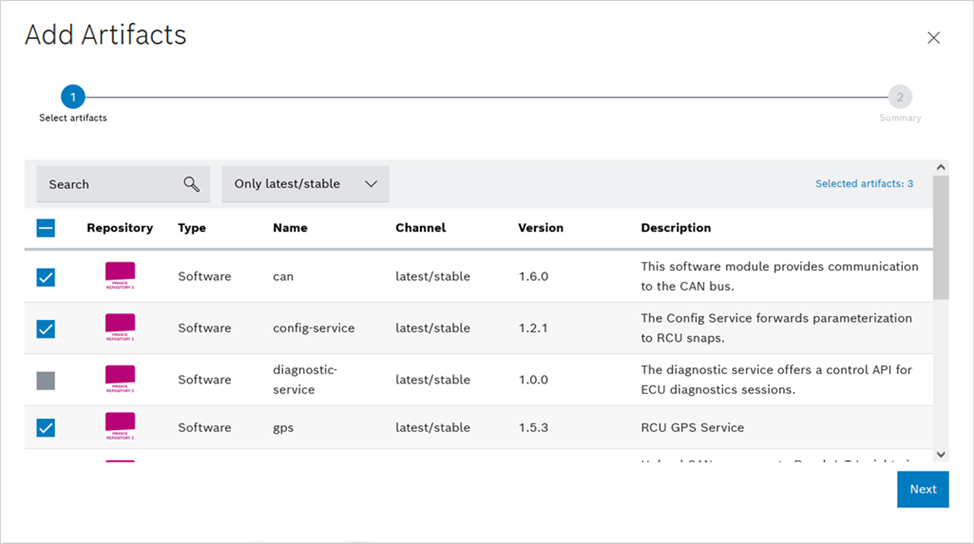
  2. Open the Add Artifacts Wizard by clicking on Add Artifacts. Software artifacts can be selected here.
    228022
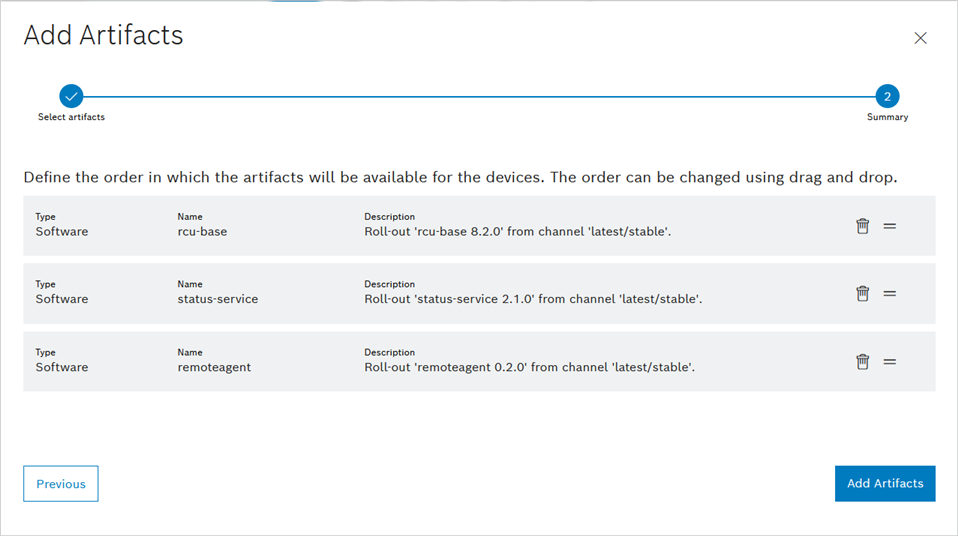
  3. After selecting the artifacts, click Next to open the summary of the selected artifacts. In the summary, the artifacts can be deleted again, or their order can be changed.
    228023
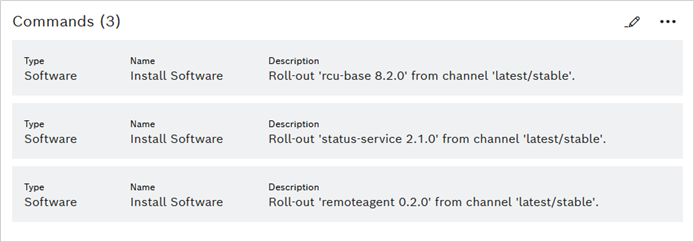
  4. Assign the new artifacts to the distribution in the specified sequence by clicking Add Artifacts.
    228024

The artifacts are assigned to the distribution.

Editing commands within a distribution

After commands have been added to a distribution, you can modify them as long as the distribution has not been used for a rollout. The following actions can be performed on the commands within a distribution:

  • Change the sequence of commands using drag-and-drop.

  • Delete commands (artifacts or custom commands).

    1. To edit a distribution, click Edit mdm_edit_icon.

      A delete symbol delete and a drag-and-drop symbol drag-handle appear next to the commands.

    2. To delete a command, click on the delete symbol delete after the entry.

      The command no longer appears in the list and the Save button becomes active.

    3. To confirm the deletion of the command, click Save.

    4. To change the sequence of the commands, click and hold down the drag-and-drop symbol drag-handle.

    5. Drag and drop the command to the desired position and release the mouse button.

      The command appears at the specified position.

    6. To confirm the new position of the command, click Save.

The distribution commands have been updated successfully.

Contents

© Robert Bosch Manufacturing Solutions GmbH 2023-2025, all rights reserved

Changelog Corporate information Legal notice Data protection notice Third party licenses