SOT
    • Introduction
    • Release notes
      • Breaking changes
    • User manual
      • Introduction
      • Navigating Industrial Application System
        • Navigation menu
        • Header
        • Managing favorite menu entries
      • Dashboards
        • Creating a dashboard space
        • Sharing a dashboard space
        • Creating a dashboard
        • Editing a dashboard
        • Applying dashboard filters and templates
        • Marking dashboards as favorites
        • Adding Web Portal widgets
      • User profile
      • Support
      • User help
      • Screen display modes
      • System information
      • System Settings
        • Footer and Privacy
        • Skinning
        • Navigation Menu
    • Operations manual
      • Overview
      • System architecture and interfaces
      • System requirements
        • portal/coreservice
      • Migration from previous versions
        • From 5.24 to 5.25
        • From 5.23 to 5.24
        • From 5.22 to 5.23
        • IAS 2025.01.00 (Portal 5.20)
        • From 5.15 to 5.16
        • Helm job for database migration (>5.15)
        • From 5.14 to 5.15
        • From 5.13 to 5.14
        • From 5.12 to 5.13
        • From 5.11 to 5.12
        • From 5.10 to 5.11
        • From 5.9 to 5.10
        • From 5.8 to 5.9
        • From 5.7 to 5.8
        • From 5.6 to 5.7
        • From 5.5 to 5.6
        • From 5.3 to 5.4
        • From 5.1 to 5.2
        • Resource mapping from MES to IAS
      • Setup and configuration
        • Permission and roles
        • Support section
        • Training & documentation section
        • Legal information and footer section
        • Cookies
        • Secure configuration
        • Configuration of sections in menu
        • API documentation - footer configuration
        • Environment variables
          • Global variables
          • portal/coreservice
          • portal/systemtests
          • Application variables exposed in Helm chart
      • Start and shutdown
        • Startup dependencies
        • Background tasks
        • Health and availability APIs
      • Regular operations
        • Removing / deregister / unregister a module
        • User data deletion
      • 09_failure_handling/index.adoc
      • Backup and Restore
      • Logging and monitoring
      • Known limitations
    • Developer documentation
      • Concepts
        • General
        • Navigation
        • Dashboard
        • Cross-module communication
        • Documents
        • Security
        • Limitations
      • How to…​
        • register your module & views
        • implement context contribution
        • develop a Web Portal-compatible frontend
        • use the iframe integration library
        • build widgets
        • check the integration status
        • improve UI performance
      • Troubleshooting
    • API documentation
    • Glossary
Web Portal
  • Smart Operations Toolkit
    • Deviation Processor
    • Multitenant Access Control
    • Notification Service
    • Ticket Management
    • Web Portal
  • Shopfloor Management
    • Andon Live
    • KPI Reporting
    • Operational Routines
    • Shift Book
    • Shopfloor Management Administration
  • Product & Quality
    • Process Quality
    • AI Services
  • Machine & Equipment
    • Condition Monitoring
    • Device Portal
  • Enterprise & Shopfloor Integration
    • Information Router
    • Master Data Management

SOT Learning Portal

  • Web Portal
  • Features

Features

The Web Portal serves as the primary access point for users to the UI of all integrated functionalities within the Nexeed Industrial Application System. It acts as the integration layer for modules to incorporate their views (pages) into the UI.

The main functionalities of Web Portal include the navigation menu and the content area for the modules' UI. Additional features encompass a central user profile, individual dashboards, tenant customizations, cross-module communication, an overview of public API documentation, and a support page.

Navigation integration

Modules have the capability to register navigation entries (views),which will be displayed in the left-side navigation. Clicking on these entries will display the corresponding view of the module in the content area.

The navigation menu supports only two levels of navigation. If further breakdown of the navigation is required, modules must provide a third-level in a tab bar (tab control) that spans the entire content area. Presently, the tab bar must be managed by the module’s UI.
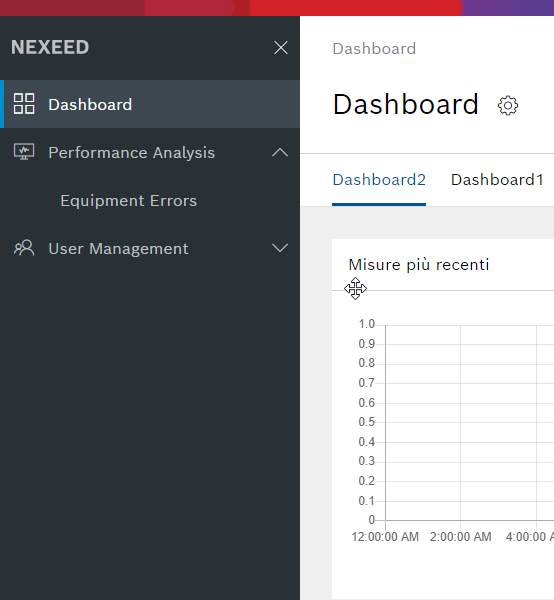
Navigation Menu

Banners

Banners are displayed at the top of the page and remain visible until the user dismisses them. Unlike dialogs, banners do not impede the user from utilizing the system. However, they are mildly disruptive and should only be utilized for matters that necessitate user action or when the entire module is impacted.

Example of a banner

User profile management

Web Portal includes a central user profile management page. User settings from this page are accessible via the UI APIto the module views, enabling them to apply the corresponding configuration to the affected UI elements.
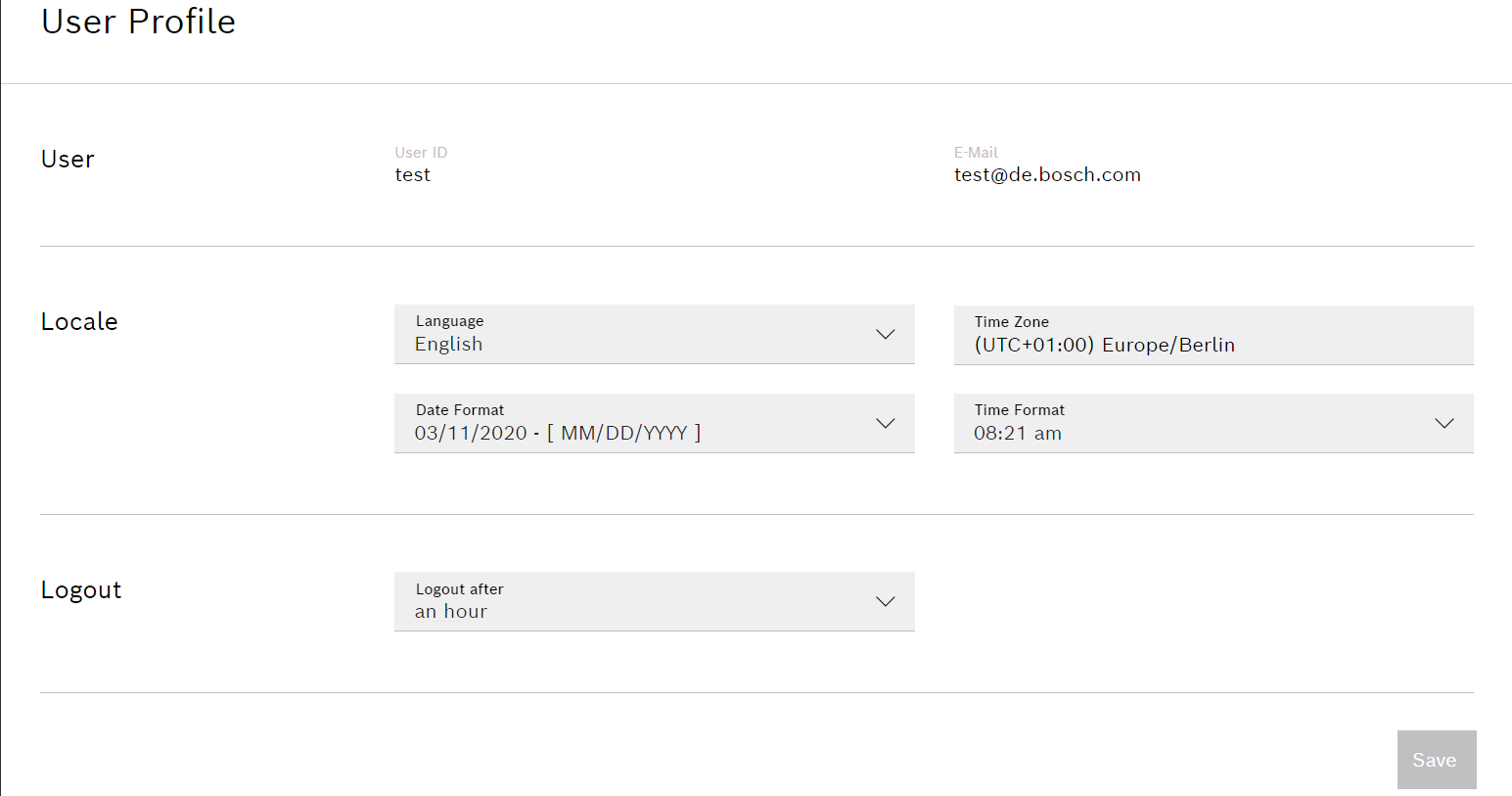
User Profile page

Dashboard widgets

Modules can register widgets which will be shown in the widget catalog on the Web Portal dashboard.
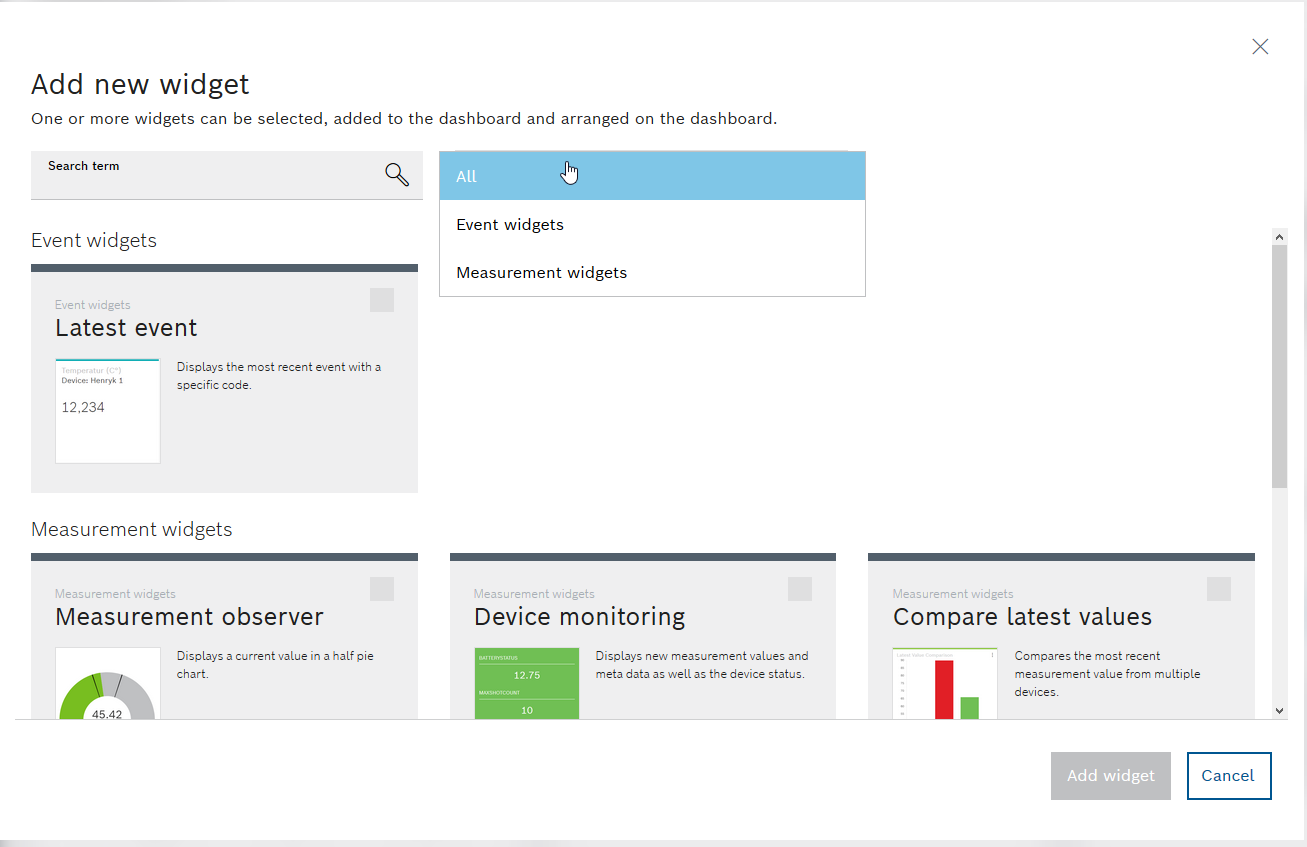
Widget Catalog of Dashboard

Context linking

Context links facilitate linking between views of different modules based on a shared context. For instance, a view displaying device data may present the user with a context menu, enabling them to navigate to other views (of different modules) containing additional information about that device.

Embedded views

Modules have the capability to offer portions of their user interface as embedded views (e.g., a view with ticket details), which can be embedded by another module’s view. This functionality enables modules to enrich their views with valuable information to address cross-module use cases, eliminating the need for users to switch between modules to access related information.

Dialog views

Similar to embedded views, modules can provide dialog views that are opened by Web Portal in a dialog at runtime. This feature is beneficial for scenarios where a task needs to be performed in another module. After closing the dialog, the user will remain in the previous context without the need to switch back and forth between different views.

Search

Users have the ability to utilize the search functionality to locate views. Presently, this functionality is restricted to the views in the navigation menu. Modules can enhance search accuracy by providing search tags (keywords) in the views API.
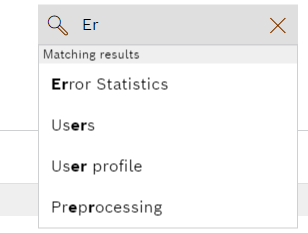
Search

Disclosure documents

Modules can provide third-party open source software disclosure documents which will be displayed by Web Portal on the Open-Source Documents page linked in the header.
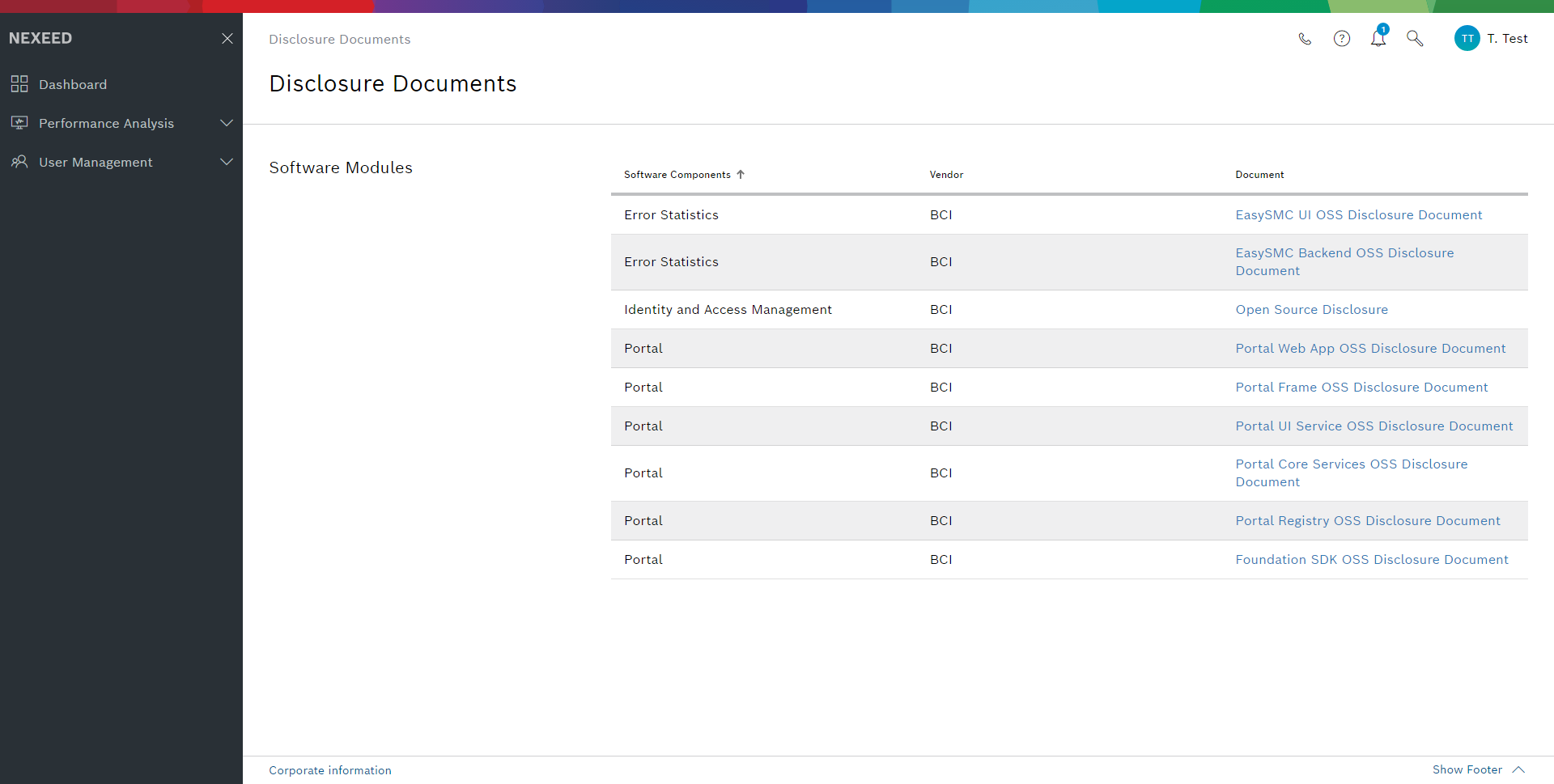
Disclosure Documents Page
This feature is related to legal compliance in certain countries. It is advisable to consult legal experts on this topic to ensure adherence to relevant regulations and requirements.

API documentation

Modules can register their public API documentation (as OpenAPI 3.0 specification) which will be rendered and provided to users by Web Portal. It’s important to note that the public API documentation is accessible without any authentication.

Contents

© Robert Bosch Manufacturing Solutions GmbH 2023-2026, all rights reserved

Changelog Corporate information Legal notice Data protection notice Third party licenses