Manage or create a new error definition for a device type
-
In the menu, select Master data management > Equipment.
-
In the Device types tab, click a device type.
The device type is selected.
-
Click the Error definitions tab of the device type.
The Error definitions tab is displayed.
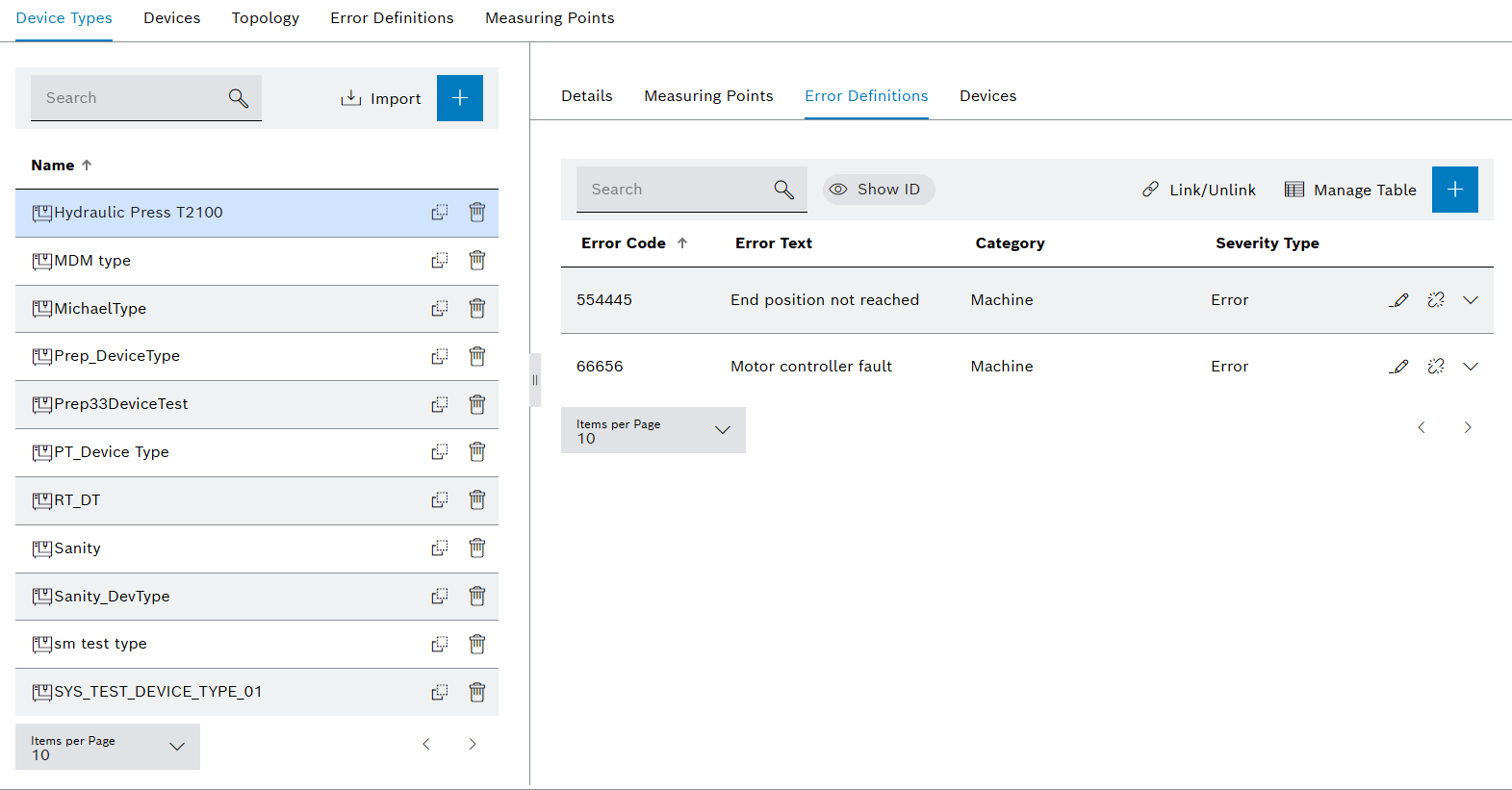
-
Create Error Definition, Link to Device Type and Edit, Unxref:
-
To add a new error definition, continue with Create Error Definition for a Device Type.
-
To define/remove the link between error definitions and a device type, continue with Define/Remove the Link Between Error Definitions and a Device Type.
-
To edit an existing error definition, continue with Edit Error Definition of a Device Type.
-
To disconnect an error definition from a device type, continue with Disconnect the Error Definition from a Device.
-
The error definition is created, linked to device type, edited or the link is disconnected.
Define/remove the link between error definitions and a device type
-
In the menu, select Master data management > Equipment.
-
In the Device types tab, click a device type.
The device type is selected.
-
Click the Error definitions tab of the device type.
-
Click Link/Unlink to adjust the link of the error definitions.
If Link/Unlink is not displayed in the toolbar, click
 and then click Link/Unlink.
The Link error definitions dialog appears.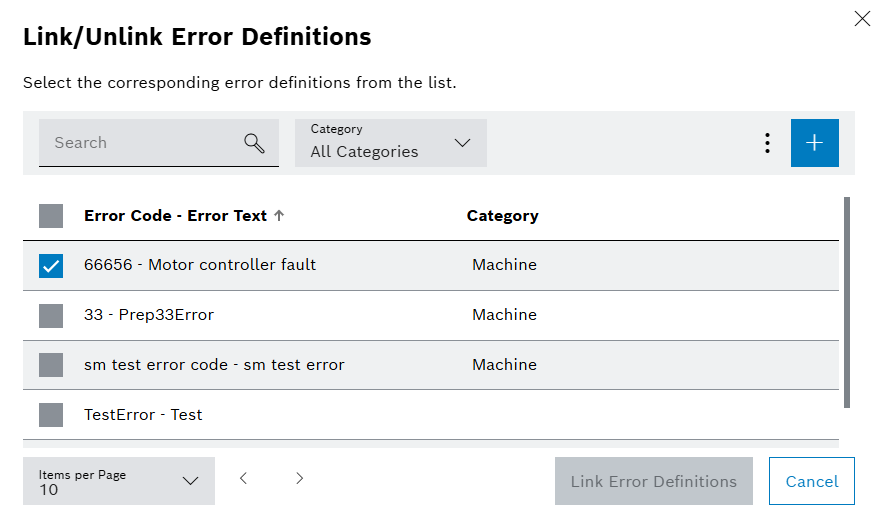
-
Make your selection:
-
In the Search field, you can search for one or more error definitions.
Error numbers must be specified in full. Individual letter combinations will also be found when searching for error texts.
-
In the Category selection box, you can select the category of the error, for example:
Machine : Error on the machine
Measurement : Error during the measurement
Process : Process error
ProcessNOKBit : Process error in bit form
-
To add a new error definition, click
 and continue with Create Error Definition for a Device Type.
 -
In the Error code - Error text list, click to select or deselect one or more error definitions.
Selected error definitions will be or will remain linked with the device type.
The links of the unselected error definitions will be removed.
-
-
Click Select error definitions.
Unselected error definitions are not deleted and can be reused.
The new error definitions linked with the device type appear in the working area, and any error definitions that are no longer linked do not appear in the working area.
Create error definition for a device type
-
In the menu, click Master data management > Equipment.
-
In the Device types tab, click a device type.
The device type is selected.
-
Click the Error definitions tab of the device type.
The Error definitions tab is displayed.
-
In the working area, click
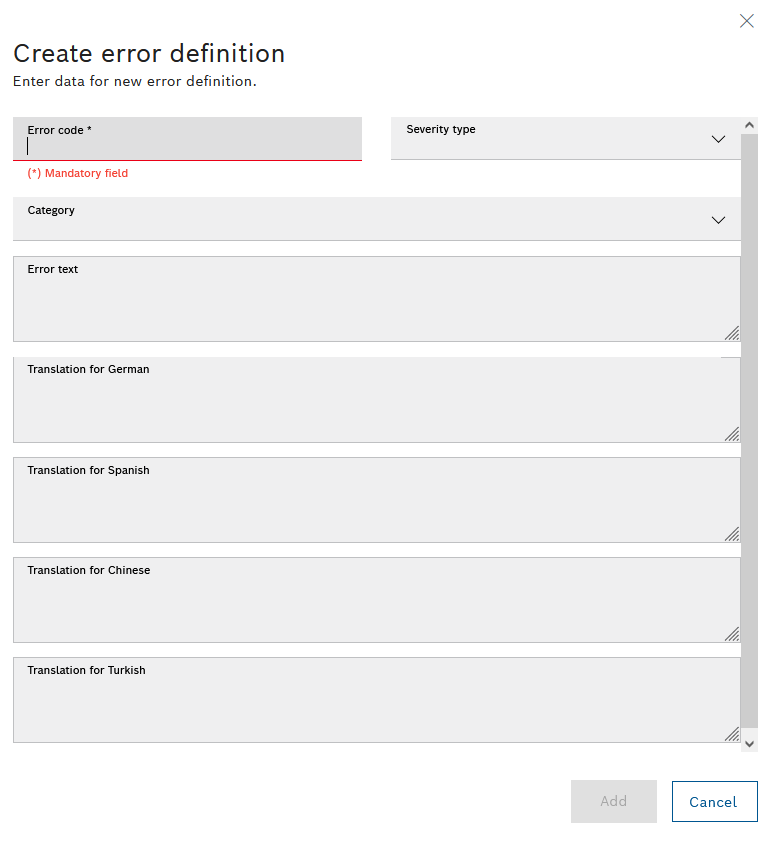
to add a new error definition.The Create error definition dialog appears.
-
Enter details:
-
In the Error code text box, enter the alphanumeric error code.
-
In the Severity selection box, you can select the severity of the error.
-
In the Category selection box, you can select the category of the error, for example:
Machine : Error on the machine
Measurement : Error during the measurement
Process : Process error
ProcessNOKBit : Process error in bit form
-
In the Error text text field you can enter the German text that is to be displayed when the error occurs.
-
In the Translation for English text field you can specify the English text that is to be displayed when the error occurs.
-
In the Translation for Spanish text field, you can specify the Spanish text that is to be displayed when the error occurs.
-
In the Translation for Chinese text field, you can specify the Chinese text that is to be displayed when the error occurs.
-
In the Translation for Turkish text field, you can specify the Turkish text that is to be displayed when the error occurs.
-
In the Translation for Japanese text field, you can specify the Japanese text that is to be displayed when the error occurs.
Further information on translating the error texts into other supported languages: Translate error definition
-
-
Click Add.
The new device type error definition appears in the working area and is automatically assigned to the device type.
Edit error definition of a device type
-
In the menu, click Master data management > Equipment.
-
In the Device types tab, click a device type.
The device type is selected.
-
Click the Error definitions tab of the device type.
The Error definitions tab is displayed.
-
Click
 in the row with the error definition that you want to edit.
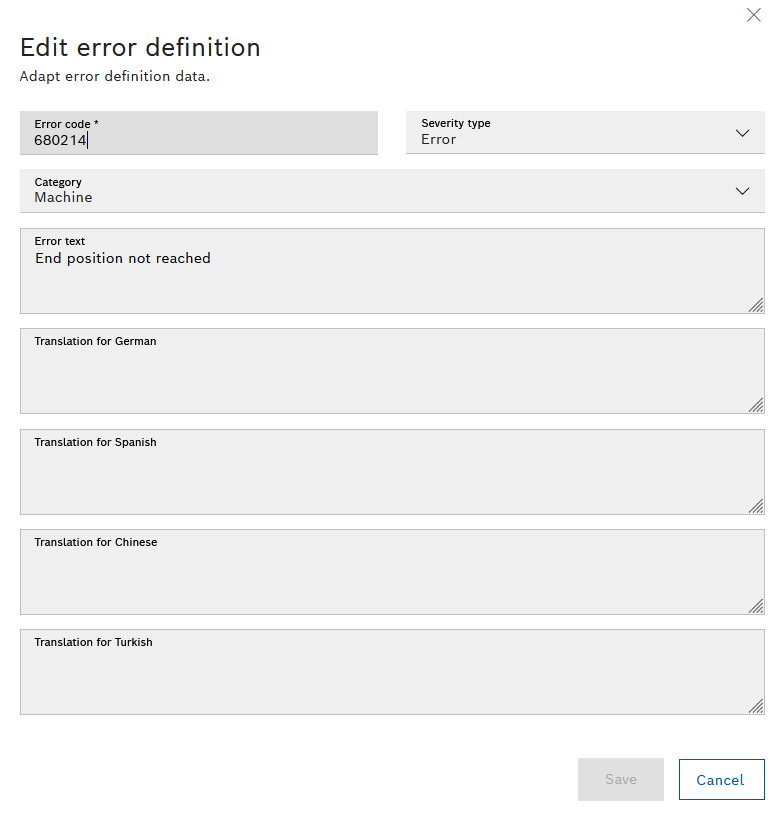
The Edit error definition dialog appears.
-
Enter details:
-
In the Error code text field, enter the alphanumeric error code.
-
In the Severity selection box, you can select the severity of the error.
-
In the Category selection box, you can select the category of the error: Create Error Definition for a Device Type
-
In the Error text text field you can enter the German text that is to be displayed when the error occurs.
-
In the Translation for English text field you can enter the English text that is to be displayed when the error occurs.
-
In the Translation for Spanish text field, you can enter the Spanish text that is to be displayed when the error occurs.
-
In the Translation for Chinese text field, you can enter the Chinese text that is to be displayed when the error occurs.
-
In the Translation for Turkish text field, you can enter the Turkish text that is to be displayed when the error occurs.
-
In the Translation for Japanese text field, you can enter the Japanese text that is to be displayed when the error occurs.
Information on translating the error texts into other supported languages: Translate error definitionError definitions are unique objects. If the error definition is linked to other device types, the error definition is also changed.
-
-
Click Save.
The error definition of the device type is saved.
Disconnect the error definition from a device
-
In the menu, click Master data management > Equipment.
-
In the Device types tab, click a device type.
The device type is selected.
-
Click Error definitions.
The Error definitions tab is displayed.
-
In the row with the error definition you want to disconnect, click
 .
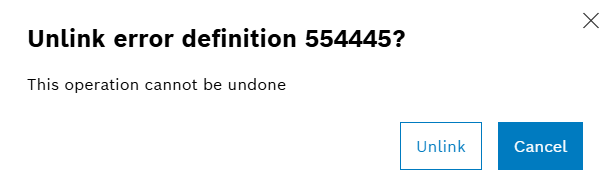
.The Disconnect error definition dialog appears.
-
Click Delete connection.
The device type’s error definition is disconnected and the error definition is no longer displayed on the Error definitions tab.