Web configuration
Once you have logged into the Nexeed Industrial Application System and are at the main screen, navigate to the Configuration menu under the Rework Control module to configure the station UI.
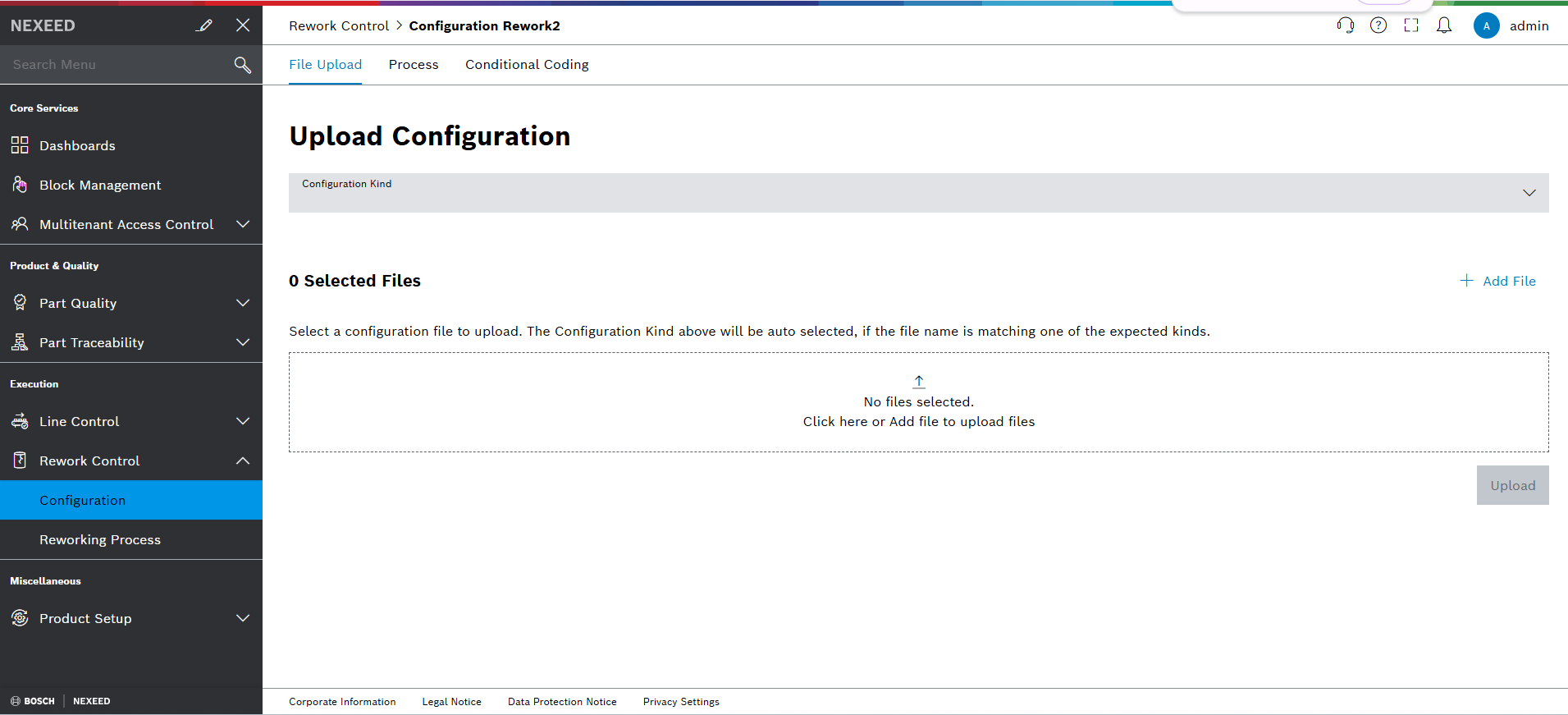
File Upload Tab
The File Upload tab allows users to upload configuration files in different formats such as JSON and XML.
-
Configuration Kind Field: Select the configuration type from a predefined list
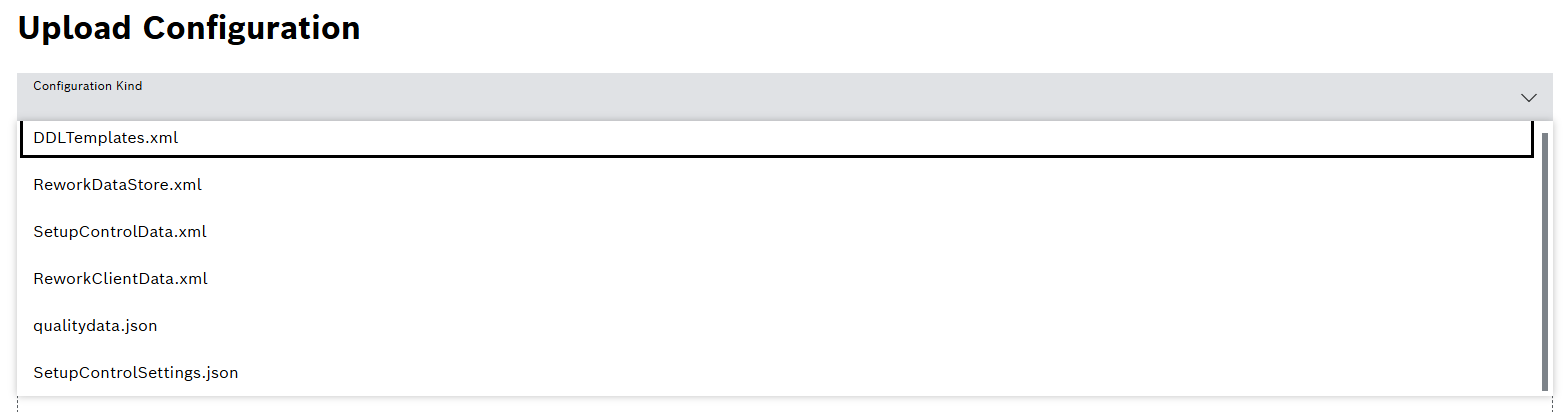
The Configuration Kind will be auto-selected if the uploaded file name matches one of the expected kinds. -
 Add File or click here: Upload configuration files by clicking this area. Users can also drag and drop files here.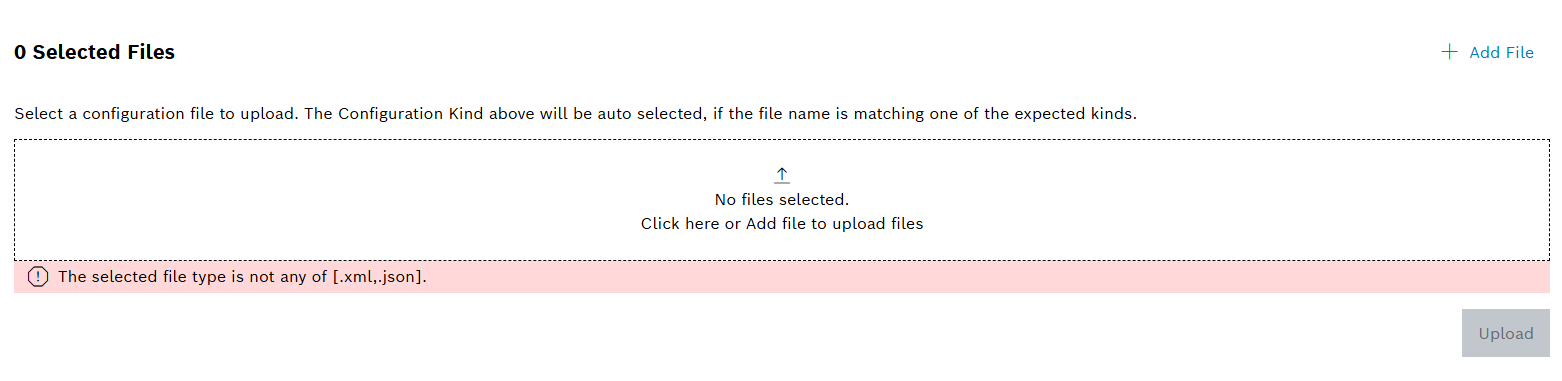
If the uploaded file format is not supported, a warning message The selected file type is not any of [.xml,.json] will be displayed. If the uploaded file does not match specific kind, a warning message Selected file does not match specified kind. will be displayed. -
Upload Button: Click "Upload" to save the selected file to the system
A success message will be displayed once the file is uploaded successfully.
Process Tab
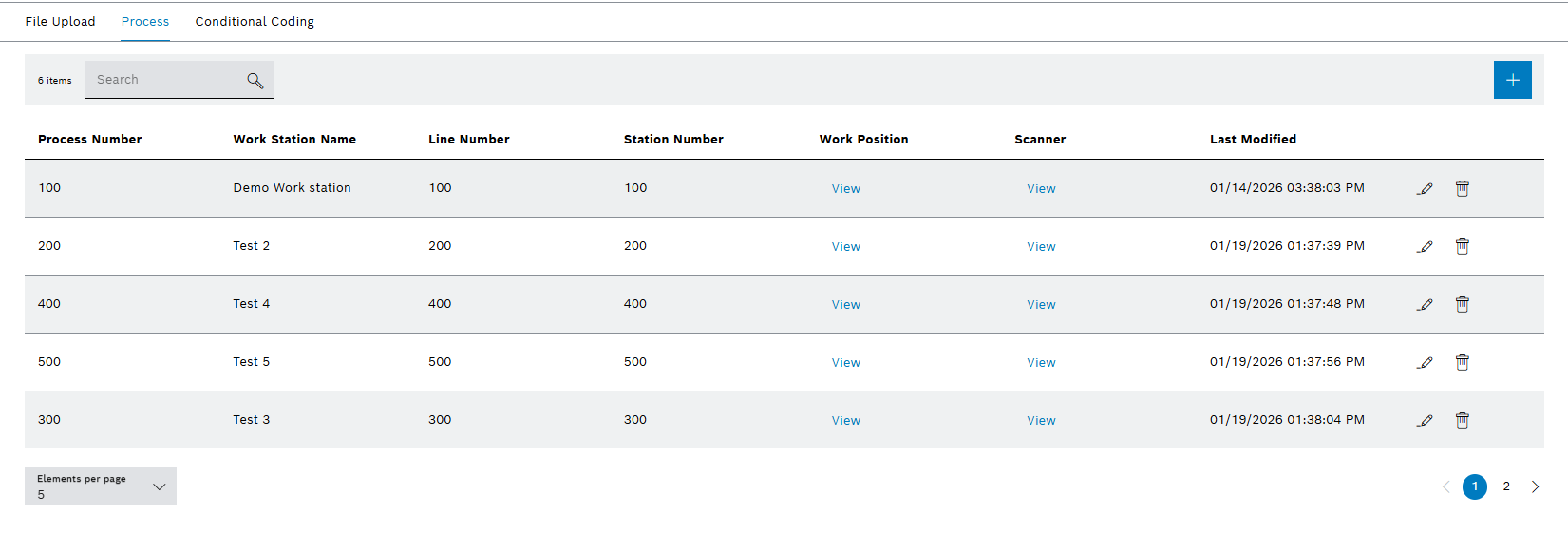
The Process tab provides comprehensive functionality to view, add, edit, and delete processes in the system.
Process Management Features
-
Viewing Process Details
This section displays a comprehensive list of all processes with detailed information for each process.
-
 Search Field: Filter through process items using the search functionality
 -
 Add New Process: Create a new process in the system
 -
Process Table: Contains all process data in a structured tabular format for easy viewing and management
Element Description Process Name
Displays the Process Name
Process Number
Displays the Process Number
Work Station Name
Displays Work Station Name
Line Number
Displays the Line Number
Station Number
Displays the Station Number
Work Position
Click on View to display the list of Work Position
Scanner
Click on View to display the list of Scanner
Last Modified
Displays the Last Modified Date
 Edit
EditSelect to edit process
 Delete
Select to delete process
-
Work Position Details: Click "View" under the Work Position column to access detailed work position information and configuration settings
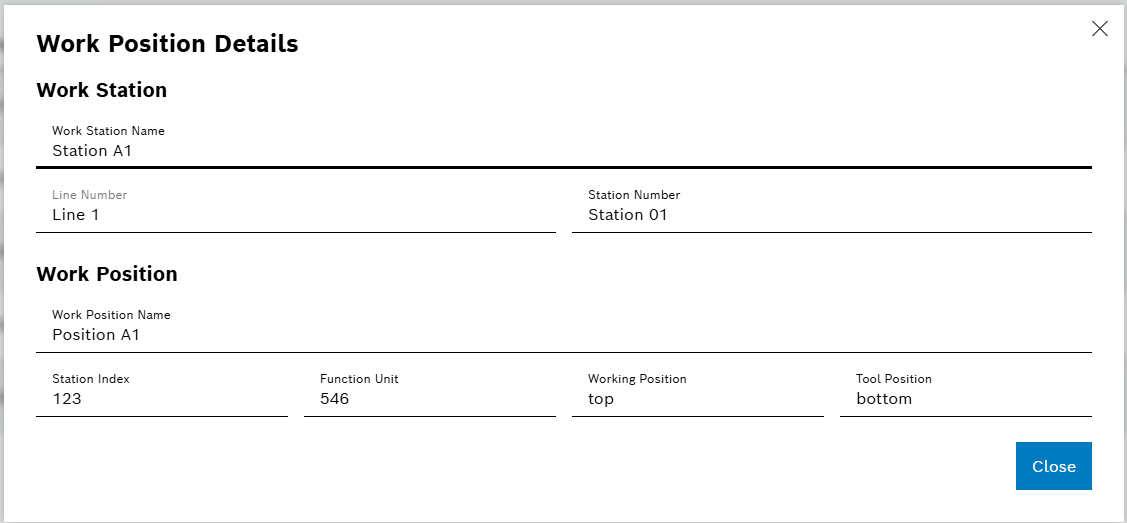
-
Scanner Details: Click "View" under the Scanner column to access scanner-specific details and configuration options
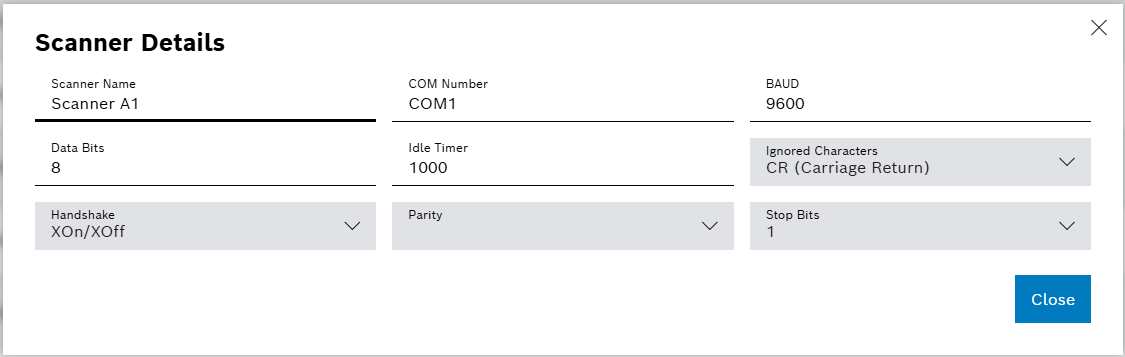
-
-
Adding New Processes
Click the
Add button to create a new process in the system.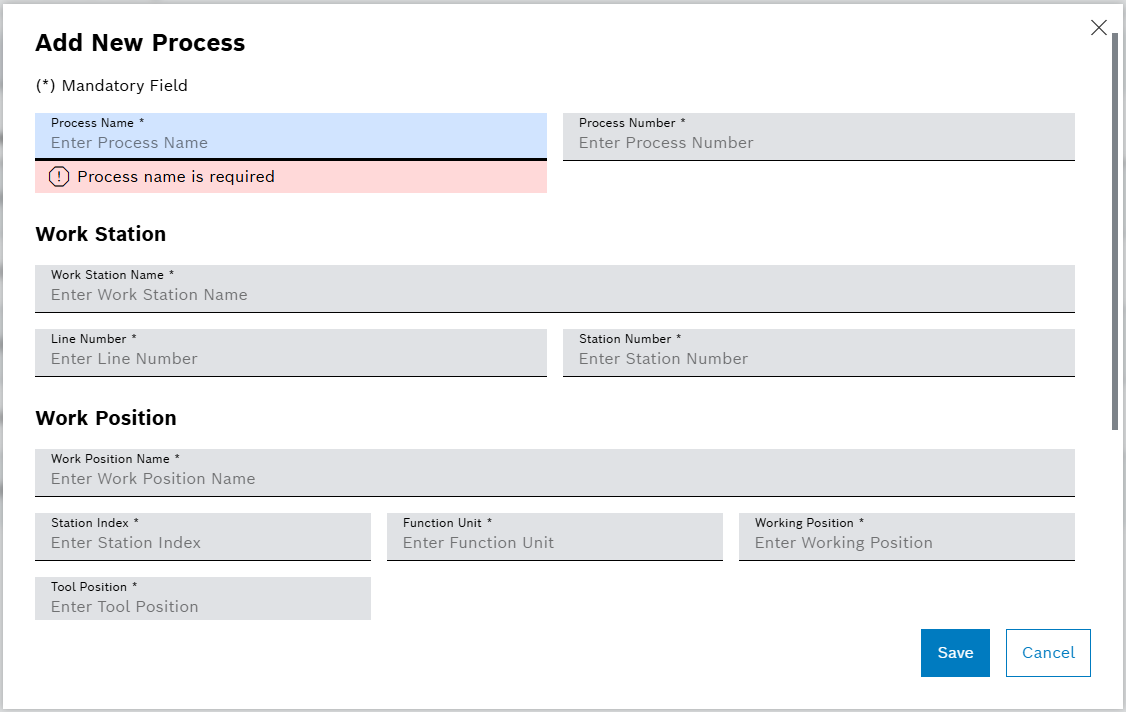
All required fields must be completed to create a new process successfully. -
Edit Process
Click the
Edit icon to modify an existing process configuration.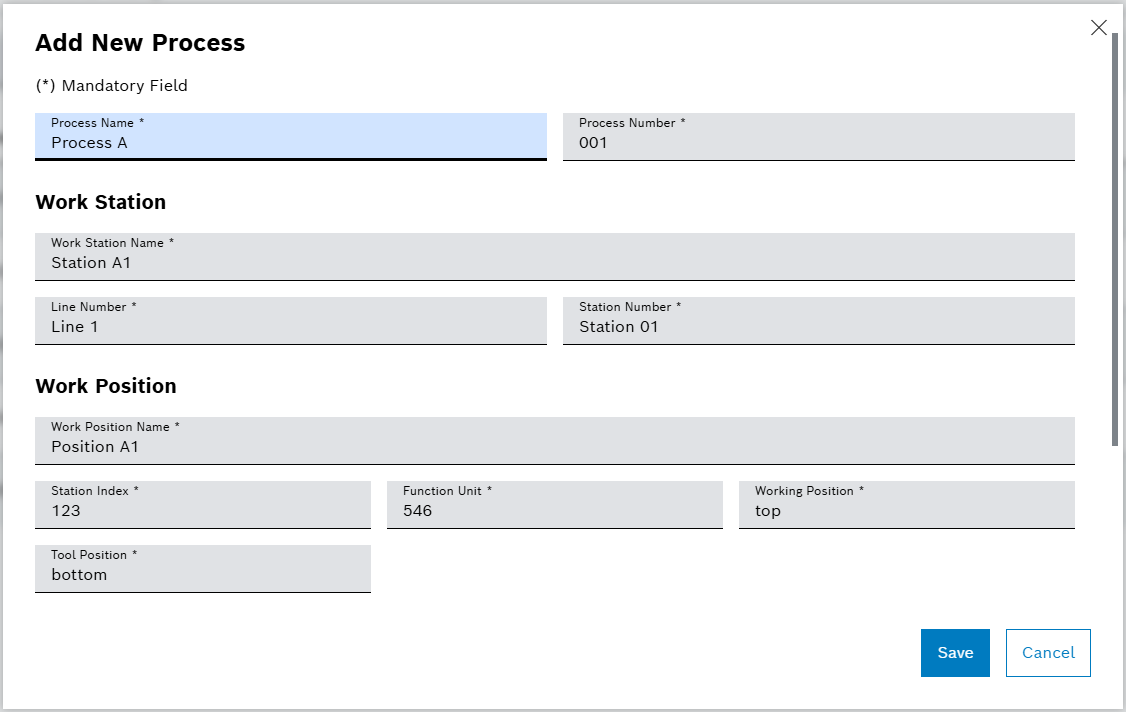
All fields are auto-populated with existing values. Modify the required values and click "Save" to update the process. -
Delete Process
Click the
Delete icon to remove a process from the system. A confirmation dialog will appear - click Delete to confirm the removal.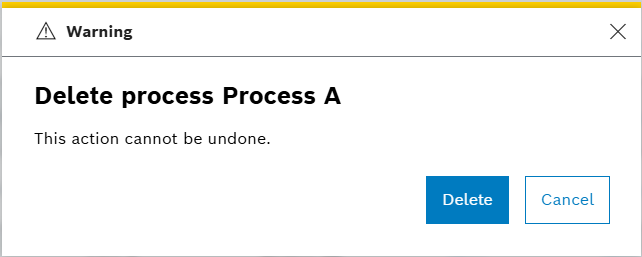
This action cannot be undone. Ensure you want to permanently delete the process before confirming.
Conditional Coding Tab
The Conditional Coding tab provides comprehensive functionality to view, add, and delete route lists in the system. Also it is useful for assigning target process to a process.
| The Routes should be same as the Route Lists in Line Control. |
Route List Features
-
Viewing Route List Details
This section displays a comprehensive list of all route lists with detailed information for each process.
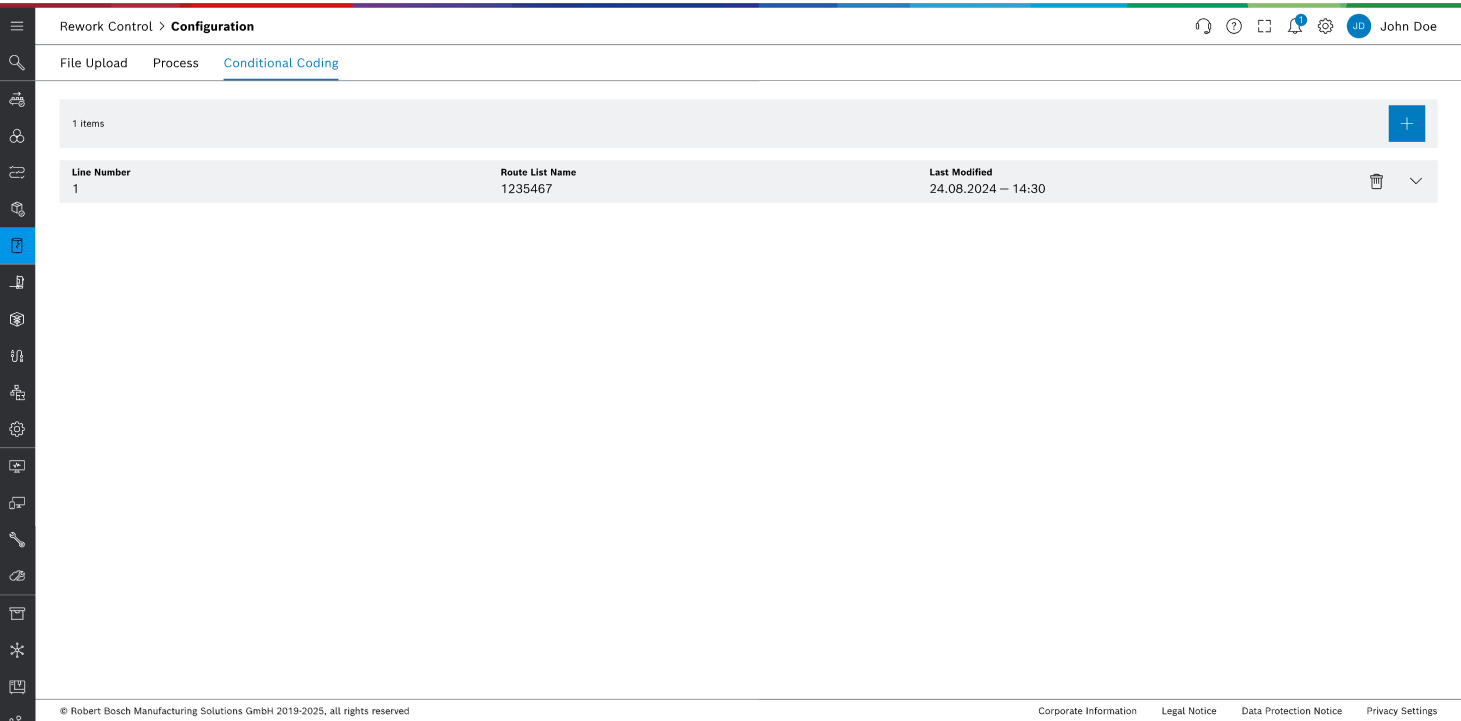
-
Search Field: Filter through route list items using the search functionality
-
Add New Route: Create a new route list in the system
-
Routes Table: Contains all route list data in a structured horizontal card format for easy viewing and management
Element Description Route List Name
Displays the Route List Name
Line Number
Displays the Line Number
Last Modified
Displays the Last Modified Date
DeleteSelect to delete Route
 View
ViewSelect to view process of the route
-
Process Details: Click
to view the process list information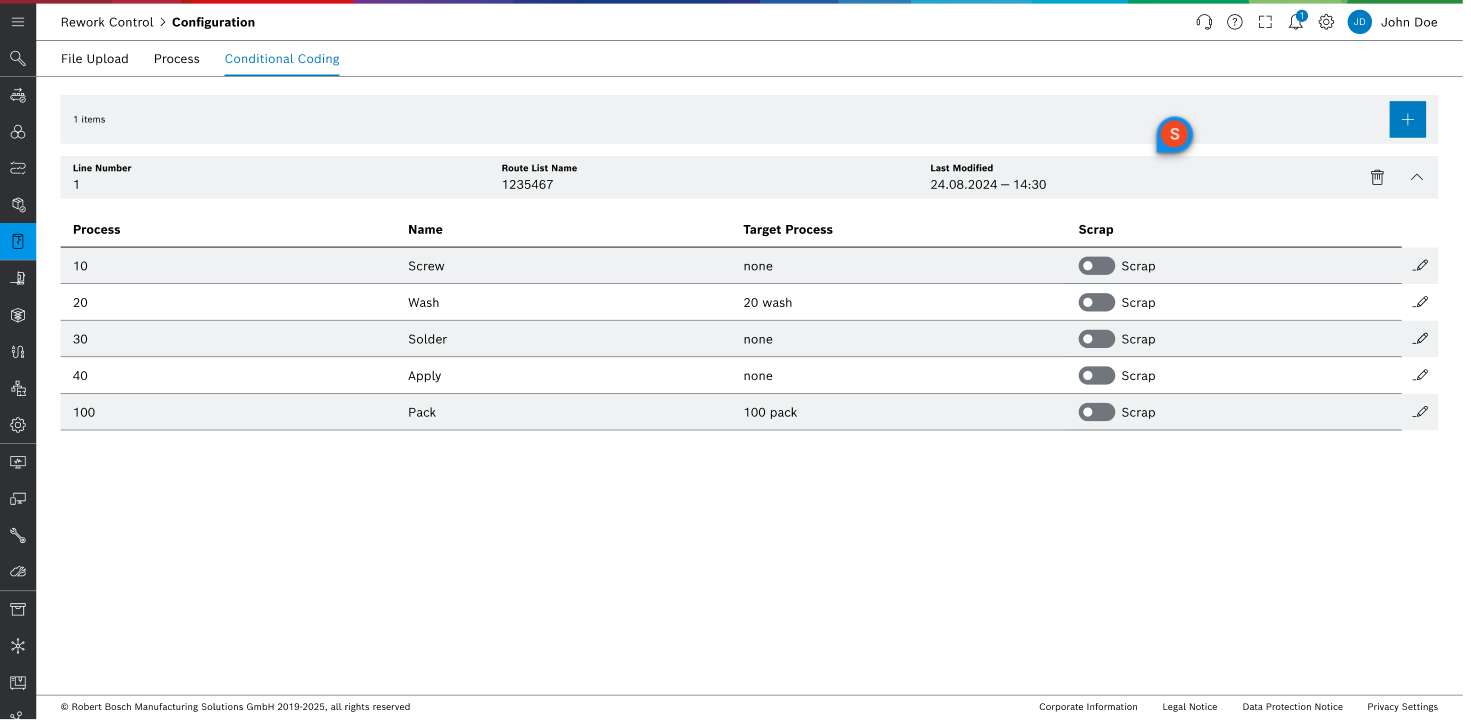
-
Route Process Table: Contains all process data in a structured tabular format for easy viewing and management
Element Description Process
Displays the Process Number
Name
Displays the Process Name
Target process
Displays the next targeted process
Scrap
Shows whether the process is scrapped or not
EditSelect to edit process
-
-
Adding New Route List
Click the
Add button to create a new route in the system.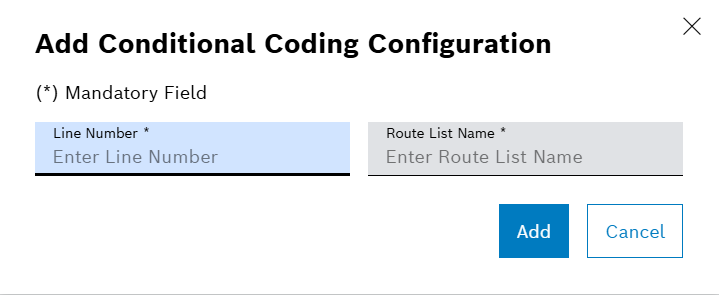
All required fields must be completed to create a new route successfully. -
Delete Route List
Click the
Delete icon to remove a route from the system. A confirmation dialog will appear - click Delete to confirm the removal.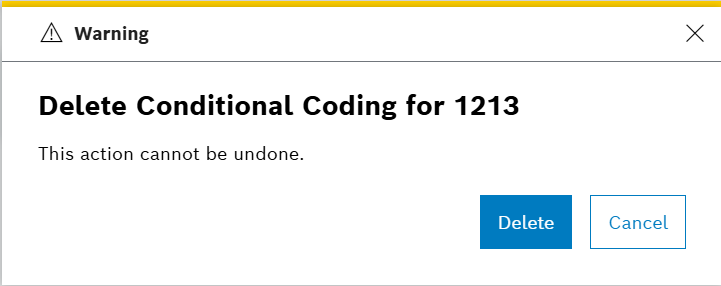
This action cannot be undone. Ensure you want to permanently delete the route before confirming. -
Edit Route Process
Click the
Edit icon to modify an existing process configuration.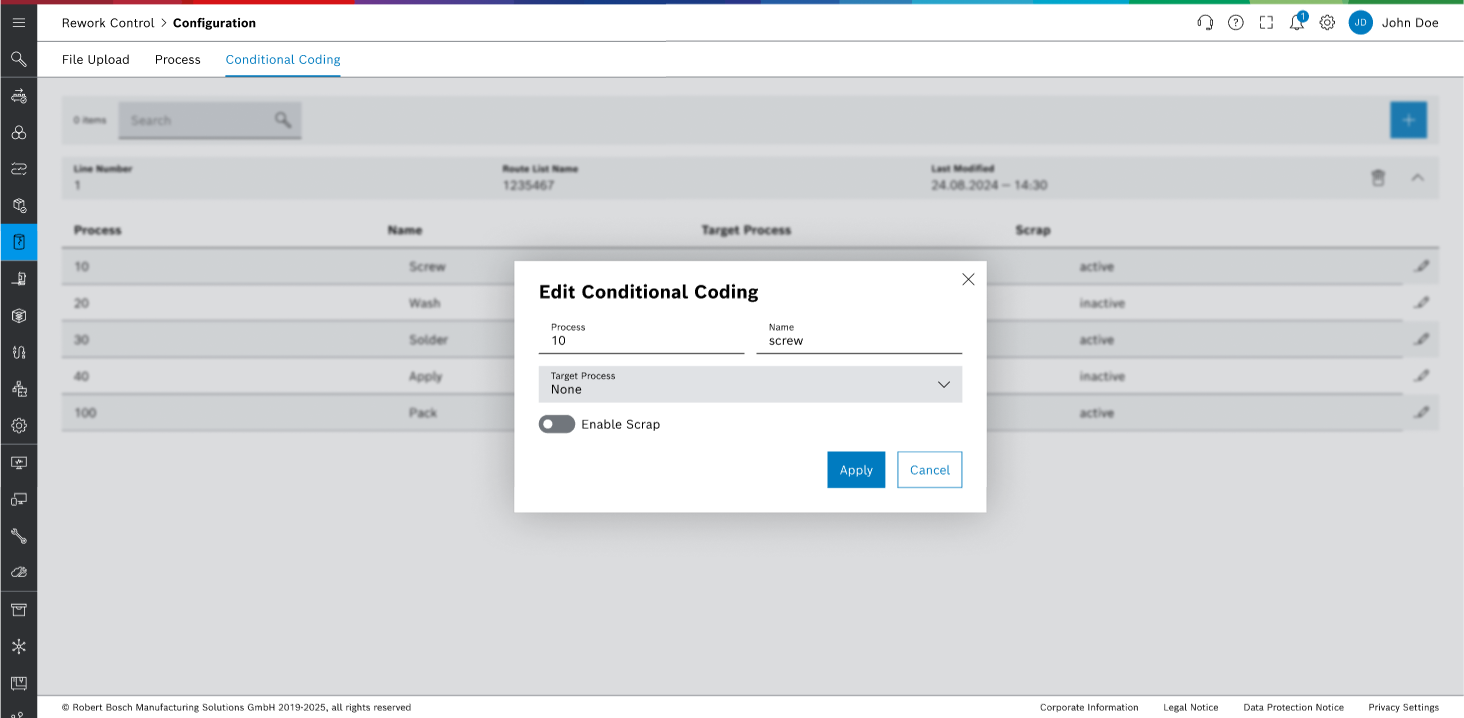
All fields are auto-populated with existing values. Modify the required values (Target Process & Scrap) and click "Apply" to update the target process.