Nexeed
    • Introduction
      • Main functions
    • User manual
      • General operation
        • Filter part information
        • Export Identifier
        • Filter and edit settings
      • Search & act menu
        • Parts information area, overview tab
        • Parts information area, details tab
        • Parts information area, counter/timer tab
        • Parts information area, layout tab
        • Parts information area, part report tab
        • Parts information area, block tab
        • Parts information area, additional data tab
        • Comments area
        • Customer-specific actions area
        • Parts handling area
        • Dependent actions area
        • Part coding area
      • Settings menu
        • Hardware settings menu item, general tab
        • Hardware settings menu item, serial tab
        • Hardware settings menu item, Balluff tab
        • Client settings menu item, general tab
        • Client settings menu item, workflows tab
      • Operate the Rework Control module
        • Process part
      • Rework Control core
        • Starting the application
        • Welcome screen & search step
        • Search and analyze step
          • How to filter
        • Recovery options step
        • Complete step
          • Rework process
          • Free coding process
        • Client configuration
        • Roles and resources
    • Operations manual
      • Overview
      • System architecture and interfaces
        • General deployment view
        • Element description
        • Network connections overview
      • System requirements
        • rework/helmchart/rework
        • rework/rework-control-backend-service
        • rework/rework-control-web-service
        • rework/rework-control-core-backend-service
        • rework/rework-control-core-web-service
        • rework/rework-control-core-backend-service-init
        • bci-app/nginx
      • Migration from previous versions
        • Migration from MES to IAS
        • Migration from 6.2 to 6.3
      • Setup and configuration
        • Desktop client
          • ClickOnce client installation
          • Hardware connectivity
        • rework/rework-control-backend-service
        • rework/rework-control-web-service
        • rework/rework-control-core-backend-service
        • rework/rework-control-core-web-service
        • rework/rework-control-core-backend-service-init
        • bci/nginx
        • Use ConfirmRework workflow/activity
        • Deployment via Helm with multi-instance support
      • Start and shutdown
      • Regular operations
        • Access control roles and resources
        • Tenant data removal
      • Failure handling
      • Backup and Restore
      • Logging and monitoring
      • Known limitations
    • API documentation
      • HTTP API
Rework Control
  • Industrial Application System
  • Core Services
    • Block Management
    • Deviation Processor
    • ID Builder
    • Multitenant Access Control
    • Notification Service
    • Ticket Management
    • Web Portal
  • Shopfloor Management
    • Andon Live
    • Global Production Overview
    • KPI Reporting
    • Operational Routines
    • Shift Book
    • Shopfloor Management Administration
  • Product & Quality
    • Product Setup Management
    • Part Traceability
    • Process Quality
    • Setup Specs
  • Execution
    • Line Control
    • Material Management
    • Order Management
    • Packaging Control
    • Rework Control
  • Intralogistics
    • AGV Control Center
    • Stock Management
    • Transport Management
  • Machine & Equipment
    • Condition Monitoring
    • Device Portal
    • Maintenance Management
    • Tool Management
  • Enterprise & Shopfloor Integration
    • Archiving Bridge
    • Data Publisher
    • Engineering UI
    • ERP Connectivity
    • Gateway
    • Information Router
    • Master Data Management
    • Orchestrator

Nexeed Learning Portal

  • Rework Control
  • User manual
  • Rework Control core
  • Complete step
  • Free coding process

Free coding process

Selecting Free Coding in the Recovery Options step and clicking Next enables the Complete step.

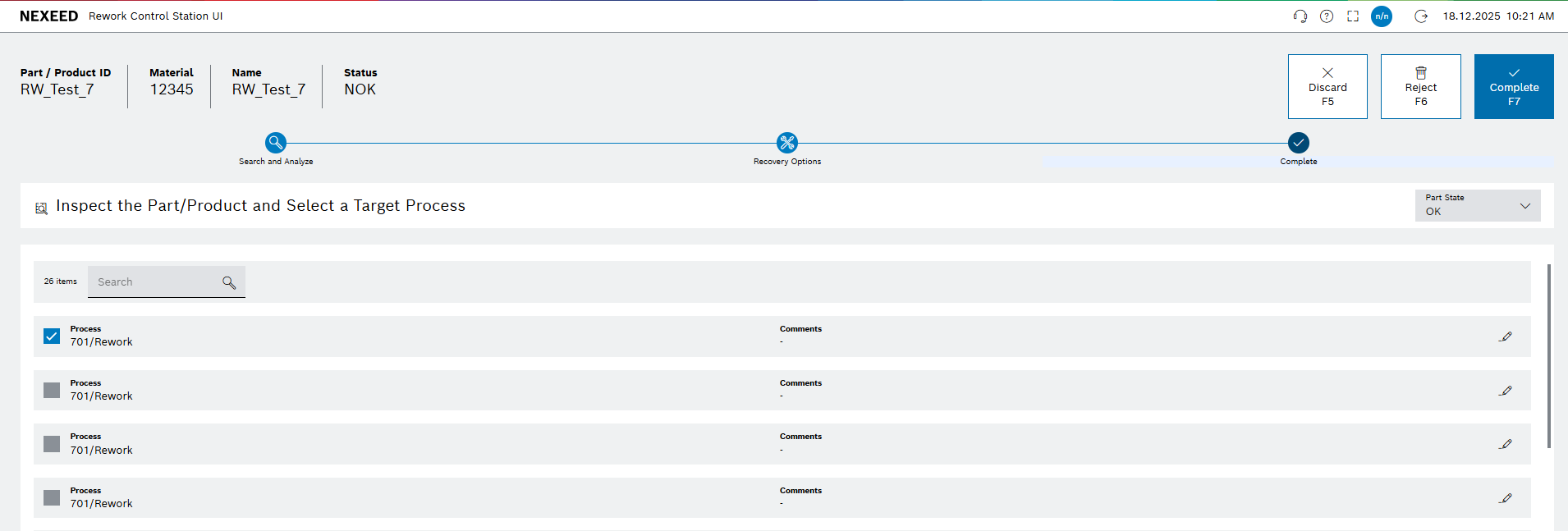
In this Complete step, select a rework process from the predefined list. This action assigns faulty or rejected items to the selected rework process, facilitating corrective actions, tracking, and streamlined production rework.

rcc_target_process

Overview

rcc_target_process_rework
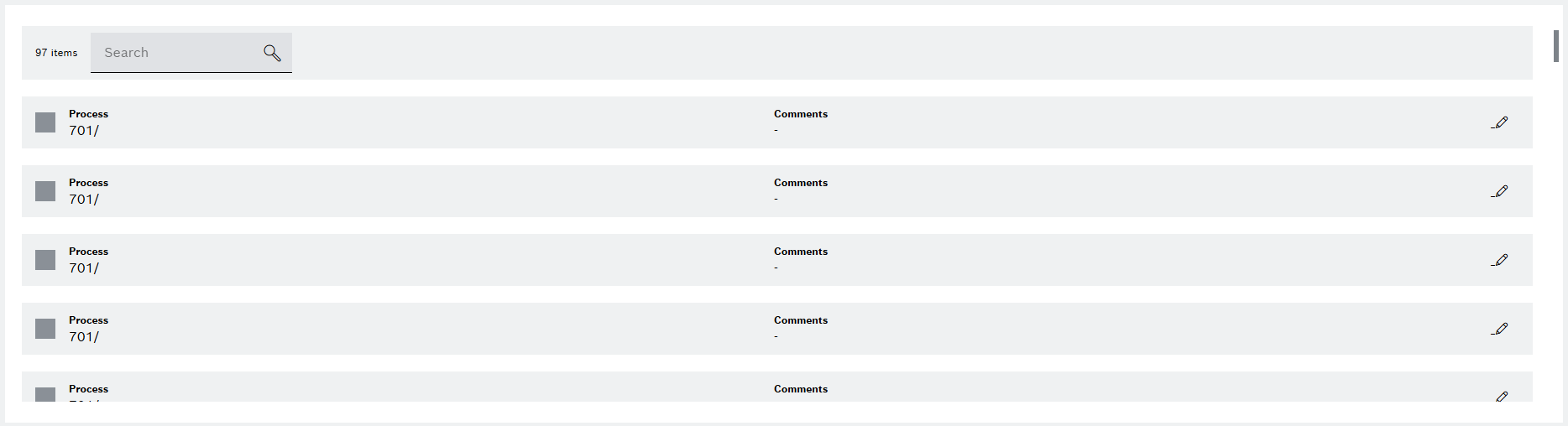
Element Description

search Search

Allow user to search the process

checkbox Checkbox

Selects this process

Process

Displays the process ID and description (e.g., 400 / Insert cover)

Comment

Field for adding optional user comments

edit Edit

Allows users to enter or edit notes

Rework and select target process

  1. Select a process by activating the checkbox.

    Only one process can be selected at a time (radio button style behavior with checkboxes).
    rcc_freecoding_process
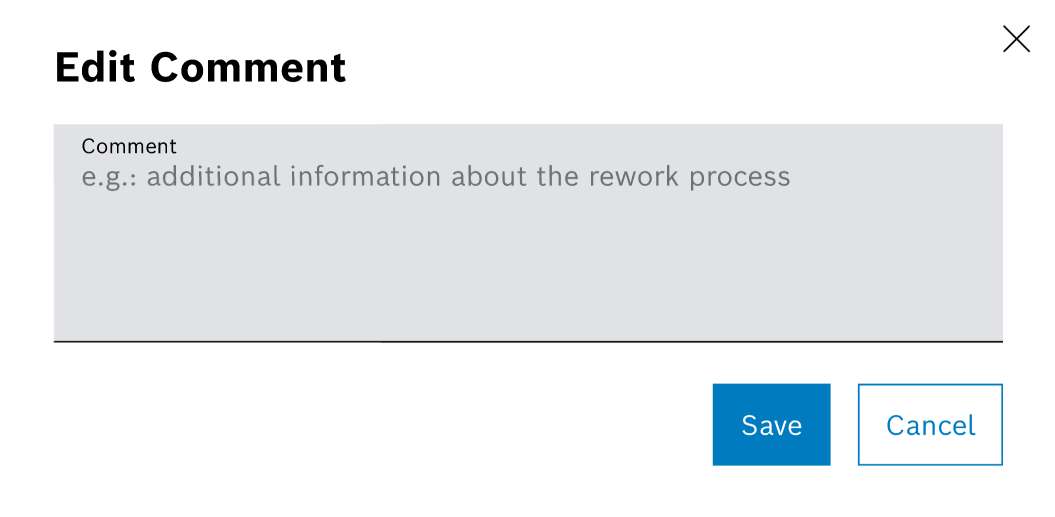
  2. To enter a comment, click on the edit.

    A dialog window opens.

    rcc_target_process_comment
  3. Enter a comment.

  4. Confirm with Save.

    The comment is shown in the selected row.

    rcc_target_process_comment_filled
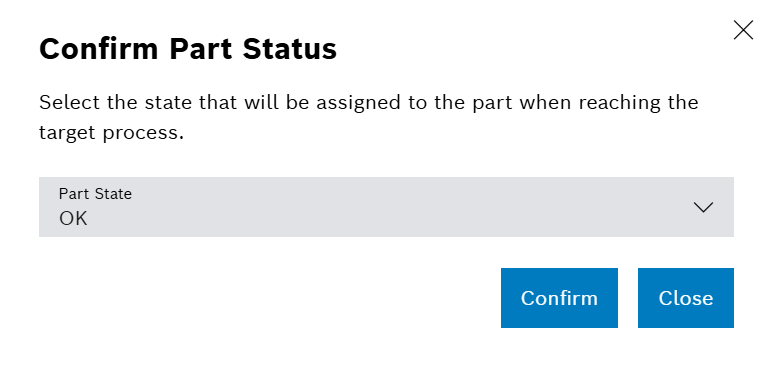
  5. Click on Complete, or press F7.

    A confirmation prompt is shown.
    rcc_target_process_confirm_part_status
  6. If needed, change the Part State.

  7. Click on Confirm to proceed or Close to return to the rework complete page.

On Confirm, there are two possible outcomes:

If operation is successful

The parts are marked as complete and a success message is shown. Rework Control will redirect to Welcome screen & search step.

If the operation fails

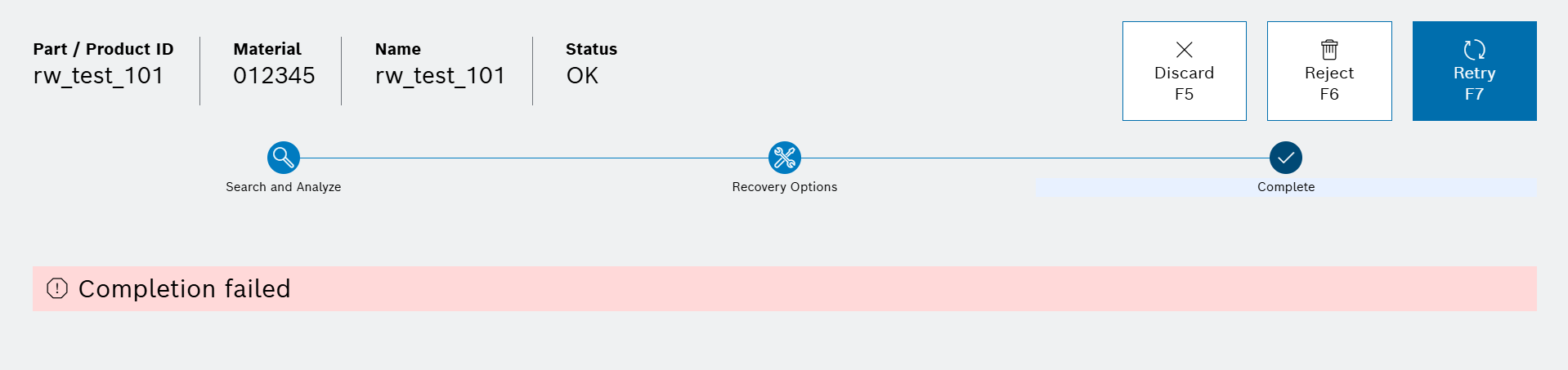
The parts are marked as complete, but with an error.
Click on Retry or press F7 to resend the parts.
rcc_complete_failed

Discard

  1. To return to the Welcome screen & search step without completion, click on Discard or press F5.

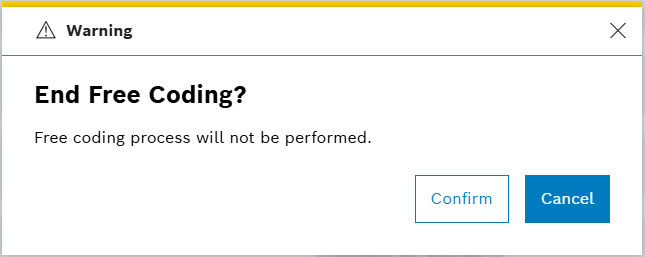
  2. A confirmation prompt is shown:

    {discard_alt:discard_dialog}
  3. Click on Confirm to be redirected to the welcome screen. A message Free Coding Discarded Successfully will be displayed.

  4. Click on Cancel to return to the last active page.

Reject

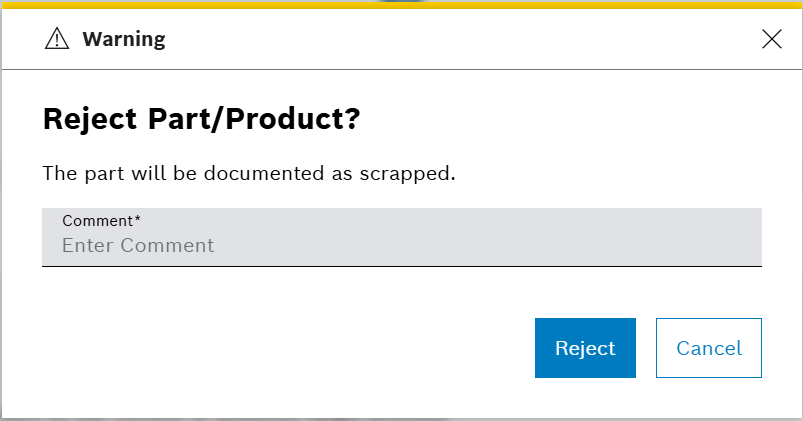
  1. To scrap/reject the part click on Reject or press F6.

  2. A confirmation prompt is shown:

    {reject_alt:reject_dialog}
  3. Click on reject to scrap/reject part and return to welcome screen. A message Part/product rejected successfully will be displayed.

    Provide any comment if needed.
  4. Click on cancel to return to the last active page.

Contents

© Robert Bosch Manufacturing Solutions GmbH 2023-2025, all rights reserved

Changelog Corporate information Legal notice Data protection notice Third party licenses