Nexeed
    • Introduction
    • Getting started
      • Getting access
      • Login
      • Main screen
      • Welcome dashboard
      • Detecting process anomalies
      • Analyzing data and detecting event sequences
      • Analyzing KPIs
    • How-tos
      • Monitors on production lines
        • Configuring the automatic login in the Nexeed Industrial Application System
        • Configuring the automatic login to the identity provider with the Windows user
        • Setting cookies in the browser
        • Configuring the automatic logout in the Nexeed Industrial Application System
        • Configuring the command line parameters in the browser
        • Known limitations and troubleshooting
      • Try out the APIs
    • Integration guide
      • Underlying concepts
        • Underlying concepts
        • Onboarding
        • Security
        • Communication
      • Integration journey
      • Overview of APIs
    • Operations manual
      • Release
      • System architecture and interfaces
      • System requirements
        • Cluster requirements
        • Database requirements
        • Support for service meshes
      • Migration from previous Nexeed IAS versions
      • Setup and configuration
        • Deployment process
        • Deployment with Helm
        • Advanced configuration
        • Integrations with external secret management solutions
        • Context paths
        • Service accounts and authorizations
        • Validation tests
        • Setup click once
        • Database user setup and configuration
      • Start and shutdown
      • Regular operations
        • User management & authentication
        • How to add additional tenants
        • How to access the cluster and pods
        • Automatic module role assignments in customer tenants
        • User credentials rotation - database and messaging secrets
      • Failure handling
        • Failure handling guidelines
        • Ansible operator troubleshooting
        • How to reach BCI for unresolved issues
      • Backup and restore
      • Logging and monitoring
        • The concept and conventions
        • ELK stack
        • ELK configurations aspects for beats
        • Proxy setup for ELK
        • Health endpoints configurations
      • Known limitations
      • Supporting functions
      • Security recommendations
        • Kubernetes
        • Security Best Practices for Databases
        • Certificates
        • Threat detection tools
    • Infrastructure manual
      • Release
      • System architecture and interfaces
        • RabbitMQ version support
      • System requirements
      • Migration from previous Nexeed infrastructure versions
      • Setup and configuration
        • Deployment process of the Nexeed infrastructure Helm chart
        • Deployment with Helm
      • Start and shutdown
      • Regular operations
        • RabbitMQ
          • User management & authentication
          • Disk size change
          • Upgrade performance with high performant disk type
          • Pod management policy
      • Failure handling
        • Connection failures
        • Data safety on the RabbitMQ side
        • Fix RabbitMQ cluster partitions
        • Delete unsynchronized RabbitMQ queues
        • How to reach BCI for unresolved issues
      • Backup and restore
      • Logging and monitoring
      • Known limitations
    • Glossary
    • Further information and contact
Industrial Application System
  • Industrial Application System
  • Core Services
    • Block Management
    • Deviation Processor
    • ID Builder
    • Multitenant Access Control
    • Notification Service
    • Ticket Management
    • Web Portal
  • Shopfloor Management
    • Andon Live
    • Global Production Overview
    • KPI Reporting
    • Operational Routines
    • Shift Book
    • Shopfloor Management Administration
  • Product & Quality
    • Product Setup Management
    • Part Traceability
    • Process Quality
    • Setup Specs
  • Execution
    • Line Control
    • Material Management
    • Order Management
    • Packaging Control
    • Rework Control
  • Intralogistics
    • AGV Control Center
    • Stock Management
    • Transport Management
  • Machine & Equipment
    • Condition Monitoring
    • Device Portal
    • Maintenance Management
    • Tool Management
  • Enterprise & Shopfloor Integration
    • Archiving Bridge
    • Data Publisher
    • Direct Data Link
    • Engineering UI
    • ERP Connectivity
    • Gateway
    • Information Router
    • Master Data Management
    • Orchestrator

Nexeed Learning Portal

  • Industrial Application System
  • Operations manual
  • Setup and configuration
  • Validation tests
preview 2025.03.00

Validation tests

A validation test is recommended to ensure that the module’s deployment has been completed successfully.

Availability of module views

The easiest way to do this is by checking the main interface of the Nexeed IAS to confirm that the module-specific views are appearing on the navigation menu on the left side of the Web Portal. Once the modules are deployed, the specific views for each module should be visible on the navigation menu. For example, if the installation includes the Maintenance Management module, the Maintenance view should appear on the navigation menu.
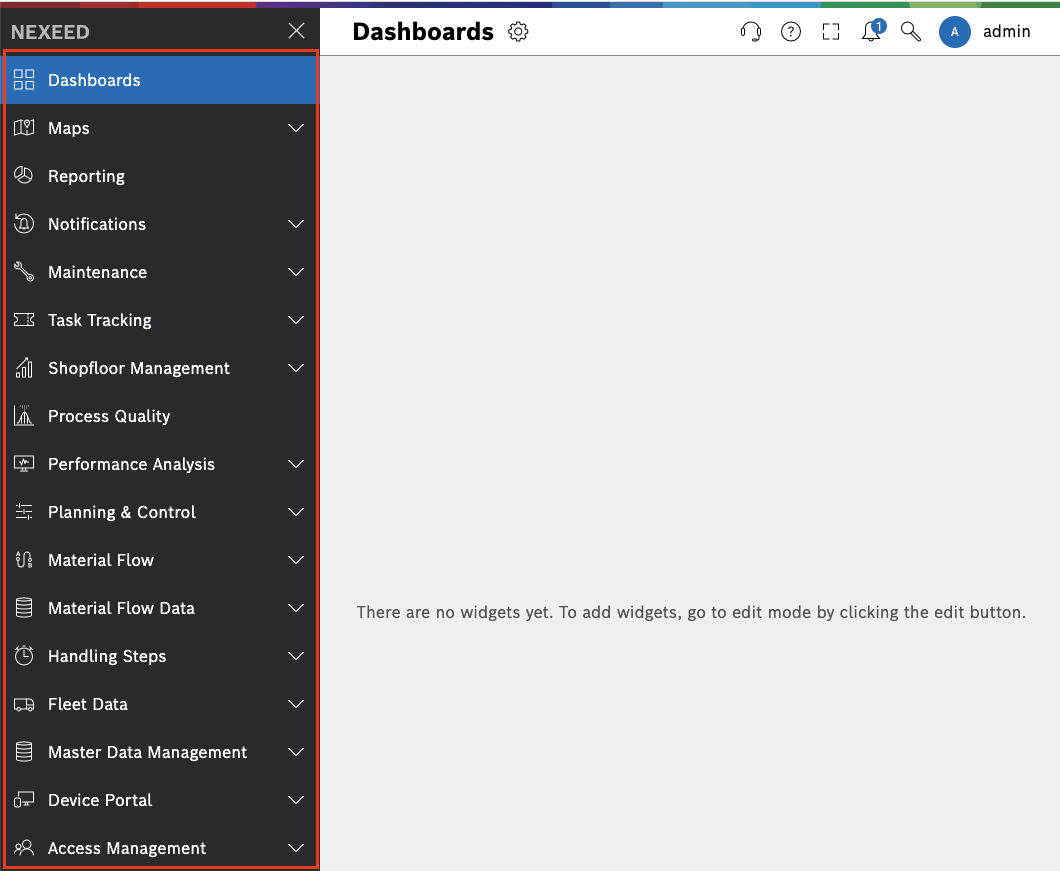
side panel

To determine which views are specific to a module in Nexeed IAS, you can go to the Integration Status view. To access Integration Status click on the logged-in user’s name on the top right corner of the Web Portal. This will bring up a dropdown menu with the option to select Integration Status. Please note that this view is only available when the user has the operator role from WebPortal assigned in Access Management.

Once you have selected Integration Status, you can view detailed information about the views specific to each module in Nexeed IAS. Using the Integration Status feature, you can quickly and easily access the information you need to understand the specific views and functionality available in each Nexeed IAS module.

integration status

To view the available views for a specific module, for example, the MACMA module, the Views tab can be easily accessed by following these steps:

  1. Locate the desired module on the interface and click on it (MACMA marked with red dot number 1). This will open a new submenu on the right side of the interface.

  2. Select the View tab from the submenu. This will display a list of all the available views for the selected module.

  3. Check the green tick next to each view to verify their integration into the system. The green tick indicates that the view is available for use and has been successfully integrated into the system (Look for red bubble numbers 2 and 3).
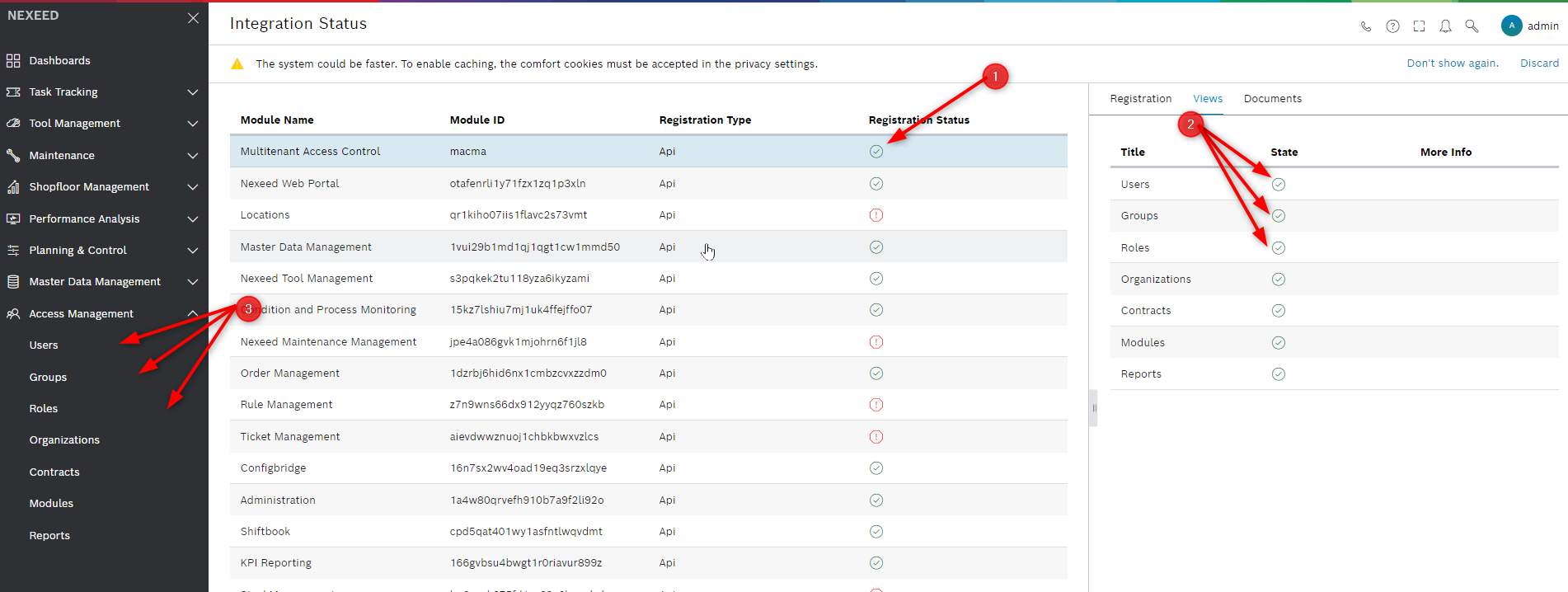
full view integration status

However, there is a possibility that some modules, due to a known bug, appear unregistered (red bubble 1). But if we open the Views menu, here we can see that the views are duplicated (red bubble 2), and even if the duplicates appear that they are not registered, they work as can be seen in the left part of the interface (red bubble 3).
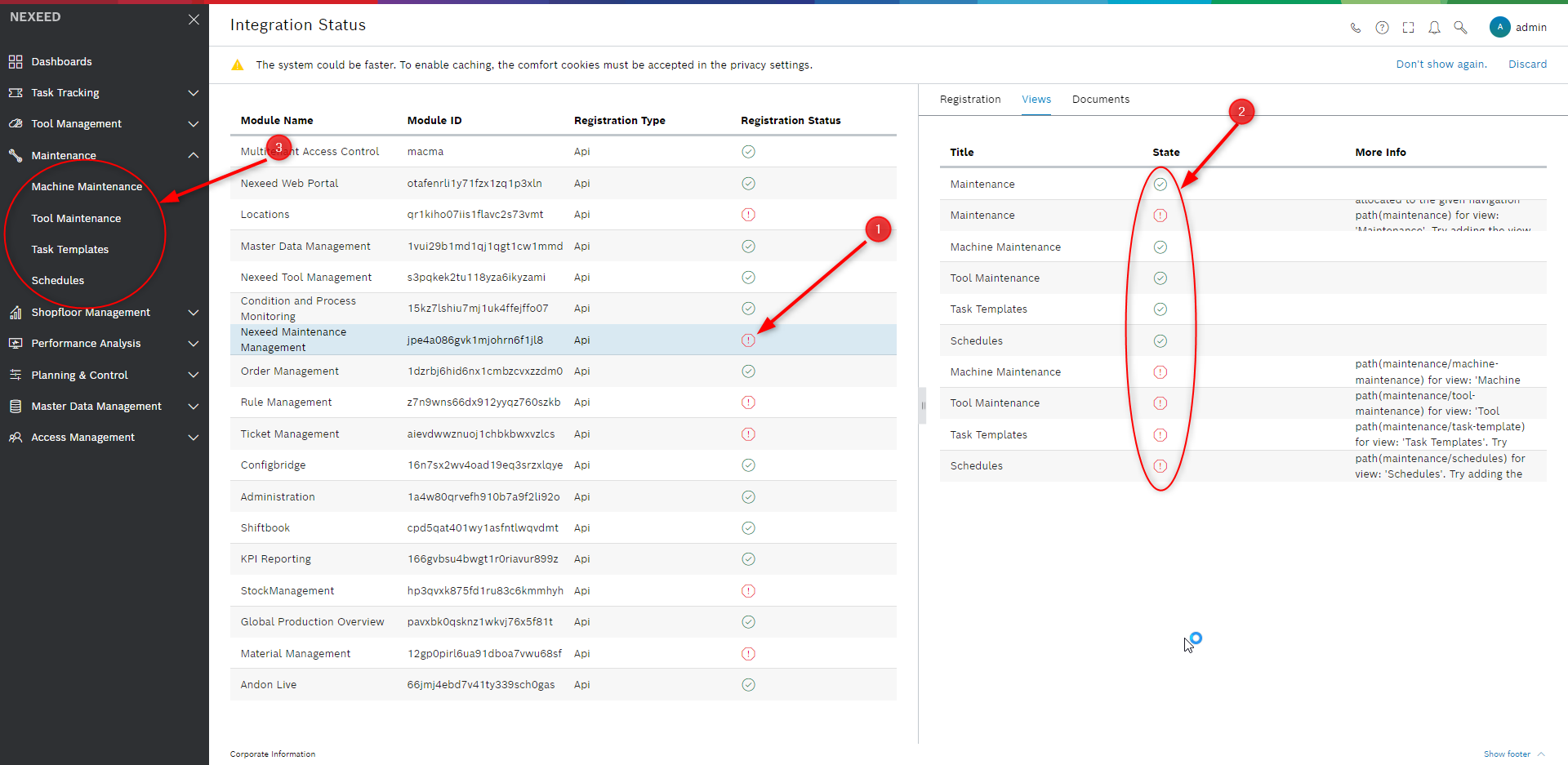
bug

Module health status

To check the status of a module, you can access its health endpoint, which allows you to determine whether the module is working correctly. This can be done by accessing the link in the following format: {serverUrl}/{moduleName}/process/health. For instance, in the image provided, you can observe that the MasterDataManagement module has an Up status, indicating that it is functioning within normal parameters. It is worth noting that these endpoints are integrated into the default monitoring platform with the Nexeed IAS application, i.e., Elasticsearch. However, they can also be integrated into the monitoring platform of your choice, depending on your preferences.
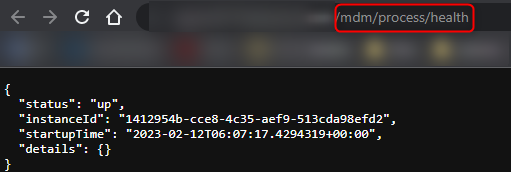
monitoring

Contents

© Robert Bosch Manufacturing Solutions GmbH 2023-2025, all rights reserved

Changelog Corporate information Legal notice Data protection notice Third party licenses