Advanced configuration
Application modules and charts
Each Nexeed IAS module is following the conventions under https://scs-architecture.org/ model.
One module can contain multiple microservices, exposed under one URL endpoint.
Each microservice is deployed with a deployment or statefulset object and it is linked to some additional objects (service, ingress, secrets, configmaps, volumes etc.).
For each application module one HelmChildChart exists.
HelmUmbrellaChart allows deployment of all module charts at once. Of course, changes in parametrization for one module does not affect other modules, so in general it is safe to reconfigure one module since only the reconfigured module’s pods will be restarted.
Configuration of the module charts is standardized - templates directory in each chart contains templates including named templates from utility-toolkit library chart and the values.yaml file must comply with the values.schema.json file inside umbrella chart.
Any field in the values.yaml file of an application chart can be overriden at deployment time but in general, in production environments, only parameters exposed via global dictionary or individual modules local key should be changed.
Changing additional values requires an approval from Level-3 support.
Opt-in vs opt-out
In the first version (2023.01) one had to disable unwanted modules (opt-out behavior), but starting with 2023.01.01 the default behavior is opt-in for application module charts.
This means that, for each wanted module, a global override should be placed under global→modules→<module-name>→enabled with the value of true.
Infrastructure modules (e.g. ansible-operator etc.) remain with opt-out behavior.
Parameter types
In the Nexeed IAS helm-chart-based deployment one can differentiate between two parameter types:
-
Global parameters - parameters available to all charts via
.Values.globaldictionary -
Module specific parameters - everything in the values.yaml of each module chart included in the umbrella chart, except values under
exportdictionary which are mapped under global.modules.<module-name>
All parameters can be overriden with the standard helm mechanism (using files passed to --values argument or set individually with --set).
|
For more information about helm umbrella charts, subcharts and global values please check helm documentation pages at: https://helm.sh/docs/topics/charts/#global-values and https://helm.sh/docs/chart_template_guide/subcharts_and_globals/. |
Example:
global:
  nexeedHost: myhost.mydomain.com
  modules:
    portal:
      enabled: true
      macmaPortalAdminUser: <macma-username>
      macmaPortalAdminPassword: <macma-password>
portal:
  local:
    nexeedPortalUseOnlineDocumentation: true
One solution to put together one module configuration under the same dictionary is to use YAML anchors and rewrite the override file like this:
portal:
  local:
    nexeedPortalUseOnlineDocumentation: true
  global: &portal-global
    enabled: true
global:
  nexeedHost: myhost.mydomain.com
  modules:
    portal: *portal-global
In this case it is important to configure the modules dictionary first and to declare the global dictionary at the end, otherwise YAML anchors (https://yaml.org/spec/1.2.2/#3222-anchors-and-aliases) are not resolved.
Configuring docker registry
Using the following snippet one can optionally override the docker registry in a global way (for all images inside all charts) and set the registry authentication (mandatory if the registry requires authentication):
global:
  image:
    registry: myregistry.mydomain.com
    pullPolicy: IfNotPresent
  imageCredentials:
    docker-registry-secret:
      registry: myregistry.mydomain.com
      username: <registry-username>
      password: <registry-password>
      email: <email-for-registry>
Configuration of external databases or messaging instances
Server instance configuration
The configuration of server instances, either embedded or external, is governed by a global parameter called serverInstances (organized as a dictionary).
The serverInstances dictionary contains all information needed to connect to a server instance: hostname, port, TLS enabled/disabled, admin password, admin user, type and if it is the default for it’s type or not.
Each time an embedded server instance chart is enabled in the deployment, one entry is added automatically to the global serverInstances dictionary and it is set as the default for it’s type.
Additional entries can be added in this dictionary for external server instances. For example:
global:
  serverInstances:
    externaloracle:
      type: ORACLE
      host: oracle.db.com
      port: 1521
      tls: true
      adminUser: <server-username>
      adminPassword: <server-password>
      default: true
adminUser and adminPassword are not mandatory. If the adminPassword is provided, the automation attempts to create resources (e.g. users, databases, logins, queues etc.) in the server instance.
If not, the automation asks for password for each module required database or messaging queue.
hosts array can be used instead of host in two cases:
-
for MongoDB server instance: This allow the declaration of clustered mongoDB instances (when there is no infrastructure support for DNS SRV records). If a different port than the port in the
portfiled it is required for a host from the host array, this value can be appended at the end of it. -
for Kafka server instance: Similar to MongoDB, the
hostsarray enables the declaration of multiple clustered Kafka brokers. The port can also be overridden in this case.
Example of using the hosts keyword with both MongoDB and Kafka:
global:
  serverInstances:
    embeddedmongo:
      type: MONGODB
      default: true
      hosts:
      - mymongo1.example.com
      - mymongo2.example.com:637
      port: 636
      tls: true
      adminUser: <server-username>
      adminPassword: <server-password>
    externalkafka:
      type: KAFKA
      default: true
      hosts:
      - broker1.example.com
      - broker2.example.com:9302
      port: 9301
      tls: true
      adminUser: <server-username>
      adminPassword: <server-password>
extraOptions parameter can be used for adding extra parameters to the connection string for a particular server instance. For now, it is implemented for MSSQL, MongoDB & InfluxDB.
| Parameter | Required | MSSQL | ORACLE | RABBITMQ | INFLUXDB | MONGODB | KAFKA | RABBITMQTT |
|---|---|---|---|---|---|---|---|---|
type |
yes |
x |
x |
x |
x |
x |
x |
x |
host |
yes |
x |
x |
x |
x |
x |
x |
x |
hosts |
no |
x |
x |
|||||
extraOptions |
no |
x |
x |
x |
||||
port |
yes |
x |
x |
x |
x |
x |
x |
x |
tls |
no, default is false |
x |
x |
x |
x |
x |
x |
x |
adminUser |
no |
x |
x |
x |
x |
x |
x |
x |
adminPassword |
if automated creation of resources is desired |
x |
x |
x |
x |
x |
x |
x |
adminPort |
no |
x |
x |
x |
||||
managementUrl |
no, it is preempting adminPort setting |
x |
x |
Module infrastructure dependencies
Each module expresses it’s infrastructure dependencies by setting values in the global.module.<module-name>.databases or global.module.<module-name>.messaging dictionary.
If somebody is using server instances without admin access (so the adminPassword is not available) and is relying on an external team to configure the resources, the following overrides should be expressed for each module (the details about each module required parameters can be found in the module’s operations manuals):
global:
  modules:
    macma:
      databases:
        keycloak:
          serverInstance: externaloracle
          oracleSchema: keycloak_schema
          name: keycloak_service
          userName: <keycloak-username>
          password: <keycloak-password>
The following table shows what can be set for one dependency based on the server instance type:
| Parameter | Required | Description | MSSQL | ORACLE | RABBITMQ | INFLUXDB | MONGODB | KAFKA | RABBITMQTT |
|---|---|---|---|---|---|---|---|---|---|
serverInstance |
only when there is no default for the type |
Reference to server instance entry from ServerInstances dictionary |
x |
x |
x |
x |
x |
x |
x |
name |
only when database name is not the default one |
Database Name, used in the connection string |
x |
x |
x |
x |
x |
x |
x |
userName |
only when user name is not the default one |
username used to login to the server instance |
x |
x |
x |
x |
x |
x |
x |
password |
only when server instance admin password is not set |
password used to login to the server instance |
x |
x |
x |
x |
x |
x |
x |
mssqlSchema |
only when it is not the default one (dbo) |
MSSQL schema |
x |
||||||
vhost |
only when vhost is not the default one |
RabbitMQ Vhost |
x |
x |
|||||
connectionString |
no |
connection string override for MongoDB connections |
x |
Multiple database type support
Several modules support more than a single database type, to persist the same type of data. The most common example are modules which support both MSSQL and ORACLE and can be configured to use either of them.
In this cases, the module helm chart set the dependency type to a regex instead of a plain key (e.g. ORACLE|MSSQL). However, in the end only one instance is chosen.
In order to deal with default instances for types chosen by a module, the optional parameter defaultRelationalDatabaseType was introduced. If the parameter is not specified, the MSSQL default instance will take priority. If it is set to a different value, for example ORACLE, the default instance of type ORACLE takes precedence.
However, this mechanism is only used when no override is specified for either the serverInstance or the type parameter. Overrides of those fields always take precedence.
Using subdomains for modules endpoint exposure
Nexeed IAS allows the exposure of the modules API endpoints via the ingress controller by using both methods available: context paths and host name. Context paths are set in each module chart and context-path exposure is the default behavior.
For host-name based exposure, since it is difficult to manage independent domains for each module inside same helm umbrella chart release, the solution works with subdomains of the same base domain.
Portal module is always exposed on the base domain (corresponding to nexeedHost global parameter), while for all the other modules the following convention is used: <module-context-path>.<nexeedHost>.
Subdomain usage requires Wildcard DNS domain entries and either a wildcard SSL certificate or a SSL certificate with wildcard SANs.
The global parameter governing the endpoint exposure is called releaseEndpointsExposure and can take one of the following values: contextpath or subdomain.
Target deployment
Not all kubernetes target environments are set up in the same manner, so sometimes one needs to configure specific parameters related to the target environment, like storage class names, annotations and labels.
The way chosen to deal with the target deployment specificities without changing the umbrella or module charts code was via the usage of a specific data structure, called nexeedDeploymentTargets.
Selecting an existing deployment target is possible by setting targetDeployment variable.
By default, this data structure was configured to work with several built in deployment targets like Azure, k3s and kind (k3s is the default one). You can easily add an additional one with a global parameter override like this one:
global:
  targetDeployment: rancher
  nexeedDeploymentTargets:
    rancher:
      k8sadmin: true
      namespacesInSystemRelease: true
      multiRelease: false
      topology:
        zoneKey: topology.kubernetes.io/zone
        nodeKey: kubernetes.io/hostname
      images:
        rewrite: '{{ mustRegexReplaceAll "^(.+)/(.+):([.A-Za-z0-9_-]+)" .image "${1}_${2}:${3}" }}'
      storageClasses:
        shared: nfsclass
        dedicated: longhorn
        sharedHighPerformance: nfsssdclass
        dedicatedHighPerformance: longhornssd
      dnsResolver: kube-dns.kube-system.svc.cluster.local
      ingressClasses:
        default: nginx
      annotations:
        namespaces:
          field.cattle.io/projectId: "{{ .Values.global.projectId }}"
        loadbalancers: {}
        ingresses: {}
        deployments: {}
        pods: {}
        statefulSets: {}
        daemonSets: {}
        jobs: {}
      labels:
        ingresses: {}
        deployments: {}
        pods: {}
        statefulSets: {}
        daemonSets: {}
        jobs: {}
Global annotations and labels support is available for the following type of objects: ingresses, deployments, pods, statefulsets, daemonsets and pods.
Labels and annotations can also be set on a per object basis. For more information, see GranularLabels.
The first parameter, k8sadmin, tells the automation if k8sadmin support is available also for deploying the Nexeed IAS application release.
The second one, namespacesInSystemRelease, tells the automation if the namespace creation should be part of the system release or part of application release.
The third one, multiRelease, is used wherever multiple deployments of Nexeed IAS application are foreseen in the same kubernetes cluster. Setting this parameter to true generates unique namespace names starting from the umbrella chart release name & namespace and the namespace suffix set in each module chart.
Using images dictionary one can override the name of the images if, for example, the registry mirror doesn’t allow nested namespaces or for other reasons.
The topology section allows one to change the way the pods are distributed across nodes and zones. Do not use the zoneKey if the cluster doesn’t actually have nodes distributed in multiple zones.
Statefulsets are using pod anti-affinity rules while deployments are set up with topology spread constraints.
More information about pod topology spread constraints and pod anti-affinity rules can be found in the official kubernetes documentation: Pod assignnment to nodes.
Granular labels and annotations
This allows you to set annotations and labels on a per-object basis as opposed to global annotations and labels.
When applied to an object directly, annotations and labels take precedence over a global annotation or label of the same name.
To set annotations and/or labels on an object, go to the object definition and add an annotations or a labels key and define each annotation or label there, just like the global ones. For example:
macma:
  statefulSets:
    keycloak-22:
      registry:
        pullPolicy: Always
        name: bcidockerregistry.azurecr.io
      image: macma/macma-keycloak-mssql:latest
      annotations:
        backupFrequency: daily
      labels:
        app: macma
Using custom labels for the namespace of a module
Nexeed IAS also allows to set custom labels on the namespace of a module:
global:
  modules:
    macma:
      namespaceLabels:
        app: macma
        type: iam
Global security override
To enhance the security of the cluster, essential security settings have been activated by default. These settings can be adjusted via the corresponding global parameters.
Pod security standards
The Pod Security Standards define three different policies privileged, baseline, restricted to broadly cover the security spectrum. These policies are cumulative and range from highly-permissive to highly-restrictive which can be set by podSecurityStandardsProfile.
The podSecurityStandardsPolicy defines the enforcement level of the Pod Security Standards. warn will log a warning for violations but will not block Pod creation. audit will record violations to an audit log but will also not prevent Pod creation. enforce will enforce the policy by blocking Pod creation that violates the standards.
The default values for these settings are baseline and enforce, respectively.
Since these are primarily labels applied to namespaces, you may override them for specific modules that require more permissive security settings using the namespaceLabel. For instance, consider the monitoring module:
global:
  modules:
    monitoring:
      namespaceLabels:
        pod-security.kubernetes.io/warn: privileged
You can change baseline to privileged to bypass most security checks. Alternatively, modifying enforce to either warn or audit will prevent the Security Standards Policy from blocking Pod creation.
Global TLS certificate override
If the target cluster is using a shared ingress controller for multiple projects and you want to use a different CA certificate for the Nexeed IAS deployment you can use two global parameters to set it:
ingressTLSKeyOverride and ingressTLSCertOverride.
These values should be set as YAML multiline strings.
Split deployments
The usual Nexeed IAS helm deployment is done by installing one HelmRelease inside one k8s cluster:
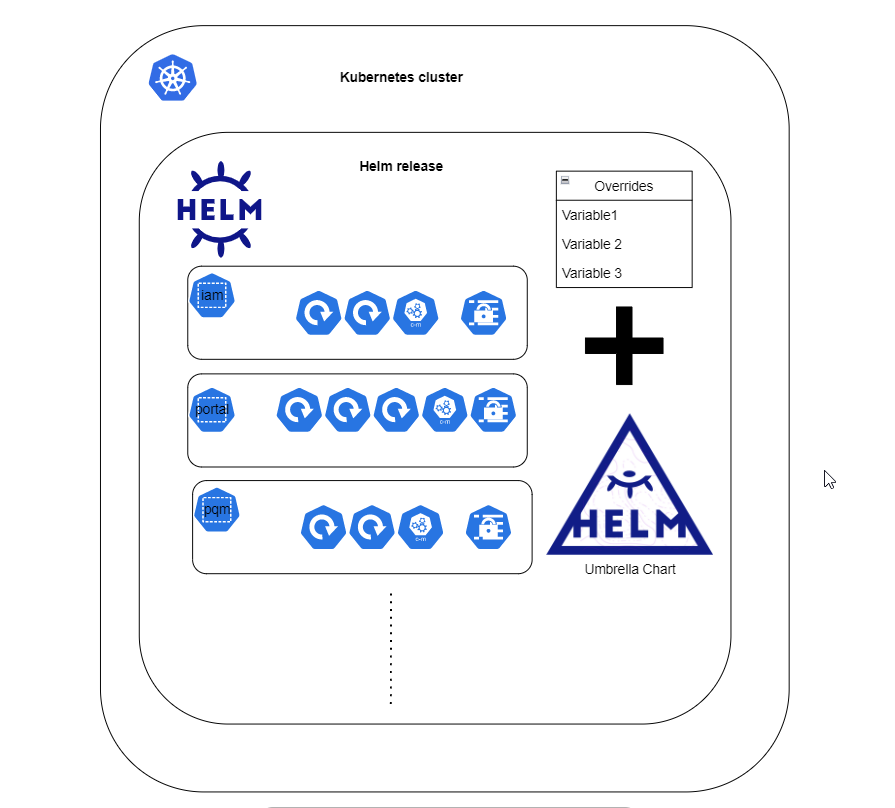
In some advanced deployment scenarios, it might be important to deploy one Nexeed IAS split across several k8s clusters or via multiple HelmReleases in the same cluster.
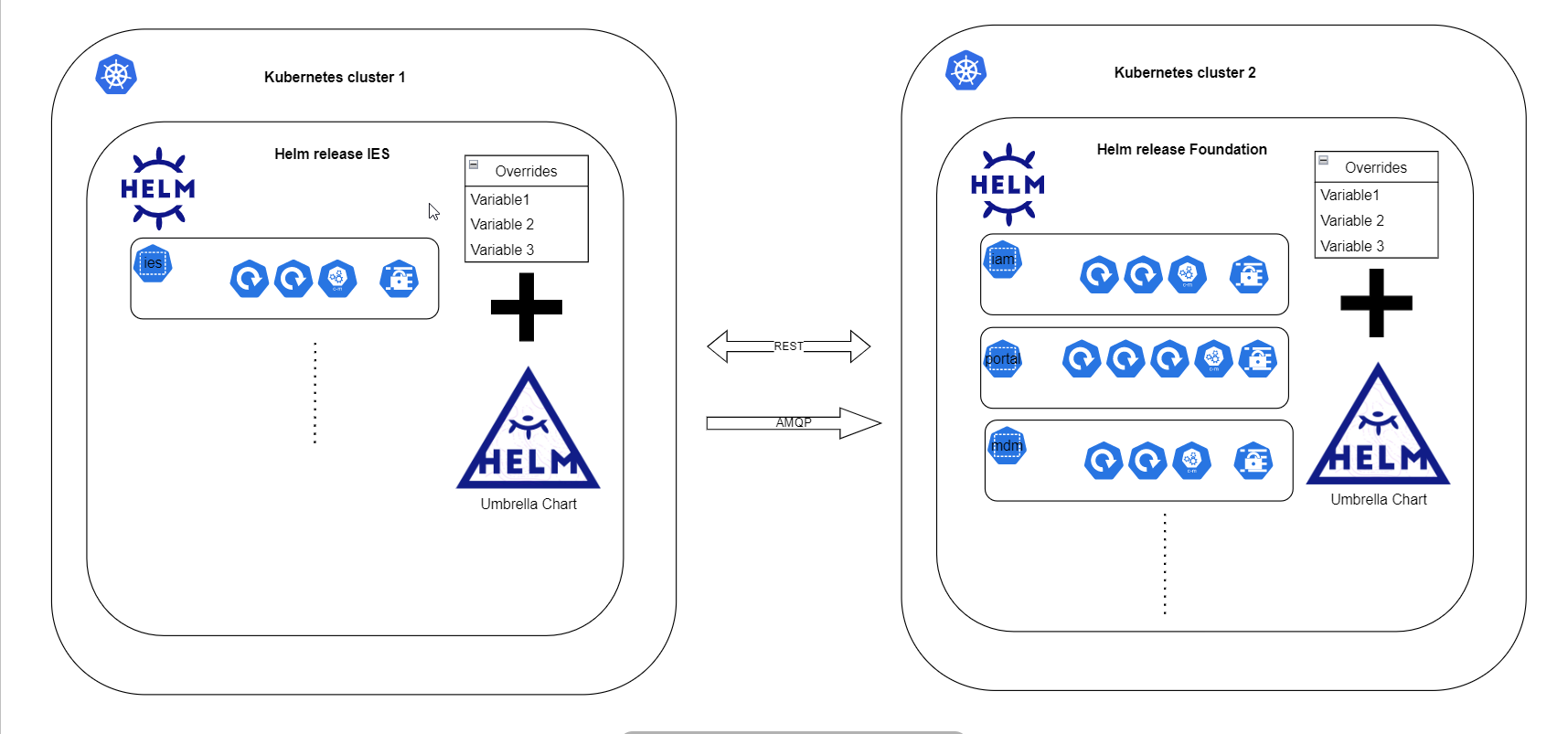
Nexeed IAS helm is allowing these kind of deployment topologies via configuration.
Of course, the configuration is a bit more complex since the modules from one cluster have to be configured to connect to modules deployed in a different cluster. Also, remote infrastructure components like RabbitMQ have to be configured. Also, the module dependencies should be understood well.
Let’s presume, for example, that we configured a deployment for the operating base module (e.g. macma, portal, mmpd) running on an environment where nexeedHost variable was set to: foundation.mydomain.com[].
In this case, in another deployment (running in a different k8s cluster) which connect to the operating base modules we need the following overrides:
global:
  modules:
    portal:
      remoteModuleUrl: https://foundation.mydomain.com
    macma:
      remoteModuleUrl: https://foundation.mydomain.com/iam
    mmpd:
      remoteModuleUrl: https://foundation.mydomain.com/mdm
if the foundation release is exposed via context path or:
global:
  modules:
    portal:
      remoteModuleUrl: https://foundation.mydomain.com
    macma:
      remoteModuleUrl: https://iam.foundation.mydomain.com/iam
    mmpd:
      remoteModuleUrl: https://mdm.foundation.mydomain.com/mdm
if the foundation release is exposed via subdomains.
Also, for remote RabbitMQ configuration, an override similar with this one have to be set:
global:
  serverInstances:
    remote-rabbitmq:
      host: foundation.mydomain.com
      port: 5672
      tls: false
      default: true
      adminUser: <rabbitmq-username>
      adminPassword: <rabbitmq-password>
      adminPort: 15672
      type: RABBITMQ
      managementUrl: https://foundation.mydomain.com/rabbitmq
for context-path exposure and:
global:
  serverInstances:
    remote-rabbitmq:
      host: rabbitmq.foundation.mydomain.com
      port: 5672
      tls: false
      default: true
      adminUser: <rabbitmq-username>
      adminPassword: <rabbitmq-password>
      adminPort: 15672
      type: RABBITMQ
      managementUrl: https://rabbitmq.foundation.mydomain.com
for subdomain exposure.
|
*
* The |
Top-level global variables
In the following table, all top-level global variables are documented. The only exception are the variables under global.modules key, which are inherited from HelmChildChart and documented in each module operations manual.
Some parameters are not required to be set since they have sensitive default values.
| Parameter | Required | Description |
|---|---|---|
ansibleValidateCerts |
no |
Whether ansible should validate certificates of Nexeed IAS endpoints. |
defaultRelationalDatabaseType |
no |
Default database type to choose when multiple default instances are available for types supported by a module - see MultipleDBType. |
deploySystem |
no |
Change release behavior, if true, it will only deploy kubernetes objects needing k8s admin |
elasticApmSecretToken |
only when APM integration is enabled |
Token used to authenticate in Elastic APM |
elasticClientCertificate |
no |
Nexeed IAS Elastic Client Certificate |
elasticClientKey |
no |
Nexeed IAS Elastic Client Key |
embeddedInfluxDBAdminPassword |
only when influxdb chart is enabled |
Admin password for InfluxDB. |
embeddedInfluxDBAdminUser |
only when influxdb chart is enabled |
Admin user for InfluxDB. |
embeddedMSSQLAdminPassword |
only when mssql chart is enabled |
Relation database admin password. |
embeddedMongoDBAdminPassword |
only when mongodb chart is enabled |
Admin password for MongoDB. |
embeddedMongoDBAdminUser |
only when mongodb chart is enabled |
Admin user for MongoDB. |
embeddedOracleAdminPassword |
only when oracledb chart is enabled |
Admin password for Oracle. Must contain at least 1 lowercase, 1 uppercase, 1 digit and no special characters |
embeddedPostgresAdminPassword |
only when postgres chart is enabled |
Relation database admin password. |
embeddedRabbitMQAdminPassword |
yes |
RabbitMQ Admin Password. |
image |
no |
Global overrides for registry image - See DockerRegistry |
imageCredentials |
yes |
Image credentials map, each key corresponds to a k8s secret deployed to all namespaces - See DockerRegistry |
ingressTLSCertOverride |
no |
TLS certificate override for ingress objects, have to be provided in pair with ingressTLSKeyOverride - See TLSOverride |
ingressTLSKeyOverride |
no |
TLS key override for ingress objects, have to be provided in pair with ingressTLSCertOverride - See TLSOverride |
monitoringApmEnabled |
no |
Enable APM monitoring |
nexeedCACerts |
yes |
Certificate Authority certificate chain. |
nexeedCustomerName |
no |
Environment name used in Elastic |
nexeedDependencyContainerImage |
no |
Container image for dependency container - currently the one from Airship project. |
nexeedDependencyContainerRegistry |
no |
Container registry for dependency container image. |
nexeedDeploymentTarget |
no |
Environment name used in Elastic APM integration (similar with nexeedGlobalEnvironmentName) |
nexeedDeploymentTargets |
no |
Deployment targets specific settings map - see TargetDeployment |
nexeedEnforcePodResources |
no |
If this is disabled, pod resources are not configured in the manifests. Useful when running when a host or cluster with less resources than sum of resources configured in all pods. It should not be set to |
nexeedGlobalEnvironmentName |
no |
Environment name used in Elastic APM integration |
nexeedGlobalSystemName |
no |
System name used in Elastic APM integration |
nexeedHost |
yes |
Hostname (FQDN) used to expose all Nexeed IAS services on subpaths or base domain for Nexeed IAS services exposed via subdomains |
nexeedMacmaAudienceScope |
no |
Audience scope for macma. |
nexeedMacmaTenant0Id |
yes |
The ID of the root tenant in MACMA. |
nexeedMonitoringApmUrl |
no |
URL of Elastic APM, can be empty string |
nexeedServerInstanceProperties |
no |
Database connection string templates map. Should not be altered. |
nexeedServerTLSEnabled |
no |
Global setting for TLS enablement. Should remain |
nexeedStage |
no |
Nexeed IAS Stage, used in Elastic Search monitoring configuration |
nexeedVersion |
no |
Nexeed IAS release version - used to derive buildVersion pod label |
quotaResourcesMargin |
no |
Percentage of computed resources added to computed namespace quota. |
releaseEndpointsExposure |
no |
How the current helm release is exposed to the outside world via ingress controller |
safeAnsibleLogs |
no |
When set to |
targetDeployment |
yes |
See - TargetDeployment |
podSecurityStandardsProfile |
no |
Defines three cumulative Pod Security Standards policies range from highly-permissive to highly-restrictive to broadly cover the security spectrum. See - SecurityOverride |
podSecurityStandardsPolicy |
no |
Defines the enforcement level of the Pod Security Standards. See - SecurityOverride |
proxy |
no |
Configure global proxy settings that can be enabled on the deployments, statefulsets, and daemonsets. See - GlobalProxySettings |
swaggerEnabled |
no |
Globally enable or disable the Swagger UI. See - SwaggerUIEnablement |
Use of service meshes
The Helm-based automated Nexeed IAS installation comes with built-in integration support for the Linkerd or Istio service mesh.
Configure Nexeed IAS to use Linkerd
To activate the use of Linkerd for a Nexeed IAS installation, the following Helm values must be set via an overwrite:
global:
  nexeedDeploymentTargets:
    <DEPLOYMENT_TARGET_NAME>:
      serviceMesh: linkerd2
DEPLOYMENT_TARGET_NAME must be replaced by the used deployment target (azure, k3s, radium, etc.).
If this is set, all Nexeed IAS namespaces will be annotated to enable the injection of the Linkerd proxy and configure it to only allow cluster-authenticated traffic. It is possible to further customize the used annotations to the needs of the specific environments, following this example:
global:
  nexeedServiceMeshConfigurations:
    linkerd2:
      namespaceAnnotations:
        deviceportal-mtls-gateway:
          linkerd.io/inject: enabled
          config.linkerd.io/default-inbound-policy: all-unauthenticated
In this example, the annotations for the deviceportal-mtls-gateway are overwritten by custom values.
Depending on the used cluster setup, the annotations of the the ingress controller have to be modified to properly integrate with the Linkerd service mesh. The following annotations shall be added to the Nginx-ingress deployment and the Pods have to be restarted once, to integrate them into the service mesh. The example shows how to set the annotations in the values provided to the Helm-based Nginx-ingress installation.
    controller:
      # ...
      podAnnotations:
        linkerd.io/inject: enabled
      # ...
If other methods to install the Nginx-ingress controller are used, it is recommended to check the Linkerd ingress documentation page, which gives best-practice configuration examples for ingress controllers: https://linkerd.io/2.14/tasks/using-ingress/.
Configure Nexeed IAS to use Istio
To activate the use of Istio for a Nexeed IAS installation, the following Helm values must be set via an overwrite:
global:
  defaultPodSecurityContext:
    enabled: true
    runAsNonRoot: false # important

  nexeedDeploymentTargets:
    <DEPLOYMENT_TARGET_NAME>:
      serviceMesh: istio
DEPLOYMENT_TARGET_NAME must be replaced by the used deployment target (azure, k3s, radium, etc.).
If you are using Azure Istio plugin on Kubernetes, you should set defaultPodSecurityContext like above example due to the limitation of the istio Azure plugin. The istio sidecar requires root permission to perform iptables operations.
In addition, the configuration to inject the Istio sidecar proxies into the Pods may need to be explicitly provided, due to the fact, that the exact labels to use do depend on the target cluster and the Istio configuration used in that cluster.
There are typically two ways to inject the Istio sidecar proxies into the Pods:
Generic approach:
nexeedServiceMeshConfigurations:
  istio:
    namespaceLabels:
      default:
        istio-injection: enabled
Revision-based approach:
nexeedServiceMeshConfigurations:
  istio:
    namespaceLabels:
      default:
        istio.io/rev: asm-1-xx
Based on these examples, an operator is able to configure any additional labels used to control the specific Istio configuration in the target cluster. To do this, the labels can be added to the data structure either under the default key, which will get them applied to all Nexeed IAS namespaces, or to specific namespaces, by using the namespace name as the key, for example:
nexeedServiceMeshConfigurations:
  istio:
    namespaceLabels:
      default:
        istio-injection: enabled
      iam:
        custom-label: only-applied-to-iam-namespace
Further Istio configuration, options and best practices can be found in the official Istio documentation: https://istio.io/latest/docs/reference/config/labels/.
Besides the labels which can be used to configure the Istio integration, it is also possible to configure the peer authentication mode that is used by Istio for each of the involved Nexeed IAS namespaces, using a similar overwrite mechanism:
nexeedServiceMeshConfigurations:
  istio:
    peerAuthenticationMode:
      default: STRICT
      iam: PERMISSIVE
The Nexeed IAS Helm Chart will automatically generate the required PeerAuthentication resources for each namespace, based on the provided configuration. In the given example, all namespaces will have the STRICT mode enabled, except for the iam namespace, which will have the PERMISSIVE mode enabled. If nothing is specified by the operator, the default mode is STRICT for all Nexeed IAS namespaces.
Special considerations for ingress configurations using Istio
The responsibility for the configuration of the Istio service mesh as well as the cluster Ingress is with the cluster operator. The Nexeed IAS installation process does not configure the Ingress to work with Istio. However, the following sections gives an configuration example that has proven to work well with the Nexeed IAS modules. In this setup, an Nginx Ingress Controller is used in combination with Istio. The ingress Pods do have an Istio sidecar injected and forward the traffic via the service mesh to the application containers.
Please consult the official Istio and Nginx documentation to find further configuration options and best practices: https://docs.nginx.com/nginx-ingress-controller/tutorials/nginx-ingress-istio/.
The following figure shows an example of how the Ingress configuration can look like when using Istio:
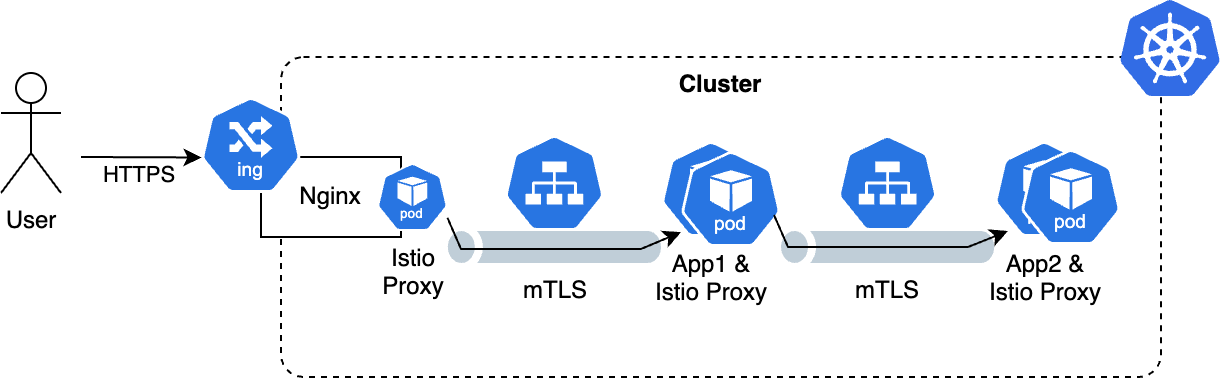
To configure the Nginx Ingress Controller to work with Istio, the following annotations have to be set on the Nginx Ingress Controller installation (example assumes a Helm-based Nginx Ingress Controller installation):
controller:
  podLabels:
    istio-injection: enabled
  podAnnotations:
    nginx.ingress.kubernetes.io[]/service-upstream: "true"
    traffic.sidecar.istio.io/excludeInboundPorts: 80,443
    traffic.sidecar.istio.io/includeInboundPorts: ""
    traffic.sidecar.istio.io/excludeOutboundIPRanges: <KUBE_API_IP>/32
The important part is the service-upstream annotation, which tells the Nginx Ingress Controller to use the service IP as the upstream for the traffic. This is necessary to ensure that the traffic is routed through the Istio service mesh.
Account for sidecar resources in namespace resource quotas
Many service-meshes make use of the sidecar pattern, where a sidecar container is injected into each Pod to handle the network traffic. This allows for advanced traffic management, security and observability features.
Depending on the target cluster, it might be needed to account for those additional resources needed by the sidecars as part of the namespace resource quota computation, e.g., added as field.cattle.io/resourceQuota. To do this, it is possible to provide an resource offset that is added to every Pod during calculation of the namespace resource quotas. The following example shows how to configure the resource offset for the sidecar containers:
global:
  sidecarResourceQuotaOffset:
      requests:
        cpu: "100m"
        memory: 128Mi
      limits:
        cpu: "100m"
        memory: 128Mi
In all cases where namespace resource quotas are not used, the sidecarResourceQuotaOffset can be omitted.
Use global proxy settings
The proxy settings can be configured globally:
global:
  proxy:
    enabled: true
    httpProxy: http://proxyUrl:1234
    httpsProxy: http://proxyUrl:1234
    noProxy: noProxyConfig
These settings can be applied on deployments, statefulsets, and daemonsets in the global section of the module configuration:
global:
  modules:
    <moduleName>:
      proxyEnabledServices: [<type>/<deployableName>]
      # e.g. [statefulset/keycloak-22]
The type field contains the information about the kind of the deployable object and can be "deployment", "statefulset" or "daemonset".
The global proxy settings are disabled by default. They will overwrite local proxy settings when enabled.