Validation tests
A validation test is recommended to ensure that the module’s deployment has been completed successfully.
Availability of module views
The easiest way to do this is by checking the main interface of the Nexeed IAS to confirm that the module-specific views are appearing on the navigation menu on the left side of the Web Portal. Once the modules are deployed, the specific views for each module should be visible on the navigation menu. For example, if the installation includes the Maintenance Management module, the Maintenance view should appear on the navigation menu.
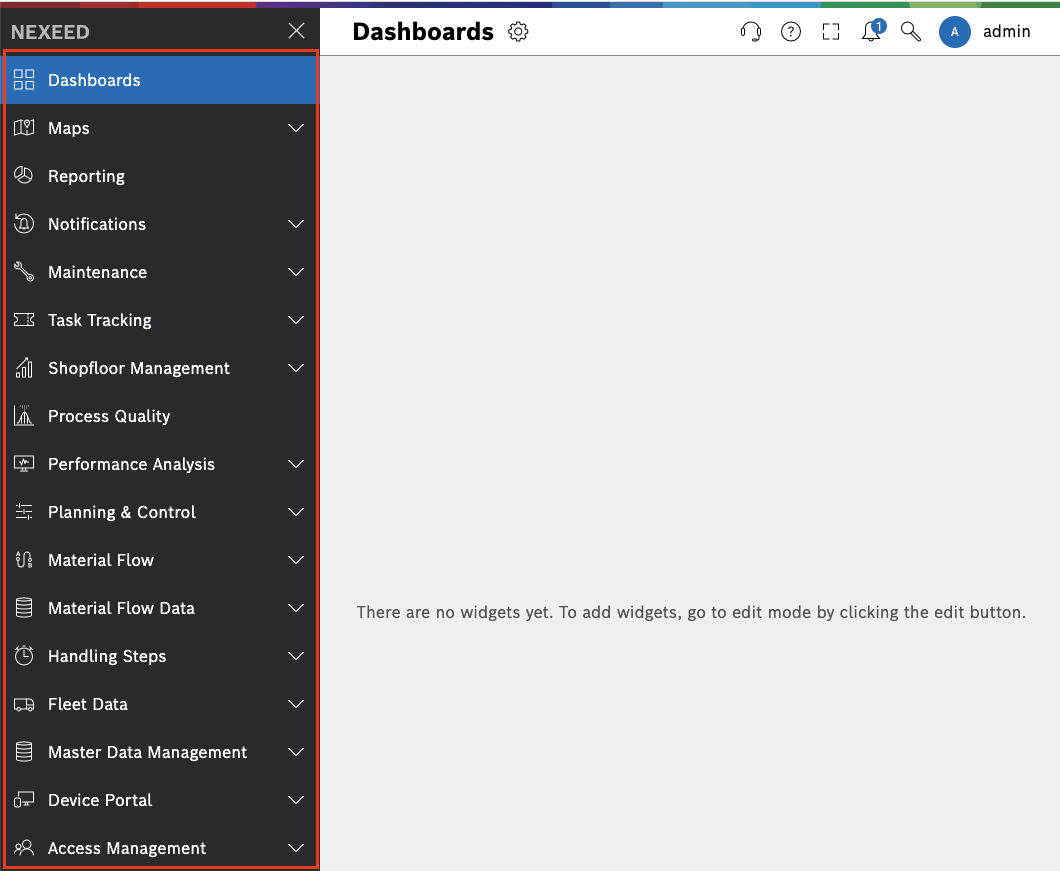
To determine which views are specific to a module in Nexeed IAS, you can go to the Integration Status view. To access Integration Status click on the logged-in user’s name on the top right corner of the Web Portal.
This will bring up a dropdown menu with the option to select Integration Status.
Please note that this view is only available when the user has the operator role from WebPortal assigned in Access Management.
Once you have selected Integration Status, you can view detailed information about the views specific to each module in Nexeed IAS. Using the Integration Status feature, you can quickly and easily access the information you need to understand the specific views and functionality available in each Nexeed IAS module.

To view the available views for a specific module, for example, the MACMA module, the Views tab can be easily accessed by following these steps:
-
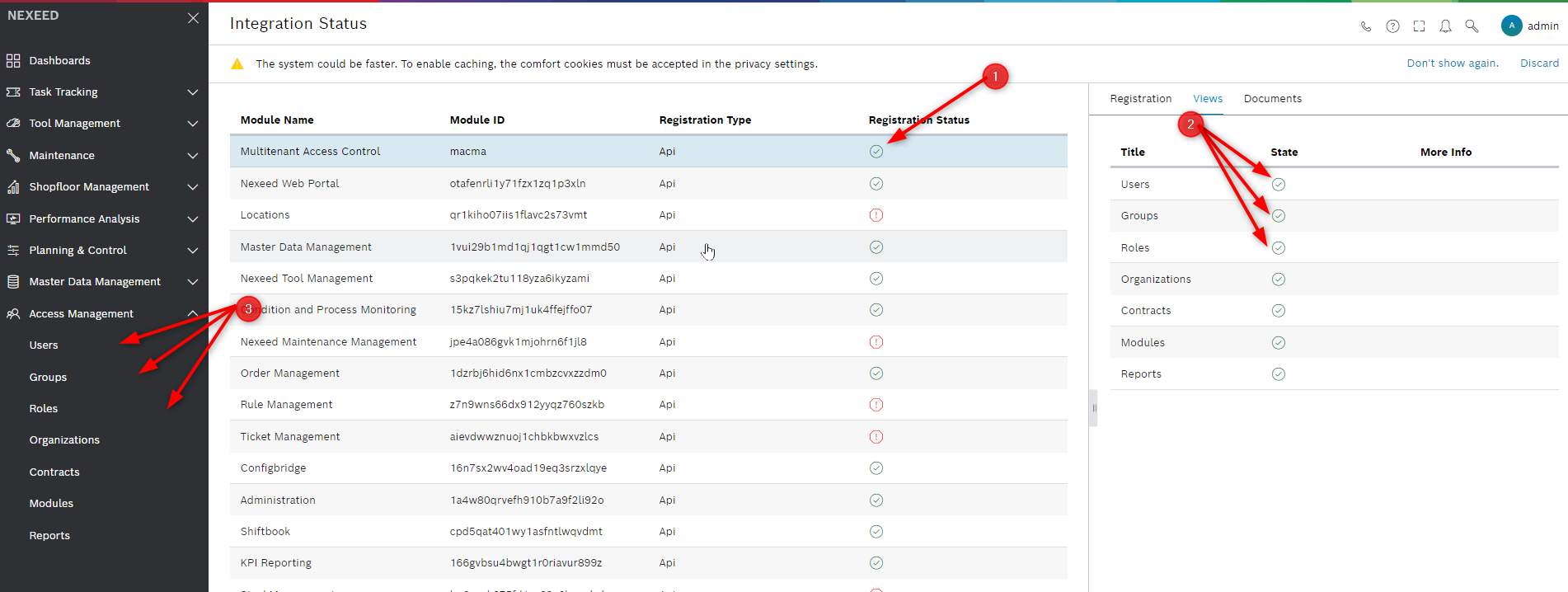
Locate the desired module on the interface and click on it (MACMA marked with red dot number 1). This will open a new submenu on the right side of the interface.
-
Select the View tab from the submenu. This will display a list of all the available views for the selected module.
-
Check the green tick next to each view to verify their integration into the system. The green tick indicates that the view is available for use and has been successfully integrated into the system (Look for red bubble numbers 2 and 3).
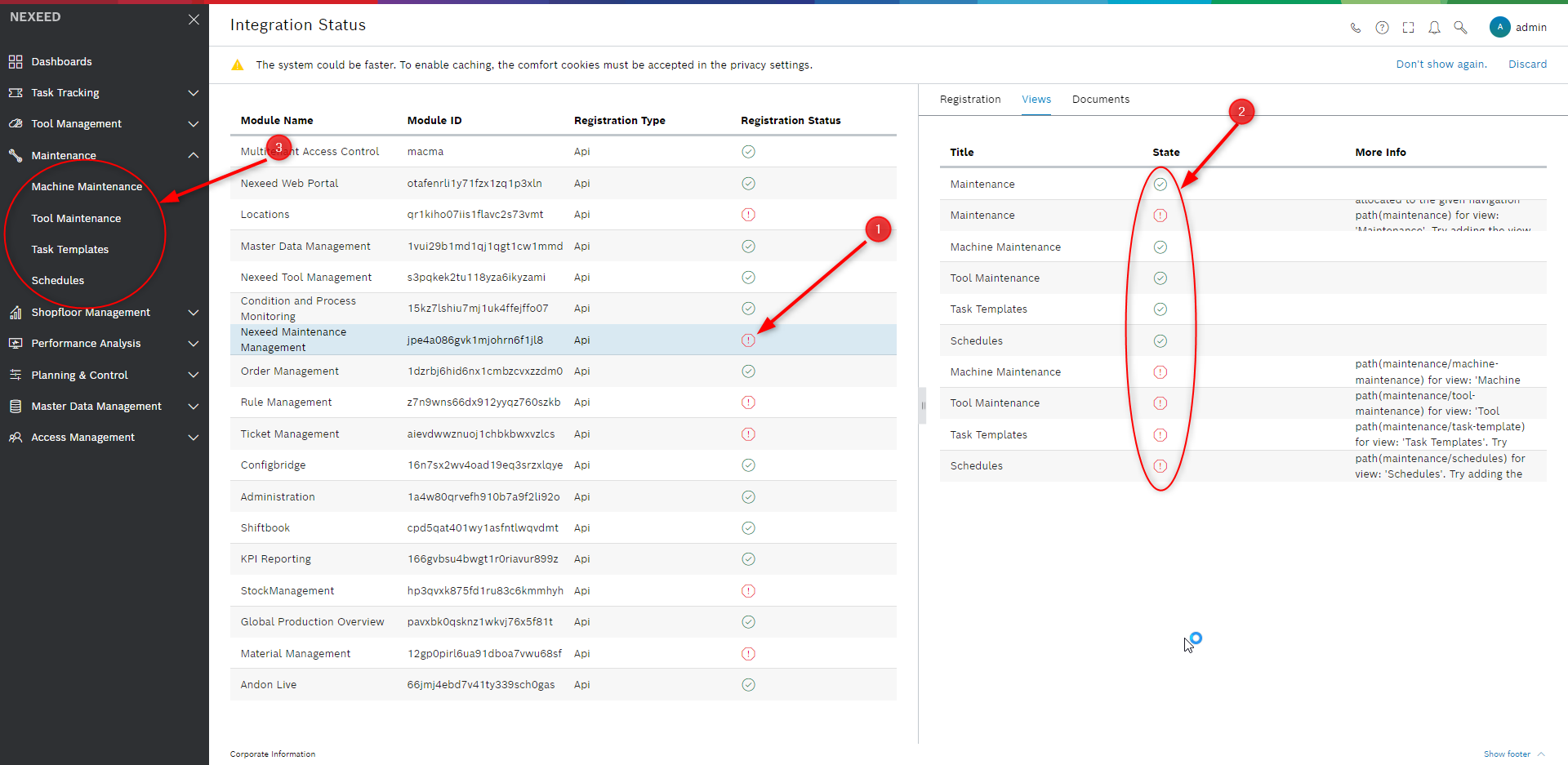
However, there is a possibility that some modules, due to a known bug, appear unregistered (red bubble 1). But if we open the Views menu, here we can see that the views are duplicated (red bubble 2), and even if the duplicates appear that they are not registered, they work as can be seen in the left part of the interface (red bubble 3).
Module health status
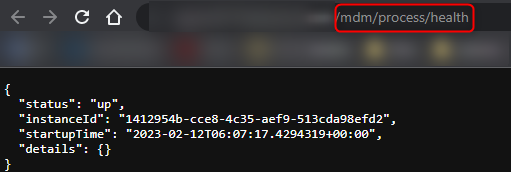
To check the status of a module, you can access its health endpoint, which allows you to determine whether the module is working correctly.
This can be done by accessing the link in the following format: {serverUrl}/{moduleName}/process/health.
For instance, in the image provided, you can observe that the MasterDataManagement module has an Up status, indicating that it is functioning within normal parameters.
It is worth noting that these endpoints are integrated into the default monitoring platform with the Nexeed IAS application, i.e., Elasticsearch.
However, they can also be integrated into the monitoring platform of your choice, depending on your preferences.