Tutorial: Setting up a new machine
In this tutorial, you prepare the Smart Operations Toolkit for a new machine: you create a measuring point, a device type and a device. After that, the machine can send data.
Prerequisites
-
measuring_points:write,device_types:writeanddevices:writepermissions -
The names that the machine uses for its values and the technical ID it uses for itself. Ask the person who connects the machine.
The values in this tutorial are examples. Use the names of your own machine.
Step 1: Create a measuring point
Create one measuring point for every value that the machine sends.
-
In the menu, click Configuration, then the Measuring Points tab.
-
Click New measuring point.
-
Enter the values, for example:
Field Example Name
coolant-pressureUnit of measurement
barType
Device
Description
Pressure of the cooling lubricant at the spindle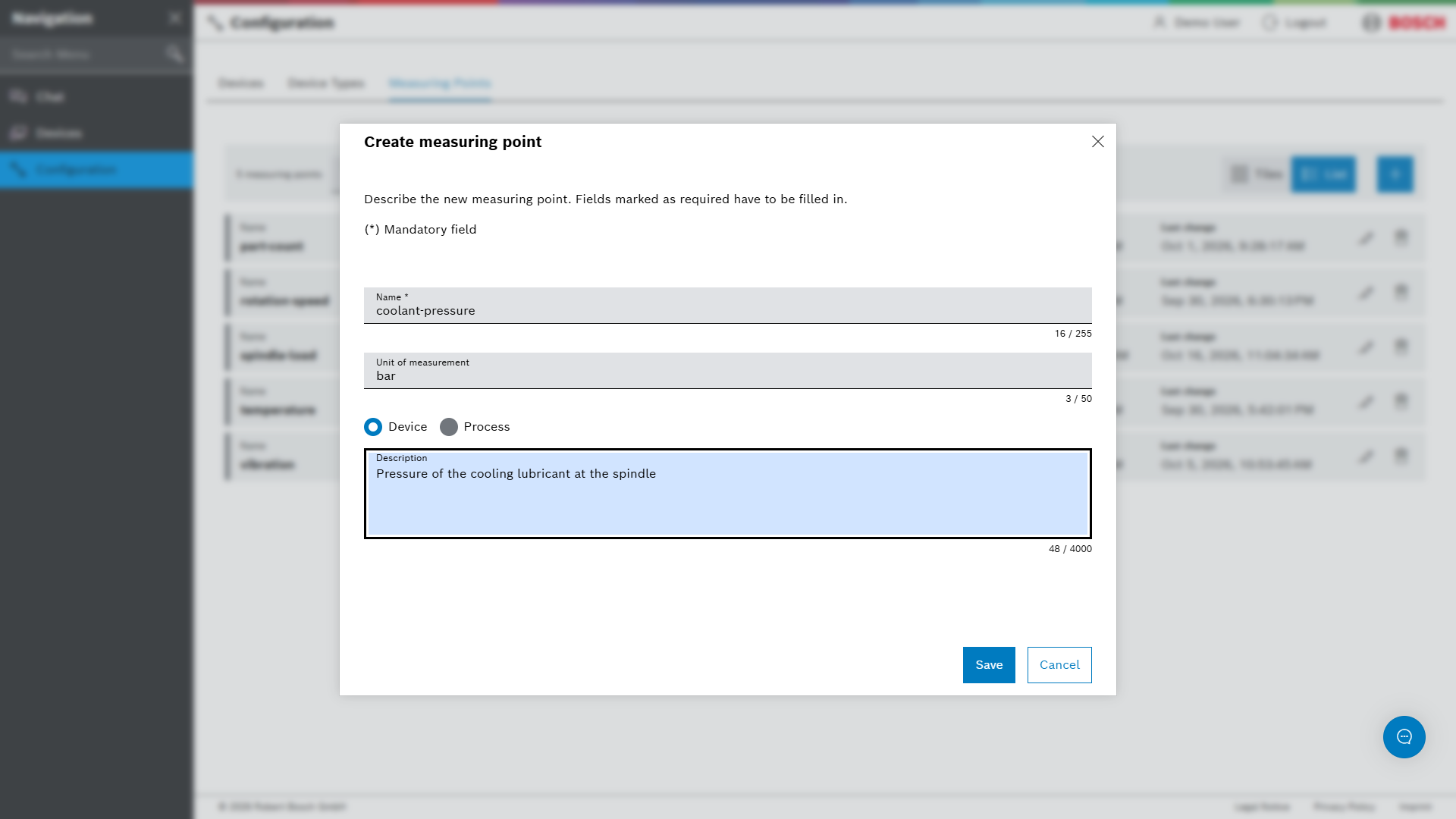
-
Click Save.
| The name must be exactly the name that the machine uses when it sends the value. |
| If the measuring point already exists, for example because another machine sends the same value, use the existing one. |
Step 2: Create a device type
Create one device type for every machine model.
-
Click the Device Types tab.
-
Click New device type.
-
Enter the Name of the machine model and the Manufacturer.
-
Under Measuring points, select all measuring points that machines of this model send.
-
Click Save.
Every device of this type gets these measuring points.
Step 3: Create the device
-
Click the Devices tab.
-
Click New device.
-
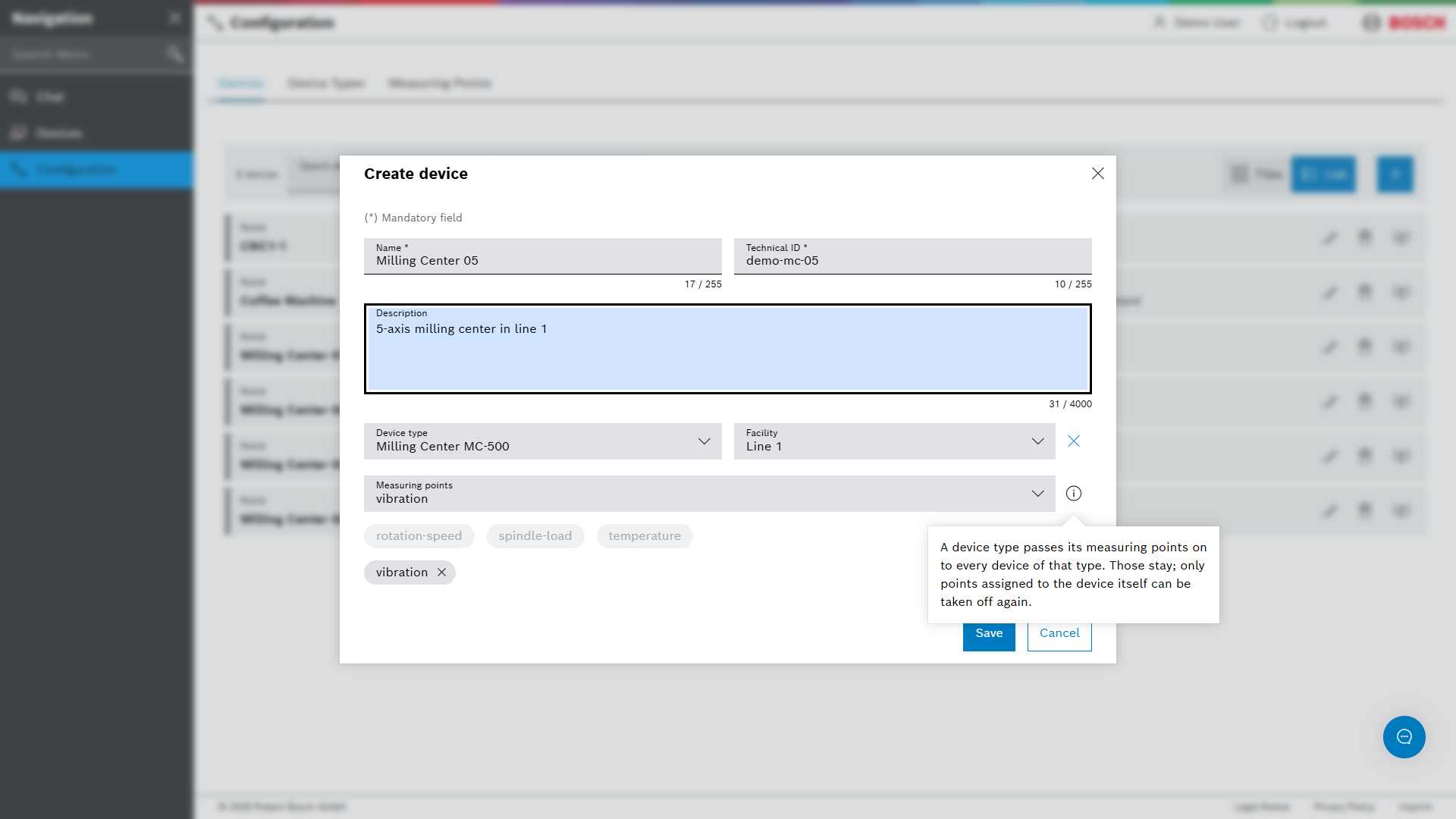
Enter the values:
Field Value Name
Name of the machine as your colleagues know it
Technical ID
Identifier that the machine uses when it sends data
Device type
The device type from step 2
Facility
Location of the machine, for example its production line
-
Click Save.
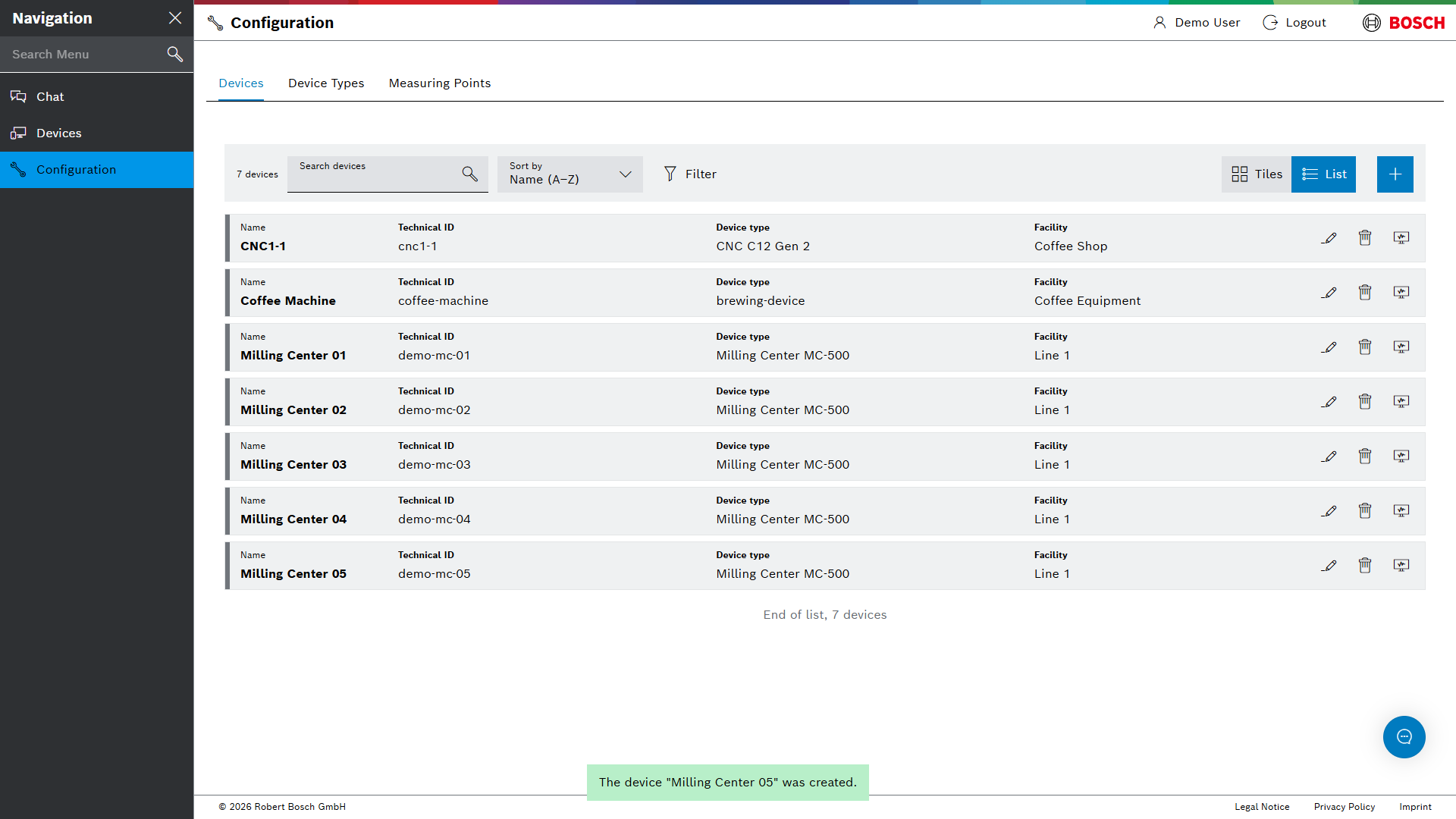
The device is created. It has the measuring points of its device type.
| If the facility is missing, create it first with the agent. See Plant structure. |
Step 4: Connect the machine
The machine or its connector sends the values to the Smart Operations Toolkit. It uses the technical ID of the device and the names of the measuring points. See Connecting machines.
Next steps
-
Tutorial: Asking the agent – set up master data with the agent
Tutorial: Neue Maschine einrichten
Dieses Tutorial bereitet das Smart Operations Toolkit auf eine neue Maschine vor: Messpunkt, Gerätetyp und Gerät anlegen. Danach kann die Maschine Daten senden.
Voraussetzungen
-
Berechtigungen
measuring_points:write,device_types:writeunddevices:write -
Die Namen, die die Maschine für ihre Werte verwendet, und die technische ID, mit der sie sich selbst bezeichnet. Diese Angaben bei der Person erfragen, die die Maschine anbindet.
Die Werte in diesem Tutorial sind Beispiele. Die Namen der eigenen Maschine verwenden.
Schritt 1: Messpunkt anlegen
Für jeden Wert, den die Maschine sendet, einen Messpunkt anlegen.
-
Im Menü auf Konfiguration (Configuration) klicken, dann auf die Registerkarte Messpunkte (Measuring Points).
-
Auf Neuer Messpunkt (New measuring point) klicken.
-
Die Werte eingeben, zum Beispiel:
Feld Beispiel Name
coolant-pressureMaßeinheit (Unit of measurement)
barTyp
Gerätemesswert (Device)
Beschreibung (Description)
Pressure of the cooling lubricant at the spindle
-
Auf Speichern (Save) klicken.
| Der Name muss exakt dem Namen entsprechen, den die Maschine beim Senden des Werts verwendet. |
| Existiert der Messpunkt bereits, zum Beispiel weil eine andere Maschine denselben Wert sendet, den vorhandenen Messpunkt verwenden. |
Schritt 2: Gerätetyp anlegen
Für jedes Maschinenmodell einen Gerätetyp anlegen.
-
Auf die Registerkarte Gerätetypen (Device Types) klicken.
-
Auf Neuer Gerätetyp (New device type) klicken.
-
Den Name des Maschinenmodells und den Hersteller (Manufacturer) eingeben.
-
Unter Messpunkte (Measuring points) alle Messpunkte auswählen, die Maschinen dieses Modells senden.
-
Auf Speichern klicken.
Jedes Gerät dieses Typs erhält diese Messpunkte.
Schritt 3: Gerät anlegen
-
Auf die Registerkarte Geräte (Devices) klicken.
-
Auf Neues Gerät (New device) klicken.
-
Die Werte eingeben:
Feld Wert Name
Name der Maschine, wie er im Unternehmen bekannt ist
Technische ID (Technical ID)
Bezeichner, den die Maschine beim Senden von Daten verwendet
Gerätetyp (Device type)
Der Gerätetyp aus Schritt 2
Anlage (Facility)
Ort der Maschine, zum Beispiel ihre Produktionslinie
-
Auf Speichern klicken.
Das Gerät ist angelegt. Es hat die Messpunkte seines Gerätetyps.
| Fehlt die Anlage, diese zuerst mit dem Agenten anlegen. Siehe Anlagenstruktur. |
Schritt 4: Maschine anbinden
Die Maschine oder ihr Konnektor sendet die Werte an das Smart Operations Toolkit. Dabei verwendet sie die technische ID des Geräts und die Namen der Messpunkte. Siehe Maschinen anbinden.
Nächste Schritte
-
Tutorial: Agent befragen – Stammdaten mit dem Agenten einrichten