Diese Seite ist nur auf Englisch verfügbar.
Organizations
To provide a partner organization with access to selected data and functions in the Nexeed Industrial Application System, organizations can be connected to each other. The type and scope of access are defined by Contracts.
Partner organizations can be created in the Multitenant Access Control > Organizations menu ( Adding an Organization ) and linked to existing organizations ( Connect an Organization to Another Organization ).
The BCI organization is located in the overview by default.

| Icon/element | Description |
|---|---|
|
Copy the link to the organization’s Nexeed Industrial Application System to the clipboard. |

Adding an Organization
Prerequisite
Organization Manager role
Procedure
-
Call up the Multitenant Access Control > Organizations menu.
-
Click
 .
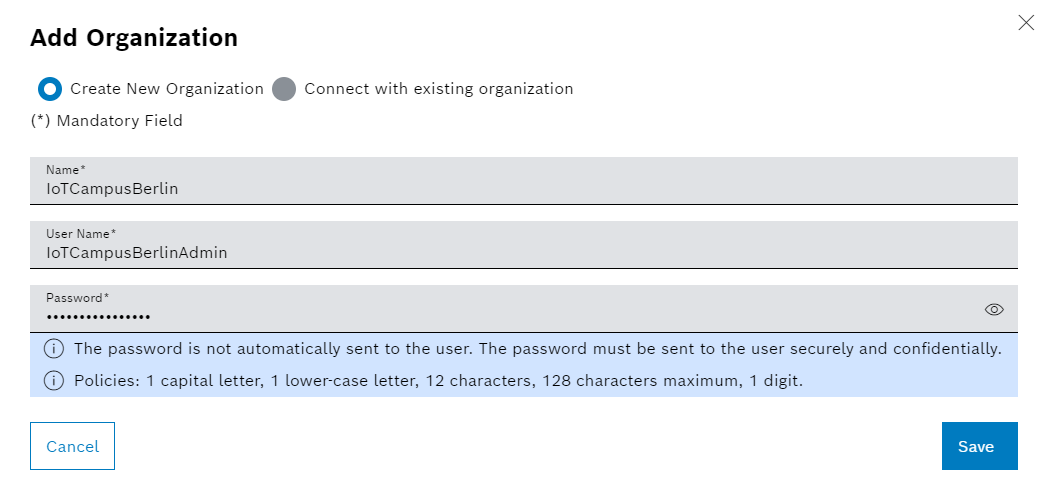
The Add organization dialog window appears.
-
Click the Create new organization radio button.
-
Enter the following information in the text fields:
-
Name
Name of the partner organization
-
User name
User name of the partner organization
-
Password
Password of the partner organization
The password must be sent to the user using a confidential, secure method.
-
-
Click Save.
The organization is created and displayed in the overview.
-
To link organizations, continue with Connecting an Organization to Another Organization.
Connect an Organization to Another Organization
Prerequisites
-
A user with the
Organization Managerrole or the corresponding permissions is logged onto the organization that is to be linked. -
The identification key of the partner organization is available.
Procedure
-
Call up the Multitenant Access Control > Organizations menu.
-
Click
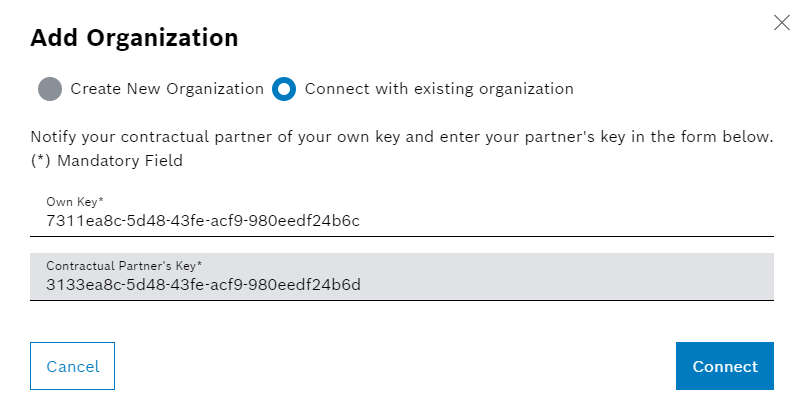
.The Add organization dialog window will open.
-
Click the radio button Connect with existing organization.
The user’s own identification key will be entered automatically.
The identification key must be shared with the partner organization so that it can connect to the user’s own organization.
-
Enter the contractual partner’s identification key in the text field.
-
Click Connect.
The connection of the organizations is initiated. The linked partner organization appears in the overview as an ID with a suffix indicating that the connection request has not yet been confirmed.
|
The connection request is confirmed if the contractual partner has also connected with the organization. |