Diese Seite ist nur auf Englisch verfügbar.
Contracts
A contract allows a partner organization access to selected data and functions in the Nexeed Industrial Application System.
Organizations can create contracts and assign or manage application roles in the Multitenant Access Control > Contracts menu.
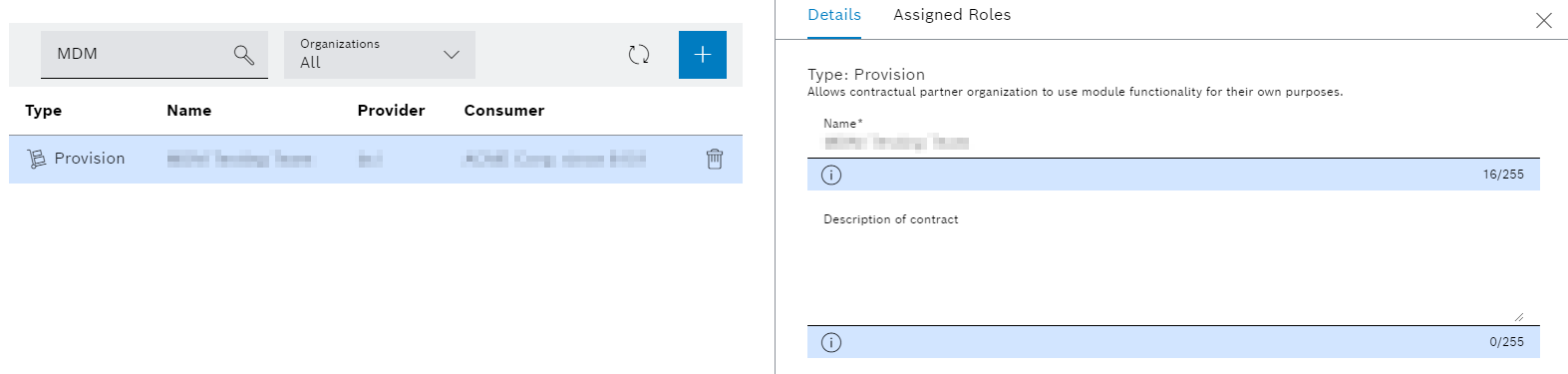
After selecting a contract in the overview, the contract data and the assigned roles are displayed in the detailed view on the right.
Detailed view
| Icon/element | Description |
|---|---|
Details |
Displays the contract details |
Assigned roles |
Displays the roles that are assigned to the contract |
Adding a Contract
Prerequisite
Access Contract Manager or Provision Contract Manager roles
Procedure
-
Call up the Multitenant Access Control > Contracts menu.
-
Click
 .
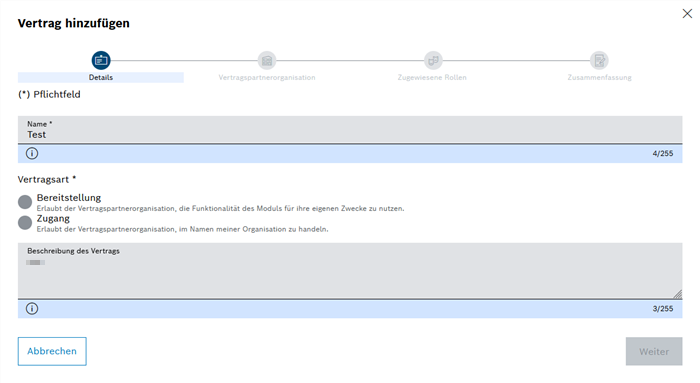
The Add contract dialog window will with the Details step.
-
In the Details step, enter the information.
-
Select contract type:
Deployment and Access can only be selected if the user is assigned to both the
Access Contract ManagerProvision Contract Managerroles.-
Provision
-
|
Example: The contractual partner organization is permitted to use functionalities and data of the Shift Book module with the roles described below. |
-
Access
|
Example: The contractual partner organization is permitted to act as a planner in the Shift Book module in the name of the organization in question. |
-
Click Next.
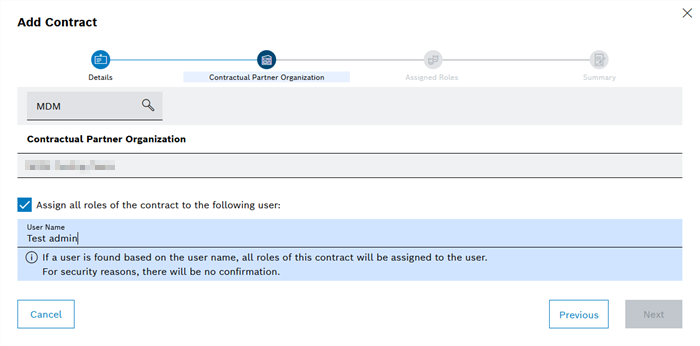
The Contractual partner organization step will appear.
-
Select the required contractual partner organization.
-
To assign all contract roles to a user, implement the following settings:
-
Activate the Assign the following user all roles from this contract checkbox.
-
In the User Name text field, enter the user name of the organization’s administrator.
-
-
Click Next.
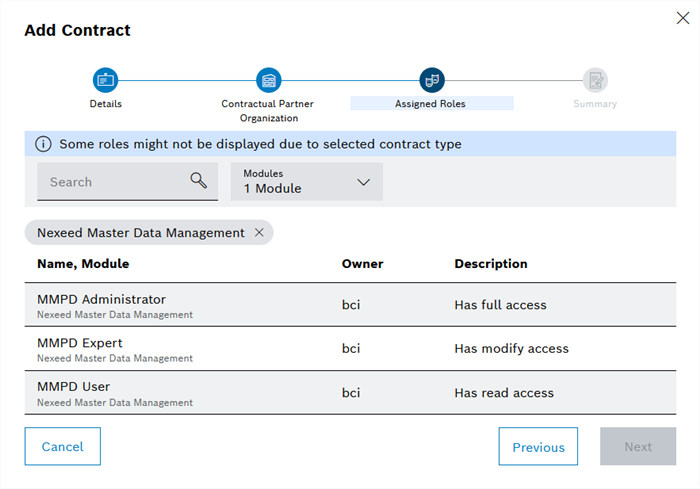
The Assigned roles step will appear.
-
To limit the number of roles, implement the following settings:
In the Modules drop-down list, select the module in which the required role is located.
Or:
Enter the required role designation in the Search text field.
Only application roles can be associated with a contract: Roles.
-
Select the required roles.
-
Click Next.
The Summary step will open.
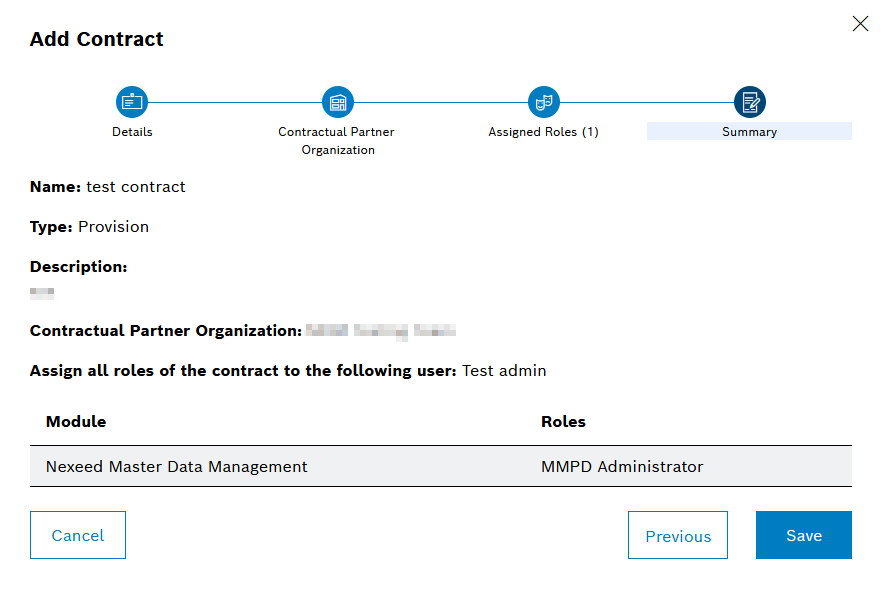
-
To edit details, click on Back or on the required step.
-
To save the details, click Save in the Summary step.
The user is updated and displayed in the overview.
-
To display the entered contract details, continue with Display Contract Details.
Display Contract Details
Prerequisite
Provision Contract Manager (provision contracts) or Access Contract Manager (access contracts)
Procedure
-
Call up the Multitenant Access Control > Contracts menu.
-
Select the required contract in the overview.
The contract details are displayed in the Details tab, in the detailed view on the right.
-
To display the assigned roles, go to the Assigned roles tab.
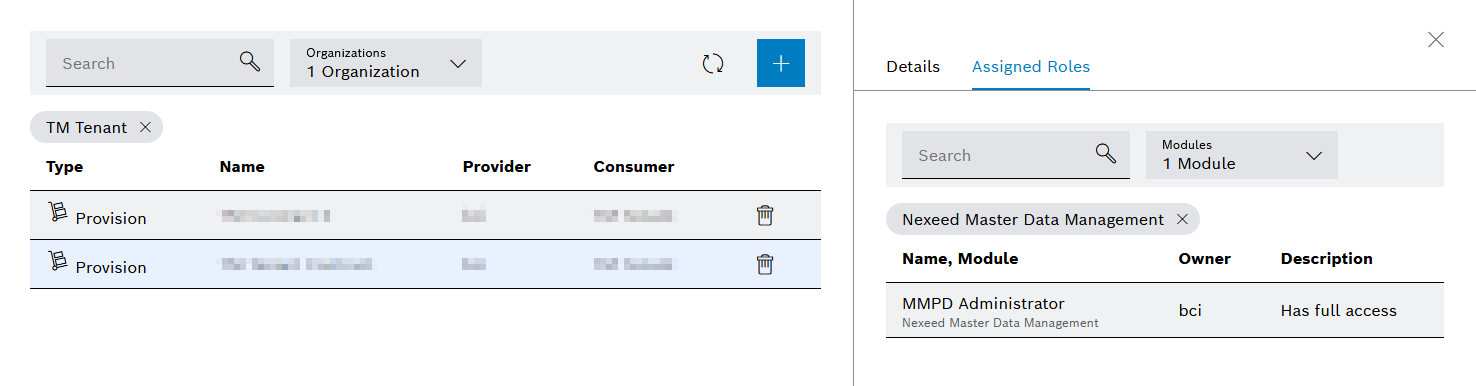
The contract data is displayed.