Diese Seite ist nur auf Englisch verfügbar.
Configuration
This menu provides two main functions:
Configure by file
Configure by file is used to manage Multitenant Access Control settings by uploading or downloading files. For a detailed explanation of the structure of the Excel file, see Contents of the configuration file.
|
The file size may increase when saved with Microsoft Excel due to different compression settings and storage structure. |
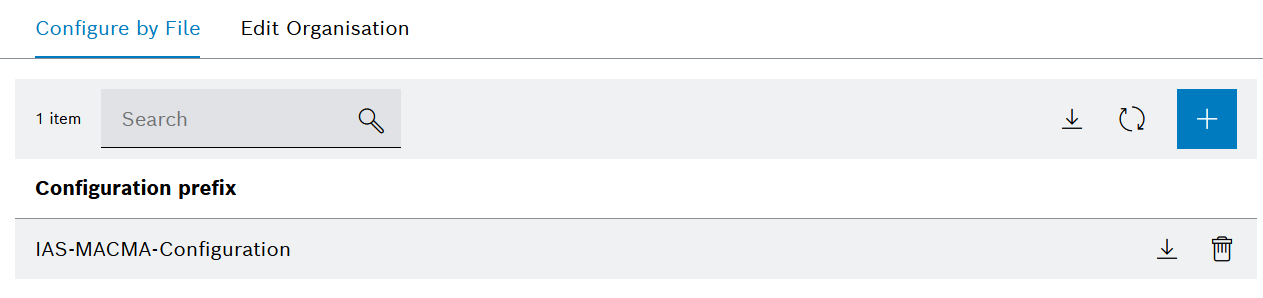
Header
| Icon/element | Description |
|---|---|
|
Configuration prefix entry
|
Download a blank template
The blank template provides a pre-defined structure for configuring Multitenant Access Control, but without any pre-filled data. This is the ideal starting point if you are setting up a new system or overhauling the authorization concept.
A more in depth explanation of the structure of the Excel file is described in Excel structure.
Prerequisites
Access Configuration Manager role
Procedure
-
Open the Multitenant Access Control > Configuration menu entry.
-
Click on the Configure by file tab.
-
Click on
 in the search bar.

A new file named MACMA-Access-Permissions-<organizationId-template-<currentDate>.xlsx is downloaded to your local system.
Download existing configuration
Prerequisites
-
Access Configuration Managerrole -
Configuration prefix entry
Configuration prefix entries are already applied configuration files. To create a new configuration prefix entry, see how to import a configuration file.
Procedure
-
Open the Multitenant Access Control > Configuration menu entry.
-
Click on the Configure by file tab.
-
Click on
in the row of the configuration prefix entry to be downloaded.
The applied configuration file is downloaded to your local system. The file is named MACMA-Access-Permissions-<organizationId>-<configurationPrefix>-<currentDate>.xlsx.
Import configuration file
Prerequisites
Access Configuration Manager role
Procedure
-
Open the Multitenant Access Control > Configuration menu entry.
-
Click on the Configure by file tab.
-
Click on
 .
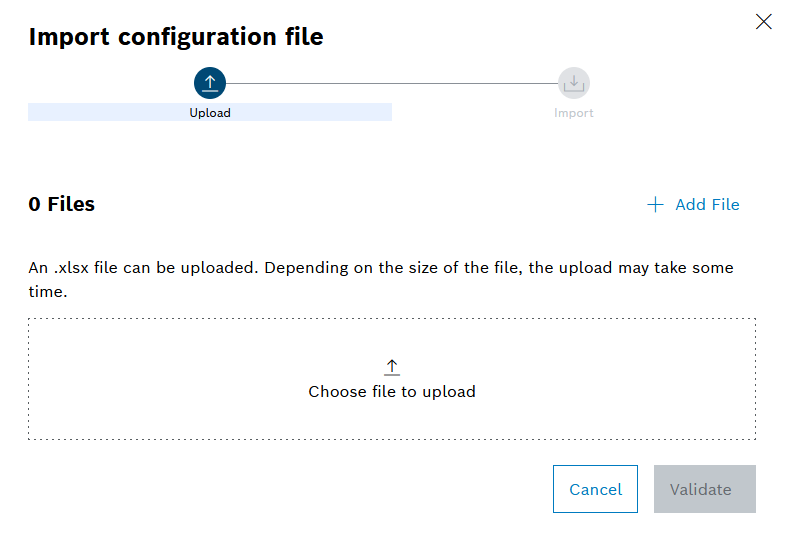
The Import configuration file dialog opens.
-
Click on
 Add File to select a configuration file from your local system or drag and drop the file into upload area.
Only one file can be uploaded at a time. The file must be in Excel format (.xlsx).
-
To check the file for input errors, click on Validate .
-
If the validation fails, a list of errors is displayed in the Validation Errors tab. You must correct these errors in the Excel file and re-upload to proceed.
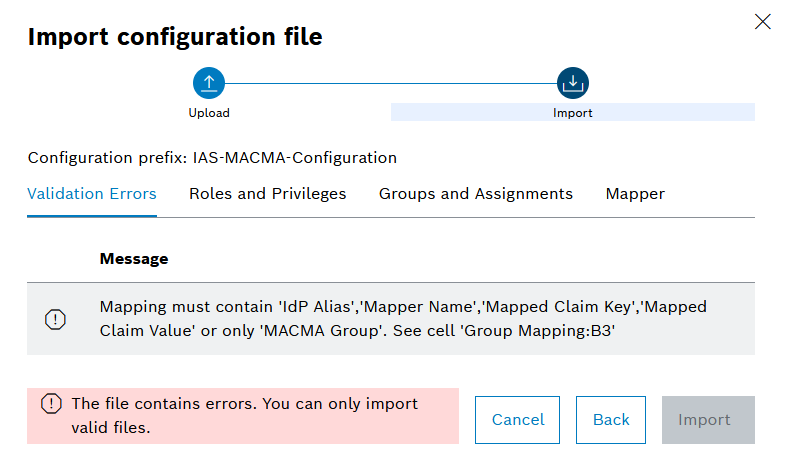
The error message will indicate the specific issues found in the file, such as missing required fields, incorrect data types, or formatting errors. The message also includes the row and column numbers where the errors were found, making it easier to locate and fix.
-
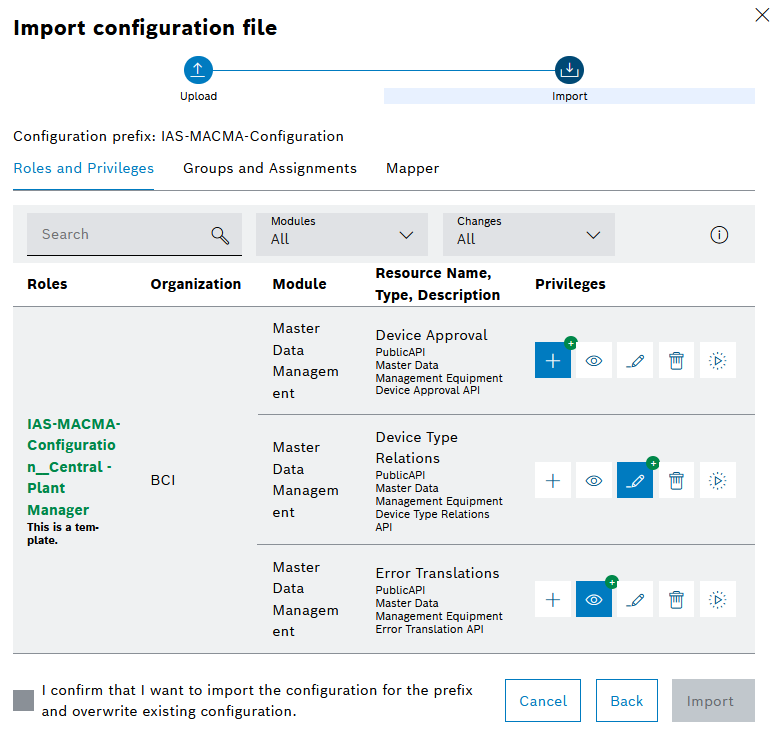
If the validation is successful, a summary of the configuration changes that will be applied is displayed in multiple tabs.
-
-
Review all tabs including Roles and Privileges, Groups and Assignments of Group, and Mapper.
This step is crucial to ensure that the intended changes of the access control settings are applied correctly.
-
Confirm the changes via the checkbox
 and Import.

The configuration file is uploaded and processed. The changes are applied to the system, and the new roles, groups, and identity provider mappers are created based on the uploaded configuration file. The detailed changes can be looked up in the details of a configuration prefix entry.
Delete configuration prefix entry
Prerequisites
Access Configuration Manager role
Procedure
-
Open the Multitenant Access Control > Configuration menu entry.
-
Click on the Configure by file tab.
-
Click on
 in the row of the configuration prefix to be deleted.
A confirmation prompt is shown.
Deleting a configuration prefix entry will remove all associated roles, groups, and identity provider mappers. This action cannot be undone, so ensure that you have a backup of the configuration if needed.
-
Confirm with Delete.
The configuration prefix entry is deleted, and all associated roles, groups, and identity provider mappers are removed from the system.
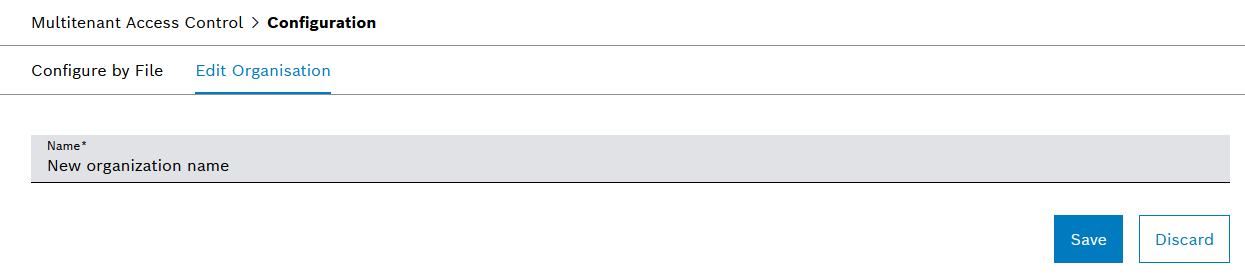
Edit Organization
Edit Organization is used to edit the organization properties.
Prerequisites
Organization Configuration Manager role
Procedure
-
Open the Multitenant Access Control > Configuration menu entry.
-
Click on the Edit Organization tab.
-
Edit the organization Name.
-
Click on Save.
The new organization name is saved and will be displayed in the login form.