Ticket details
To view ticket details and edit tickets.
In the Ticket Management > Board menu, click on a ticket tile.
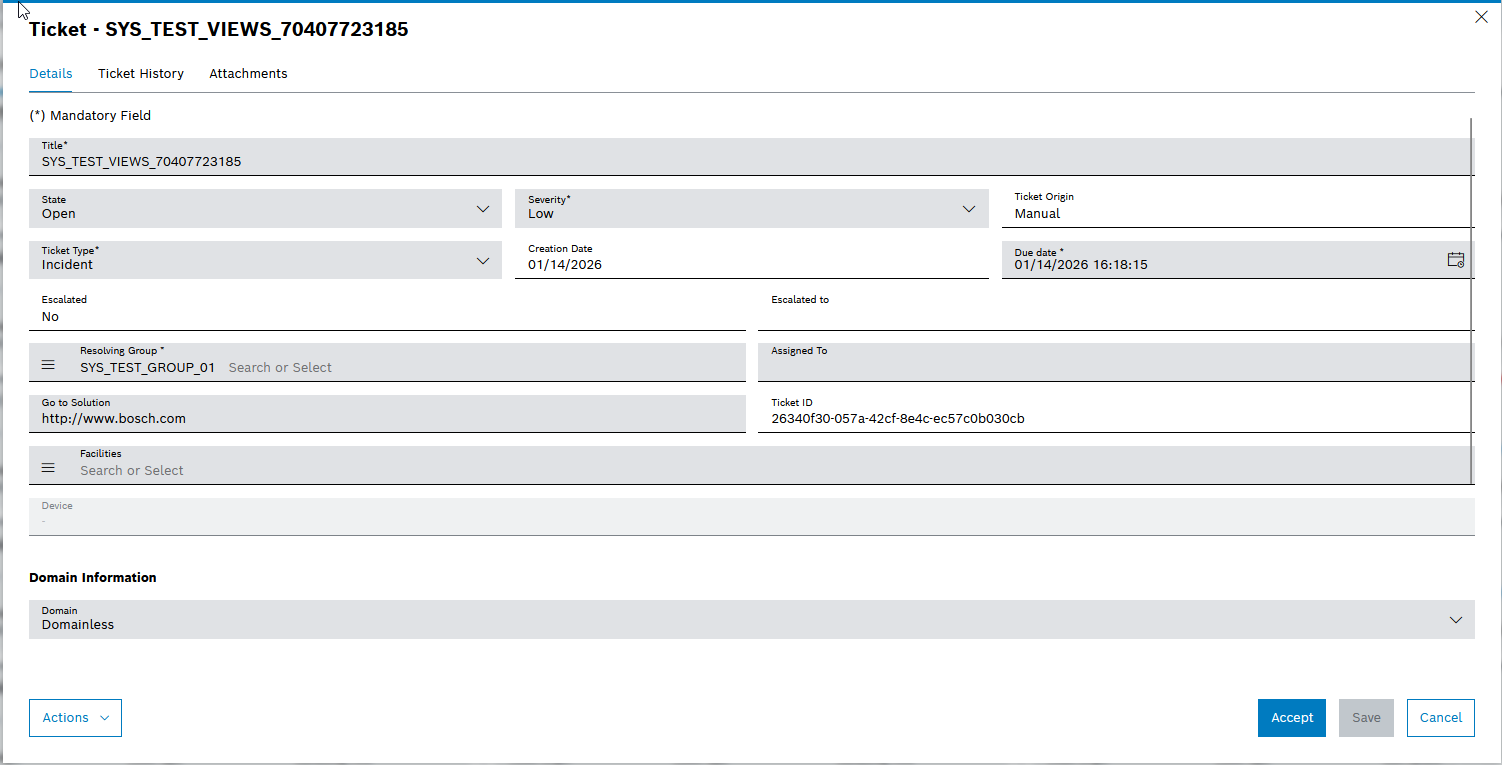
Functions
| Element | Description | ||
|---|---|---|---|
Actions |
Click and select an option:
|
||
Module Interactions |
|
||
Accept |
|
||
Cancel |
Close the dialog |
Details tab
The details tab is organized in three sections:
| Section | Description | ||
|---|---|---|---|
General Information |
All general Information about the ticket is displayed e.g. the creation date, the ticket state, the severity is displayed. |
||
Domain Information |
Contains all domain-specific properties of the ticket. |
||
Further Information |
Contains a Description and a Note field for the ticket. The Note field is used to add additional information about the ticket, such as the reason for the ticket or the solution to the problem.
|
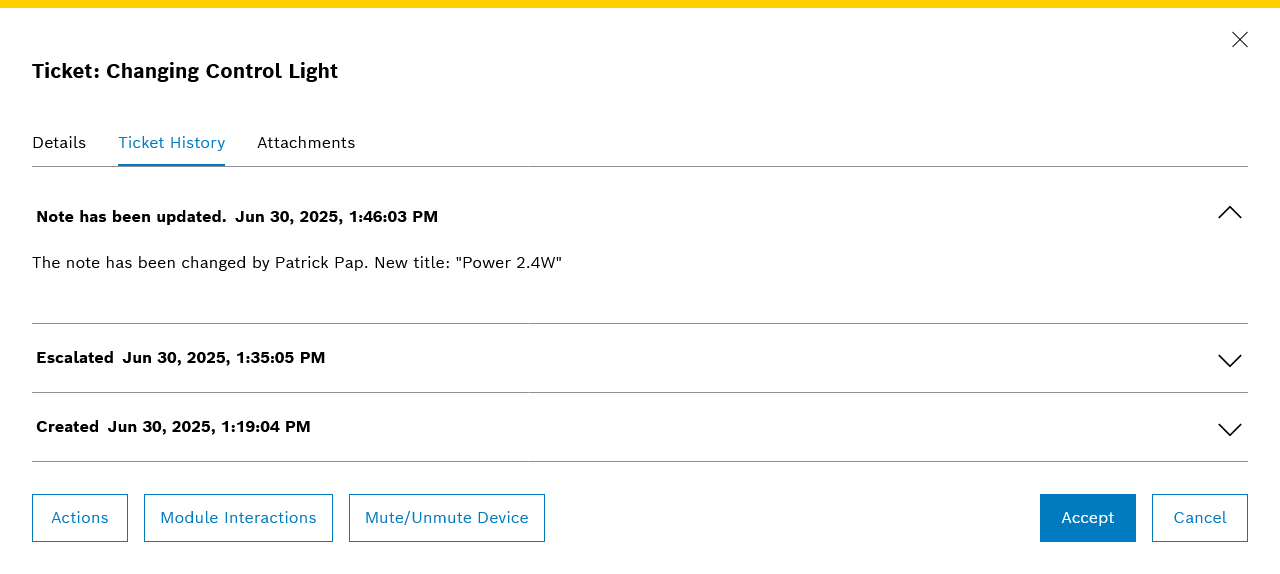
Ticket History tab
|
All changes in the Note field are displayed expanded in the history. |
|
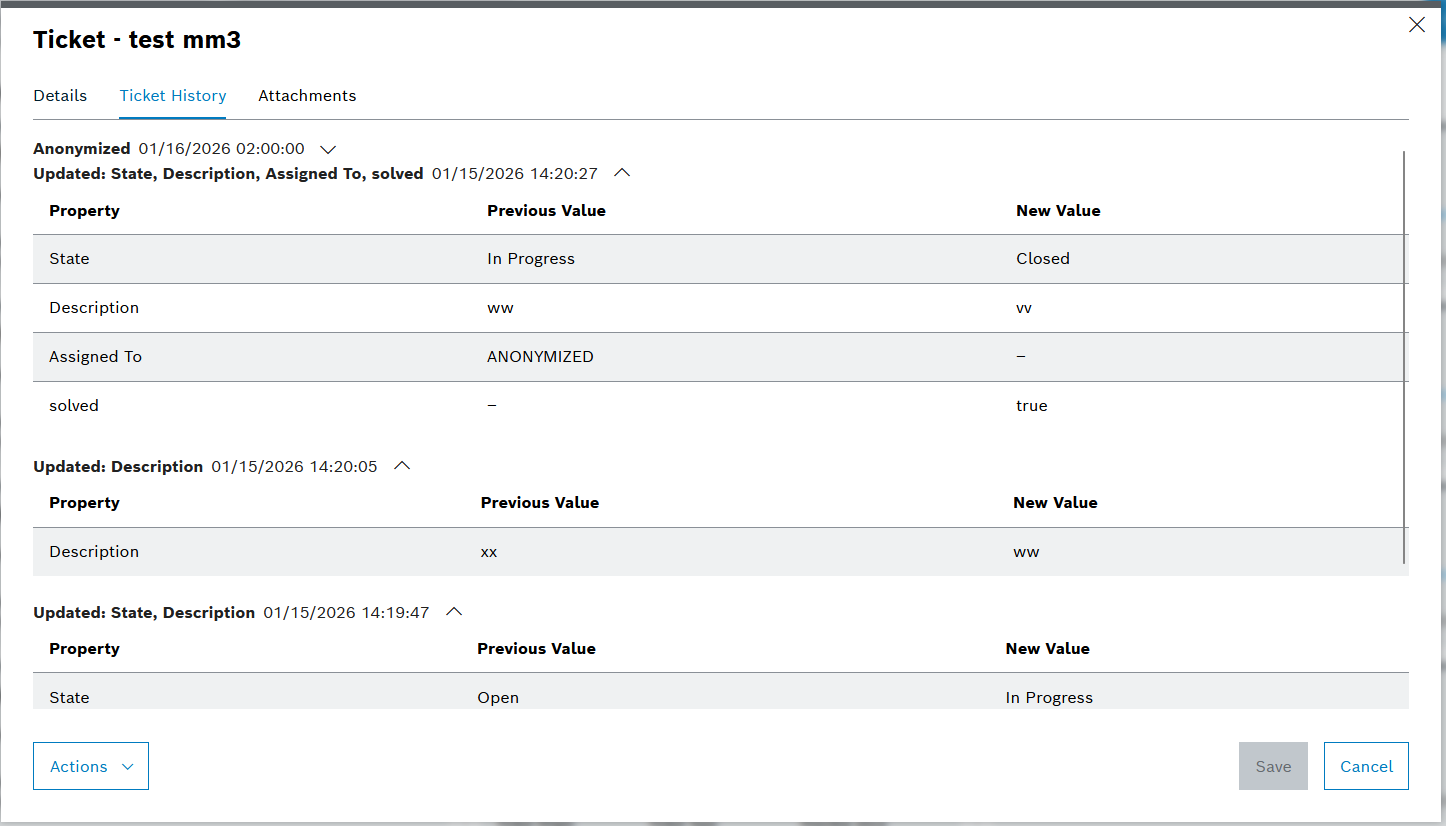
All updates applied to a ticket at once are grouped and can be expanded to see further details. |
Attachments tab
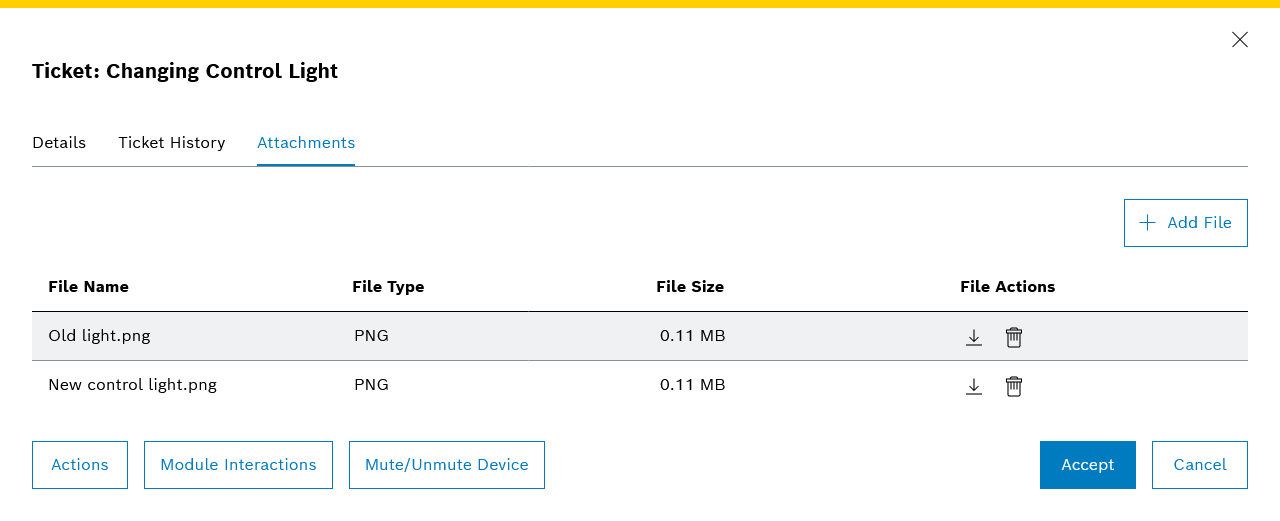
On the Attachments tab, a maximum of five files can be attached to a ticket. The following functions are available:
| Element | Description |
|---|---|
|
|
|
|
|


Module interactions
The Module Interactions button allows you to interact with other modules that are registered for that device in Nexeed Industrial Application System. The available options depend on whether the ticket was created manually or automatically in the background.
|
The Module Interactions button is only displayed if the ticket has a device assigned. |
Manually created tickets:
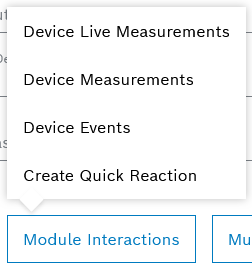
Button |
Description |
Create Quick Reaction |
Create a quick reaction in the Deviation Processor menu entry Create or Edit Quick Reaction |
Show Device Processes: |
View and validate the process details in the Process Quality module. |
Device Live Measurements, Device Measurements and Device Events: |
View the relevant detailed information for the device in the Condition Monitoring menu entry. |
Automatically created tickets
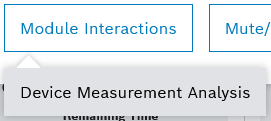
Button |
Description |
Device Measurement Analysis: |
View the Measurements tab in the Condition Monitoring > Performance Analysis menu entry. The chart is automatically filtered by Time and Event Code |
Mute/Unmute Device
The Mute/Unmute Device button allows Maintenance Engineers to temporarily stop a device from sending new deviations to Deviation Processor, which prevents the creation of additional tickets while maintenance is in progress.
|
This function is especially useful when working on tickets from Condition Monitoring, ensuring that no new tickets are generated for the device during maintenance activities. |