Message Log tab
The Message Log tab is used to view, download, copy, and search for messages. The messages are data objects that are exchanged between ERP Connectivity and clients or ERP systems.
Display message status
Prerequisites
Guest , User , Editor or Power User role
Procedure
-
Go to the ERP Connectivity > Monitoring menu.
-
Open the Message Log tab.
The icon on the left-hand side of a message card provides an initial indication of the status of the messages. The status of the messages is displayed in the column Execution Status. The Text column shows an excerpt from the success or error notification relating to the messages. The column Execution Status provides information on whether the response of the package is delivered successfully to its caller. Depending on the individual package, this could be an asynchronous REST call, a notification sent via RabbitMQ etc.

|
The icon on the left-hand side of a message card displays error notifications relating to the messages and may overwrite individual successful message steps. |
|
In the Text column, any success notifications are overwritten by error notifications, as these are more relevant for investigation. |
| Symbol | Status | Description |
|---|---|---|
|
Successful |
Message was successfully sent and received. |
|
New |
Message has been created, but not yet sent. |
|
Outstanding |
Message has been sent, but not yet received. |
|
Retrying |
Message was sent, but not received, and will be sent again. |
|
Invalid |
Message could not be received. |
|
Failed |
Message could not be sent. |
|
Externally Failed |
The message contains content errors from the external ERP system. Communication was successful, but the ERP system reports a process-related or technical error. |


View message history
Prerequisites
Guest , User , Editor or Power User role
Procedure
-
Go to the ERP Connectivity > Monitoring menu.
-
Open the Message Log tab.
-
In a message card, click on
 .
.
The Direction column shows whether a message has been received or sent by ERP Connectivity and the communication direction in which this is performed.

| Symbol | Description |
|---|---|
|
Request from a client to ERP Connectivity |
|
Response from ERP Connectivity to the client |
|
Request from ERP Connectivity to the external ERP system |
|
Response from the external ERP system to ERP Connectivity |


Download message
Prerequisites
User , Editor or Power User role
Procedure
-
Go to the ERP Connectivity > Monitoring menu.
-
Open the Message Log tab.
-
In a message card, click on
. -
Click
 in the row of a message.
The message is downloaded in text format (depending on the Connector Package either JSON or XML) and appears in the browser’s download folder.
Display the details of a message
Prerequisites
Guest , User , Editor or Power User role
Procedure
-
Go to the ERP Connectivity > Monitoring menu.
-
Open the Message Log tab.
-
In a message card, click on
. -
Click in the row of a message.
The detailed view displays details of the message, including the status, message ID, processing ID, correlation ID and last modified date.
Display the content of a message
Prerequisites
Guest , User , Editor or Power User role
Procedure
-
Go to the ERP Connectivity > Monitoring menu.
-
Open the Message Log tab.
-
In a message card, click on
. -
Click in the row of a message.
-
Open the Content View tab in the detailed view.
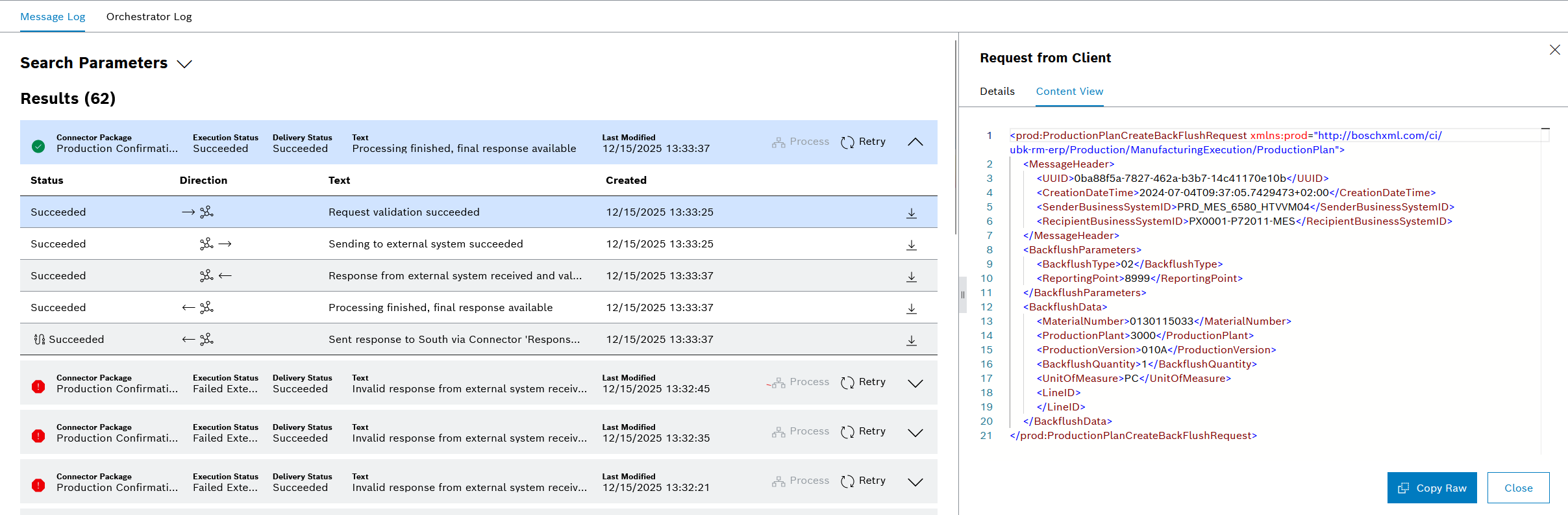
The contents of a message are displayed in raw format (depending on the package, either JSON or XML) according to the original message.
|
It is possible to copy the message directly into the clipboard by clicking Copy Raw right below the message. |
Search for a message
Prerequisites
Guest , User , Editor or Power User role
Procedure
-
Go to the ERP Connectivity > Monitoring menu.
-
Open the Message Log tab.
-
Click on the Search parameters area.
-
Enter any search criteria.

Any number of search criteria can be selected to refine a search.
-
Click Search.
Only messages that match the entered search criteria are displayed in the results list. The entered search criteria are displayed below the search parameters.
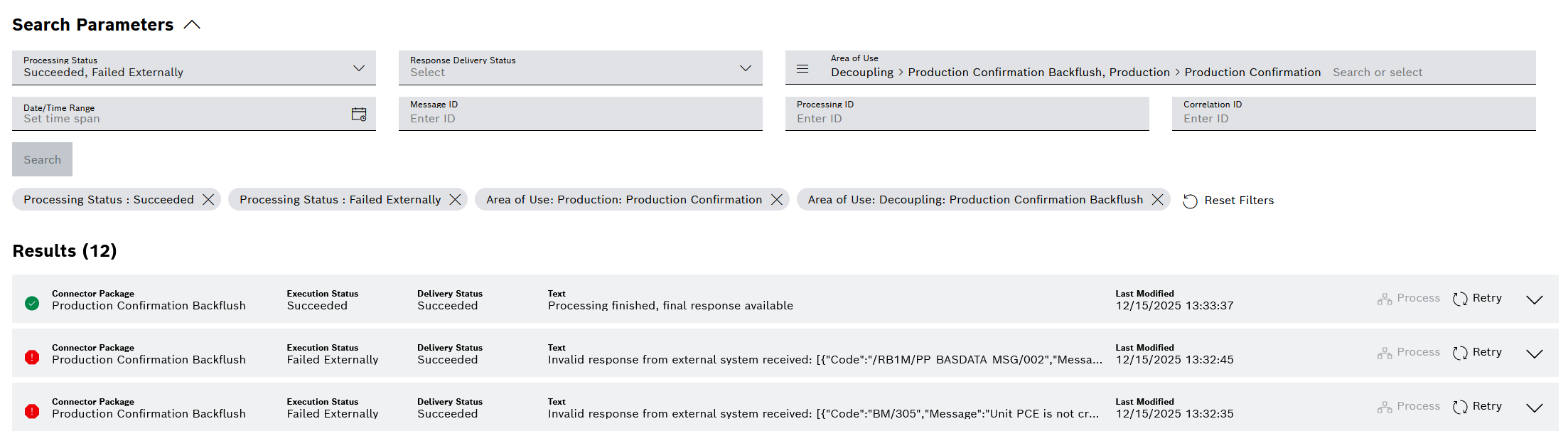
|
To remove search criteria, click |

Retry a message
|
Both failed and successful messages can be retried. Be cautious when retrying successful messages, as this may cause double bookings and inconsistencies in SAP. |
Prerequisites
-
EditororPower Userrole
Procedure
-
Go to the ERP Connectivity > Monitoring menu.
-
Open the Message Log tab.
-
In a message card, click on
 Retry.
The message has been sent manually and repeatedly. The number of repetitions is displayed in the Text column.
|
A message that was generated by an orchestration cannot be individually repeated in the Message Log. The whole orchestration must be repeated in the Orchestrator Log. |