Value Converters tab
The Value Converters Tab is used to display, add, edit, and delete value converters and their mappings.
ERP Connectivity provides components for converting specific values used by the Connector Packages. An example would be the translation of units of measure from the IAS world to the SAP world.
Display value converters details
Prerequisites
Guest , User , Editor or Power User role
Procedure
-
Go to the ERP Connectivity > Configuration menu.
-
Open the Value Converters tab.
-
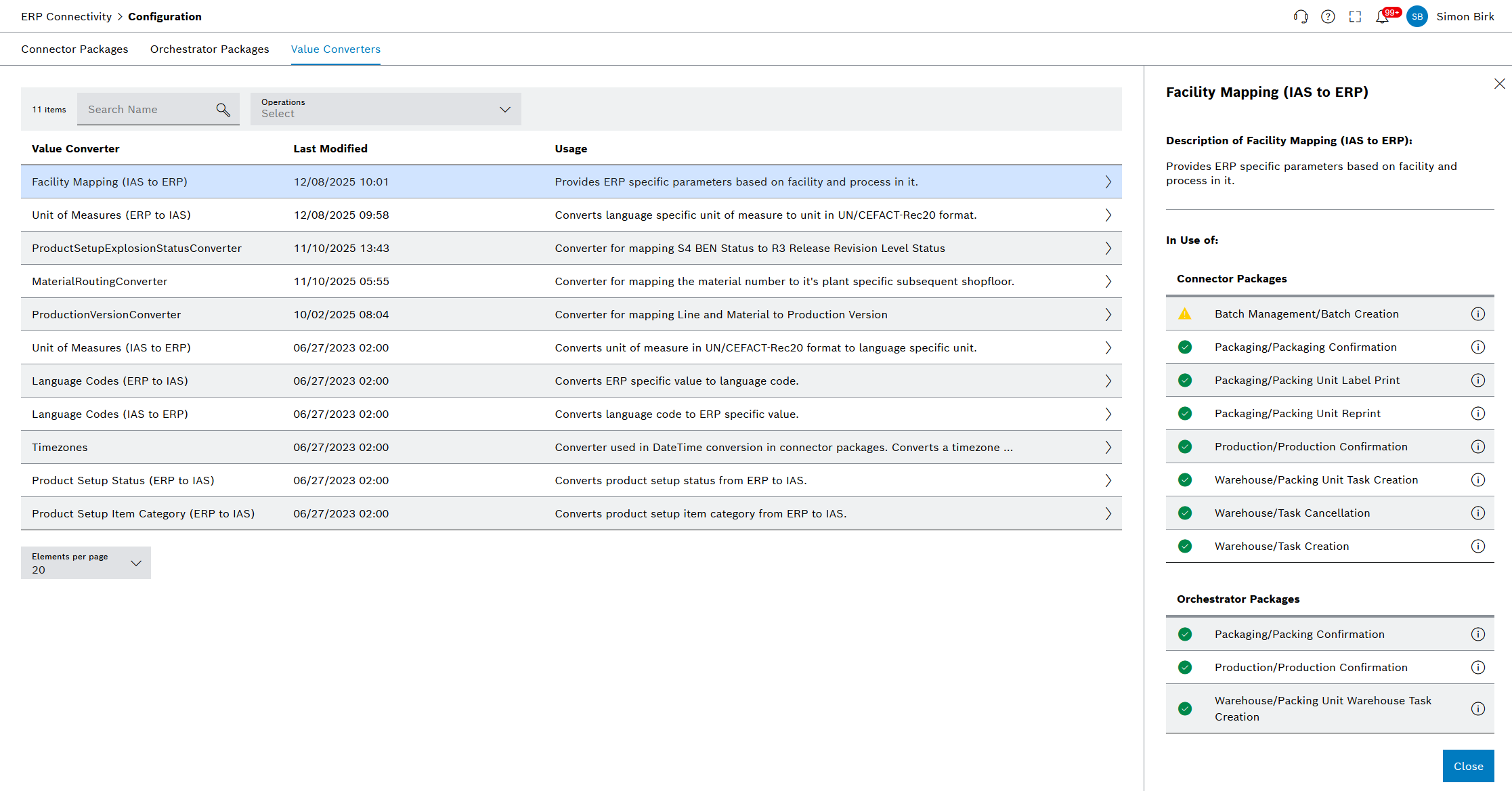
Click in the row of a value converter.
The detailed view displays all Connector Packages and Orchestrator Packages that use the selected value converter. The status of the Connector Packages and Orchestrator Packages that use the selected value converter is also displayed.
Display overview of the value converter mappings
Prerequisites
Guest , User , Editor or Power User role
Procedure
-
Go to the ERP Connectivity > Configuration menu.
-
Open the Value Converters tab.
-
Click on
 in the row of a value converter.
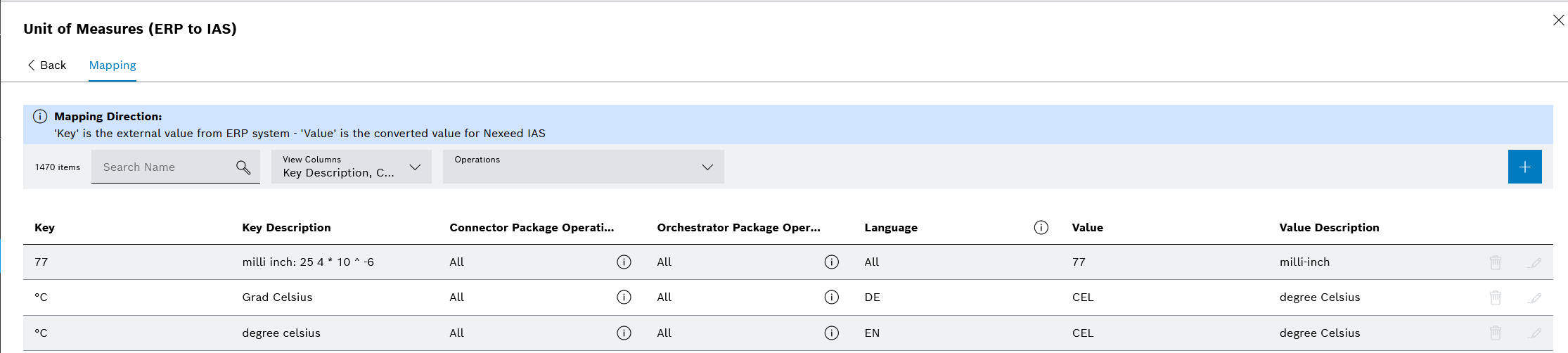
An overview of the value converter mappings is displayed in the Mapping tab.
Add a value converter mapping
Prerequisites
User , Editor or Power User role
Procedure
-
Go to the ERP Connectivity > Configuration menu.
-
Open the Value Converters tab.
-
Click on
in the row of a value converter. -
Click
 in the header in the Mapping tab.
 -
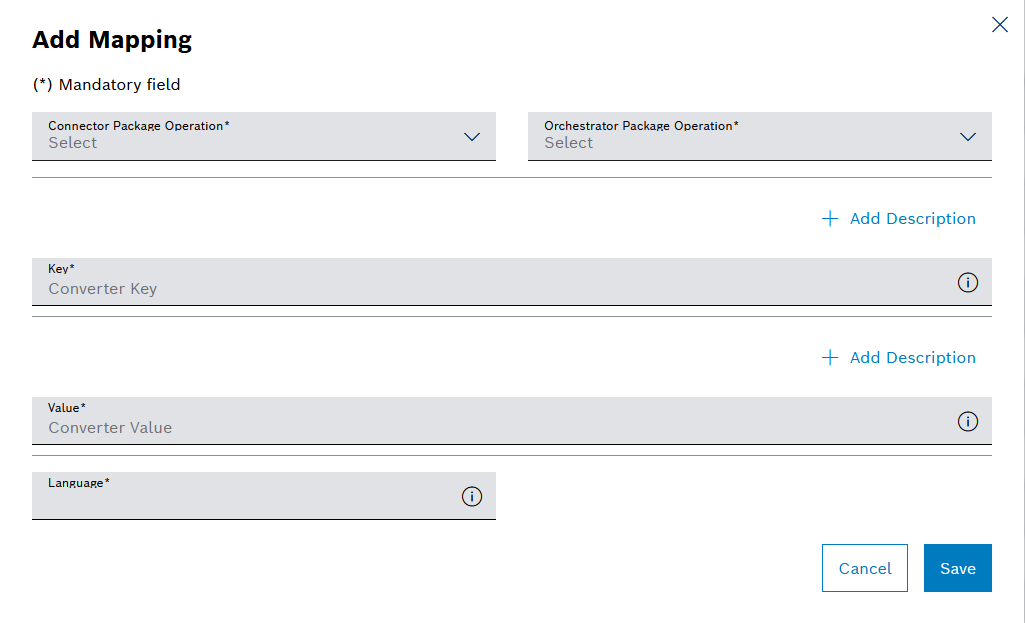
In the Add Mapping dialog window, enter the information:
-
In the Connector Package and Orchestrator Package drop-down lists, select the package or respective area/operation for which the mapping should be created. If the mapping should be globally available for all packages, select All.
-
In the Key text field, enter the key for the mapping and optionally add a description of the key. The key is the input for the mapping.
-
In the Value text field, enter the value for the mapping and optionally add a description of the value. The value is the output for the mapping.
-
In this example, Language is an additional parameter used for the mapping. To stick with the units of measure example, a given unit might be mapped differently depending on the language.
The number of additional parameters depends on the value converters. Value converters without parameters are also possible.
-
-
Click Save.
The value converter mapping is created and displayed in the list.
Edit a value converter mapping
Prerequisites
Editor or Power User role
|
Default mappings that are not created over the frontend are fixed and cannot be edited. |
Procedure
-
Go to the ERP Connectivity > Configuration menu.
-
Open the _Value Converters tab.
-
Click on
in the row of a value converter. -
In the Mapping tab, click
 of the mapping to edit.
 -
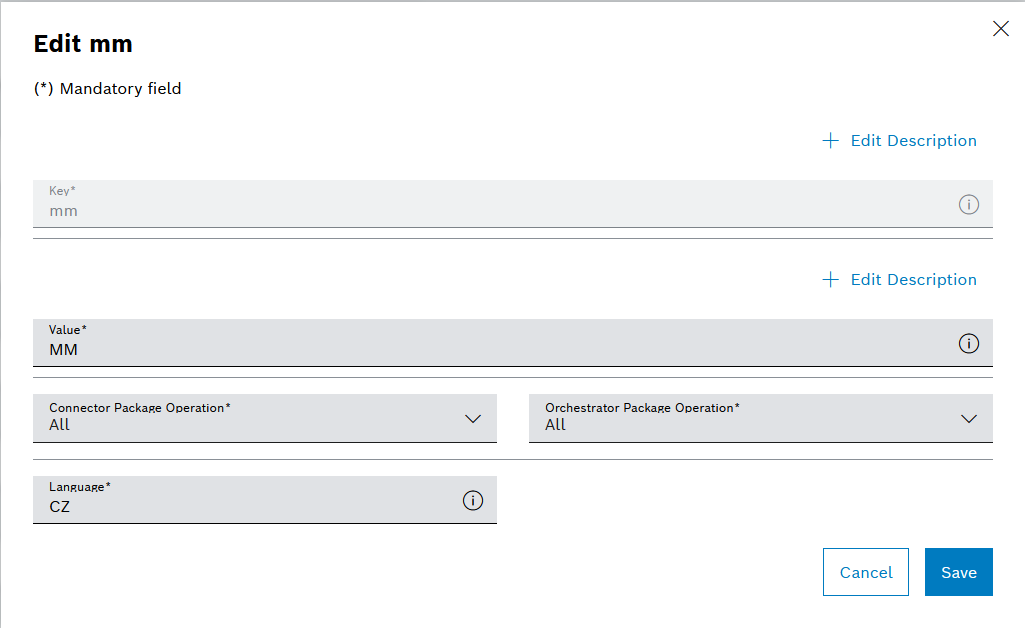
In the Edit… dialog window, edit information:
-
Change the mapping as needed.
-
Click Save.
The value converter mapping is edited and updated in the list.
Delete a value converter mapping
Prerequisites
Editor or Power User role
Procedure
-
Go to the ERP Connectivity > Configuration menu.
-
Open the Value converters tab.
-
Click on
in the row of a value converter. -
In the Mapping tab, click
 in the row of the mapping to delete.
 -
In the Delete Mapping? dialog window, click Delete.
The value converter mapping is deleted and is no longer displayed in the list. The deleted value converter mapping can no longer be used by packages.