Connector and Orchestrator Packages tabs
The Connector and Orchestrator Packages tabs are used to add, display, activate, deactivate, and edit Connector and Orchestrator Packages. These packages provide specific functionalities for integrating the Nexeed Industrial Application System with one or more defined ERP systems.
The following functions are available in the widgets:

| Color indicator | Status of the package |
|---|---|
Green |
Enabled |
Gray |
Disabled |
Yellow |
Warning |
Red |
Error |
Add a package
Prerequisites
Power User role
Procedure
-
Go to the ERP Connectivity > Configuration menu.
-
Open the Connector Packages or Orchestrator Packages tab.
-
Click
 in the header.
 -
This opens the package upload wizard. The wizard will then guide the user through the process of uploading and configuring a package.
The Connector or Orchestrator Package is added and displayed in the overview.
Activate a package
Prerequisites
Editor or Power User role
Procedure
-
Go to the ERP Connectivity > Configuration menu.
-
Open the Connector Packages or Orchestrator Packages tab and select the package to activate.
-
In the package tile, click on
 .
.
The package is activated. The color indicator at the top of the package is green.
Deactivate a package
Prerequisites
Editor or Power User role
Procedure
-
Go to the ERP Connectivity > Configuration menu.
-
Open the Connector Packages or Orchestrator Packages tab and select the package to deactivate.
-
In the package tile, click on
 .
.
The package is deactivated. The color indicator at the top of the package is gray.
Display package details
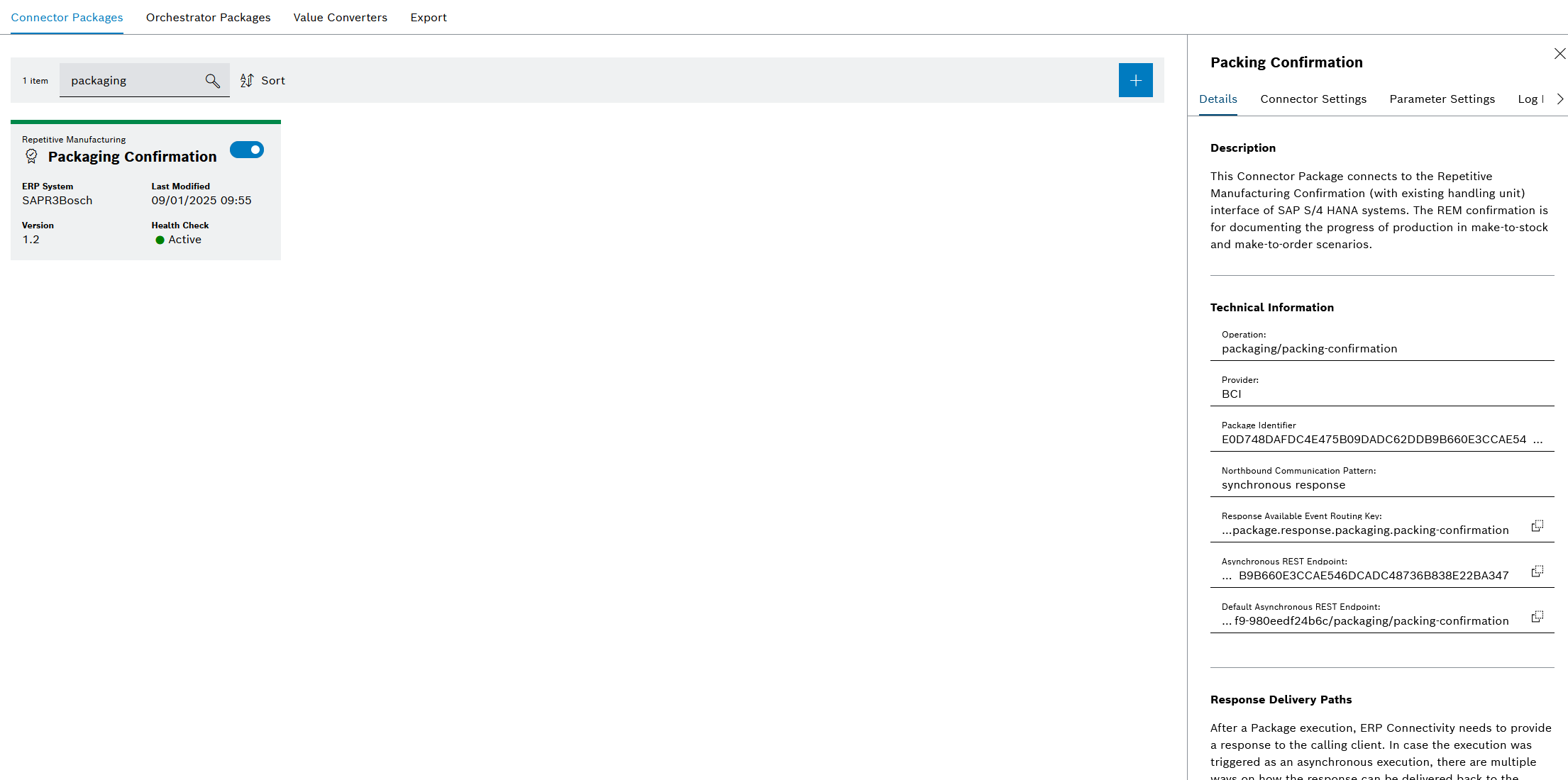
The package details contain a short description of the package and various technical information, e.g., exposed endpoints and used routing keys.
Prerequisites
User , Editor or Power User role
Procedure
-
Go to the ERP Connectivity > Configuration menu.
-
Open the Connector Packages or Orchestrator Packages tab
-
Click on a package.
A description of the functionality of the package and technical information is displayed in the detailed view in the Details tab.
Edit a package
The following section describes the different, editable settings of a package.
Set or unset default
Prerequisites
Editor or Power User role
Procedure
-
Go to the ERP Connectivity > Configuration menu.
-
Open the Connector Packages or Orchestrator Packages tab.
-
Click on a package.
-
Open the Details tab in the detailed view.
-
By pressing the Set Default or respective Unset Default buttons at the bottom of the Details tab, the default behavior of the package can be toggled.
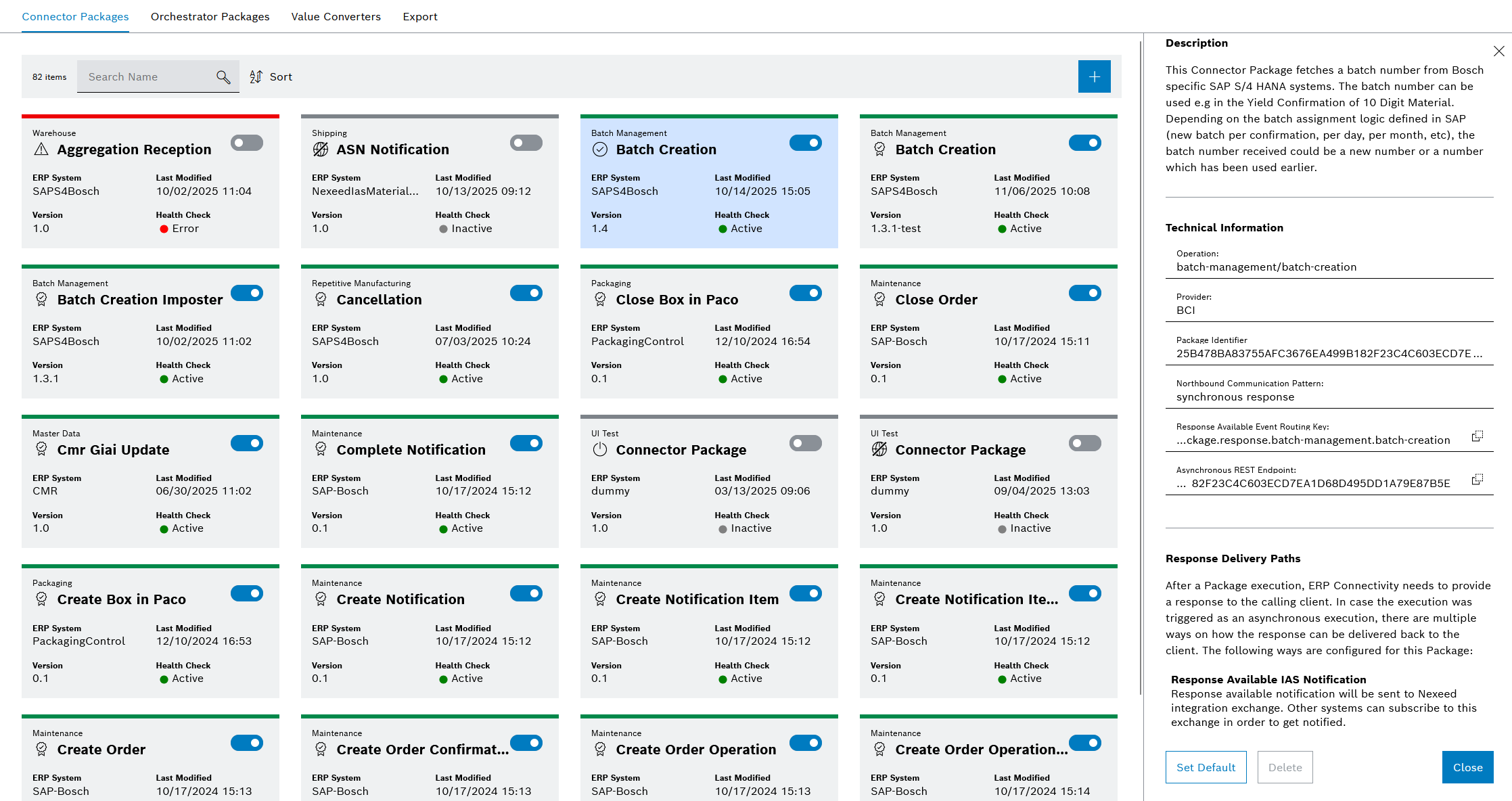
By unsetting the Default option of a package, its default endpoint will no longer be available.
Edit connector settings
Prerequisites
Editor or Power User role
Procedure
-
Go to the ERP Connectivity > Configuration menu.
-
Open the Connector Packages or Orchestrator Packages tab.
-
Click on a package.
-
Optional: Deactivate the package.
If the package is activated, the changes are applied directly. If there is a possibility that this could cause impairments, deactivate the package.
-
Open the Connector Settings tab in the detailed view.
-
Edit information.
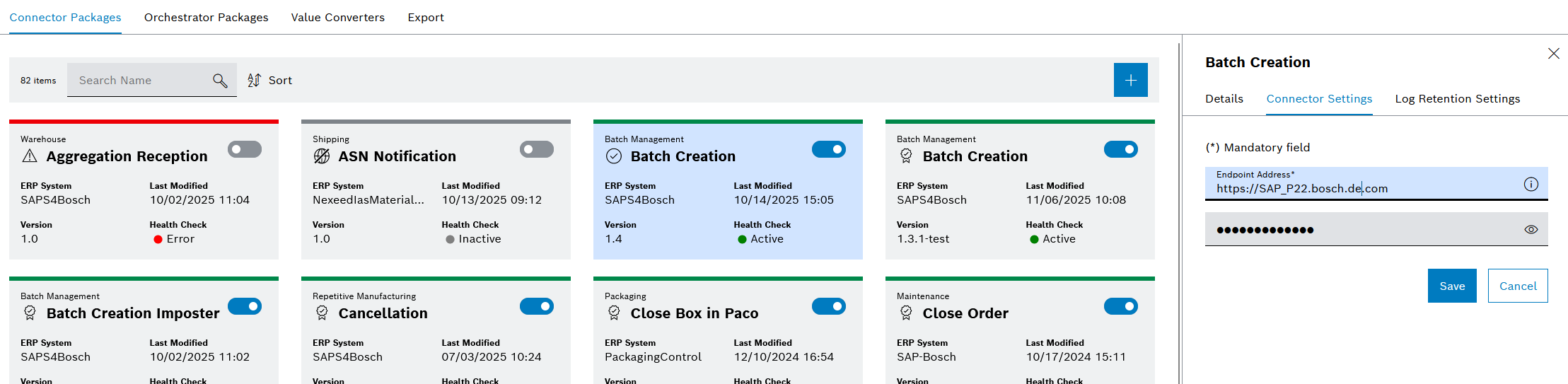
Depending on the respective package, the input fields can be automatically validated. Information about erroneous entries is displayed below the input fields.
-
Click Save.
The package is edited and becomes active with the changes.
Edit package-specific parameters
A package can have a set of use-case-specific parameters that are normally distinct for the individual package.
|
Not all packages have configurable parameter settings, so this option is not available for all packages. |
Prerequisites
Editor or Power User role
Procedure
-
Go to the ERP Connectivity > Configuration menu.
-
Open the Connector Packages or Orchestrator Packages tab.
-
Click on a package.
-
Open the Parameter Settings tab in the detailed view.
-
Configure the respective parameters
-
Click Save.
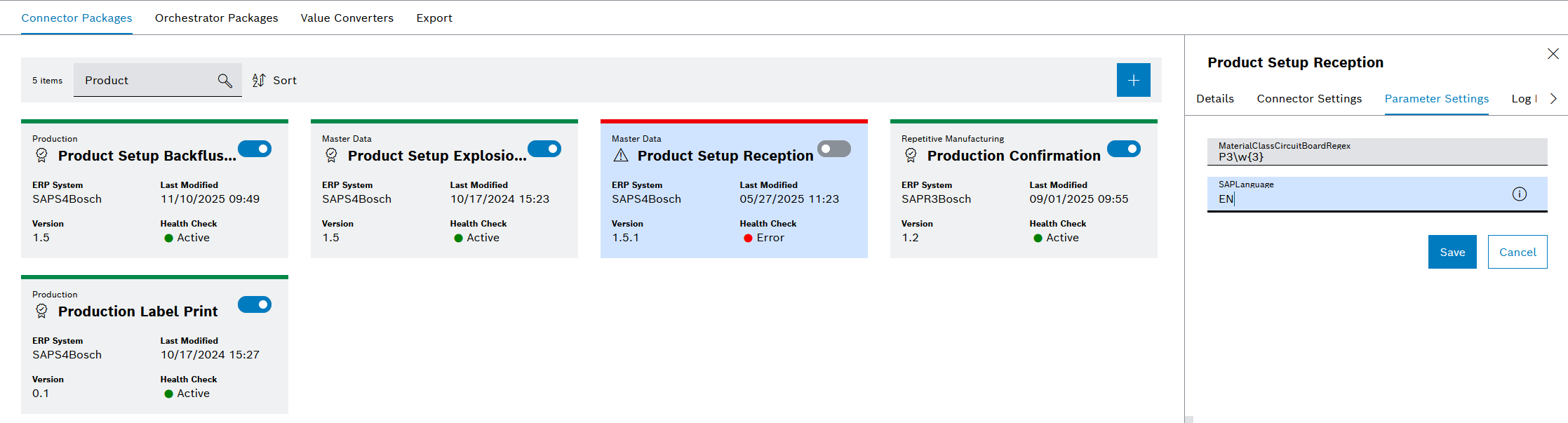
The package’s parameters are configured.
Configure the retry behavior
In case the execution of a package fails, it can be automatically retried.
|
In order to adjust these configurations, the package must support it, so this option is not available for all packages. |
Prerequisites
Editor or Power User role
Procedure
-
Go to the ERP Connectivity > Configuration menu.
-
Open the Connector Packages or Orchestrator Packages tab.
-
Click on a package.
-
Open the Retry Settings tab in the detailed view.
-
Edit the values for automatic message retries:
-
Number of automatic message retries
-
Enable / disable automatic message retries
-
Delay time between retries
-
-
Click Save.
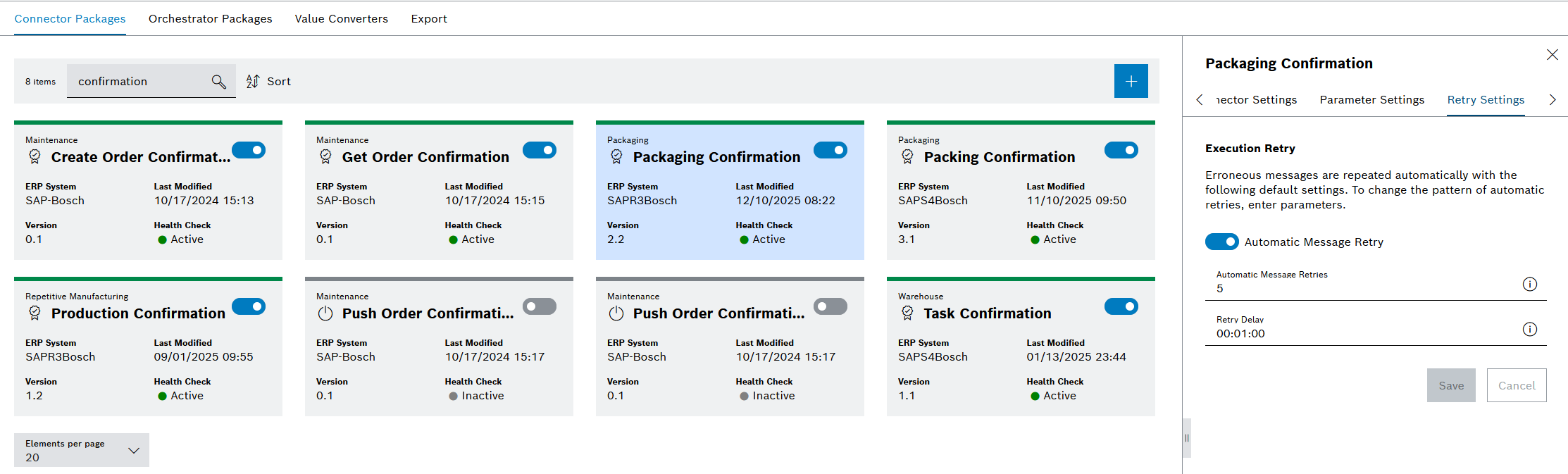
The package is automatically retried.
Configure the log retention policy
By default, the logs generated by a package are only stored for a certain time. This section describes how this retention period can be changed.
Prerequisites
Editor or Power User role
Procedure
-
Go to the ERP Connectivity > Configuration menu.
-
Open the Connector Packages or Orchestrator Packages tab.
-
Click on a package.
-
Open the Log Retention Settings tab in the detailed view.
-
Edit the retention settings:
-
Use the default retention time of 30 days.
-
Store the logs indefinitely.
-
Configure a custom retention time, e.g., 10 days.
-
-
Click Save.
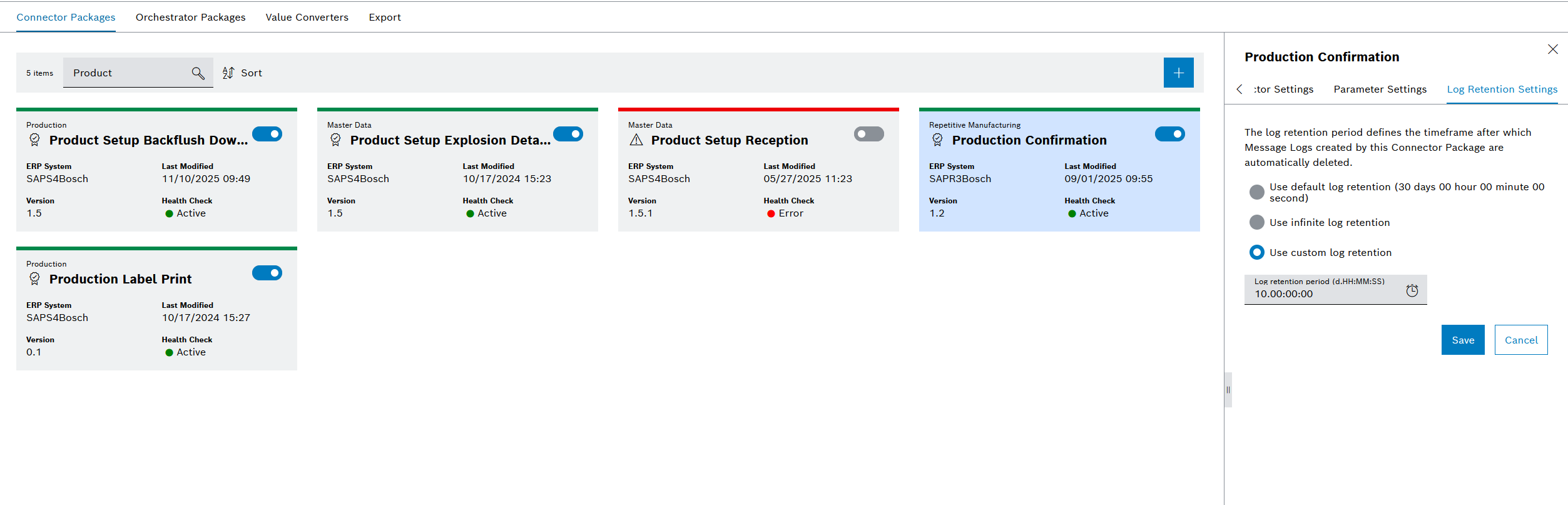
The logs generated by this package are now retained according to the configuration.
View the required operations of an Orchestrator Package
In order to fulfill its business case, normally an Orchestrator Package relies on the availability of one or more Connector Packages that provide certain operations to the orchestration.
|
This view is only available for Orchestrator Packages. |
Procedure
-
Go to the ERP Connectivity > Configuration menu.
-
Open the Orchestrator Packages tab.
-
Click on a package.
-
Open the Process tab in the detailed view.
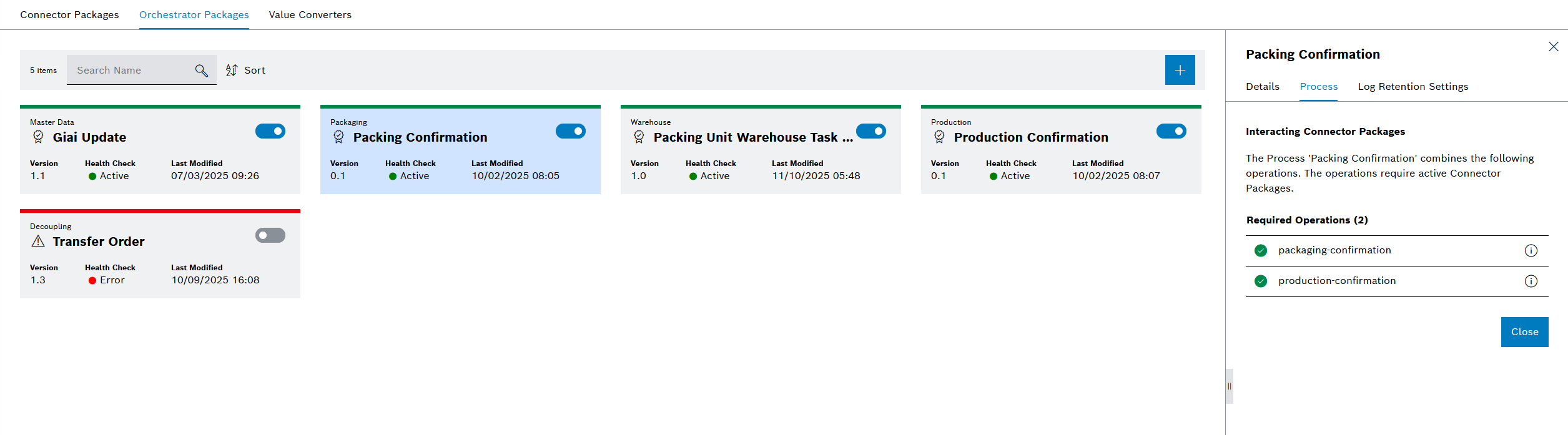
A list of required operations and their availability is shown.
Delete a package
Prerequisites
Power User role
|
A package cannot be deleted if it is active. Additionally, a Connector Package cannot be deleted if it is part of an active orchestration. |
Procedure
-
Go to the ERP Connectivity > Configuration menu.
-
Open the Connector Packages or Orchestrator Packages tab.
-
Click on a package.
-
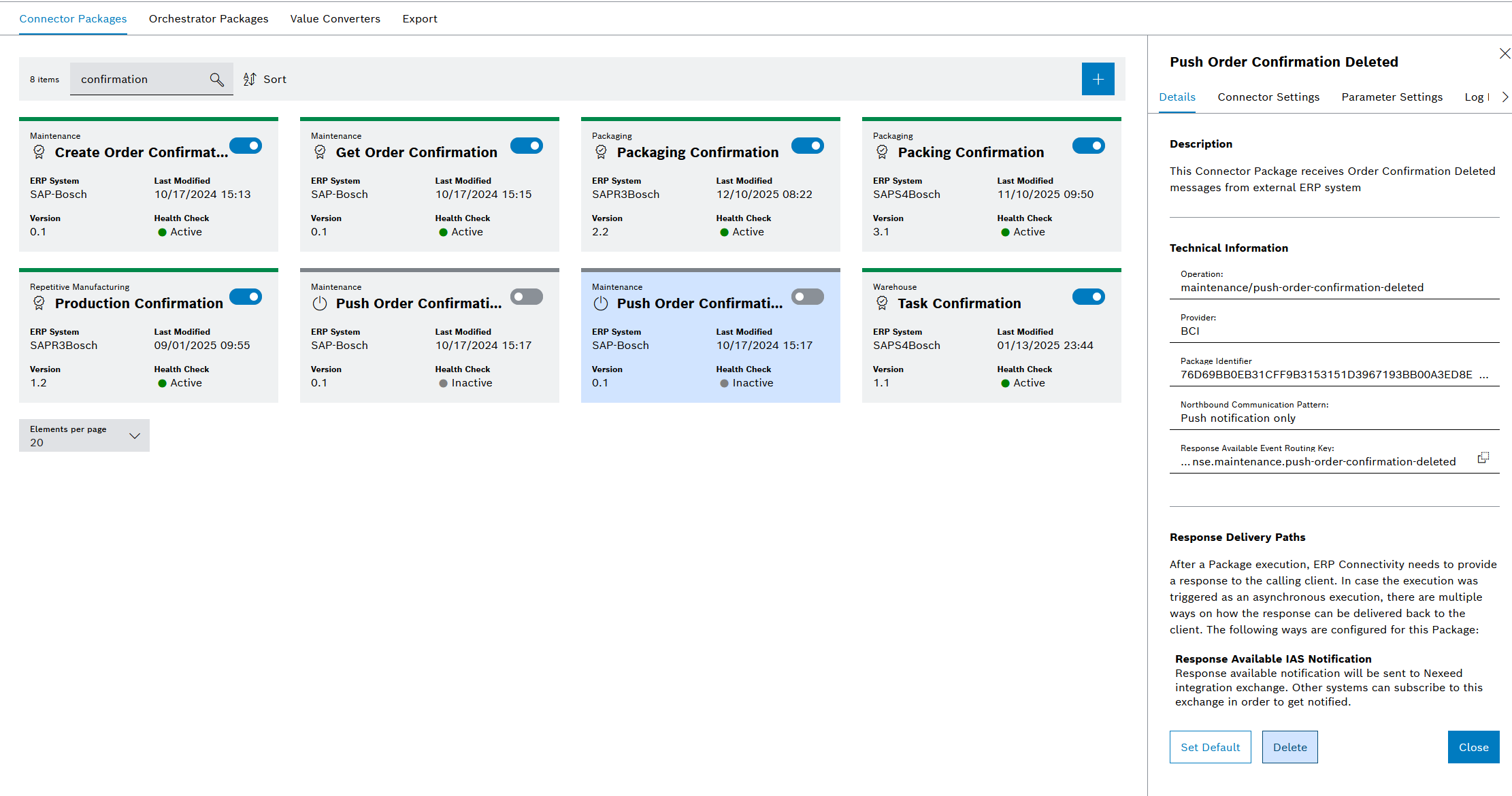
Click Delete in the detailed view in the Details tab.
-
In the Delete Package dialog window, click Delete.
The package is deleted and is no longer displayed in the overview. The functionality is no longer available, not even for other modules that use it. All messages related to the functionality are also deleted.