Overview: Login Tab
In the Login tab, the user password for login can be changed or two-factor authentication can be set up for user login to the Nexeed Industrial Application System.
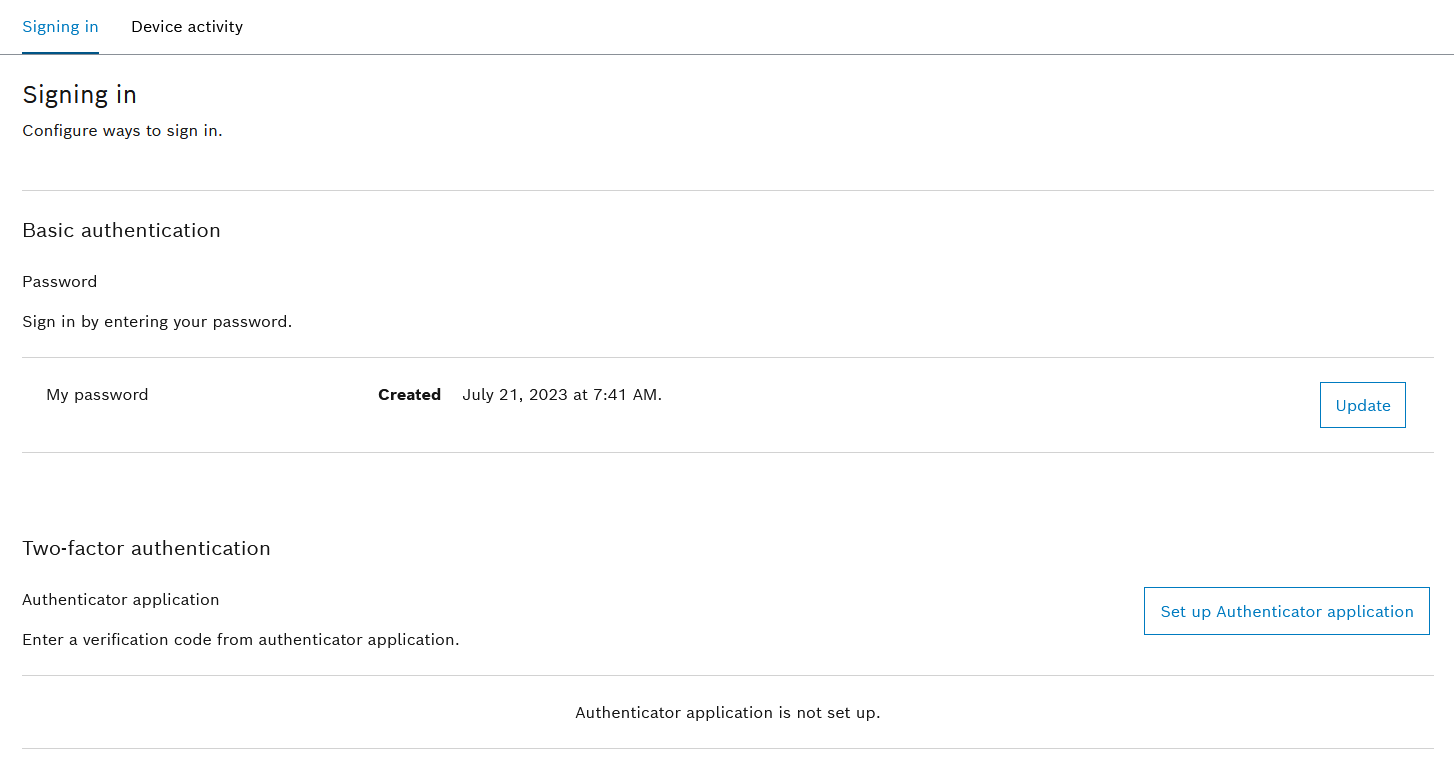
Change Password
Prerequisite
User role
Procedure
-
Call up the Multitenant Access Control > My Account > Login menu.
-
In the Basic Authentication area, click Update.
The Restart Login dialog for user re-authentication appears.
-
Enter user password.
-
Use Sign In to perform user re-authentication.
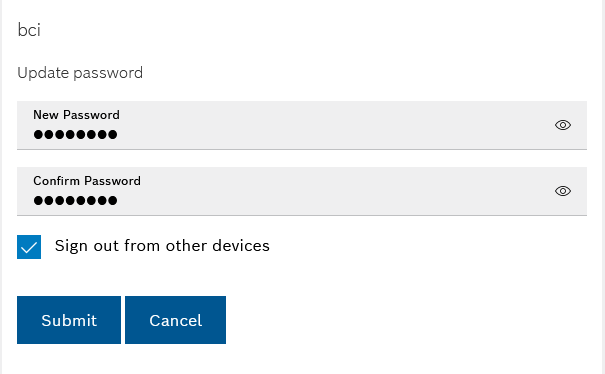
The Update Password dialog appears.
-
Enter the new password twice.
-
Use the
 checkbox to specify whether the user is to be logged off from all other active devices/sessions after saving the new password.
 -
Click Submit.
The new password is accepted and the dialog is closed.
Set Up Two-Factor Authentication
Two-factor authentication is used to protect user accounts and should at least be set up to protect highly privileged accounts.
Prerequisite
The user has a mobile phone with one of the three authentication applications:
-
Microsoft Authenticator
-
Google Authenticator
-
FreeOTP
Procedure
-
Go to My Account > Login.
-
In the Two-Factor Authentication area, click Set Up Authenticator Application.
The Mobile Authenticator Setup dialog appears.
-
Follow the instructions on the screen and generate a one-time password using one of the three authentication applications.
-
Enter the one-time password and device name.
Enter a unique designation as the device name, e.g. the name of the mobile telephone or the authentication application.
-
Click Submit.
Two-factor authentication is set up.
-
Log out of the system Log Out User.
The request using two-factor authentication and a one-time password takes place as an additional step during the next login to the Nexeed Industrial Application System with the user name and password.