Nexeed
    • Introduction
    • User manual
      • Line Overview
      • Part Count View
        • Configuration Part Count View
      • Part Count Chart
      • Incident map
      • Information Screens
        • Visitor Info
        • Visitor Info Compressed
        • Break View
      • Process Escalation
      • Terminal selection
      • Configuration Overview
        • General Configuration
        • Terminals Configuration
          • Adding a Terminal
          • Editing a terminal
        • Incident Map Configuration
        • Process Escalation Configuration
        • Audio Settings
          • Upload Audio Files
      • Additional information
        • Automatically switch views in the browser
          • Configure Revolver-Tabs
        • Custom KPIs
        • Font size control via URL
    • Operations manual
    • API documentation
      • HTTP API
      • Event API
    • Glossary
Andon Live
  • Industrial Application System
  • Core Services
    • Block Management
    • Deviation Processor
    • ID Builder
    • Multitenant Access Control
    • Notification Service
    • Ticket Management
    • Web Portal
  • Shopfloor Management
    • Andon Live
    • Global Production Overview
    • KPI Reporting
    • Operational Routines
    • Shift Book
    • Shopfloor Management Administration
  • Product & Quality
    • Product Setup Management
    • Part Traceability
    • Process Quality
    • Setup Specs
  • Execution
    • Line Control
    • Material Management
    • Order Management
    • Packaging Control
    • Rework Control
  • Intralogistics
    • AGV Control Center
    • Stock Management
    • Transport Management
  • Machine & Equipment
    • Condition Monitoring
    • Device Portal
    • Maintenance Management
    • Tool Management
  • Enterprise & Shopfloor Integration
    • Archiving Bridge
    • Data Publisher
    • Engineering UI
    • ERP Connectivity
    • Gateway
    • Information Router
    • Master Data Management
    • Orchestrator

Nexeed Learning Portal

  • Andon Live
  • User manual
  • Part Count View
  • Configuration Part Count View
preview 2026.01.00

Configuration Part Count View

Part count view can be configured based on the specific needs of the users. The overall configuration can be changed only by admin users and is saved once per terminal. The individual configuration (font size) can be changed by all users and is saved per user.

Prerequisite

  • Andon Live UI Admin role for content configuration

  • Andon Live UI User role for font size configuration.

Procedure

  1. Open the Shopfloor Management > Andon Live > Part Count View menu entry.

  2. Click on settings_iconin the top right corner.

    The Part Count View opens in configuration mode.
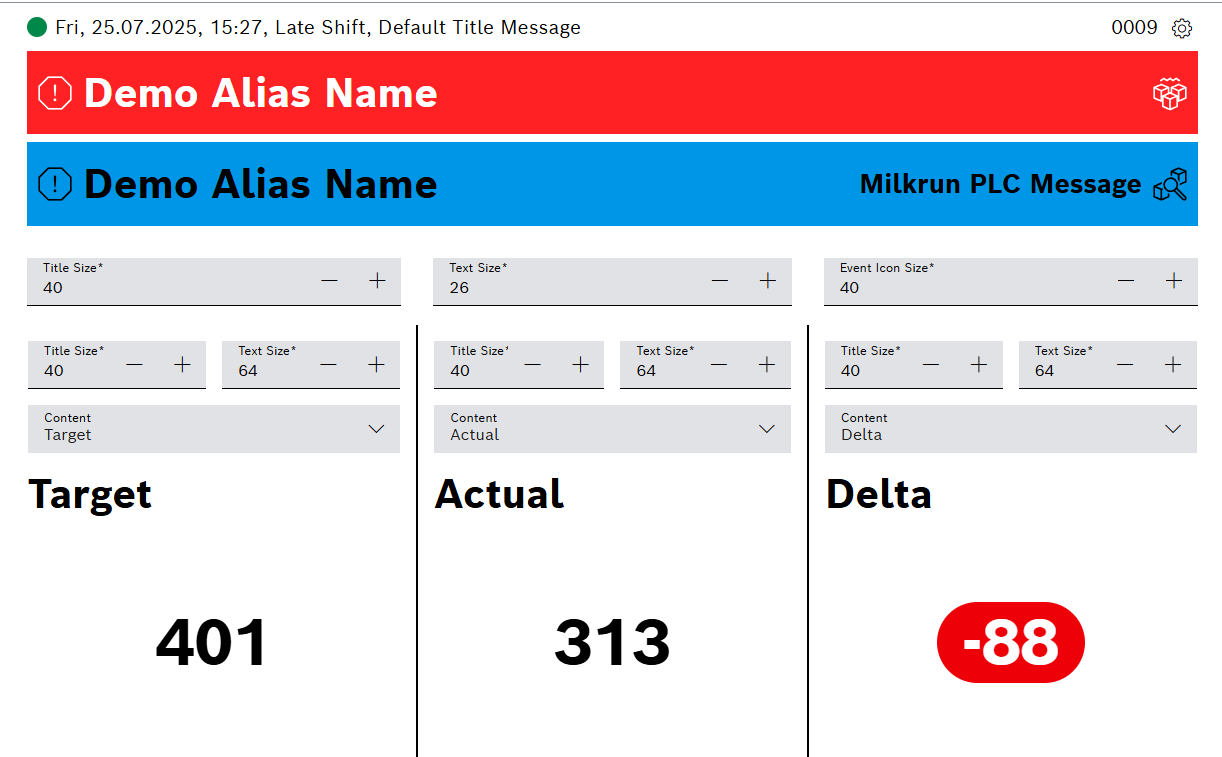
    Part Count View Configuration

    The red and blue messages are example messages for configuration purpose. The layout depends on the setting Station Name in Edit terminal

  3. Configure the font size for the red/blue message.

    1. Title Size: First Icon and Station name / Station number

    2. Text Size: Additional text on the right side

    3. Event Icon Size: Size of the right side icons (parts missing / jam)

  4. Configure the font size for the data squares. Each square can be configured individually.

    1. Title Size: Name of the KPI

    2. Text Size: Value of the KPI

  5. Configure the Content (shown KPIs) of the data squares.

    The settings are applied to all users of the currently selected terminal.

  6. Click on settings_icon.

    The Part Count View Configuration is saved, and the user redirected to Part Count View.

Contents

© Robert Bosch Manufacturing Solutions GmbH 2023-2025, all rights reserved

Changelog Corporate information Legal notice Data protection notice Third party licenses