Diese Seite ist nur auf Englisch verfügbar.
Configuring Web Portal colors and browser tab
Configure the Web Portal appearance including colors, branding, browser tab title, and favicon from the Skinning tab.
Requirements
Web Portal Admin role
Configuring Web Portal colors
Open the Skinning settings and configure Web Portal colors, branding, and menu icons using the color selector.
-
Click Skinning on the Web Portal configuration page.
-
In the Global settings section, configure whether the default Nexeed branding or a User-defined branding should be used.
Select Use user-defined branding to configure the Web Portal colors.

-
Upload a logo in the Menu settings section to be displayed in the upper left corner of the menu. Click the color selector to configure the colors for menus, menu items, texts, etc.
The changes are immediately displayed in Web Portal but are not saved until Apply is clicked.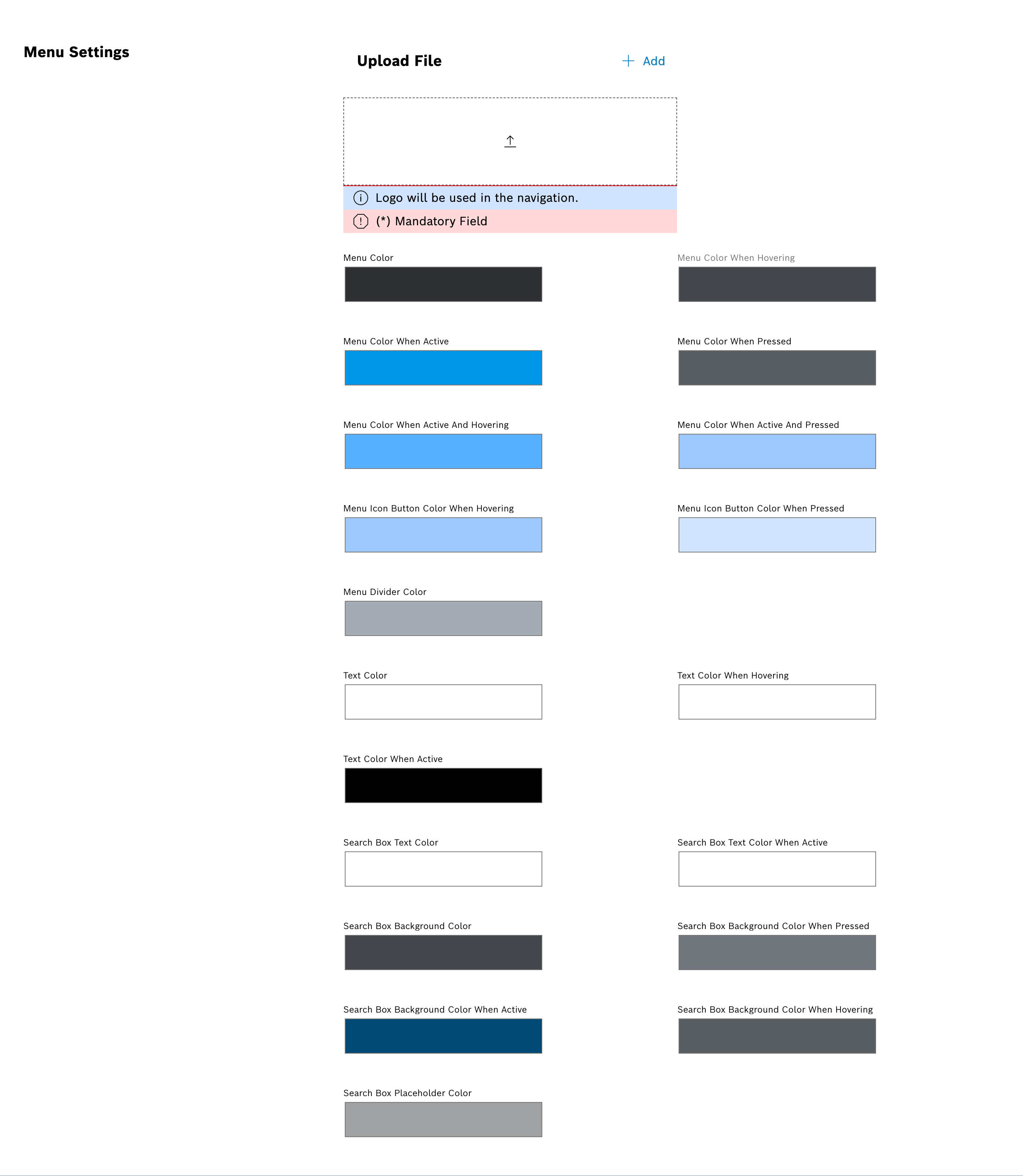
-
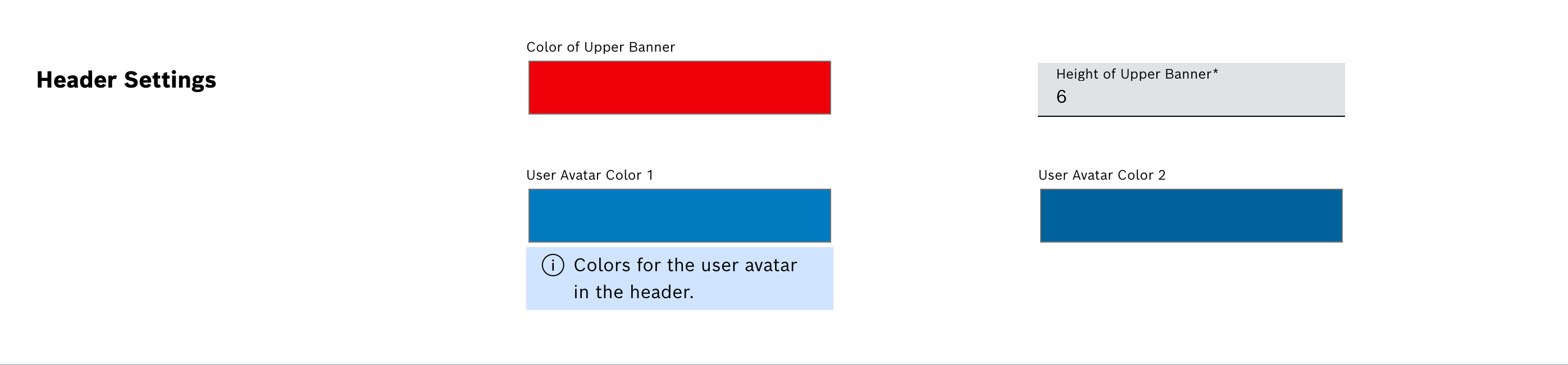
In the Header settings section, configure the color and height of the upper banner as well as the colors for the user avatars using a color selector.
-
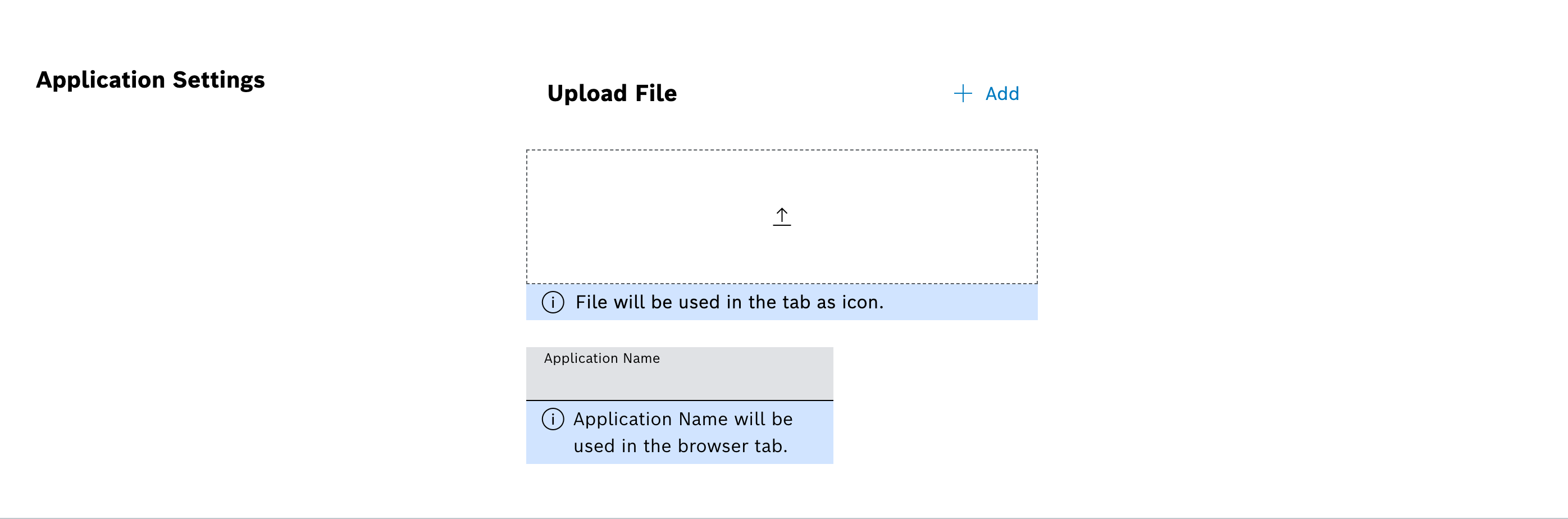
In the Application settings section, upload a file to be used as icon for the browser tab (favicon) and enter an application name as title for the browser tab.
-
To accept the changes, click Apply theme.
The Web Portal is displayed with the changed settings. It may take a few minutes for the changes to be visible to all users.
Configuring browser tab title and icon (favicon)
The browser tab title and favicon can be customized to match your organization’s branding. When users open Web Portal in their browser, they will see the configured title and icon in the browser tab.
Procedure
-
Click Skinning on the Web Portal configuration page.
-
In the Application settings section, click on the file upload field to upload a custom favicon.
The system validates the file to ensure it is in a typical browser favicon format.
-
Enter the application title as title for the browser tab.
The title is limited to 30 characters. When empty, only the name of the current page is shown in the browser tab.
-
To revert to the default settings, clear the application title field and remove the custom favicon.
-
To accept the changes, click Apply.
The custom browser tab title and favicon are displayed for all users of the organization. It may take a few minutes for the changes to be visible to all users.
|
The favicon should be in ICO format and optimized for display at 16x16 or 32x32 pixels. |