SOT
    • Introduction
    • Release notes
      • Breaking changes
    • User manual
      • Introduction
      • Navigating Industrial Application System
        • Navigation menu
        • Header
        • Managing favorite menu entries
      • Dashboards
        • Creating a dashboard space
        • Sharing a dashboard space
        • Creating a dashboard
        • Editing a dashboard
        • Applying dashboard filters and templates
        • Marking dashboards as favorites
        • Adding Web Portal widgets
      • User profile
      • Support
      • User help
      • Screen display modes
      • System information
      • System Settings
        • Footer and Privacy
        • Skinning
        • Navigation Menu
    • Operations manual
      • Overview
      • System architecture and interfaces
      • System requirements
        • portal/coreservice
      • Migration from previous versions
        • From 5.24 to 5.25
        • From 5.23 to 5.24
        • From 5.22 to 5.23
        • IAS 2025.01.00 (Portal 5.20)
        • From 5.15 to 5.16
        • Helm job for database migration (>5.15)
        • From 5.14 to 5.15
        • From 5.13 to 5.14
        • From 5.12 to 5.13
        • From 5.11 to 5.12
        • From 5.10 to 5.11
        • From 5.9 to 5.10
        • From 5.8 to 5.9
        • From 5.7 to 5.8
        • From 5.6 to 5.7
        • From 5.5 to 5.6
        • From 5.3 to 5.4
        • From 5.1 to 5.2
        • Resource mapping from MES to IAS
      • Setup and configuration
        • Permission and roles
        • Support section
        • Training & documentation section
        • Legal information and footer section
        • Cookies
        • Secure configuration
        • Configuration of sections in menu
        • API documentation - footer configuration
        • Environment variables
          • Global variables
          • portal/coreservice
          • portal/systemtests
          • Application variables exposed in Helm chart
      • Start and shutdown
        • Startup dependencies
        • Background tasks
        • Health and availability APIs
      • Regular operations
        • Removing / deregister / unregister a module
        • User data deletion
      • 09_failure_handling/index.adoc
      • Backup and Restore
      • Logging and monitoring
      • Known limitations
    • Developer documentation
      • Concepts
        • General
        • Navigation
        • Dashboard
        • Cross-module communication
        • Documents
        • Security
        • Limitations
      • How to…​
        • register your module & views
        • implement context contribution
        • develop a Web Portal-compatible frontend
        • use the iframe integration library
        • build widgets
        • check the integration status
        • improve UI performance
      • Troubleshooting
    • API documentation
    • Glossary
Web Portal
  • Smart Operations Toolkit
    • Deviation Processor
    • Multitenant Access Control
    • Notification Service
    • Ticket Management
    • Web Portal
  • Shopfloor Management
    • Andon Live
    • KPI Reporting
    • Operational Routines
    • Shift Book
    • Shopfloor Management Administration
  • Product & Quality
    • Process Quality
    • AI Services
  • Machine & Equipment
    • Condition Monitoring
    • Device Portal
  • Enterprise & Shopfloor Integration
    • Information Router
    • Master Data Management

SOT Learning Portal

  • Web Portal
  • User manual
  • Screen display modes

Screen display modes

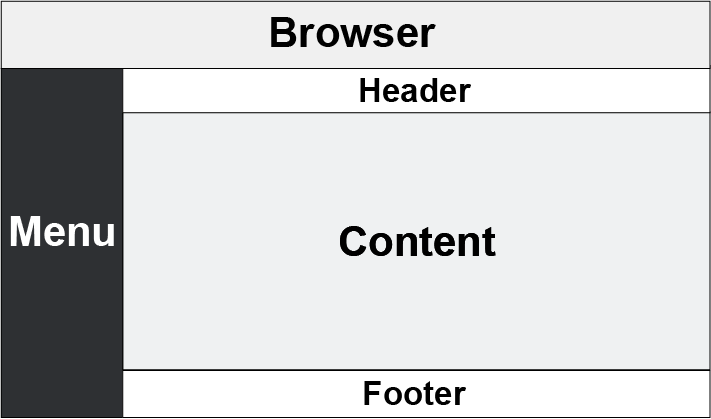
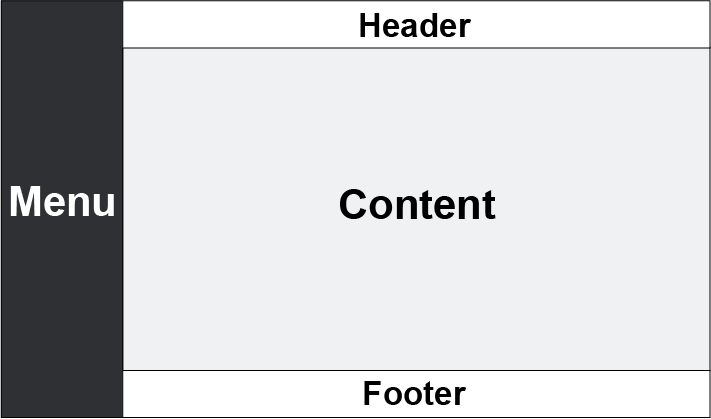
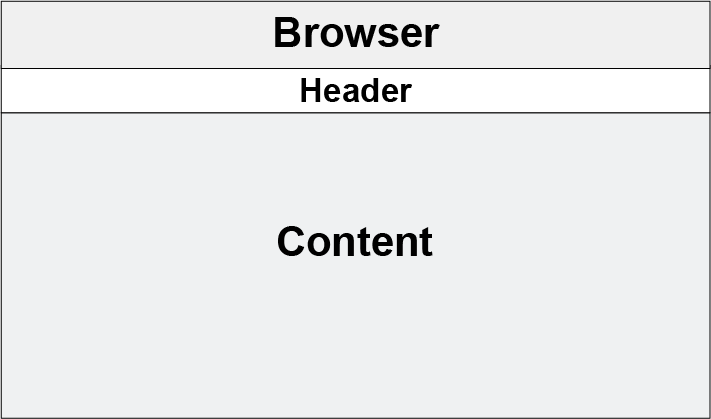
The Web Portal offers the option of setting various display modes for Nexeed Industrial Application System. The side menu, header and footer are displayed in the default view. The side menu can be shown or hidden in the default view.

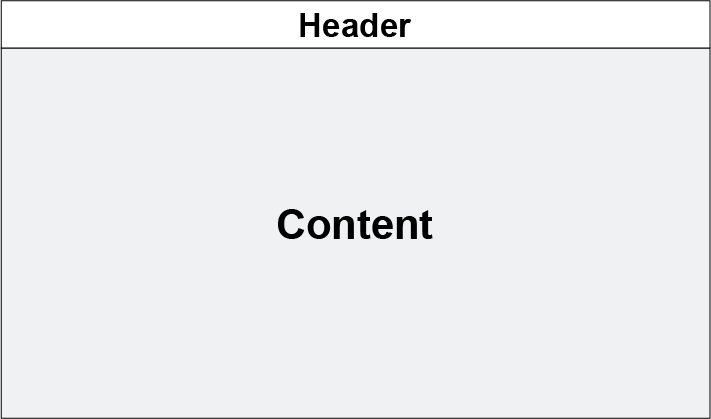
In the maximized view, the content within the browser window is maximized. The menu and footer are hidden to enable this.

Both views can be combined with the full-screen mode of the browser (F11).

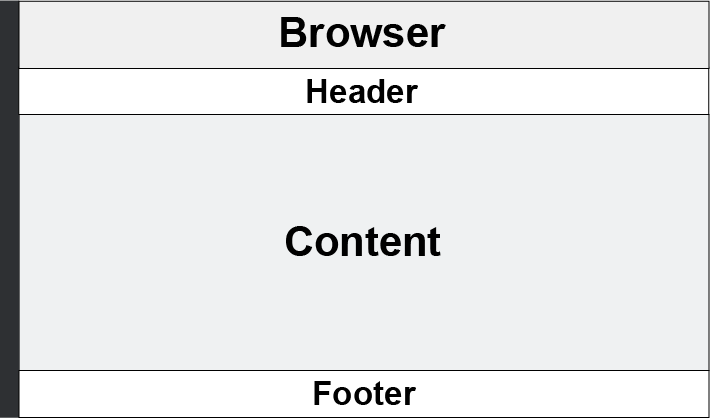
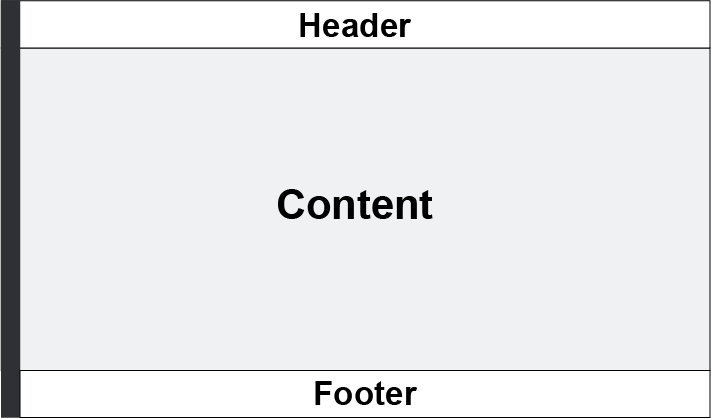
The maximized view and the default view with hidden menu are displayed as parameters in the URL. If the URL is saved as a bookmark when the view is maximized or when the menu is hidden, Nexeed Industrial Application System starts with the saved view when this URL is opened.

The table shows the various display options as well as their means of activation and deactivation.

Presentation Mode Function
mdm_layout_standard

Default view

mdm_layout_fullscreen

Default view in full-screen mode (browser)

  • Activate mode: F11

  • Deactivate mode: F11

mdm_standard menu small

Default view with hidden menu

  • Hide menu:

  • Show menu:

mdm_layout_menu small

Default view with hidden menu in full-screen mode (browser)

  • Activate mode: + F11

  • Deactivate mode: + F11

Layout Fullscreen maximised

Maximized view

  • Activate mode:

  • Deactivate mode:

mdm_layout_maximised fullscreen

Maximized view in full-screen mode (browser)

  • Activate mode: + F11

  • Deactivate mode: + F11

Contents

© Robert Bosch Manufacturing Solutions GmbH 2023-2026, all rights reserved

Changelog Corporate information Legal notice Data protection notice Third party licenses