SOT
    • Introduction
    • User manual
      • Line Overview
      • Part Count View
        • Configuration Part Count View
      • Part Count Chart
      • Incident map
      • Information Screens
        • Visitor Info
        • Visitor Info Compressed
        • Break View
      • Process Escalation
      • Terminal selection
      • Configuration Overview
        • General Configuration
        • Terminals Configuration
          • Adding a Terminal
          • Editing a terminal
        • Incident Map Configuration
        • Process Escalation Configuration
          • Configure a line for the first time
          • Edit line configuration
          • Add, edit, copy, delete error patterns
        • Audio Settings
          • Upload Audio Files
      • Additional information
        • Automatically switch views in the browser
          • Configure Revolver-Tabs
        • Custom KPIs
        • Font size control via URL
    • Operations manual
    • API documentation
      • HTTP API
      • Event API
    • Glossary
Andon Live
  • Smart Operations Toolkit
    • Deviation Processor
    • Multitenant Access Control
    • Notification Service
    • Ticket Management
    • Web Portal
  • Shopfloor Management
    • Andon Live
    • KPI Reporting
    • Operational Routines
    • Shift Book
    • Shopfloor Management Administration
  • Product & Quality
    • Process Quality
    • AI Services
  • Machine & Equipment
    • Condition Monitoring
    • Device Portal
  • Enterprise & Shopfloor Integration
    • Information Router
    • Master Data Management

SOT Learning Portal

  • Andon Live
  • User manual
  • Configuration Overview
  • Incident Map Configuration

Incident Map Configuration

Configuration of station areas of a production line for the Incident Map view.
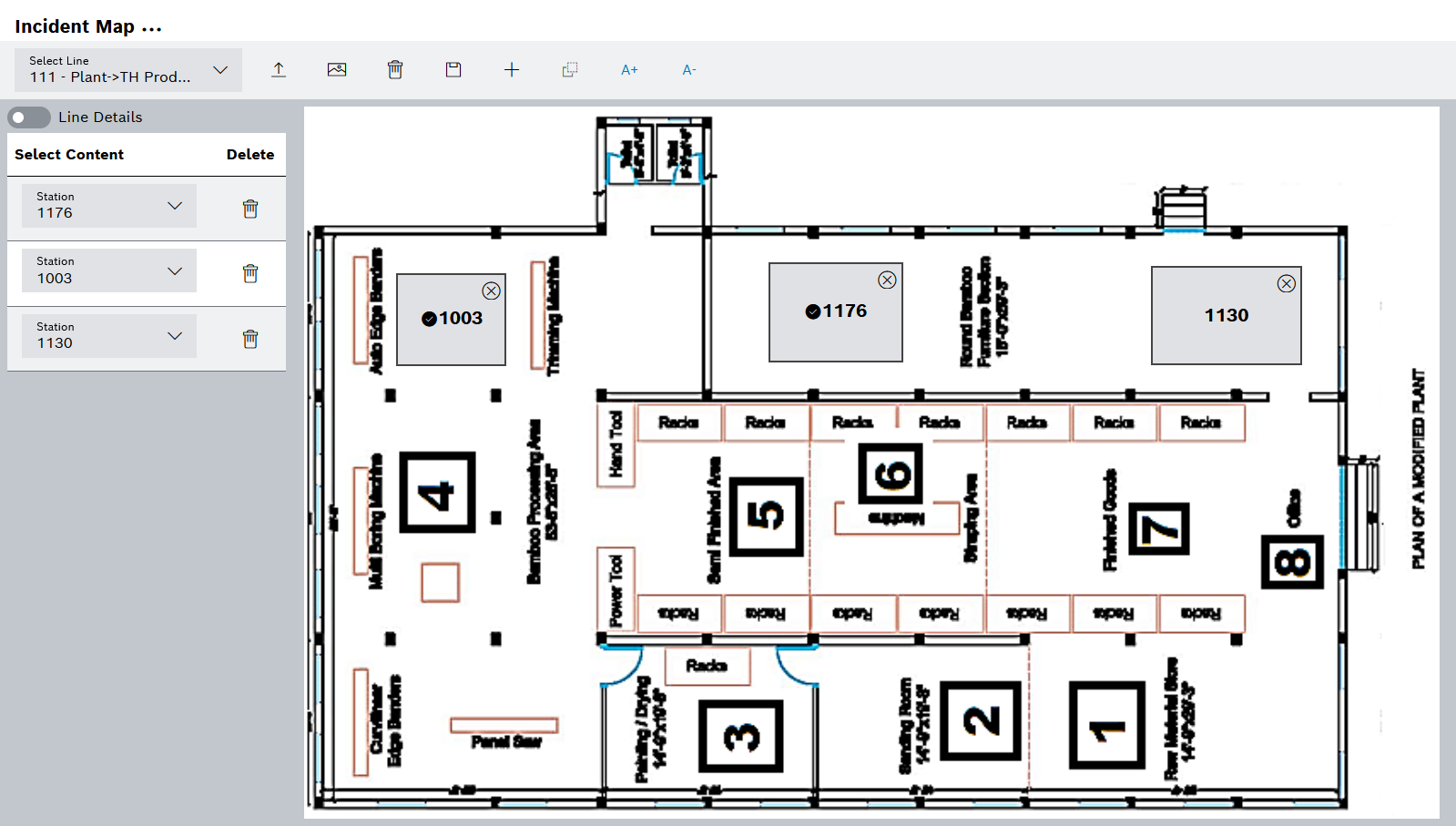
andonlive_incidentmap_config
Element Description

Select Line

Select production line

upload

Upload line layout (background image)

An image should not be larger than 3 MB. Larger files can cause timeouts or misrepresentations (depending on PC performance, network connection, and service utilization).

delete

Delete line layout (background image):

Delete either the background image only or the background image and all rectangles. Deleting only the background will replace the previous image with a white area.

imagery

Add a white background

save

Save settings

add_black

Add rectangle:

A rectangle acts as a placeholder that can be connected to a station number. The new rectangle appears as a blue rectangle in the upper left corner of the layout area and as a new column in the table next to the line layout. Drag and drop the rectangle to position it.

mdm_copy_icon

Copy rectangle with the same dimension as the selected rectangle

A+ / A-

Change the font size of the station numbers in the rectangles

Position

Move the rectangle using the mouse or the arrow keys on the keyboard

Width/Height

Change the size of a selected rectangle

The size of a rectangle can also be changed directly in the layout by dragging the corners of the selected rectangle.

Station / KPI

Select the station or the KPI, e.g. actual, delta, target or type number

switch-checked / switch-unchecked Line Details

Show/hide line details below the line layout

Configuring an Incident Map

Prerequisite

Andon Live UI Admin role

Procedure

  1. Open the Shopfloor Management > Andon Live > Configuration menu entry.

  2. In the Configuration click on Incident Map.

  3. Select the required line.

The Incident Map for a line is configured.

Contents

© Robert Bosch Manufacturing Solutions GmbH 2023-2026, all rights reserved

Changelog Corporate information Legal notice Data protection notice Third party licenses